
1. Product Overview
The DAREU AE7 Pro is a high-performance wireless gaming mouse designed for precision and comfort. It features a custom PAW3950 optical sensor, 8K polling rate, tri-mode connectivity, and an ergonomic right-handed design. The included charging dock provides convenient power and real-time status updates.
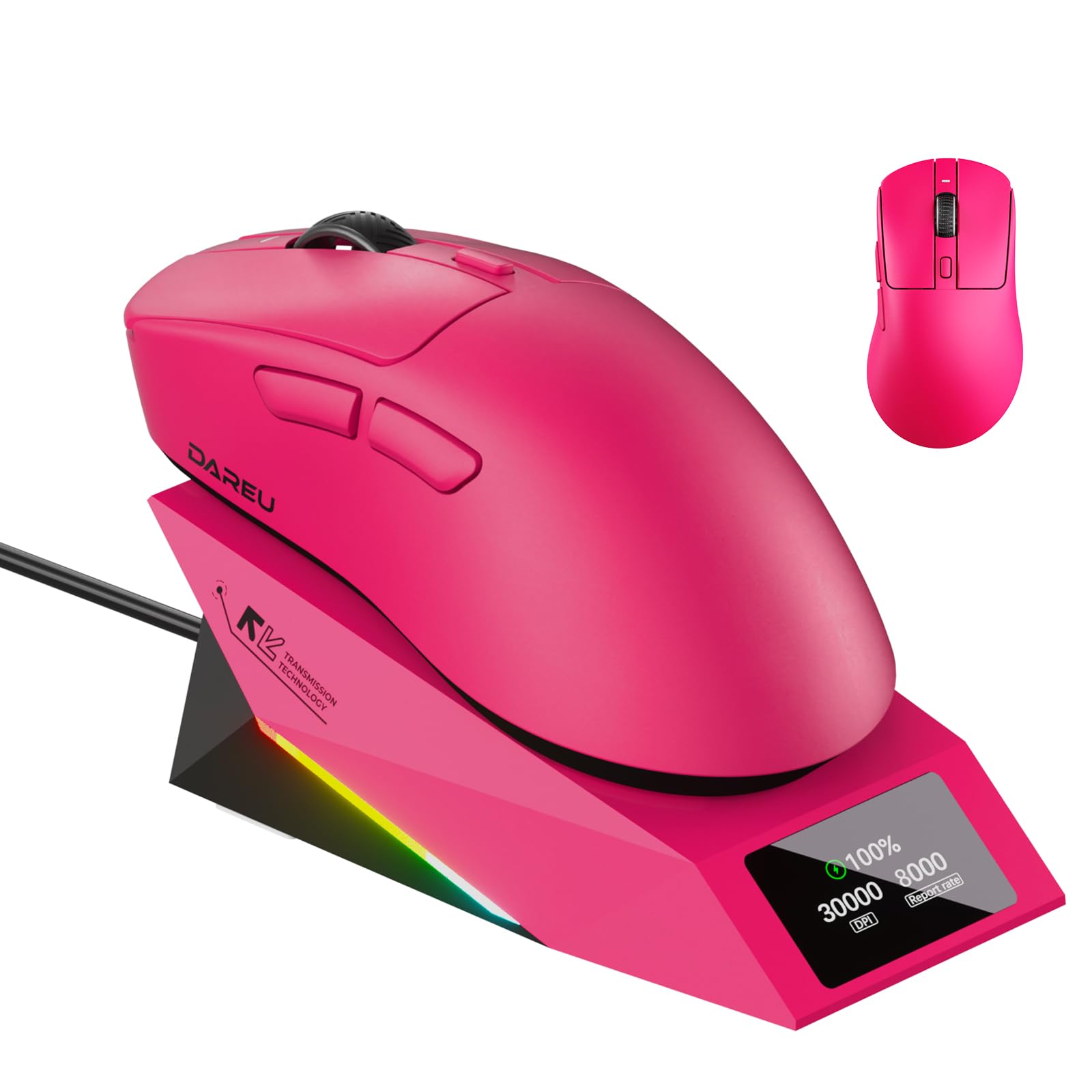
Image 1.1: DAREU AE7 Pro Wireless Gaming Mouse and Charging Dock.
2. Package Contents
Verify that all items are present in your package:
- DAREU AE7 Pro Wireless Gaming Mouse
- Charging Dock
- USB-C Cable
- English Manual
3. Setup Guide
3.1 Charging the Mouse
Before first use, fully charge the mouse. Place the mouse onto the charging dock. The magnetic connection will secure it. The TFT screen on the dock will display the battery level.

Image 3.1: The DAREU AE7 Pro mouse placed on its charging dock, displaying battery status.
3.2 Connecting via 2.4GHz Wireless
The charging dock also functions as the 2.4GHz wireless receiver. Connect the charging dock to your computer using the provided USB-C cable. Ensure the mouse is powered on and in 2.4GHz wireless mode (check the switch on the bottom of the mouse). The mouse should automatically connect.
3.3 Connecting via Bluetooth
To connect via Bluetooth, switch the mode selector on the bottom of the mouse to Bluetooth mode. On your computer or device, search for Bluetooth devices and select "DAREU AE7 Pro" to pair.
3.4 Connecting via Wired USB
You can use the mouse in wired mode by connecting the USB-C cable directly from the mouse to your computer. This also charges the mouse.

Image 3.2: Front view of the DAREU AE7 Pro mouse, showing the USB-C port for wired connection and charging.
3.5 Web Driver Access
For advanced customization of buttons, DPI stages, polling rate, and macros, access the DAREU web driver. This driver is compatible with both Windows and macOS systems and can be accessed via an internet connection for instant setup.

Image 3.3: Screenshot of the DAREU web driver interface for mouse customization.
4. Operation
4.1 Button Functions
The DAREU AE7 Pro features 6 programmable buttons: Left Click, Right Click, Scroll Wheel Click, DPI Cycle, Forward, and Backward. These can be customized using the web driver.
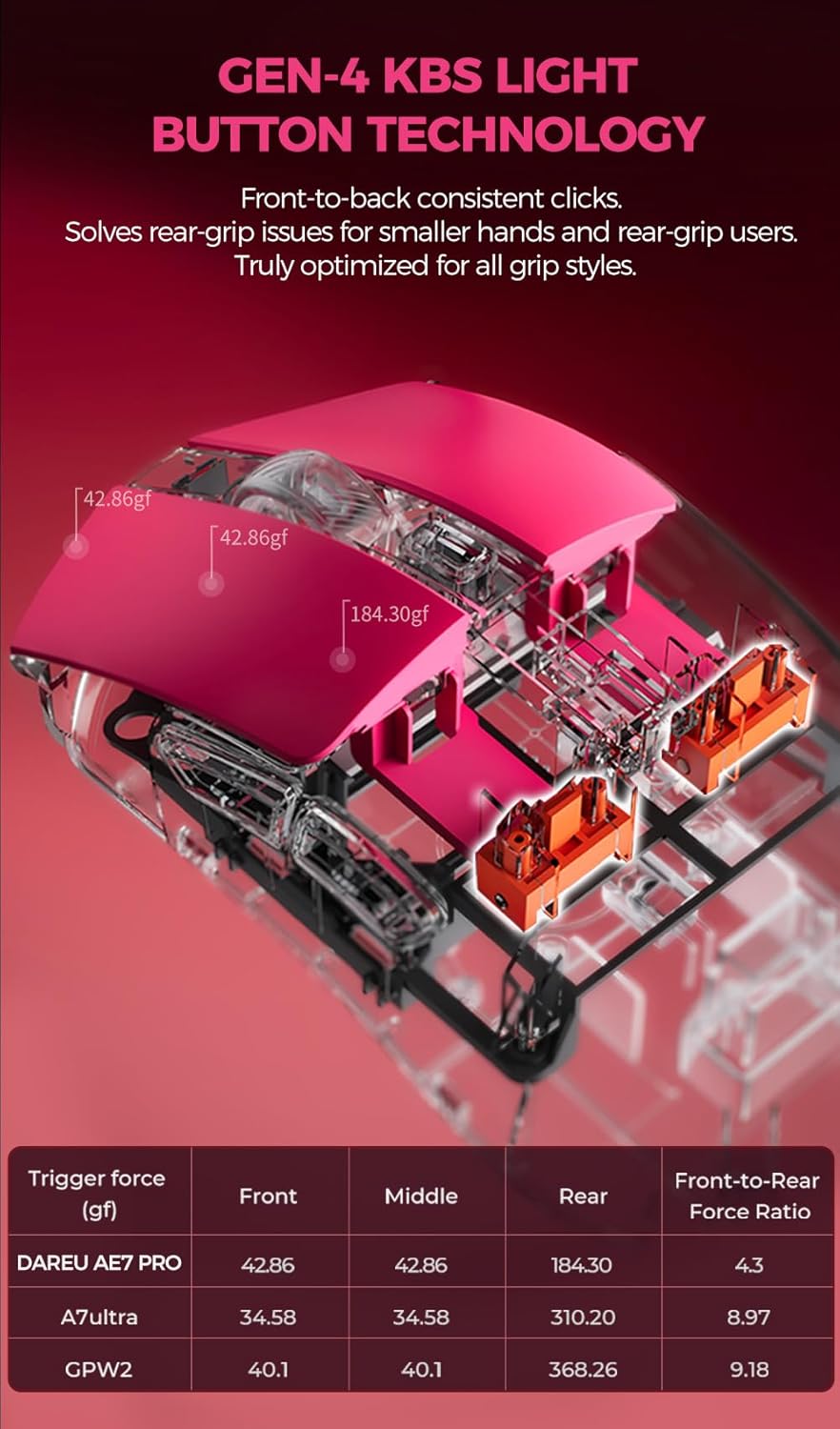
Image 4.1: Top view of the DAREU AE7 Pro mouse, highlighting the placement of its programmable buttons.
4.2 DPI Adjustment
The mouse supports up to 30,000 DPI. Use the dedicated DPI button on the mouse or the web driver to cycle through preset DPI stages or set custom values.
4.3 Polling Rate
The AE7 Pro features an 8,000Hz polling rate in both wired and 2.4GHz wireless modes, providing ultra-low latency. The polling rate can be adjusted via the web driver.

Image 4.2: The DAREU AE7 Pro mouse and its charging dock, emphasizing the 8K polling rate capability.
4.4 TFT Display on Charging Dock
The charging dock's TFT screen displays real-time information including battery level, current DPI setting, and polling rate.

Image 4.3: Close-up of the DAREU charging dock's TFT screen, showing real-time battery, DPI, and polling rate information.
4.5 Keel Structure and KBS Light Button Technology
The mouse incorporates an innovative Keel structure for enhanced durability and KBS Light Button Technology for consistent tactile feedback across the entire button surface, accommodating various grip styles.

Image 4.4: Diagram illustrating the internal Keel structure of the DAREU AE7 Pro mouse, designed for increased strength.

Image 4.5: Diagram detailing the KBS Light Button Technology, ensuring consistent click feel across the button surface.
4.6 Ergonomic Design and Excimer Coating
The mouse features an ergonomic right-handed design for comfortable use. The excimer coating provides enhanced sweat resistance, anti-slip properties, and scratch resistance.

Image 4.6: Side profile of the DAREU AE7 Pro mouse, showcasing its ergonomic design for right-handed users.

Image 4.7: Close-up view of the mouse surface, highlighting the UV excimer skin-like coating for improved grip and durability.
5. Maintenance
5.1 Cleaning
To clean the mouse, use a soft, dry cloth. For stubborn dirt, a slightly damp cloth with mild soap can be used, ensuring no liquid enters the mouse. Avoid harsh chemicals or abrasive materials.
5.2 Storage
When not in use, store the mouse on its charging dock or in a clean, dry environment away from extreme temperatures.
6. Troubleshooting
- Mouse not responding: Ensure the mouse is charged and powered on. Check the connectivity mode (2.4GHz, Bluetooth, or Wired) and ensure it matches your computer's connection. For 2.4GHz, ensure the charging dock/receiver is properly connected to the computer.
- Lag or disconnection: Move the charging dock closer to the mouse for 2.4GHz wireless. Ensure no strong interference sources (e.g., other wireless devices) are nearby. Update mouse firmware via the web driver if available.
- Charging issues: Ensure the mouse is correctly seated on the charging dock and the dock is powered. Check the USB-C cable connection.
- Buttons not working as expected: Access the web driver to verify button assignments and macros. Reset settings to default if necessary.
7. Specifications
| Feature | Detail |
|---|---|
| Brand | DAREU |
| Model Name | AE7 PRO |
| Connectivity Technology | USB, Bluetooth, 2.4GHz Wireless |
| Movement Detection Technology | Optical (Custom PAW3950 Sensor) |
| Mouse Maximum Sensitivity | 30000 DPI |
| Polling Rate | 8000Hz (Wired/Wireless) |
| Button Quantity | 6 Programmable Buttons |
| Hand Orientation | Right |
| Battery Average Life | 166 Hours |
| Item Weight | 62 Grams |
| Operating System Compatibility | Win 7/8/10/11, macOS, Android |
| Special Features | 8K polling, Charging dock, Excimer Coating, Keel structure, Right-hand Design |
8. Official Product Video
Video 8.1: An official DAREU video showcasing the AE7 Pro Dual 8K Wireless Gaming Mouse with its charging dock, demonstrating its features and design.
9. Warranty and Support
For warranty information and technical support, please refer to the DAREU official website or contact DAREU customer service. Keep your purchase receipt for warranty claims.


