Introduction
This manual provides detailed instructions for the setup, operation, and maintenance of your koyetubs GF11-M4 Mini GPS Tracker. This compact device is designed for real-time location tracking of vehicles, assets, or individuals, offering peace of mind without recurring subscription fees. Please read this manual thoroughly before using the device to ensure proper functionality and to maximize its benefits.
Product Overview
Key Features
- Real-Time GPS Tracking: Provides precise positioning and live location updates via a smartphone application.
- No Monthly Fees: Operates without subscription costs, requiring only a user-provided SIM card with data, SMS, and call capabilities.
- Compact & Portable Design: Small dimensions (1.1 x 1.1 x 0.53 inches) and lightweight (0.35 ounces) for discreet placement.
- Magnetic Attachment: Features a built-in magnet for easy and secure installation on metal surfaces.
- Advanced Anti-Theft Features: Includes vibration alerts, sound monitoring, and electronic fence notifications.
- Global GSM Compatibility: Ensures reliable service across various regions.
What's in the Box
- koyetubs GF11-M4 Mini GPS Tracker
- Charging Cable (USB)
- User Manual (this document)
- Note: A SIM card is NOT included and must be purchased separately.
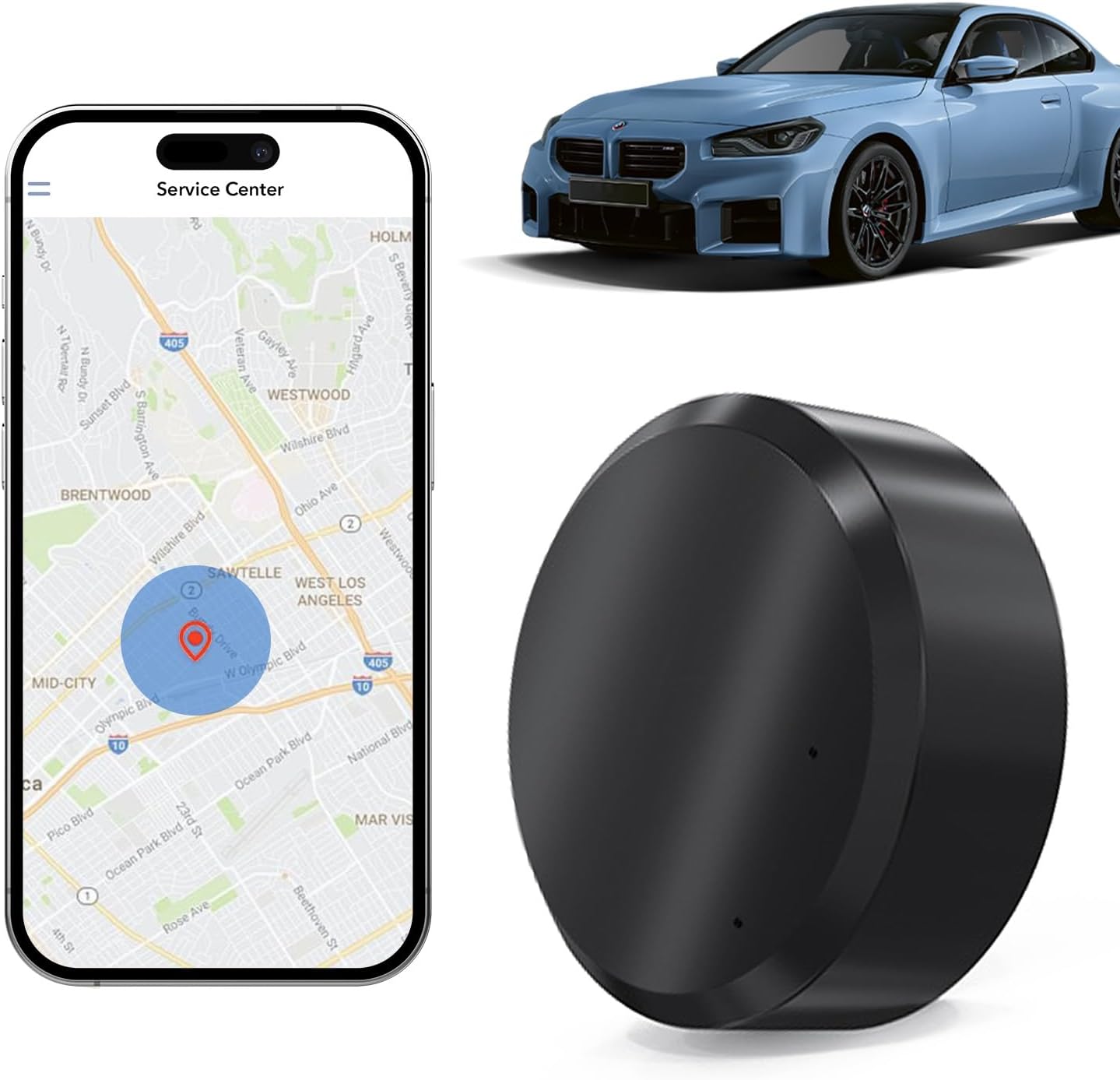
Image: The koyetubs GF11-M4 Mini GPS Tracker, shown alongside a smartphone displaying its tracking interface and a vehicle, highlighting its primary use.
Setup Instructions
- Charge the Device: Before first use, fully charge the GF11-M4 tracker using the provided USB cable. Connect the cable to the tracker and a standard USB power source. The charging indicator light will show the charging status.
- Obtain a SIM Card: Purchase a 2G GSM SIM card (standard size) from your local mobile carrier. Ensure the SIM card has active data, SMS, and call services. The SIM card should not have a PIN lock enabled.
- Insert SIM Card: Carefully open the SIM card slot cover on the tracker. Insert the activated SIM card into the slot with the metal contacts facing down and the notched corner oriented correctly. Close the cover securely.
- Power On: Press and hold the power button (if available, otherwise the device powers on automatically upon SIM insertion) until the indicator lights illuminate. The device will attempt to connect to the cellular network.
- Download the Tracking App: Search for the official tracking application (refer to packaging or included quick start guide for app name) on your smartphone's app store (iOS or Android) and install it.
- Register and Bind Device: Open the app, register a new account, and follow the in-app instructions to bind your GF11-M4 tracker to your account. This typically involves scanning a QR code on the device or entering its unique ID number.
- Placement: Place the tracker in your desired location. For vehicles, common discreet locations include under the seat, in the glove box, in the trunk, or attached to a metal surface using its built-in magnet. Ensure the device is not obstructed by heavy metal objects that could interfere with GPS or cellular signals.

Image: An illustrative diagram indicating optimal placement locations for the GF11-M4 tracker within a vehicle, such as under the seat, in the glove box, or in the trunk, utilizing its magnetic attachment.
Operating Instructions
Real-Time Tracking
- Open the tracking application on your smartphone.
- The app will display the current location of your GF11-M4 tracker on a map.
- Location updates can be configured within the app to intervals of 30 seconds, 1 minute, 5 minutes, or 10 minutes, depending on your preference and battery conservation needs.
Electronic Fence (Geofencing)
- Within the tracking app, navigate to the "Electronic Fence" or "Geofence" settings.
- Define a specific geographical area on the map.
- You will receive an alert notification on your smartphone whenever the tracker enters or exits this predefined area.
Vibration Alerts and Sound Monitoring
- The device can be configured to send alerts to your phone if it detects significant vibration, indicating potential tampering or movement.
- Some models may support remote sound monitoring, allowing you to listen to the surroundings of the tracker via the app. Refer to your app's features for availability.
Track Playback
- The app typically stores historical route data. You can access the "Track Playback" feature to review the device's movement history over a selected period.
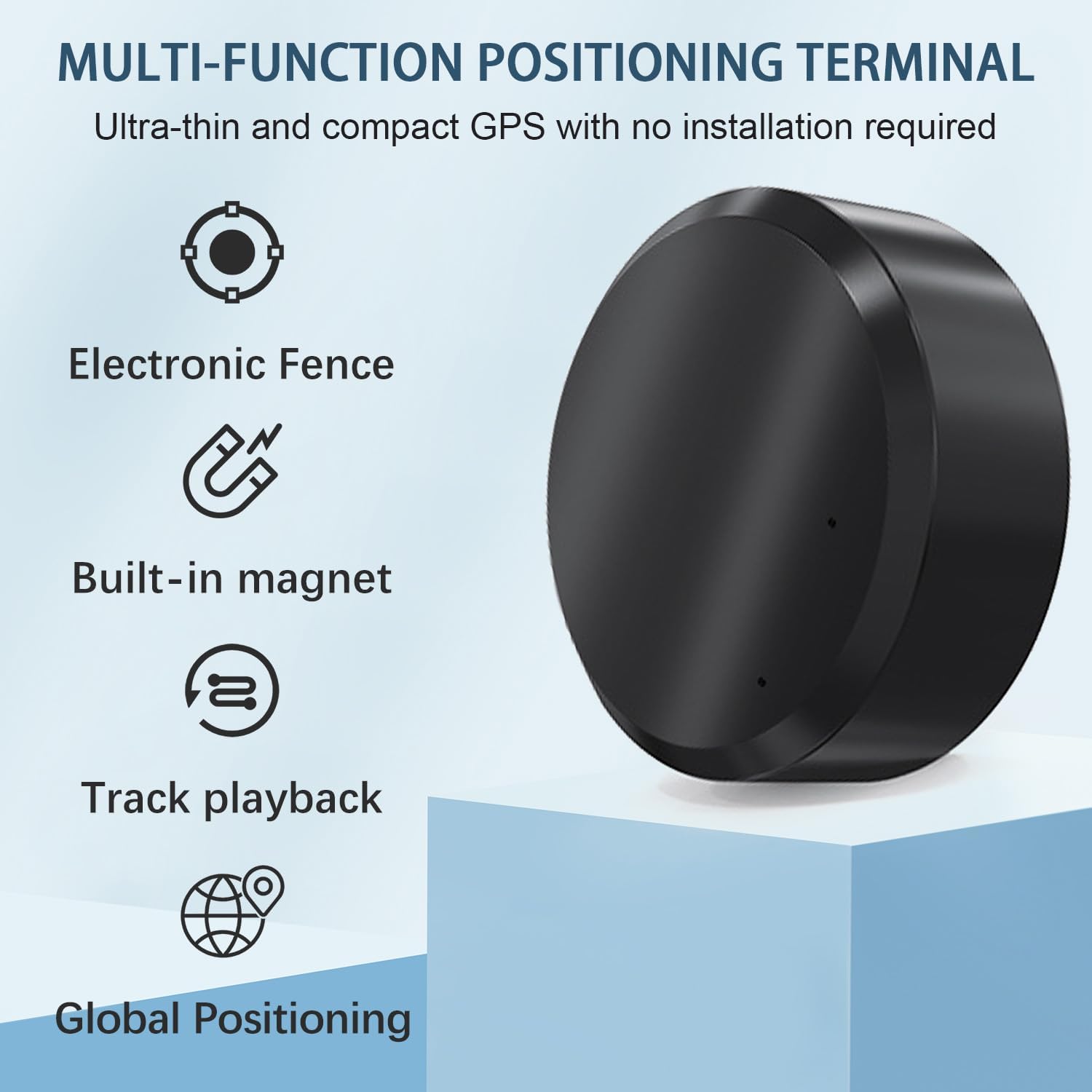
Image: A smartphone displaying the tracking application interface, showing the real-time location of the GF11-M4 tracker on a map, with a blue circle indicating its current position.
Maintenance
Battery Management
- The GF11-M4 is equipped with a Lithium Polymer battery. Monitor the battery level through the tracking application.
- Recharge the device when the battery level is low to ensure continuous operation. Battery life varies based on tracking frequency and signal strength.
- Use only the provided charging cable or a compatible USB charger.
SIM Card Care
- Ensure the SIM card remains active with sufficient data, SMS, and call credit for uninterrupted service.
- Periodically check the SIM card's status through your mobile carrier's services.
Cleaning and Storage
- Clean the device with a soft, dry cloth. Do not use liquid cleaners or solvents.
- Store the tracker in a cool, dry place when not in use. Avoid extreme temperatures and direct sunlight.
Troubleshooting
| Problem | Possible Cause | Solution |
|---|---|---|
| Tracker not showing online in app / No location updates. |
|
|
| Inaccurate location. |
|
|
| Battery drains quickly. |
|
|
Specifications
- Model: GF11-M4
- Brand: koyetubs
- Dimensions: 1.1 x 1.1 x 0.53 inches (28mm x 28mm x 14mm)
- Weight: Approximately 0.35 ounces (10g)
- Connectivity: GPS, GSM (2G)
- Battery: 1 Lithium Polymer battery (included)
- Color: Black
- Special Features: Real-time tracking, magnetic attachment, electronic fence, vibration alerts, sound monitoring.
- Operating Temperature: (Not specified, assume standard consumer electronics range)

Image: A visual representation of the GF11-M4 tracker's dimensions (28mm x 28mm x 14mm) and its approximate weight (10g), illustrating its compact size.
Warranty and Support
For warranty information, technical support, or further assistance with your koyetubs GF11-M4 Mini GPS Tracker, please refer to the contact details provided on the product packaging or the official koyetubs website. Ensure you have your product model number (GF11-M4) and purchase details available when contacting support.
For the most up-to-date information and frequently asked questions, please visit the manufacturer's support page.


