
1. Introduction and Overview
The AULA F106 PRO is a full-size wireless mechanical keyboard designed for versatile use, including gaming and productivity. It features a 104-key layout, tri-mode connectivity, hot-swappable switches, PBT keycaps, and an intelligent TFT color display screen with a multi-function knob for enhanced control.
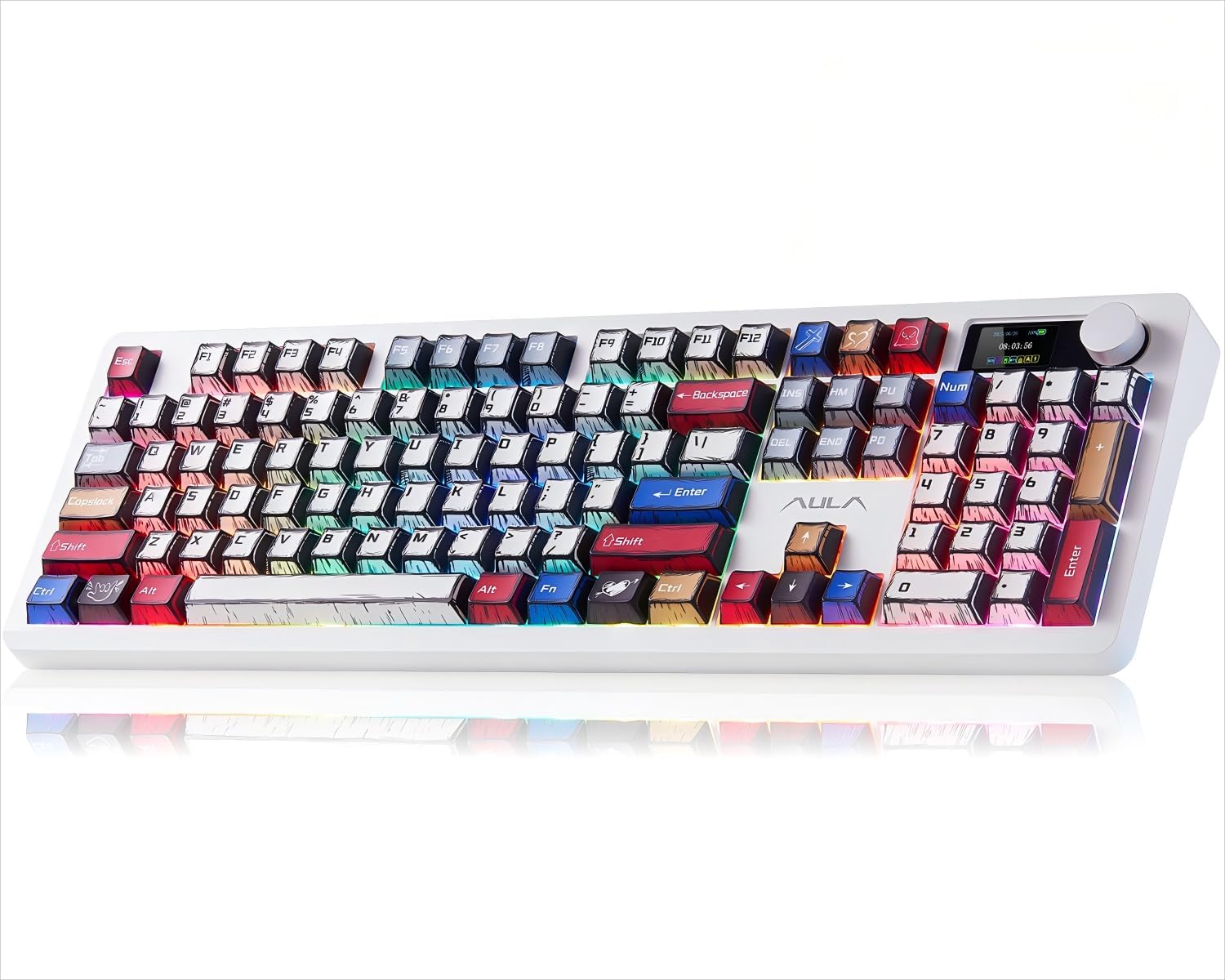
Image: AULA F106 PRO Wireless Mechanical Keyboard, showcasing its full layout and RGB backlighting.

Image: Overview of key features including BT5.0/2.4G/Wired connectivity, Gasket Structure, Pre-lubed Linear Switches, RGB Backlit, 8000mAh Battery, PBT Keycaps, Hot Swappable, and Full-Size Keyboard.
2. What's in the Box
- 1x AULA F106 PRO Mechanical Keyboard
- 1x USB Cable
- 1x Keycap/Switch Puller
- 4x Replacement Linear Switches
- 1x User Manual
3. Setup
3.1 Connectivity Modes
The AULA F106 PRO supports three connection modes: Bluetooth 5.0, 2.4GHz wireless, and USB-C wired. It can connect to up to five devices simultaneously.
- 2.4GHz Wireless: Insert the 2.4GHz USB receiver into your device. The keyboard will automatically connect.
- Bluetooth 5.0: Use the multi-function knob to select a Bluetooth channel (BT1, BT2, BT3). Activate Bluetooth on your device and pair with "AULA F106 PRO".
- USB-C Wired: Connect the keyboard to your device using the provided USB-C cable. This mode also charges the keyboard.
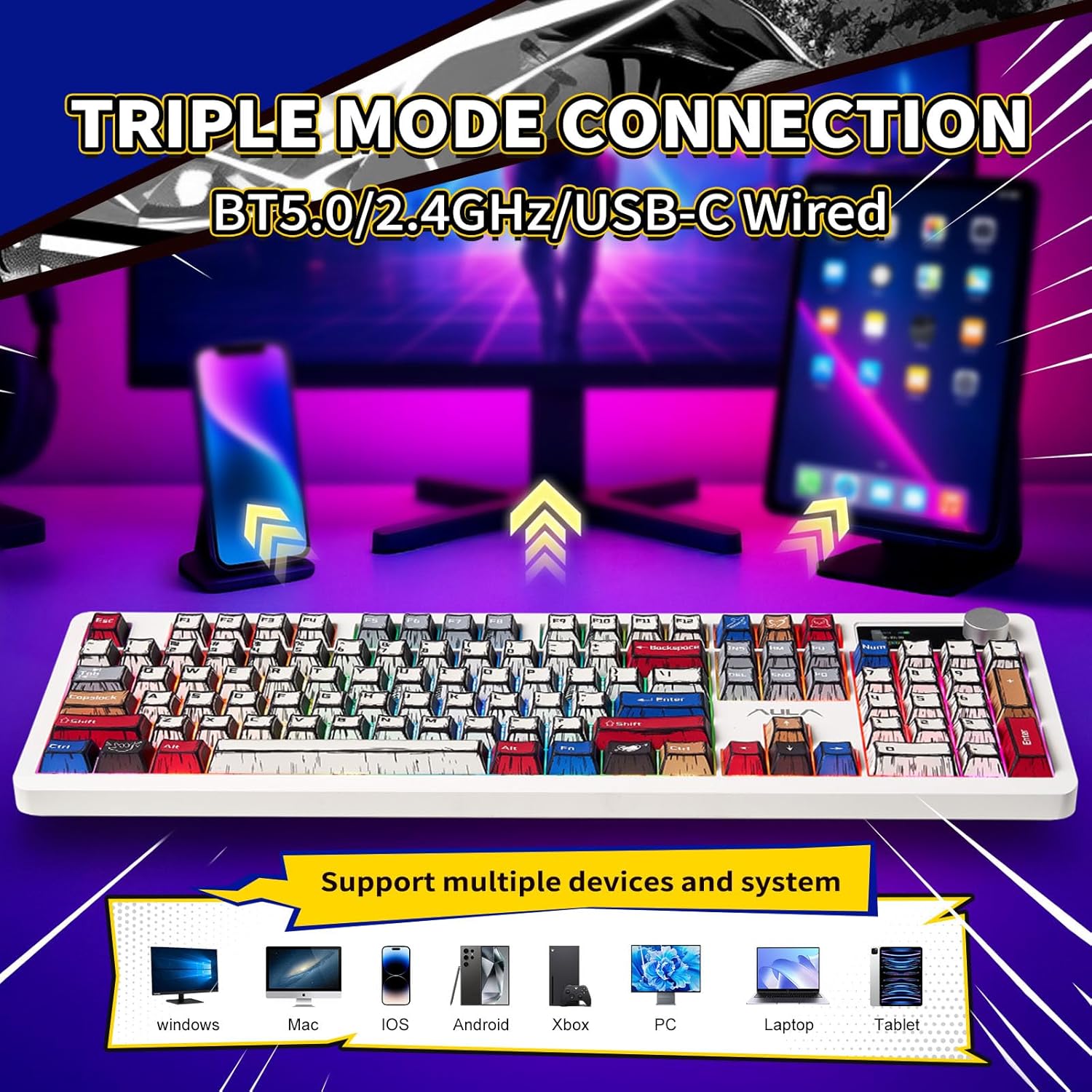
Image: Illustrates the three connection modes (Bluetooth, 2.4GHz, USB-C) and compatibility with various devices like PC, Laptop, Tablet, Xbox, Phone, Windows, Mac, iOS, and Android systems.

Image: Close-up of the side of the keyboard showing the ON/OFF switch, Type-C port, and USB receiver slot.
3.2 Charging the Keyboard
The keyboard is equipped with an 8000mAh rechargeable lithium battery. Connect the USB-C cable to the keyboard and a power source (e.g., computer USB port, wall adapter) to charge. The intelligent display screen will show the battery status.
- Battery life: Approximately 30+ hours with backlight ON, and 200+ hours with backlight OFF.

Image: Highlights the 8000mAh high-capacity battery and its estimated battery life with backlight on and off.
4. Operating Instructions
4.1 Intelligent Display Screen & Multi-function Knob
The built-in TFT color display screen and multi-function knob provide easy control over various keyboard settings.
- Knob Functionality: Rotate the knob to navigate through menus and adjust settings. Press the knob to confirm selections.
- Display Information: View date, time, battery status, connection mode, and current backlighting settings.
- Customization: Easily switch and update custom GIF images, adjust volume, and change backlighting effects directly from the screen.
- Note: For advanced customization, including custom GIF images, software download is required on a Windows system. The keyboard must be in wired mode during software configuration.
4.2 RGB Backlight Control
The keyboard features 16.8 million RGB colors with various lighting effects. Control these effects via the intelligent display screen or dedicated shortcut keys.
- Fn + ESC: Restore default settings.
- Fn + WIN-L: Lock/Unlock Windows key.
- Fn + TAB: Switch backlight color.
- Fn + \|: Switch backlighting effect.
- Fn + < / >: Switch RGB ambient light bar colors on both sides.
- Fn + Shift + R: Switch RGB ambient light bar mode.
- Fn + Ctrl + R: Cycle through RGB ambient light bar speeds on both sides.
- Fn + Alt + R: Switch the brightness of the RGB ambient light on both sides.

Image: Details the 16.8 million RGB backlight features and lists standard shortcut keys for controlling lighting effects and colors.
4.3 Hot-Swappable Switches and PBT Keycaps
The AULA F106 PRO features a hot-swappable PCB, allowing users to easily replace 3-pin or 5-pin switches without soldering. It comes equipped with pre-lubricated Blaze Switches for a smooth typing experience.
- Blaze Switch Specifications: Initial pressure: 28gf±5gf, Conductive pressure: 36gf±5gf, Bottom pressure: 45gf±5gf, Initial Travel: 1.8±0.1mm, Total Travel: 3.3±0.1mm, Mechanical life: approximately 100,000,000 times.
- PBT Keycaps: Made from high-quality PBT material using two-color injection molding, ensuring clear, wear-resistant, and oil-resistant characters that will not fade over time. The matte texture provides a comfortable touch.

Image: Illustrates the PCB Hot Swappable Socket (supports 3-pin/5-pin switches), Blaze Switch specifications, and Hot-Swappable PBT Keycaps.
4.4 Software Customization
For advanced customization options such as musical rhythm lighting effects, macro recording and editing, and custom shortcut keys, download the dedicated software. This software is primarily designed for Windows systems and requires a wired connection during use.

Image: Shows the keyboard on a desk with text indicating Driver Macro Customization, Musical rhythm lighting effect, 16.8 Million RGB backlight, Macro recording & editing, and Custom shortcut keys.
5. Maintenance
5.1 Keycap and Switch Replacement
Use the provided keycap/switch puller to carefully remove keycaps and switches. This allows for easy cleaning or replacement of individual components. Ensure the keyboard is powered off before performing maintenance.

Image: Close-up of PBT keycaps, highlighting their durable material.
5.2 Cleaning
Regular cleaning helps maintain the keyboard's performance and appearance. Use a soft brush or compressed air to remove dust and debris from between the keycaps. For deeper cleaning, remove keycaps and gently wipe the surface with a damp cloth. Avoid harsh chemicals.
6. Troubleshooting
- Keyboard not responding:
- Ensure the keyboard is powered on.
- Check the connection mode (2.4GHz, Bluetooth, or wired) and ensure it matches your device's connection.
- For wireless modes, ensure the battery is charged.
- Try reconnecting the USB receiver or re-pairing via Bluetooth.
- If using wired mode, ensure the USB-C cable is securely connected.
- Backlight not working or incorrect:
- Adjust brightness settings using the multi-function knob or shortcut keys.
- Ensure the keyboard is not in a low power state.
- Reset to default settings using Fn + ESC.
- Intelligent display screen issues:
- Ensure the keyboard is powered on and charged.
- If the display is dim, check brightness settings.
- If customization features are not working, ensure the keyboard is connected via USB-C to a Windows system with the software installed.
- Keys not registering or double-typing:
- Clean under the affected keycap.
- If the issue persists, consider replacing the switch using the provided spare switches and puller.
7. Specifications
| Model | AULA F106 PRO |
| Connectivity | Bluetooth 5.0, 2.4GHz Wireless, USB-C Wired |
| Layout | Full-size, 104 keys |
| Switches | Hot-swappable (3-pin/5-pin), Pre-lubricated Blaze Switches |
| Keycaps | PBT, Two-color injection molding |
| Backlight | RGB (16.8 million colors) |
| Battery Capacity | 8000mAh |
| Battery Life (approx.) | 30+ hours (backlight ON), 200+ hours (backlight OFF) |
| Product Dimensions | 17.52 x 5.63 x 1.71 inches |
| Item Weight | 3.52 pounds |
| Compatible Devices | PC, Laptop, Tablet, Xbox, Phone |
| Supported OS | Windows, Mac, iOS, Android |

Image: Exploded view diagram of the keyboard's gasket structure, detailing internal components like the multi-function knob, ON/OFF switch, Type-C interface, 2.4G receiver, keyboard frame, PBT keycaps, Blaze Switch, PP/FR4 positioning plate, Poron foam, PET pad, switch socket, PCBA pad, Poron base foam, Botton silicone base pad, and keyboard bottom case.

Image: Close-up of the keyboard's two-stage adjustable kickstand for ergonomic positioning.
8. Warranty and Support
This product comes with a standard manufacturer's warranty. For warranty claims, technical support, or further assistance, please contact AULA customer service through their official website or the retailer where the product was purchased. Please retain your proof of purchase for warranty validation.


