
EDUP AX600M
EDUP USB WiFi 6 Adapter AX600M User Manual
Model: AX600M
Product Overview
The EDUP USB WiFi 6 Adapter AX600M is a compact, dual-band wireless network adapter designed to provide high-speed Wi-Fi 6 connectivity for your PC, laptop, or desktop. It supports the latest 802.11ax standard, offering enhanced performance for streaming, gaming, and video conferencing.

Image: The EDUP USB WiFi 6 Adapter AX600M, a compact black dongle with a gold USB connector and a blue Wi-Fi signal icon.
Key Features:
- Next-Gen WiFi 6 Speed: Up to 286Mbps on 5.8GHz and 286Mbps on 2.4GHz for smooth performance.
- Compact Design: Built-in antenna, ideal for portable use and tight spaces.
- Plug & Play: Easy driver installation, compatible with Windows 11/10/7.
- Enhanced Security: Supports WEP, WPA-PSK, WPA2-PSK, and WPA3-PSK encryption.
- Versatile Modes: Supports Ad-Hoc and Infrastructure modes.
Package Contents
Verify that all items are present in your package:
- 1x EDUP WiFi Adapter (AX600M)
If any items are missing or damaged, please contact customer support.
Setup Guide
Follow these steps to install and set up your EDUP USB WiFi 6 Adapter AX600M:
- Step 1: Insert the WiFi Adapter
Insert the EDUP USB WiFi adapter into an available USB port on your desktop or laptop computer. Ensure it is fully seated in the port.
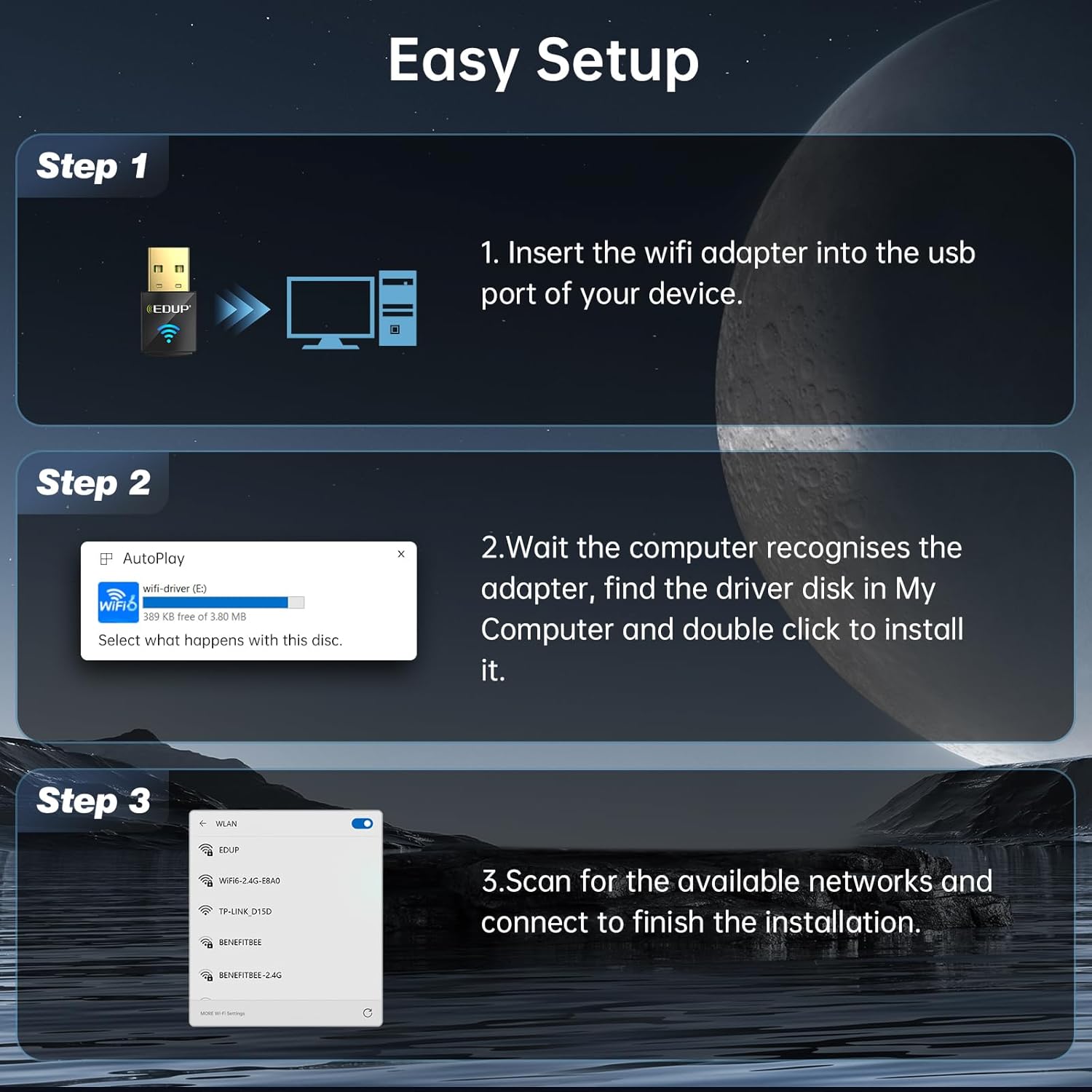
Image: Diagram showing the EDUP USB WiFi adapter being inserted into a computer's USB port.
- Step 2: Driver Installation
Most Windows 11/10/7 systems will automatically detect the adapter and install the necessary drivers. If an auto-play prompt appears, follow the on-screen instructions to install the driver from the adapter's virtual disk. If no prompt appears, navigate to "My Computer" or "This PC", locate the new drive (often labeled "wifi-driver" or similar), and double-click to run the installer.

Image: Screenshot of a Windows auto-play prompt for driver installation, indicating compatibility with Windows 7, 10, and 11.
- Step 3: Connect to a Network
Once the driver is installed, your computer will recognize the adapter. Scan for available wireless networks, select your desired network, and enter the password to connect. The adapter supports both 2.4GHz and 5GHz bands.

Image: Graphic illustrating the dual-band capabilities of the adapter, showing 5GHz (286Mbps) and 2.4GHz (286Mbps) coverage.
Operating Instructions
Wi-Fi Receive Mode
In Wi-Fi Receive Mode, the adapter allows your computer to connect to existing wireless networks, providing internet access and network connectivity. This is the primary mode of operation for most users.
Wi-Fi Hotspot Mode (Soft AP)
The adapter can also function as a Wi-Fi Hotspot (Soft AP), allowing your computer to share its internet connection with other devices. This is useful for creating a personal Wi-Fi network when only a wired connection is available on your computer.
- To enable Hotspot Mode, refer to your operating system's network settings (e.g., Mobile hotspot settings in Windows).
- Ensure your computer has an active internet connection (e.g., Ethernet) to share.

Image: Graphic illustrating the adapter's capability to function in both Wi-Fi Receive Mode (connecting to a network) and Wi-Fi Hotspot Mode (sharing internet).
MU-MIMO Technology
The EDUP AX600M adapter supports MU-MIMO (Multi-User, Multiple-Input, Multiple-Output) technology. When paired with a MU-MIMO compatible router, this technology allows the router to communicate with multiple devices simultaneously, improving network efficiency and reducing latency, especially in environments with many connected devices.

Image: Diagram comparing MU-MIMO router communication with the EP-AX600 adapter versus a regular adapter, showing improved simultaneous data flow.
Maintenance
To ensure optimal performance and longevity of your EDUP USB WiFi 6 Adapter AX600M, follow these simple maintenance guidelines:
- Keep Clean: Periodically clean the adapter's exterior with a soft, dry cloth. Avoid using liquid cleaners or solvents.
- Proper Storage: When not in use, store the adapter in a cool, dry place, away from direct sunlight and extreme temperatures.
- Avoid Physical Damage: Do not drop, bend, or expose the adapter to excessive force.
- Driver Updates: Regularly check for updated drivers on the EDUP official website to ensure compatibility and performance improvements.
Troubleshooting
If you encounter issues with your EDUP USB WiFi 6 Adapter AX600M, refer to the following common troubleshooting steps:
| Problem | Possible Solution |
|---|---|
| Adapter not detected by computer. |
|
| Cannot connect to Wi-Fi network. |
|
| Slow Wi-Fi speeds. |
|
| Driver installation failed. |
|
If the problem persists, please contact EDUP customer support for further assistance.
Specifications
| Feature | Detail |
|---|---|
| Model | AX600M |
| Wireless Standard | IEEE 802.11ax (Wi-Fi 6) |
| Frequency Band | Dual Band (2.4GHz & 5.8GHz) |
| Data Transfer Rate | Up to 286Mbps (2.4GHz), Up to 286Mbps (5.8GHz) |
| Hardware Interface | USB 2.0 |
| Compatible Devices | Desktop, Laptop |
| Operating System Compatibility | Windows 11 / 10 / 7 |
| Security Encryption | WEP, WPA-PSK, WPA2-PSK, WPA3-PSK |
| Product Dimensions | 0.64 x 0.3 x 1.22 inches (16.26 x 7.62 x 30.99 mm) |
| Item Weight | 0.705 ounces (20 Grams) |
| Operating Temperature | 0°C to 70°C (32°F to 158°F) |
| Storage Temperature | -40°C to 70°C (-40°F to 158°F) |
Warranty and Customer Support
EDUP provides a 3-year manufacturer replacement warranty for the USB WiFi 6 Adapter AX600M. Additionally, a 90-day no-questions-asked return policy is offered.
For any issues, questions, or support needs, please contact EDUP customer support via Amazon message. Our team is committed to providing prompt assistance and solutions.
You can also visit the official EDUP store on Amazon for more information and products: EDUP Amazon Store
Related documentsAX600M


Ask a question about this manual
Ask about setup, troubleshooting, compatibility, parts, safety, or missing instructions. Manuals+ will review the question and use this page’s manual context to help answer it.