
1. Introduction
The VIISAN A8401 Document Scanner Camera is a versatile and compact device designed for efficient document and object scanning. It features a 16MP camera, a built-in microphone, and an LED light source, making it suitable for various applications including office work, remote learning, and accessibility needs. This manual provides detailed instructions for setting up, operating, and maintaining your A8401 scanner.

Figure 1.1: VIISAN A8401 Document Scanner Camera with an open book on the scanning mat.
2. Setup
2.1 Unpacking the Device
Carefully remove all components from the packaging. The box should contain the VIISAN A8401 Document Camera Scanner, a scanning mat, and a USB cable. Refer to the quick start guide for a visual representation of the package contents.

Figure 2.1: Package contents including the A8401 scanner, scan pad, and quick start guide.
2.2 Connecting to Your Computer
- Place the scanning mat on a flat, stable surface.
- Position the VIISAN A8401 Document Scanner Camera on the mat, ensuring it is stable.
- Connect the scanner to your computer using the provided USB Type-A cable. The scanner is UVC/UAC compliant for plug-and-play functionality.
- Ensure the necessary software (VIISAN OfficeCam) is installed. (Refer to Section 5: Software for download instructions).
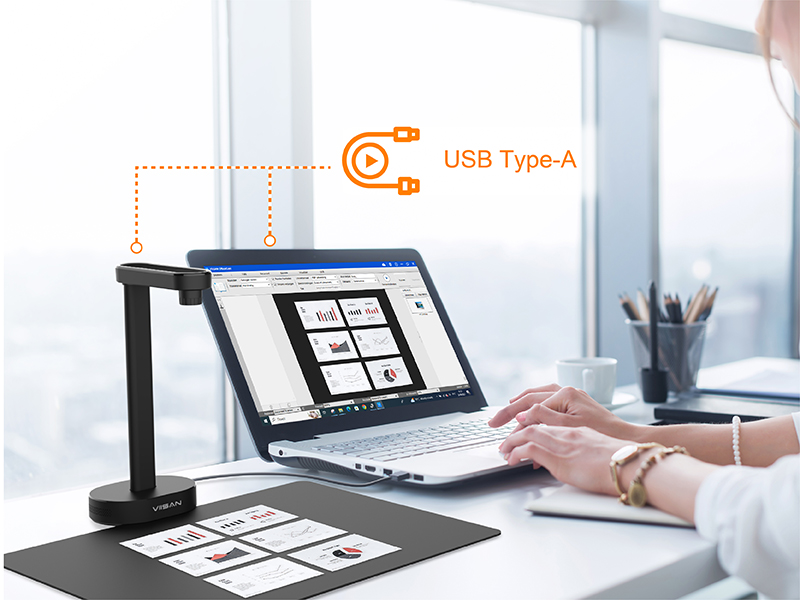
Figure 2.2: Connecting the A8401 to a laptop via USB.
3. Operating Instructions
3.1 Basic Scanning
- Launch the VIISAN OfficeCam software on your computer.
- Place the document or object you wish to scan on the scanning mat, directly beneath the camera.
- Adjust the position of the document as needed. The software will display a live preview.
- Use the software interface to initiate the scan. The A8401 supports high-speed scanning at approximately 1.5 seconds per page.

Figure 3.1: High-speed scanning capability.
3.2 Multiple Document Scanning
The A8401 allows for scanning multiple documents simultaneously. Arrange several items on the scanning mat, and the software can automatically detect and process them as individual images.

Figure 3.2: Scanning multiple documents at once.
3.3 Using the LED Light
The camera head includes an integrated LED light. Use the ON/OFF switch on the camera head to activate or deactivate the light, which can improve image clarity in low-light conditions.
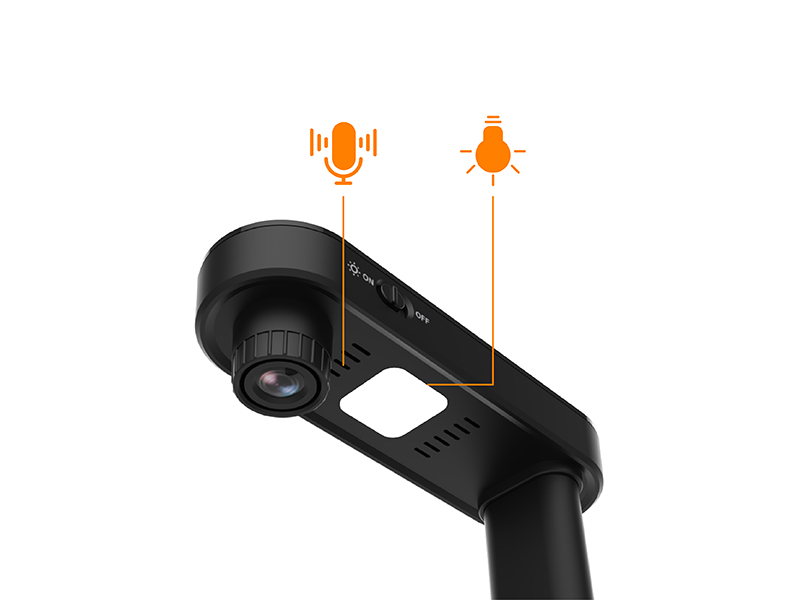
Figure 3.3: LED light and microphone controls.
4. Key Features
- Lightweight and Desk Saving Design: The A8401 features a short-armed camera and an A4 shooting area, optimizing scanning efficiency and minimizing desk space usage.
- Powerful Document Scanning Software: Works with VIISAN OfficeCam scanning software, enabling snapshots, barcode recognition, and scanning documents or books into JPEG files. It can convert these into searchable PDF or editable Word, Excel, and Text formats using its embedded OCR engine for Windows or MacOS.
- Barcode Recognition: The A8401 functions as a barcode reader with embedded recognition functionality, allowing for barcode or QR code recognition and outputting results in Excel format.
- Unique Text to Speech (TTS): Features assistive technology for word-by-word reading and listening to any document. This tool is beneficial for individuals with dyslexia or for child language learning.
- Distance Learning Ready: As a UVC/UAC compliant camera, it allows for demonstrating physical objects and showing live teacher or presenter activities to remote learners via third-party video conferencing software such as Zoom, Google Meet, and Microsoft Teams.
- Advanced Video Filters for Low Vision Accessibility: The OfficeCam software includes advanced video filters (e.g., Invert, B&W, Yellow on Blue, Green on Black) to enhance visibility for users with low vision.
- Screen Reader for Enhanced Accessibility: An integrated screen reader provides real-time auditory feedback when interacting with the software, making it more intuitive for users with low vision or blindness.
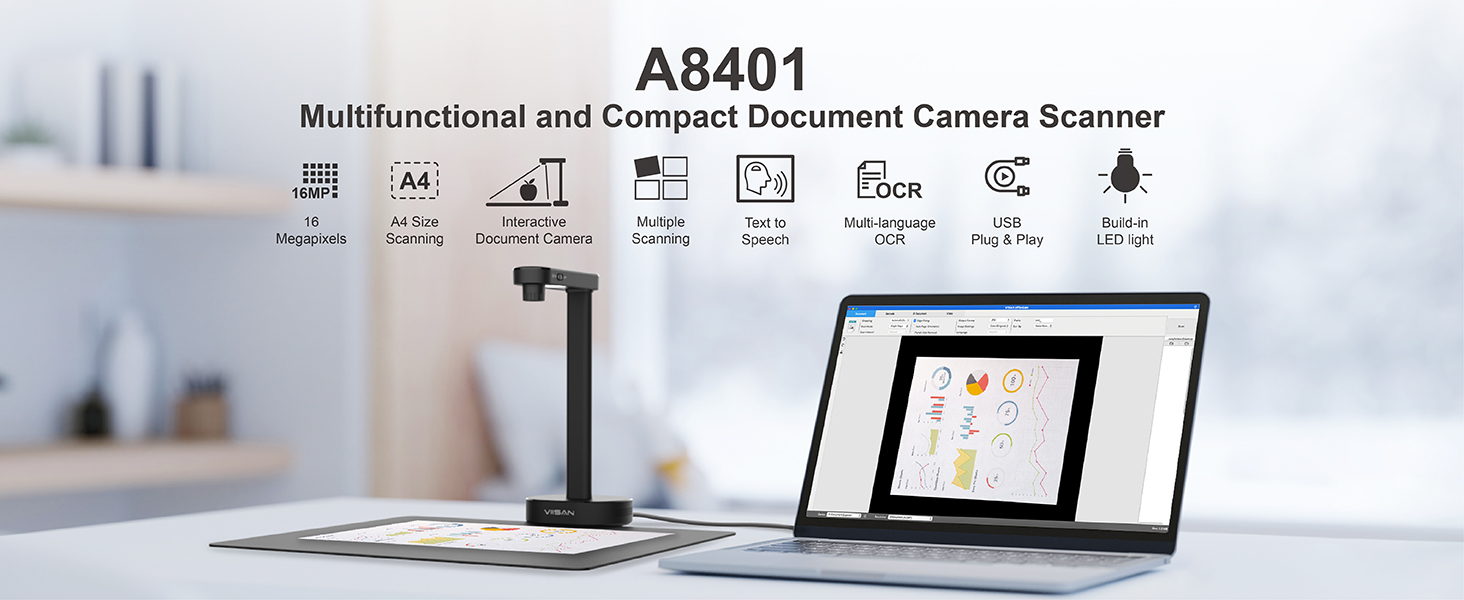
Figure 4.1: Overview of A8401 features.
5. Software
5.1 VIISAN OfficeCam Software
The VIISAN A8401 operates with the dedicated VIISAN OfficeCam software, which provides a comprehensive suite of scanning and document management tools. This software is compatible with both Windows and macOS operating systems.
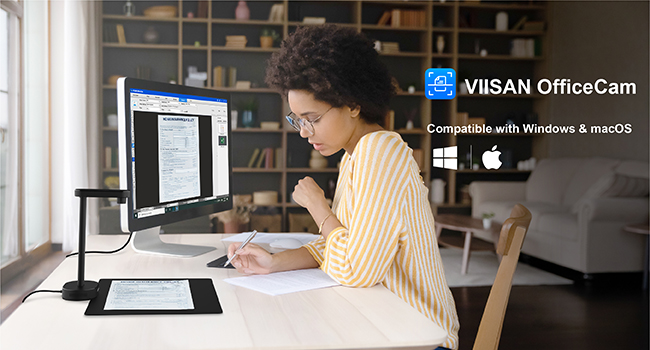
Figure 5.1: VIISAN OfficeCam software interface.
5.2 Software Download and Installation
To download the latest version of the VIISAN OfficeCam software, please visit the official VIISAN website. Navigate to the 'Support' or 'Downloads' section, select 'Document Camera Scanners' as the product type, and choose the appropriate software version for your operating system (Windows or macOS).
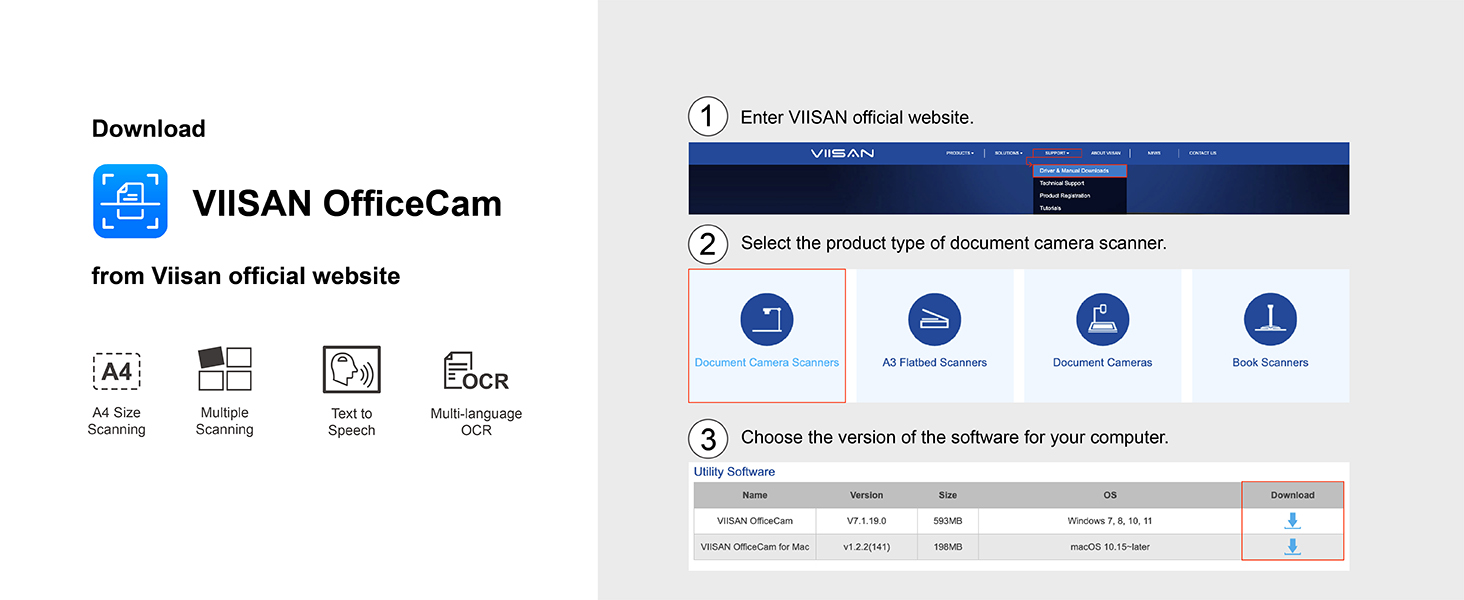
Figure 5.2: Software download instructions.
6. Maintenance
6.1 Cleaning
- Ensure the device is disconnected from the power source before cleaning.
- Use a soft, dry cloth to wipe the exterior of the scanner.
- For the camera lens, use a lens cleaning cloth and a specialized lens cleaning solution to avoid scratches or damage.
- Do not use abrasive cleaners or solvents, as these can damage the device's finish.
6.2 Storage
When not in use, store the scanner in a cool, dry place away from direct sunlight and extreme temperatures. Keep it covered to prevent dust accumulation.
7. Troubleshooting
7.1 Common Issues and Solutions
- Device Not Recognized: Ensure the USB cable is securely connected to both the scanner and the computer. Try a different USB port or restart your computer. Verify that the VIISAN OfficeCam software is correctly installed.
- Poor Image Quality: Check that the document is placed flat on the scanning mat and is well-lit. Activate the built-in LED light if necessary. Clean the camera lens for any smudges or dust. Adjust settings within the OfficeCam software.
- Software Not Launching: Reinstall the VIISAN OfficeCam software from the official website. Ensure your operating system meets the minimum requirements.
For further assistance, please refer to the online support resources on the VIISAN official website or contact customer support.
8. Specifications
| Feature | Detail |
|---|---|
| Model Number | A8401 |
| Manufacturer | VIISAN |
| Camera Resolution | 16MP (4608x3456 pixels) |
| Video Resolution | 1600x1200@30fps |
| DPI | 300dpi |
| Scanning Area | A4 Size |
| Connectivity Technology | USB |
| Exposure Control Type | Automatic |
| Color | Black |
| Item Weight | 12.3 ounces |
| Package Dimensions | 10.59 x 6.69 x 5.79 inches |
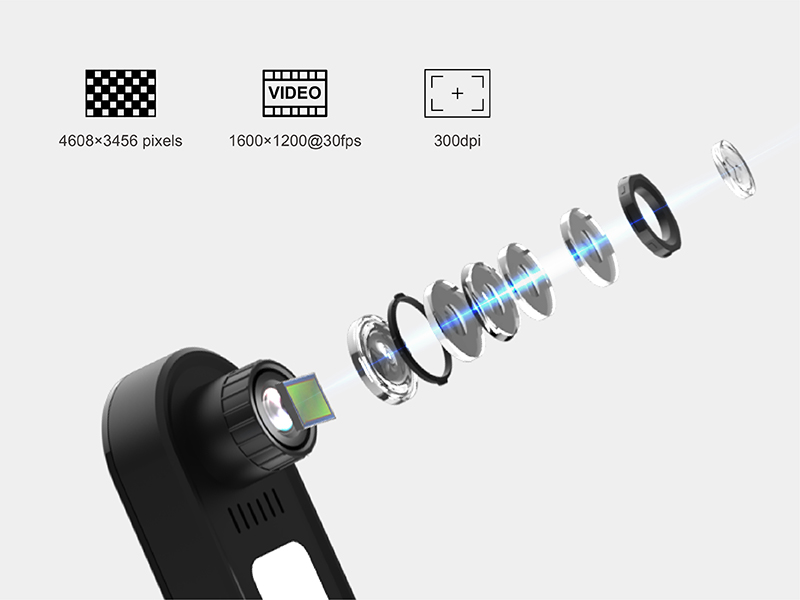
Figure 8.1: Camera lens and resolution details.
9. Warranty & Support
For information regarding product warranty, returns, or technical support, please contact VIISAN customer service directly or visit their official website. Additional protection plans may be available for purchase through authorized retailers.


