
Harman Kardon HKOS9BLKJN
Harman Kardon Onyx Studio 9 Portable Stereo Bluetooth Speaker User Manual
Model: HKOS9BLKJN
1. Introduction
This user manual provides comprehensive instructions for the safe and efficient operation of your Harman Kardon Onyx Studio 9 Portable Stereo Bluetooth Speaker. Please read this manual thoroughly before using the product and retain it for future reference.
The Harman Kardon Onyx Studio 9 is designed to deliver immersive, high-fidelity audio with the convenience of portability and wireless connectivity. It features advanced self-tuning technology for optimal sound performance in any environment and supports wireless stereo pairing for an expanded soundstage.
2. Important Safety Information
Always follow basic safety precautions when using electrical appliances to reduce the risk of fire, electric shock, and injury.
- Do not expose this product to rain or moisture.
- Do not place objects filled with liquids, such as vases, on the product.
- Do not block any ventilation openings. Install in accordance with the manufacturer's instructions.
- Do not install near any heat sources such as radiators, heat registers, stoves, or other apparatus (including amplifiers) that produce heat.
- Protect the power cord from being walked on or pinched, particularly at plugs, convenience receptacles, and the point where they exit from the apparatus.
- Only use attachments/accessories specified by the manufacturer.
- Unplug this apparatus during lightning storms or when unused for long periods of time.
- Refer all servicing to qualified service personnel. Servicing is required when the apparatus has been damaged in any way, such as power-supply cord or plug is damaged, liquid has been spilled or objects have fallen into the apparatus, the apparatus has been exposed to rain or moisture, does not operate normally, or has been dropped.
3. Package Contents
Please check that all items listed below are included in your package. If any items are missing or damaged, contact your retailer.
- 2x Harman Kardon Onyx Studio 9 Portable Stereo Bluetooth Speaker
- 2x Aux Cable
- 1x Power Supply
- 1x Type-C Cable
- 1x Fiber Cloth

Image: The complete package contents, including two Harman Kardon Onyx Studio 9 speakers, two aux cables, a power supply, a Type-C cable, and a fiber cloth.
4. Product Overview
4.1. Front View

Image: Front view of a single Harman Kardon Onyx Studio 9 speaker, showcasing its circular design and fabric grille with the Harman Kardon logo.
The front of the Onyx Studio 9 features a premium fabric grille covering the speaker drivers, with the Harman Kardon logo centrally placed. The sleek, circular design is framed by a metallic ring.
4.2. Rear View and Connections

Image: Rear view of a single Harman Kardon Onyx Studio 9 speaker, showing the AUX input, Power input, and Charge Out USB port.
The rear panel houses the various input and output ports:
- AUX Input: For connecting external audio devices via a 3.5mm audio cable.
- Power Input: For connecting the power adapter to charge the speaker or power it directly.
- Charge Out (USB): A USB port for charging external mobile devices.
4.3. Side View and Controls
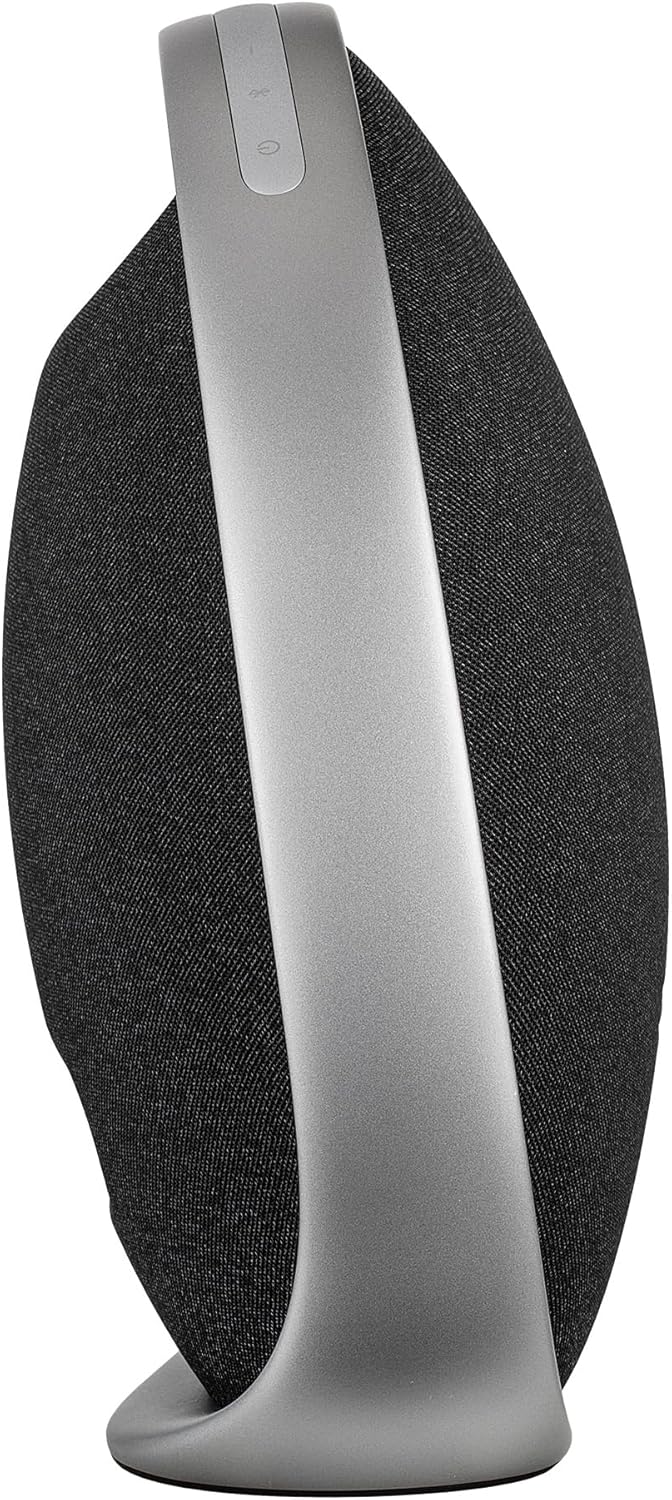
Image: Side view of the Harman Kardon Onyx Studio 9 speaker, highlighting its integrated aluminum handle/stand and the power button located on top of the handle.
The Onyx Studio 9 features an integrated aluminum handle that also serves as a stable stand. The main control buttons are located on the top edge of this handle:
- Power Button: Press to turn the speaker on/off.
- Bluetooth Button: Press to enter Bluetooth pairing mode.
- Volume Down (-): Decreases the volume.
- Volume Up (+): Increases the volume.
- Play/Pause Button: Controls music playback.
5. Setup
5.1. Charging the Speaker
- Connect the power supply to the Power Input port on the rear of the speaker.
- Plug the power supply into a wall outlet.
- The LED indicator will show charging status. A full charge provides up to 8 hours of playtime.
5.2. Initial Power On
- Press and hold the Power button on the top of the speaker's handle until the speaker powers on.
- The speaker will automatically perform a self-tuning process to optimize audio performance for its environment.
6. Operating Instructions
6.1. Bluetooth Pairing
- Turn on your Harman Kardon Onyx Studio 9 speaker. It will automatically enter Bluetooth pairing mode if no device is connected. The Bluetooth indicator light will flash.
- If already connected, press the Bluetooth button on the speaker to enter pairing mode.
- On your mobile device, enable Bluetooth and search for available devices.
- Select "Harman Kardon Onyx Studio 9" from the list of devices.
- Once connected, the Bluetooth indicator light will glow solid. You can now stream audio wirelessly.
- The speaker can pair with up to two mobile devices simultaneously. To switch between devices, pause playback on the current device and start playback on the second device.
6.2. Wireless Stereo Pairing (Two Speakers)
To achieve a wider soundstage and true stereo sound, you can wirelessly pair two Harman Kardon Onyx Studio 9 speakers.
- Ensure both Onyx Studio 9 speakers are powered on and not connected to any Bluetooth device.
- On the first speaker (which will be the primary speaker), press and hold the Bluetooth button for approximately 3 seconds until you hear a tone, indicating it's ready for stereo pairing.
- On the second speaker, press and hold the Bluetooth button for approximately 3 seconds.
- The two speakers will automatically connect to each other. Once connected, you will hear a confirmation tone, and the Bluetooth indicator lights on both speakers will glow solid.
- Now, connect your mobile device to the primary speaker via Bluetooth as described in section 6.1. Audio will play through both speakers in stereo.
6.3. Using the AUX Input
For devices without Bluetooth, you can use the included 3.5mm AUX cable.
- Connect one end of the 3.5mm AUX cable to the AUX Input port on the rear of the Onyx Studio 9 speaker.
- Connect the other end of the AUX cable to the headphone jack or audio output of your external audio device.
- The speaker will automatically switch to AUX input mode.
6.4. Charging External Devices
The Onyx Studio 9 features a USB port for charging your mobile devices.
- Connect your mobile device's USB charging cable to the "Charge Out" USB port on the rear of the speaker.
- Ensure the Onyx Studio 9 speaker is powered on.
- Your device will begin charging. Note that charging an external device will consume the speaker's battery faster.
7. Maintenance
- Cleaning: Use the provided fiber cloth or a soft, dry cloth to wipe the speaker's surfaces. Do not use liquid cleaners or aerosol sprays.
- Storage: If storing the speaker for an extended period, ensure it is fully charged and store it in a cool, dry place away from direct sunlight and extreme temperatures.
- Battery Care: To prolong battery life, avoid fully discharging the battery frequently. Recharge the speaker regularly, even if not in use.
8. Troubleshooting
| Problem | Possible Cause | Solution |
|---|---|---|
| Speaker does not power on. | Battery is depleted. | Connect the speaker to a power outlet using the provided power supply and allow it to charge. |
| No sound from speaker. | Volume is too low; Incorrect input source; Device not paired. | Increase volume on both speaker and source device. Ensure correct input (Bluetooth/AUX) is selected. Re-pair Bluetooth device. |
| Bluetooth connection unstable or drops. | Device too far from speaker; Interference; Speaker already connected to another device. | Move device closer to speaker (within 10 meters/33 feet). Avoid obstacles. Disconnect from other devices. Try re-pairing. |
| Cannot pair two speakers for stereo. | Speakers are already connected to a Bluetooth device; Incorrect pairing procedure. | Ensure both speakers are disconnected from any Bluetooth devices. Follow the wireless stereo pairing instructions precisely (Section 6.2). |
| External device not charging via USB. | Speaker is off; Cable issue; Device not compatible. | Ensure speaker is powered on. Try a different USB cable. Some devices may require more power than the speaker can provide. |
9. Specifications
| Brand | Harman Kardon |
| Model Number | HKOS9BLKJN (as per product title) |
| Product Dimensions | 5.1 x 11.4 x 11.3 inches |
| Item Weight | 7.3 pounds |
| Connectivity | Bluetooth, 3.5mm AUX Input |
| Battery Life | Up to 8 hours (rechargeable) |
| Charging Port | USB Type-C (for speaker charging), USB Type-A (for charge out) |
| Special Features | Self-Tuning Technology, Wireless Stereo Pairing, Simultaneous Device Connection (up to 2) |
10. Warranty and Support
For warranty information, technical support, or service inquiries, please refer to the warranty card included with your product or visit the official Harman Kardon website. Keep your proof of purchase for warranty claims.
Harman Kardon Official Website: www.harmankardon.com
Related documentsHKOS9BLKJN


Ask a question about this manual
Ask about setup, troubleshooting, compatibility, parts, safety, or missing instructions. Manuals+ will review the question and use this page’s manual context to help answer it.