
ULTIMEA Poseidon E40, Poseidon M60
Contents
ULTIMEA Poseidon E40 Projector & Poseidon M60 Soundbar User Manual
ULTIMEA
1. Introduction
This manual provides detailed instructions for the setup, operation, and maintenance of your ULTIMEA Poseidon E40 Projector and ULTIMEA Poseidon M60 Soundbar. Please read this manual thoroughly before using the products to ensure proper functionality and to maximize your entertainment experience.
The ULTIMEA Poseidon E40 is a flagship all-in-one portable smart projector featuring high brightness and smart TV capabilities. The ULTIMEA Poseidon M60 is a powerful soundbar system designed to deliver immersive audio with its multi-driver setup and dedicated subwoofer.
2. Package Contents
Please check the package for the following items:
- ULTIMEA Poseidon E40 Projector
- ULTIMEA Poseidon M60 Soundbar
- Wired Subwoofer
- Remote Control
- Power Adapters/Cables
- HDMI Cable
- User Manual (this document)

Image: The ULTIMEA Poseidon E40 Projector and the ULTIMEA Poseidon M60 Soundbar with its wired subwoofer, as included in the package.
3. Product Overview
3.1. ULTIMEA Poseidon E40 Projector
The Poseidon E40 is a high-performance smart projector designed for versatile use. It features a native 1080p resolution with 4K decoding support, delivering clear and sharp images. With 1000 ANSI Lumens, it provides bright visuals suitable for various lighting conditions. The integrated Android TV 11.0 system offers seamless access to a wide range of streaming applications, including Netflix, HBO Max, Hulu, Disney+, and Prime Video, directly from the device. Dual 10W speakers with independent bass radiators and Dolby Audio support ensure a comprehensive audio-visual experience.

Image: The ULTIMEA Poseidon E40 Projector shown with its accompanying remote control, highlighting its compact design and front lens.

Image: A visual representation emphasizing the 1000 ANSI Lumens brightness of the ULTIMEA Poseidon E40 Projector, indicating its powerful light output.
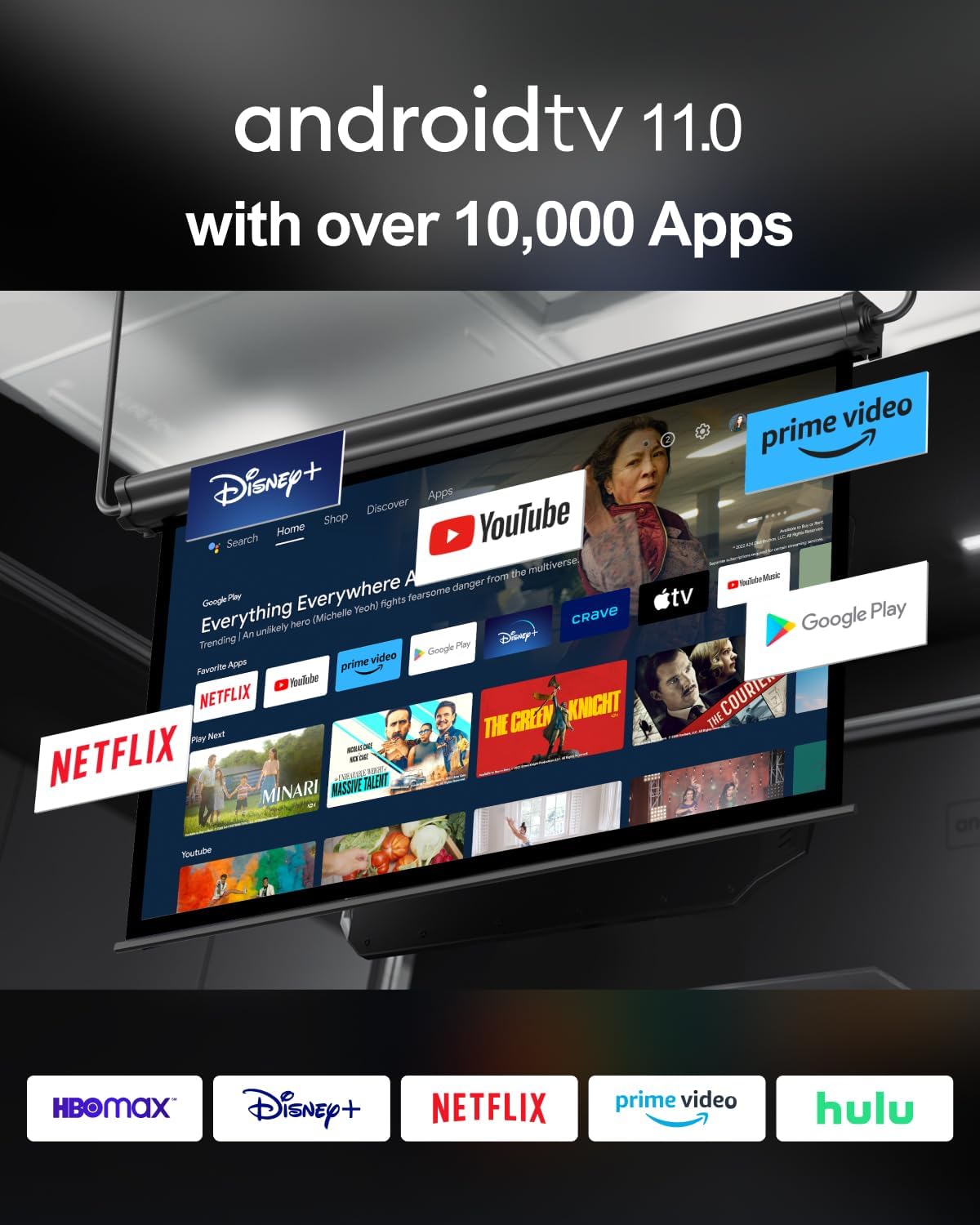
Image: A screenshot of the Android TV 11.0 interface, showcasing the availability of over 10,000 applications including popular streaming services like Netflix, YouTube, Disney+, and Prime Video.
3.2. ULTIMEA Poseidon M60 Soundbar
The Poseidon M60 is a 5.1-channel soundbar system designed to deliver rich, immersive audio. It features a 6-driver system with five precision-tuned full-range drivers and a dedicated wired wooden subwoofer, providing up to 300W of peak power. The system supports Dolby Audio and incorporates VoiceMX technology, which enhances vocal frequencies for clear dialogue, even during intense scenes or at low volumes. With a frequency response of 45 Hz–18 kHz and a maximum SPL of 99 dB, it reproduces a wide range of sounds from subtle nuances to powerful cinematic effects.

Image: The ULTIMEA Poseidon M60 Soundbar positioned with its wired subwoofer, illustrating the complete audio system.

Image: An X-ray view of the ULTIMEA Poseidon M60 Soundbar, highlighting its five built-in speakers and their arrangement for left, center, and right surround channels.

Image: A diagram illustrating the 5.1ch Dolby Atmos sound experience provided by the soundbar, showing sound waves emanating from the soundbar and subwoofer to create an immersive audio field.

Image: A visual representation of a 5.1 surround sound system setup, demonstrating how the ULTIMEA soundbar and subwoofer contribute to a comprehensive audio environment in a living space.
4. Setup Guide
4.1. ULTIMEA Poseidon E40 Projector Setup
- Placement: Place the projector on a stable, flat surface. Ensure there is adequate ventilation around the device. For optimal viewing, position the projector perpendicular to the projection surface.
- Power Connection: Connect the power adapter to the projector's power input port, then plug the adapter into a wall outlet.
- Initial Boot: Press the power button on the projector or the remote control to turn it on. The projector will boot up and display the Android TV 11.0 interface.
- Android TV Setup: Follow the on-screen instructions to connect to your Wi-Fi network, sign in with your Google account, and set up your preferred language and region. This process will allow you to access streaming apps and Google Assistant.
- Focus and Keystone Correction: Adjust the focus ring on the projector lens until the image is clear. Use the digital keystone correction settings in the projector's menu to correct any trapezoidal distortion if the projector is not perfectly aligned with the screen.
4.2. ULTIMEA Poseidon M60 Soundbar Setup
- Placement: Place the soundbar centrally below your TV or projection screen. The subwoofer should be placed on the floor, ideally in the front corner of the room for optimal bass response.
- Subwoofer Connection: Connect the wired subwoofer to the soundbar using the provided cable. Ensure the connection is secure.
- Power Connection: Connect the soundbar's power adapter to the soundbar, then plug it into a wall outlet.
- Connecting to Projector/TV:
- HDMI ARC (Recommended): Connect an HDMI cable from the soundbar's HDMI ARC port to your projector's or TV's HDMI ARC port. This allows for audio return and control via the projector/TV remote.
- Optical: Connect an optical cable from the soundbar's OPTICAL port to your projector's or TV's optical audio output.
- Bluetooth: For wireless connection, enable Bluetooth on your projector or source device and pair with the "ULTIMEA M60" soundbar.
5. Operating Instructions
5.1. ULTIMEA Poseidon E40 Projector Operation
- Power On/Off: Press the power button on the remote control or the projector to turn it on or off.
- Remote Control: Use the directional pad to navigate the Android TV interface. The 'OK' button confirms selections, 'Back' returns to the previous screen, and 'Home' goes to the main Android TV dashboard. Dedicated buttons for Netflix and other streaming services provide quick access.
- App Access: From the Android TV home screen, select desired applications like Netflix, YouTube, or Prime Video. You can download more apps from the Google Play Store.
- Input Selection: To switch between internal Android TV and external HDMI sources, navigate to the input selection menu on the home screen or use a dedicated input button on the remote (if available).
- Google Assistant: Press the Google Assistant button on the remote and speak your commands to search for content, control smart home devices, or get information.
5.2. ULTIMEA Poseidon M60 Soundbar Operation
- Power On/Off: Press the power button on the soundbar or its remote control.
- Volume Control: Use the volume up (+) and volume down (-) buttons on the soundbar or remote to adjust the audio level.
- Input Selection: Press the 'Input' or 'Source' button on the remote to cycle through available inputs (HDMI ARC, Optical, Bluetooth). The current input will typically be indicated by an LED on the soundbar.
- VoiceMX Technology: This feature is automatically active to enhance dialogue clarity. No manual activation is typically required.
- Sound Modes: Some soundbars offer preset sound modes (e.g., Movie, Music, News). Refer to the soundbar's specific remote control for these options to optimize audio for different content.
6. Maintenance
Proper maintenance ensures the longevity and optimal performance of your ULTIMEA products.
6.1. Cleaning
- Projector Lens: Use a soft, lint-free cloth specifically designed for optical lenses to gently wipe the projector lens. Do not use abrasive cleaners or excessive force.
- Projector and Soundbar Body: Wipe the exterior surfaces with a soft, dry cloth. For stubborn marks, slightly dampen the cloth with water. Avoid using harsh chemicals, solvents, or abrasive materials.
- Ventilation: Ensure the ventilation openings on the projector are clear of dust and debris to prevent overheating. Use a soft brush or compressed air to gently clear vents.
6.2. Storage
When not in use for extended periods, store the projector and soundbar in a cool, dry place, away from direct sunlight and extreme temperatures. It is recommended to use the original packaging for storage to protect against dust and physical damage.
7. Troubleshooting
If you encounter issues with your ULTIMEA products, refer to the following common problems and solutions:
| Problem | Possible Cause | Solution |
|---|---|---|
| Projector/Soundbar does not power on. | No power supply; loose connection. | Ensure power cable is securely connected to the device and wall outlet. Try a different outlet. |
| No picture from projector. | Incorrect input source; loose HDMI cable; focus/keystone issues. | Check input source. Reconnect HDMI cable. Adjust focus and keystone settings. |
| No sound from soundbar. | Incorrect input source; volume too low; incorrect audio output settings on source device. | Select correct input on soundbar. Increase volume. Ensure audio output on TV/projector is set to external speakers (e.g., HDMI ARC, Optical). |
| Remote control not working. | Dead batteries; obstruction; out of range. | Replace batteries. Remove any obstructions between remote and device. Ensure you are within operating range. |
| Apps not loading on projector. | No internet connection; app error. | Check Wi-Fi connection. Restart the projector. Clear app cache or reinstall the app. |
If the problem persists after trying these solutions, please contact ULTIMEA customer support for further assistance.
8. Specifications
8.1. ULTIMEA Poseidon E40 Projector
- Brightness: 1000 ANSI Lumens
- Resolution: Native 1080p, 4K Decoding Support
- Operating System: Android TV 11.0
- Built-in Speakers: 2 x 10W with independent bass radiator
- Audio Support: Dolby Audio
- Connectivity: Wi-Fi, Bluetooth, HDMI, USB
8.2. ULTIMEA Poseidon M60 Soundbar
- Output Power: Up to 300W Peak Power
- Driver System: 5 Full-Range Drivers + 1 Wired Wooden Subwoofer
- Channels: 5.1ch
- Frequency Response: 45 Hz–18 kHz
- Maximum SPL: 99 dB
- Audio Technology: VoiceMX, Dolby Audio
- Connectivity: HDMI ARC, Optical, Bluetooth
9. Warranty and Support
ULTIMEA products are designed and manufactured to the highest quality standards. For information regarding warranty coverage, technical support, or service inquiries, please refer to the warranty card included with your product or visit the official ULTIMEA website. You can also visit the ULTIMEA Store on Amazon for additional product information and support resources.
ULTIMEA Store Link: https://www.amazon.com/stores/ULTIMEA/page/A530CFE3-D394-4643-9D47-1AA0E9F06490
Ask a question about this manual
Ask about setup, troubleshooting, compatibility, parts, safety, or missing instructions. Manuals+ will review the question and use this page’s manual context to help answer it.