1. Introduction
This manual provides detailed instructions for the setup, installation, and operation of your eufy Security eufyCam C35 4-Cam Kit. Please read this manual thoroughly before using the product to ensure proper functionality and safety. The eufyCam C35 is a wireless security camera system designed for both indoor and outdoor use, featuring color night vision, local storage, and smart AI detection.
2. Package Contents
Verify that all items listed below are included in your package. If any items are missing or damaged, please contact eufy Security customer support.
- 4 x eufyCam C35 Cameras
- 1 x HomeBase Mini
- 4 x Multi-Functional Stands
- 4 x Screw Packs
- 1 x 0.6m Type-C Cable
- 1 x 5V/2A Power Adapter
- 1 x 2m Power Cable
- 1 x 1.2m Internet Cable
- 1 x Quick Start Guide
- 1 x Warning Sticker

3. Product Components
3.1 eufyCam C35 Camera
Familiarize yourself with the various parts of the eufyCam C35 camera:
- Camera Lens
- LED Indicator
- Spotlight
- PIR Sensor
- Microphone
- Mounting Hole
- MicroSD Card Slot / SYNC Button
- Speaker
- USB-C Charging Port

3.2 HomeBase Mini
Familiarize yourself with the various parts of the HomeBase Mini:
- LED Indicator
- MicroSD Card Slot
- SYNC Button
- Ethernet Port
- USB-C Charging Port
- Speaker
4. Setup Guide
4.1 App Installation
Download the eufy Security app to your smartphone to manage your cameras and HomeBase Mini. The app is available on the App Store (iOS) and Google Play (Android).
- Search for "eufy Security" in your device's app store.
- Download and install the app.
- Follow the on-screen instructions to create an account or log in.
4.2 Camera Preparation
- MicroSD Card Installation (Optional): Open the silicone pad on the camera and insert a microSD card (up to 256 GB max capacity) in the correct direction. This allows for direct local recording on the camera.
- Charging: Charge the camera battery before mounting. Use the included Type-C cable and a 5V power adapter. A full charge takes approximately 8 hours. The front blue light indicates charging, and it turns off when fully charged. You can check the battery level in the app.
- Power On: Press the sync button for 2 seconds until a blue light flashes and you hear a beep. All cameras will power on and be ready to connect.
- Remove Protective Film: Remove any protective film from the camera lens before use.
4.3 HomeBase Mini Preparation
- MicroSD Card Installation (Optional): Open the silicone pad on the HomeBase Mini and insert a microSD card (up to 1 TB max capacity) in the correct direction for expanded local storage.
- Power and Network: Power the HomeBase Mini with the USB-C charging cable and connect it to your router using the Ethernet cable.
4.4 Device Pairing
Follow the on-screen instructions in the eufy Security app to add your HomeBase Mini and eufyCam C35 cameras to your device list. Simply scan the QR code on each device to connect.
5. Installation Options
5.1 Choosing a Location
Before installing outdoors, ensure the chosen location has a strong and stable Wi-Fi signal. If the camera's Wi-Fi signal is weak, try moving it closer to your HomeBase Mini, or alternatively, move your HomeBase Mini closer to your camera. The camera should be installed at a height of less than 2 meters (7 ft) for optimal performance.
5.2 Mounting Options
The eufyCam C35 offers versatile mounting options including magnetic attachment, strap mounting, screw mounting, and flat placement. This section details magnetic and wall mounting.
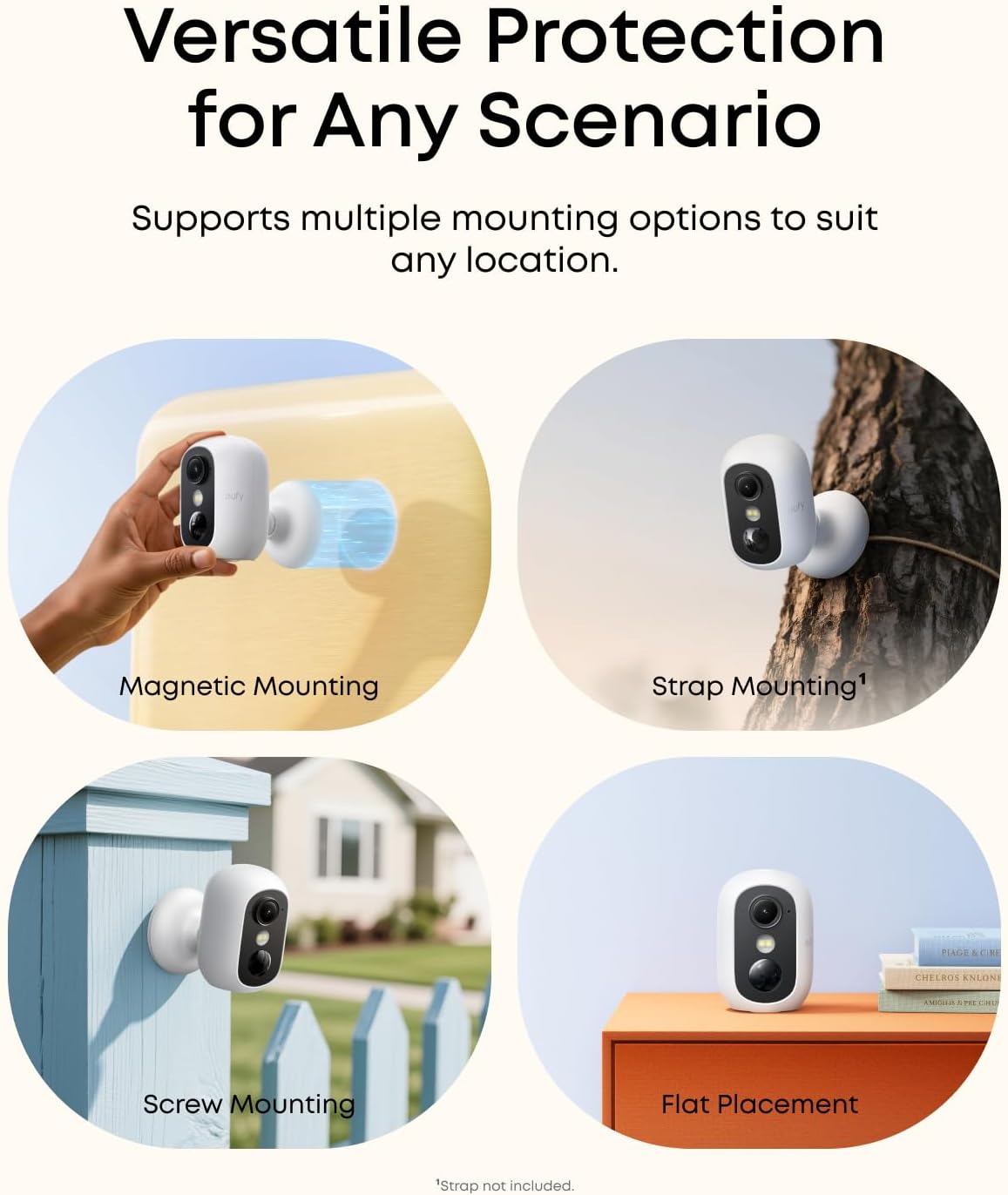
Magnetic Mounting
For magnetic surfaces, simply position and attach the camera directly. To remove, adjust the bracket to an illustrated angle, then hold the bracket firmly and bend it outward and downward to detach the camera.
Wall Mounting
For permanent installation on a wall, use the provided screw mounting base.
- Mark the screw positions on the wall using the mounting base as a template.
- Drill holes in the marked locations.
- Insert anchors into the drilled holes (skip this step if mounting onto a wooden wall).
- Attach the screw mounting base to the wall using the screws provided.
- Install the camera onto the mounted bracket.
5.3 Solar Panel Installation (Optional)
If you have a compatible eufy solar panel (sold separately), install it and adjust its angle to ensure it receives maximum sunlight for continuous charging.
6. Operating Your eufyCam C35
6.1 Key Features
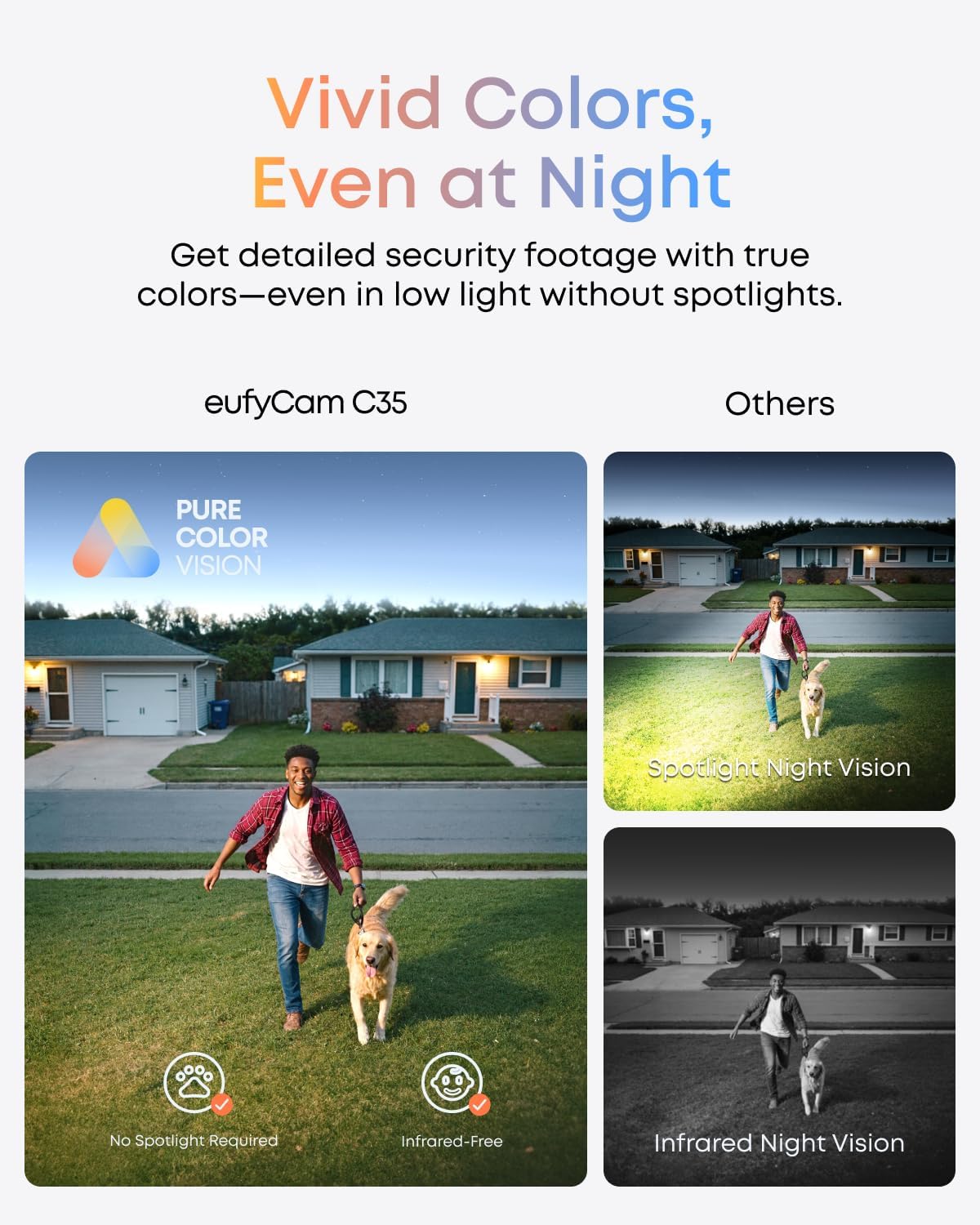
- PureColor Night Vision: Experience vivid, lifelike images even in low light conditions without the need for spotlights or infrared.
- Local Storage, No Monthly Fee: Store footage locally on the HomeBase Mini (supports up to 1 TB microSD) for secure storage without monthly fees. The camera itself also supports a separate microSD card slot (up to 256 GB) for direct local recording.
- Smart AI Detection & Instant Alerts: AI intelligently detects people, vehicles, pets, and activity zones, and can recognize faces. Receive instant alerts from your security camera, both outdoors and indoors.
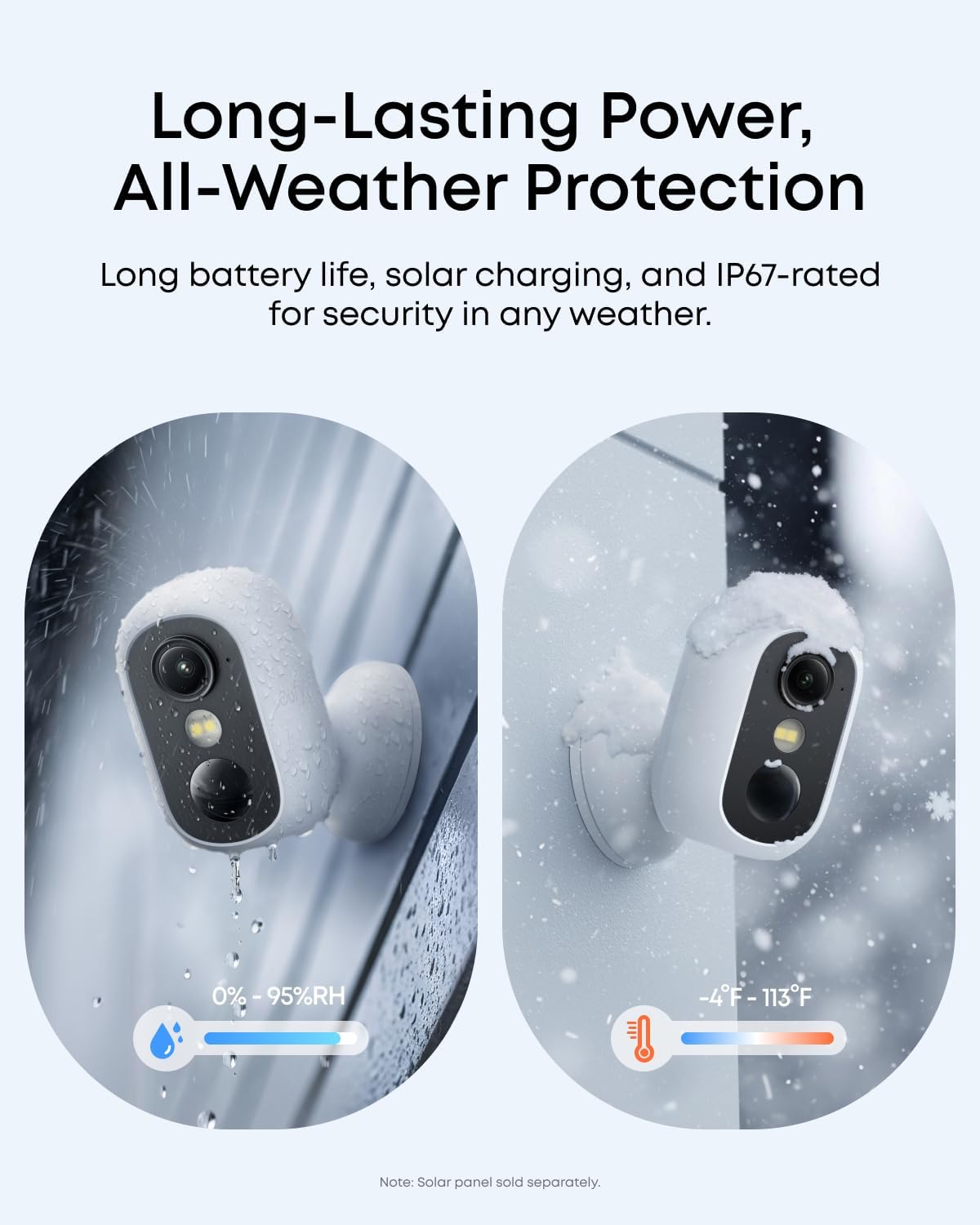
- Weatherproof (IP67): The compact, wireless camera is IP67 weatherproof, suitable for both indoor and outdoor use in various conditions.
- Cross-Camera Tracking: Supports cross-camera tracking for smarter, more connected protection.
- Active Deterrents: Actively deters threats with built-in sound and light alarms.


6.2 App Functionality
The eufy Security app provides comprehensive control and monitoring features:
- Live View: Access real-time video feeds from your cameras.
- Playback: Review recorded footage stored locally on your HomeBase Mini or camera microSD card.
- Alerts: Receive instant notifications for detected events.
- Customization: Adjust detection zones, sensitivity, and notification preferences.
- Two-Way Audio: Communicate through the camera's built-in speaker and microphone.
7. Specifications
| Feature | Specification |
|---|---|
| Model Name | eufyCam C35 |
| Item Model Number | T8110 |
| Indoor/Outdoor Usage | Indoor, Outdoor |
| Video Capture Resolution | 1080p |
| Frame Rate | 15 frames per second |
| Viewing Angle | 130.3 Degrees |
| Connectivity Technology | Wireless (Wi-Fi, Bluetooth) |
| Power Source | Battery Powered |
| International Protection Rating | IP67 |
| Mounting Type | Magnetic Mounting |
| Special Features | AI Detection, HD Resolution, Magnetic Mount, No Monthly Fee, Local Storage, PureColor Vision |
| Compatible Devices | Alexa, Google Assistant, Smartphone |
| Item Dimensions (L x W x H) | 9.15 x 7.56 x 4.43 inches |
| Item Weight | 3.8 pounds |
| UPC | 194644245672 |
8. Troubleshooting
If you encounter issues with your eufyCam C35 system, please refer to the following common troubleshooting steps:
- No Power: Ensure the camera is fully charged and the HomeBase Mini is connected to a power source.
- No Video/Offline: Check your Wi-Fi connection and ensure the camera is within range of the HomeBase Mini or your Wi-Fi router. Restart the camera and HomeBase Mini.
- Weak Wi-Fi Signal: Relocate the camera closer to the HomeBase Mini or Wi-Fi router, or move the HomeBase Mini to a more central location.
- False Alerts: Adjust the motion detection sensitivity and set up activity zones within the eufy Security app to reduce unwanted notifications.
- MicroSD Card Not Recognized: Ensure the microSD card is inserted correctly and is not damaged. Try formatting the card through the app or using a different card.
- App Issues: Ensure your eufy Security app is updated to the latest version. For smooth operation of your eufyCam C35, please update your eufy App to version 5.2.10_16477001 (iOS) or 5.2.10_17014 (Android) or newer.
For further assistance, consult the in-app help section or contact eufy Security customer support.
9. Warranty and Support
Your eufy Security eufyCam C35 4-Cam Kit is covered by a manufacturer's warranty. Please refer to the warranty card included in your package or visit the official eufy Security website for detailed warranty information.
For technical support, product inquiries, or warranty claims, please contact eufy Security customer service through their official website or the eufy Security app.
Online Resources:


