
1. Product Overview
The Tapo C400 is a wireless outdoor security camera designed for comprehensive home monitoring. It offers high-definition video, extended battery life, and smart detection features to enhance your property's security.
- Property Protection: Deter package theft, monitor your garden, and secure your driveway from suspicious activity.
- Extended Battery Life: The built-in 5,200 mAh battery provides up to 180 days of power on a single charge, offering wireless and worry-free operation.
- AI Person Detection: Stay informed with artificial intelligence-based person detection and receive real-time notifications without requiring a subscription.
- Clear Day and Night Vision: Experience sharp, detailed live views in 1080P Full HD and vibrant color night vision for complete home surveillance.
- Flexible Storage: Record locally to a 512GB microSD card (not included) or opt for 30-day cloud storage with a Tapo Care subscription.
- Custom Alerts & Privacy: Create personalized activity zones to receive only necessary alerts and define privacy zones to protect sensitive areas.
- All-Weather Protection: The IP65 waterproof design ensures reliable performance year-round, protecting your camera from various weather conditions.
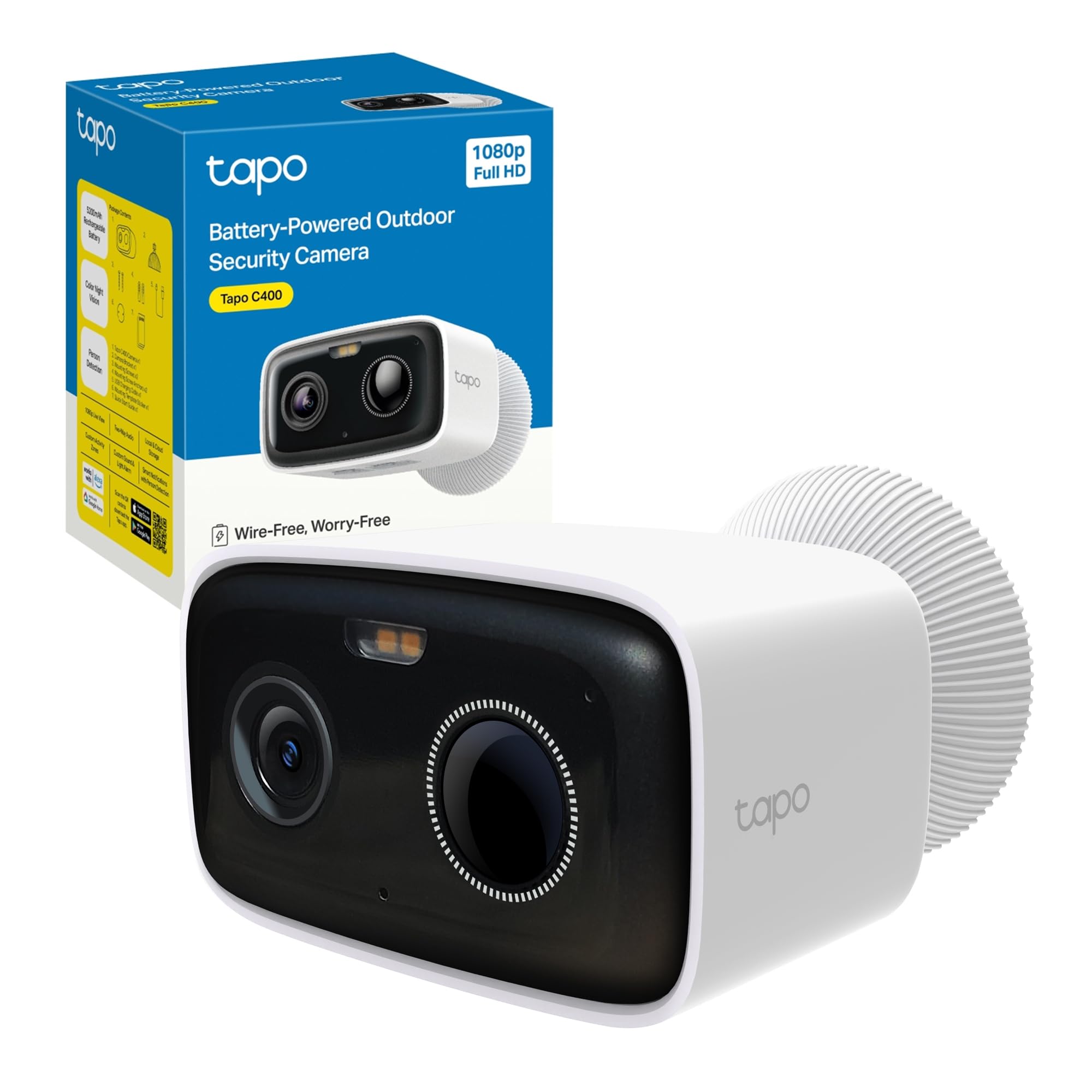
Figure 1: Front view of the Tapo C400 Wireless Outdoor Security Camera.

Figure 2: Illustration highlighting the Tapo C400's 5200mAh battery, providing up to 180 days of operation.

Figure 3: Various outdoor scenarios demonstrating the camera's surveillance capabilities for property protection.

Figure 4: The Tapo C400 camera mounted outdoors, illustrating its IP65 weather resistance against harsh conditions.
2. Setup Guide
Follow these steps to set up your Tapo C400 camera for optimal performance.
2.1 Package Contents
Ensure all components are present before beginning installation:
- Tapo C400 Camera
- Power Adapter
- Mounting Anchors
- Mounting Screws
- Bracket Screws
- Mounting Template
- Bracket
- Waterproof Gasket
- Waterproof Cable Attachments
- Quick Start Guide
2.2 Initial Charging
Before first use, fully charge the camera's battery using the provided power adapter. This typically takes several hours.
2.3 App Installation and Account Creation
- Download the Tapo app from your device's app store (iOS or Android).
- Open the app and create a Tapo account or log in if you already have one.
2.4 Camera Pairing
- In the Tapo app, tap the '+' icon to add a new device.
- Select the Tapo C400 from the list of devices.
- Follow the on-screen instructions to connect the camera to your 2.4 GHz Wi-Fi network. Ensure your Wi-Fi signal is strong at the camera's intended location.
2.5 Physical Installation
The Tapo C400 is designed for flexible, wireless installation. Choose a location that provides the desired viewing angle and has adequate Wi-Fi coverage.
- Use the mounting template to mark drill holes on your desired surface (wall or ceiling).
- Drill the holes and insert the mounting anchors.
- Attach the bracket using the mounting screws.
- Secure the camera to the bracket using the bracket screws.
- Adjust the camera angle as needed.

Figure 5: The Tapo C400 camera mounted on an exterior wall, demonstrating its wireless installation flexibility.
3. Operating Instructions
Learn how to use the various features of your Tapo C400 camera through the Tapo app.
3.1 Live View and Two-Way Audio
Access real-time video feed and communicate through the camera.
- Open the Tapo app and select your C400 camera.
- The live video feed will appear.
- Tap the microphone icon to speak through the camera's speaker.
- Tap the speaker icon to listen to audio from the camera's vicinity.

Figure 6: Smartphone interface displaying live view and two-way audio controls for the Tapo C400.
3.2 Smart AI Detection and Notifications
Configure the camera to detect specific movements and receive alerts.
- In the app, navigate to the camera settings.
- Select 'Detection' to customize detection types (e.g., Person Detection).
- Adjust sensitivity levels and define activity zones to minimize false alarms.
- Enable notifications to receive instant alerts on your smartphone when activity is detected.

Figure 7: The Tapo app showing AI-powered person detection in action, highlighting a detected individual.

Figure 8: The Tapo app demonstrating smart AI detection capabilities.
3.3 Night Vision
The camera automatically switches to night vision in low-light conditions, offering both standard and color night vision modes.
- The camera's advanced sensors provide clear 1080P Full HD images even in complete darkness.
- Color night vision enhances detail and clarity, making it easier to identify objects and individuals.

Figure 9: Day and color night vision comparison, showcasing the camera's ability to capture clear details in various lighting.
3.4 Alarm Functionality
Activate the integrated sound and light alarm to deter intruders.
- From the live view in the Tapo app, locate the alarm icon.
- Tap to activate the sound and light alarm.
- The camera will emit a loud sound and flash its integrated lights.

Figure 10: The Tapo C400 camera activating its integrated sound and light alarm.
3.5 Storage Options
Choose between local microSD storage or cloud storage for your recordings.
- Local Storage: Insert a microSD card (up to 512GB, not included) into the camera's slot for continuous or event-based recording.
- Cloud Storage: Subscribe to Tapo Care for cloud-based storage, typically offering 30 days of recording history.

Figure 11: Close-up view of the microSD card slot on the Tapo C400 camera for local storage.
3.6 Custom Activity and Privacy Zones
Define specific areas for monitoring and privacy within the camera's view.
- In the app settings, navigate to 'Activity Zones' and 'Privacy Zones'.
- Draw custom shapes on the live view to designate areas where motion detection should be active or where video recording should be masked for privacy.

Figure 12: Examples of custom activity and privacy zones configured within the Tapo app.
4. Maintenance
Proper maintenance ensures the longevity and optimal performance of your Tapo C400 camera.
4.1 Battery Charging
Recharge the camera's battery when the app indicates a low battery level. Use only the provided power adapter or a compatible 5V/2A USB charger. The charging port is located on the camera body, typically protected by a waterproof cover.
4.2 Cleaning
Periodically clean the camera lens and body to ensure clear image quality and proper functioning.
- Gently wipe the lens with a soft, lint-free cloth. Avoid abrasive materials or harsh chemicals.
- Clean the camera body with a damp cloth. Ensure all port covers are securely closed after cleaning.
4.3 Firmware Updates
Keep your camera's firmware updated to benefit from the latest features, security enhancements, and bug fixes. The Tapo app will notify you of available updates. It is recommended to perform updates when the camera has a full charge and a stable Wi-Fi connection.
5. Troubleshooting
This section addresses common issues you might encounter with your Tapo C400 camera.
5.1 Camera Offline or Unresponsive
- Check Wi-Fi Signal: Ensure the camera is within range of your 2.4 GHz Wi-Fi router and has a strong signal. Obstacles like thick walls can weaken the signal. Consider using a Wi-Fi extender if necessary.
- Check Battery: Verify that the camera has sufficient battery charge. Recharge if the battery is low.
- Restart Camera: Power cycle the camera by turning it off and on.
- Restart Router: Restart your Wi-Fi router.
- Re-pair Camera: If the issue persists, try re-pairing the camera with the Tapo app.
5.2 Frequent False Alarms
- Adjust Sensitivity: In the Tapo app, reduce the motion detection sensitivity.
- Define Activity Zones: Set up specific activity zones to monitor only relevant areas and exclude busy public spaces or moving foliage.
- Filter Detection Types: If available, use AI detection to filter for specific objects like people, reducing alerts from animals or vehicles.
5.3 Poor Image Quality
- Clean Lens: Ensure the camera lens is clean and free from dust, dirt, or smudges.
- Check Resolution Settings: Verify that the video resolution in the Tapo app is set to 1080P Full HD.
- Night Vision Issues: If night vision is poor, ensure there are no obstructions blocking the infrared lights or external light sources causing glare.
5.4 Recording Not Working
- MicroSD Card: If using local storage, ensure a compatible microSD card is inserted correctly and is not full or corrupted. Format the card via the app if necessary.
- Tapo Care Subscription: If using cloud storage, verify your Tapo Care subscription is active.
- Detection Settings: Confirm that motion detection and recording schedules are properly configured in the app.
6. Technical Specifications
| Feature | Specification |
|---|---|
| Brand | Tapo |
| Model Name | Tapo C400 |
| Connectivity Technology | Wi-Fi 2.4 GHz |
| Special Features | Wireless, Rechargeable Battery, Full HD, Color Night Vision, Person Detection, Weather Resistant, Two-Way Audio |
| Indoor/Outdoor Use | Outdoor |
| Compatible Devices | Tablet, Smartphone |
| Control Type | Amazon Alexa, App |
| Mounting Type | Wall Mount |
| Color | Ivory White |
| Water Resistance Level | Water Resistant (IP65) |
| Effective Still Image Resolution | 2 MP |
| International Protection Rating | IP65 |
| Video Capture Resolution | 1080p |
| Frame Rate | 15 frames per second |
| Night Vision Range | 12 Meters |
| Night Vision Type | Color Night Vision |
| Power Source | Battery Powered |
| Batteries Required | Yes |
| Video Capture Format | MPEG-4 |
| Item Dimensions | 8.1 x 4.8 x 5.8 cm |
7. Warranty and Support
7.1 Product Warranty
The Tapo C400 camera comes with a standard manufacturer's warranty. Please refer to the warranty card included in your product packaging or visit the official Tapo website for detailed warranty terms and conditions specific to your region.
7.2 Technical Support
For technical assistance, troubleshooting, or any questions regarding your Tapo C400 camera, please contact Tapo Customer Support.
- Visit the official Tapo support website for FAQs, firmware downloads, and contact information.
- You may also find helpful resources and community forums on the TP-Link website, the parent company of Tapo.
A Data Transparency Declaration (PDF) is available for review: Data Transparency Declaration.
