1. Introduction
This manual provides essential information for the safe and efficient use of your Brother DCP-T430W Wireless All-in-One Ink Tank Printer. Please read these instructions carefully before operating the device and retain them for future reference.
The Brother DCP-T430W is designed to deliver high-quality prints, scans, and copies with the convenience of wireless and mobile connectivity. Its integrated ink tank system offers a cost-effective printing solution with spill-free refilling.
2. Safety Information
- Power Source: Connect the printer only to a grounded power outlet within the specified voltage range.
- Placement: Place the printer on a stable, level surface away from direct sunlight, heat sources, and excessive dust or moisture. Ensure adequate ventilation around the unit.
- Handling Ink: Handle ink bottles carefully to prevent spills. If ink comes into contact with skin or clothing, wash immediately with soap and water. Keep ink out of reach of children.
- Moving the Printer: Before moving the printer, ensure all ink tank caps are securely closed and the power cord is disconnected.
- Maintenance: Do not attempt to service the printer yourself beyond the procedures described in this manual. Refer all other servicing to qualified service personnel.
3. Product Overview
The Brother DCP-T430W is an all-in-one device offering print, scan, and copy functionalities. It features an integrated ink tank system for high-volume, cost-effective printing.
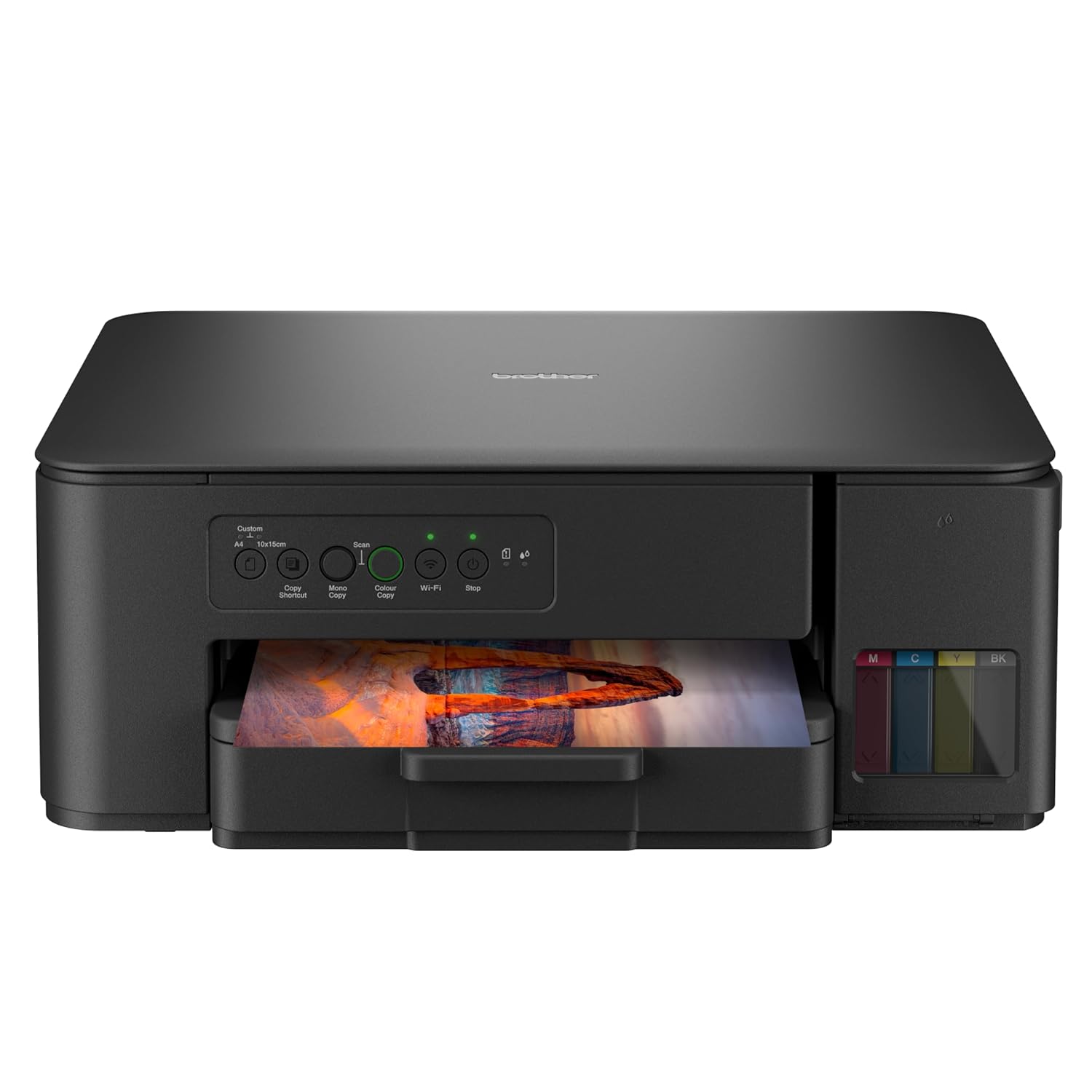
Figure 3.1: Front view of the Brother DCP-T430W printer, showing the control panel, paper tray, and visible ink tanks on the right side.
Key Features:
- Professional Quality: Delivers vivid, high-resolution prints with exceptional color accuracy and sharp detail for both text and images.
- Wireless Connectivity: Features all-in-one wireless printing capabilities with mobile and cloud print functionality for seamless remote access.
- Ink Tank System: Built-in ink tank system with spill-free technology ensures precise refilling and delivers a cost-effective printing solution.
- Smart Technology: Built-in self-cleaning technology optimizes print head maintenance for consistent, vivid prints.

Figure 3.2: The Brother DCP-T430W printer with visual cues indicating its capabilities: Print, Scan, Copy, Refill Ink Tank System, and Wireless & Mobile Printing.
4. Setup Guide
4.1 Unpacking and Initial Placement
- Carefully remove the printer from its packaging.
- Remove all protective tapes and packing materials from the exterior and interior of the printer.
- Place the printer on a flat, stable surface with adequate space for operation and ventilation.
4.2 Power Connection
- Connect the power cord to the printer's power input.
- Plug the other end of the power cord into a grounded electrical outlet.
- Press the power button to turn on the printer.
4.3 Ink Refilling
The DCP-T430W features an integrated ink tank system designed for easy, spill-free refilling.
- Open the ink tank cover located on the right side of the printer.
- Uncap the ink bottle for the color you wish to refill.
- Insert the nozzle of the ink bottle into the corresponding ink tank opening. The design prevents incorrect color insertion and minimizes spills.
- Allow the ink to drain into the tank. Do not squeeze the bottle.
- Once the tank is full, remove the bottle and securely close the ink tank cap.
- Repeat for all colors (Black, Cyan, Magenta, Yellow).

Figure 4.3.1: Angled view of the printer, showing the transparent ink tanks on the right side, indicating ink levels.
4.4 Software Installation
- Insert the installation CD-ROM into your computer's CD/DVD drive, or download the latest drivers and software from the official Brother support website.
- Follow the on-screen instructions to install the printer drivers and utility software.
4.5 Wireless Network Setup
The DCP-T430W supports wireless connectivity for printing from various devices.
- On the printer's control panel, press the Wi-Fi button.
- Follow the prompts to select your wireless network (SSID) and enter the network password.
- Once connected, the Wi-Fi indicator light on the control panel will illuminate steadily.
- For mobile printing, download the Brother iPrint&Scan app on your smartphone or tablet and follow the in-app instructions to connect to your printer.
5. Operating Instructions
5.1 Loading Paper
- Pull out the paper tray from the front of the printer.
- Adjust the paper guides to fit the width of your paper.
- Load paper into the tray with the print side facing down. Ensure the stack does not exceed the maximum paper capacity mark.
- Gently push the paper tray back into the printer until it clicks into place.
5.2 Printing Documents
- From a Computer: Open the document you wish to print, select "Print" from the application's menu, choose your Brother DCP-T430W printer, adjust settings (e.g., paper size, color/monochrome, duplex), and click "Print".
- From a Mobile Device: Use the Brother iPrint&Scan app or other compatible mobile printing services (e.g., Apple AirPrint, Mopria) to select your document and print wirelessly.
- Duplex Printing: The printer supports automatic duplex (two-sided) printing. Enable this option in your printer settings before sending the print job.
5.3 Copying Documents
- Lift the document cover and place the document face down on the scanner glass, aligning it with the guide mark.
- Close the document cover.
- On the printer's control panel, press the Copy button.
- Use the arrow buttons to select the number of copies or other settings (e.g., color/monochrome).
- Press Start to begin copying.
5.4 Scanning Documents
- Place the document face down on the scanner glass.
- On your computer, open the Brother iPrint&Scan software or other scanning application.
- Select your Brother DCP-T430W printer and choose "Scan".
- Adjust scan settings (e.g., resolution, color mode, destination folder) and click "Scan".
- Alternatively, you can initiate a scan directly from the printer's control panel by pressing the Scan button and following the prompts to send the scan to your connected computer or cloud service.
6. Maintenance
6.1 Ink Level Monitoring and Refilling
Regularly check the ink levels through the transparent ink tanks on the printer's right side or via the printer status monitor on your computer. Refill ink tanks as described in Section 4.3 when levels are low to prevent print quality issues.

Figure 6.1.1: Left-angled view of the printer, emphasizing the compact design and the location of the ink tanks for easy monitoring.
6.2 Smart AI Cleaning Technology
The Brother DCP-T430W incorporates Smart AI Cleaning Technology to optimize print head maintenance. This system automatically performs cleaning cycles to prevent clogs and maintain consistent print quality. If you notice print quality degradation (e.g., streaks, missing colors), you can manually initiate a cleaning cycle through the printer's utility software on your computer.
6.3 General Cleaning
- Exterior: Wipe the exterior of the printer with a soft, lint-free cloth. Do not use abrasive cleaners or solvents.
- Scanner Glass: Gently clean the scanner glass with a soft cloth dampened with a non-abrasive glass cleaner.
- Interior: Periodically open the printer cover and carefully remove any paper dust or debris.
7. Troubleshooting
This section addresses common issues you might encounter with your Brother DCP-T430W printer.
7.1 Print Quality Issues
- Streaks or Faded Prints: Check ink levels and refill if necessary. Perform a print head cleaning cycle through the printer utility software.
- Incorrect Colors: Ensure you have refilled the correct ink colors into their respective tanks. Perform a print head alignment.
- Paper Jams: Carefully remove any jammed paper following the instructions in the printer's display or software. Ensure paper is loaded correctly and not creased.
7.2 Connectivity Problems
- Cannot Connect to Wi-Fi: Verify your Wi-Fi network name and password. Ensure the printer is within range of your wireless router. Restart both the printer and the router.
- Printer Not Detected: Ensure the printer is powered on and connected to the network. Reinstall printer drivers if necessary. For USB connection, ensure the cable is securely connected.
7.3 Error Messages
Refer to the printer's display for specific error codes or messages. Consult the Brother support website for detailed explanations and solutions for specific error codes.
8. Specifications
| Feature | Specification |
|---|---|
| Model | DCP-T430W |
| Functions | Print, Scan, Copy |
| Connectivity | Wireless (Wi-Fi), USB 2.0 |
| Printing Technology | Inkjet |
| Printer Output | Color |
| Max Print Speed (Monochrome) | 16 ppm |
| Max Print Speed (Color) | 9 ppm |
| Max Copy Speed (Black and White) | 16 ppm |
| Duplex Printing | Automatic |
| Scanner Type | Flatbed |
| Maximum Media Size | A4 |
| Max Input Sheet Capacity | 150 sheets |
| Ink Type | Dye-based ink, Pigment-based ink |
| Special Features | Smart AI Cleaning Technology, Ink Tank System |
| Product Dimensions | 39D x 34W x 15H Centimeters |
| Item Weight | 6.1 Kilograms |
| Included Components | DCP-T430W unit |
9. Support and Warranty
For further assistance, technical support, or warranty information, please visit the official Brother support website or contact your local Brother customer service center.
Brother Support Website: www.brother.in/support (Example link, please refer to your region's official Brother website)
Please retain your proof of purchase for warranty claims.


