1. Introduction
This manual provides detailed instructions for the setup, operation, and maintenance of your ELECFOX MK INKY75 Mechanical Keyboard. The INKY75 is a high-quality 75% layout mechanical keyboard featuring a full aluminum chassis, triple-mode connectivity (Bluetooth, 2.4GHz wireless, USB-C wired), hot-swappable switches, and customizable RGB lighting. Please read this manual thoroughly to ensure optimal performance and longevity of your device.
2. What's in the Box
Verify that all items are present upon unboxing:
- ELECFOX MK INKY75 Mechanical Keyboard
- USB Cable (USB-C to USB-A)
- Keycap Puller
- User Manual (this document)
3. Product Overview
The ELECFOX MK INKY75 is engineered for both performance and customization. It features a durable full aluminum chassis with a glitter finish, providing a robust and elegant build. The keyboard incorporates five layers of acoustic dampening (PORON plate foam, IXPE switch pad, PET acoustic film, EPDM case foam, and PET insulation film) to deliver a smooth and creamy sound profile with each keystroke. It comes pre-installed with factory-lubed Matcha Buttermilk linear switches and durable OEM profile PBT keycaps.
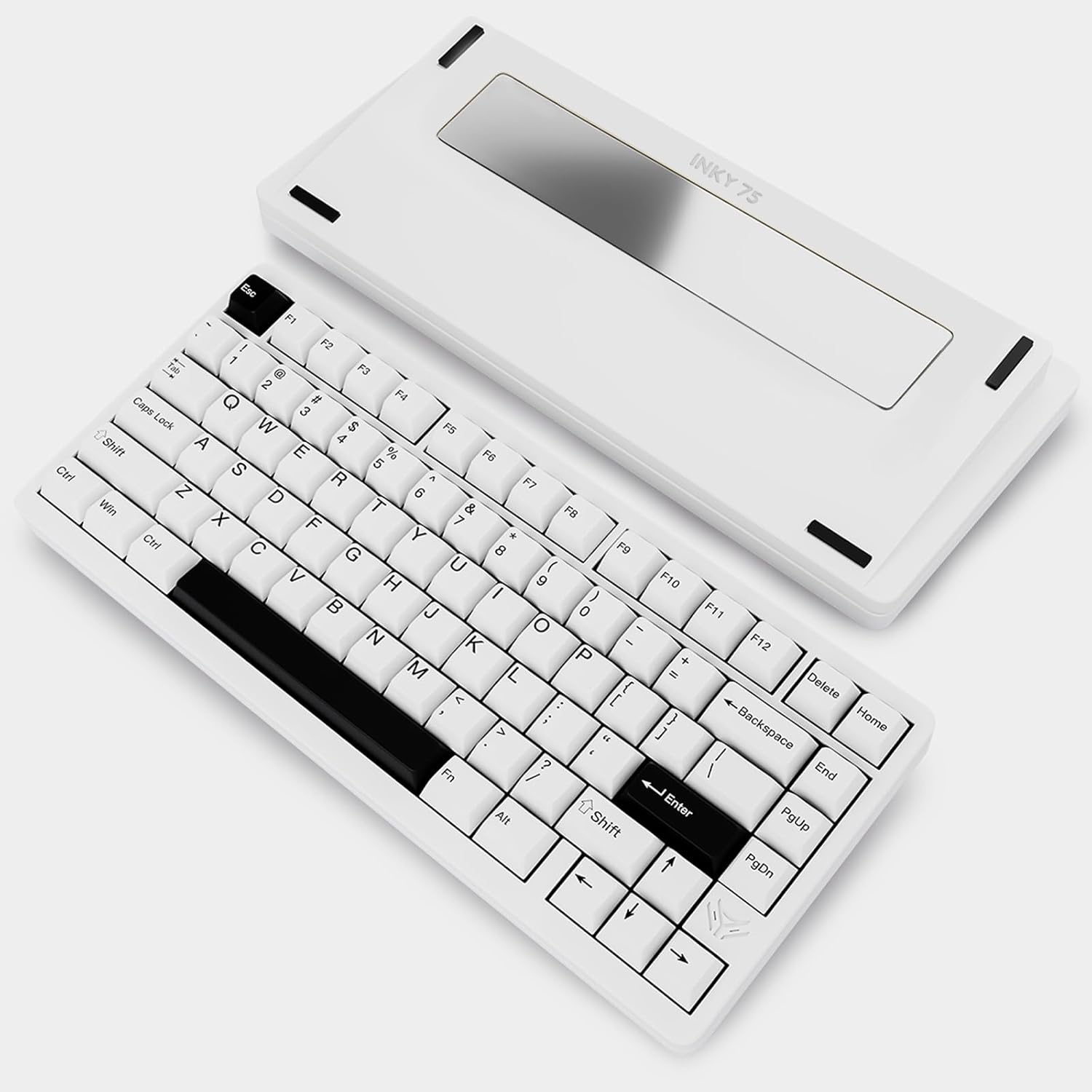
This image displays the ELECFOX MK INKY75 Mechanical Keyboard in its 'Almost White' color variant. The 75% layout keyboard is visible from a top-down angle, showcasing its keycaps and compact design. The separate aluminum base, which houses the 'INKY 75' branding, is positioned behind the keyboard.
Key Features:
- Full Aluminum Chassis: Provides durability and a premium aesthetic.
- Five-Layer Acoustic Dampening: Reduces hollowness for a satisfying typing sound.
- Triple Mode Connection: Supports Bluetooth 5.0, 2.4GHz wireless, and USB-C wired modes.
- Hot-Swappable PCB: Compatible with 3-pin and 5-pin mechanical switches for easy customization without soldering.
- VIA-Compatible: Allows full key remapping, macro creation, and lighting adjustments via VIA web driver.
- South-Facing RGB Lighting: Ensures optimal backlight visibility and customizable effects.
- 4000mAh Battery: Offers extended wireless usage.
4. Setup
4.1 Initial Charging
Before first use, it is recommended to fully charge the keyboard. Connect the provided USB-C cable to the keyboard's USB-C port and the other end to a powered USB port on your computer or a USB wall adapter. The charging indicator (usually an LED near the USB port or a specific key) will show charging status and turn off or change color when fully charged. A full charge can provide up to a week of wireless use with the backlight off.
4.2 Connection Modes
The INKY75 supports three connection modes:
- USB-C Wired Mode: Connect the keyboard directly to your computer using the USB-C cable. This mode provides the most stable connection and charges the keyboard simultaneously.
- 2.4GHz Wireless Mode: For a low-latency wireless connection, use the included 2.4GHz USB dongle.
- Bluetooth 5.0 Mode: Connect wirelessly to multiple devices (e.g., laptop, tablet, smartphone) via Bluetooth.
4.3 Switching Modes & Pairing
Locate the mode switch on the keyboard (typically on the back or side). Switch to your desired mode:
- Wired Mode: Ensure the USB-C cable is connected. The keyboard should be recognized automatically by your operating system.
- 2.4GHz Wireless Mode: Plug the 2.4GHz USB dongle into an available USB port on your computer. Switch the keyboard to 2.4GHz mode. The keyboard should connect automatically.
- Bluetooth Mode: Switch the keyboard to Bluetooth mode. The keyboard will enter pairing mode (often indicated by a blinking LED). On your device (computer, tablet, smartphone), go to Bluetooth settings, search for new devices, and select 'INKY75' to pair. The INKY75 may support multiple Bluetooth profiles; refer to the keyboard's specific key combinations (e.g., Fn + 1, Fn + 2, Fn + 3) to switch between paired Bluetooth devices.
5. Operating Instructions
5.1 Key Functions and Combinations
The INKY75 features a 75% layout, which means some functions are accessed via the 'Fn' key in combination with other keys. Common Fn combinations include:
- Fn + F1-F12: Access multimedia controls (play/pause, volume up/down, mute) or system functions.
- Fn + Arrow Keys: Adjust RGB lighting effects (brightness, speed, mode).
- Fn + Backspace/Delete: May toggle specific keyboard features.
- Fn + 1/2/3: Switch between Bluetooth profiles.
Refer to the keyboard's keycap legends or a dedicated keymap diagram for specific functions.
5.2 RGB Lighting Control
The INKY75 features south-facing RGB LEDs for vibrant backlighting. You can cycle through various lighting modes, adjust brightness, and change effect speed using Fn key combinations. For advanced customization, including per-key lighting and custom effects, use the VIA software.
5.3 VIA Software Configuration
The INKY75 is compatible with the VIA web driver, allowing for extensive personalization. To use VIA:
- Connect your keyboard in wired mode.
- Open a web browser and navigate to the VIA configurator website.
- Follow the on-screen instructions to detect your keyboard.
- You can then remap keys, create macros, and customize RGB lighting effects. Changes are saved directly to the keyboard's firmware.
5.4 Hot-Swapping Switches
The hot-swappable PCB allows you to change mechanical switches without soldering. This feature supports both 3-pin and 5-pin switches. To replace a switch:
- Power off the keyboard or disconnect it from your device.
- Use the included keycap puller to carefully remove the keycap from the switch you wish to replace.
- Use a switch puller (not included, but often bundled with switches) to gently grip the top and bottom clips of the switch and pull it straight up.
- Align the pins of the new switch with the holes on the PCB. Ensure the pins are straight.
- Gently push the new switch into place until it clicks securely. Do not force it.
- Replace the keycap.
6. Maintenance
6.1 Cleaning
To maintain the keyboard's appearance and functionality:
- Regularly use a soft brush or compressed air to remove dust and debris from between the keycaps.
- For stubborn dirt, remove keycaps using the keycap puller and clean the switches and plate with a cotton swab lightly dampened with isopropyl alcohol.
- Wipe the aluminum chassis with a soft, dry, lint-free cloth. Avoid harsh chemicals.
6.2 Battery Care
The INKY75 contains a built-in 4000mAh rechargeable battery. To prolong battery life:
- Avoid fully discharging the battery frequently.
- Store the keyboard in a cool, dry place when not in use for extended periods.
- If storing for a long time, charge the battery to approximately 50% before storage.
7. Troubleshooting
7.1 Keyboard Not Responding
- Wired Mode: Ensure the USB-C cable is securely connected to both the keyboard and the computer. Try a different USB port or cable.
- 2.4GHz Wireless Mode: Ensure the 2.4GHz dongle is properly inserted and the keyboard is switched to 2.4GHz mode. Try re-pairing by unplugging and replugging the dongle, then restarting the keyboard.
- Bluetooth Mode: Check if Bluetooth is enabled on your device. Ensure the keyboard is in Bluetooth mode and paired correctly. Try unpairing and re-pairing the device. Ensure the keyboard's battery is charged.
7.2 RGB Lighting Issues
- If lighting is dim or off, check the brightness settings using Fn key combinations.
- Ensure the keyboard's battery is sufficiently charged, as low battery can affect lighting performance.
- If specific keys are not lighting up, check if the switches are fully seated or if there's a software configuration issue via VIA.
7.3 Keys Not Registering
- If a specific key is not working, remove the keycap and switch. Re-seat the switch firmly, ensuring its pins are not bent. If the issue persists, try replacing the switch with a known working one.
- Check for any software conflicts or remapping issues in VIA.
8. Specifications
| Model Number | INKY75 |
| Product Dimensions | 12.6"L x 5.51"W x 1.57"H (32.0 x 14.0 x 4.0 cm) |
| Item Weight | 5.29 pounds (2.4 kg) |
| Connectivity Technology | 2.4GHz Wireless, Bluetooth 5.0, USB-C Wired |
| Battery | 1 Nonstandard Battery (4000mAh, included) |
| Keyboard Layout | 75% |
| Switches | Hot-Swappable (3-pin/5-pin compatible) |
| Backlighting | South-Facing RGB |
| Special Features | Full Aluminum CNC Chassis, Rechargeable, VIA Programmable Macro |
| Compatible Devices | Laptop, PC, Smartphone, Tablet |
9. Warranty and Support
ELECFOX products are designed for quality and reliability. For warranty information, technical support, or service inquiries, please refer to the warranty card included with your product or visit the official ELECFOX website. Keep your proof of purchase for warranty claims.


