Introduction
The Sainlogic SA6 Plus Smart Connected Weather Station provides precise 24/7 weather forecasts powered by Weatherseed® AI, offering real-time alerts via app and email. It features professional-grade outdoor sensors for accurate measurements of temperature, humidity, wind speed/direction, precipitation, and barometric pressure. The system stores two years of historical weather data, accessible for analysis through the app. Its clear, vibrant display is designed for easy readability, and the outdoor unit offers simple installation for various environments.
Setup Guide
1. What's in the Box
- Console
- Outdoor Sensor
- User Manual
- Power Adapter
- Mounting Support (with pole insertion)
- Mounting Plate (for pole mounting)
- Mounting Pole
- 2x Mounting Nuts (M3) / Bolts (Ø3)
- 4x Mounting Nuts (M5) / Bolts (Ø5)
- 4x Self-tapping Screws
2. Outdoor Sensor Installation
The outdoor unit is designed for easy installation in various locations. Ensure the sensor is placed in an open area for accurate readings, away from obstructions that could affect wind or rain measurements.

Image: Various installation methods for the outdoor sensor unit.
- Assemble the outdoor sensor unit using the provided mounting hardware.
- Choose a suitable location (garden, roof, shelter, dock) that allows for unobstructed wind, rain, and sunlight exposure.
- Mount the sensor securely using the appropriate method (e.g., on a pole, flat surface). Ensure the unit is level using the integrated bubble level and oriented correctly (north-facing for wind direction accuracy).
3. Display Unit Setup
- Connect the power adapter to the display console and plug it into an electrical outlet.
- Insert 3 AAA batteries (not included) into the battery compartment for backup power.
- The display will power on and begin searching for the outdoor sensor.
4. Connecting to the Weatherseed App
The Weatherseed app allows you to view detailed weather data, historical trends, and receive alerts on your smartphone.

Image: Three steps to connect the weather station to the Weatherseed app.
- Download the Weatherseed app from your smartphone's app store.
- Ensure your weather station is powered on and connected to a 2.4GHz Wi-Fi network. (Note: Wi-Fi connection is only supported when powered by the adapter, not batteries).
- Open the app, tap 'Add Device', and select 'SA6 Plus'.
- On the display console, press and hold the 'Wind/+' button for 3 seconds.
- Scan the QR code displayed on the console using the app.
- Follow the on-screen prompts to connect to your 2.4GHz Wi-Fi network or via Bluetooth.
Operating Instructions
1. Display Console Overview
The console provides a clear, high-contrast display of current weather conditions and historical data.
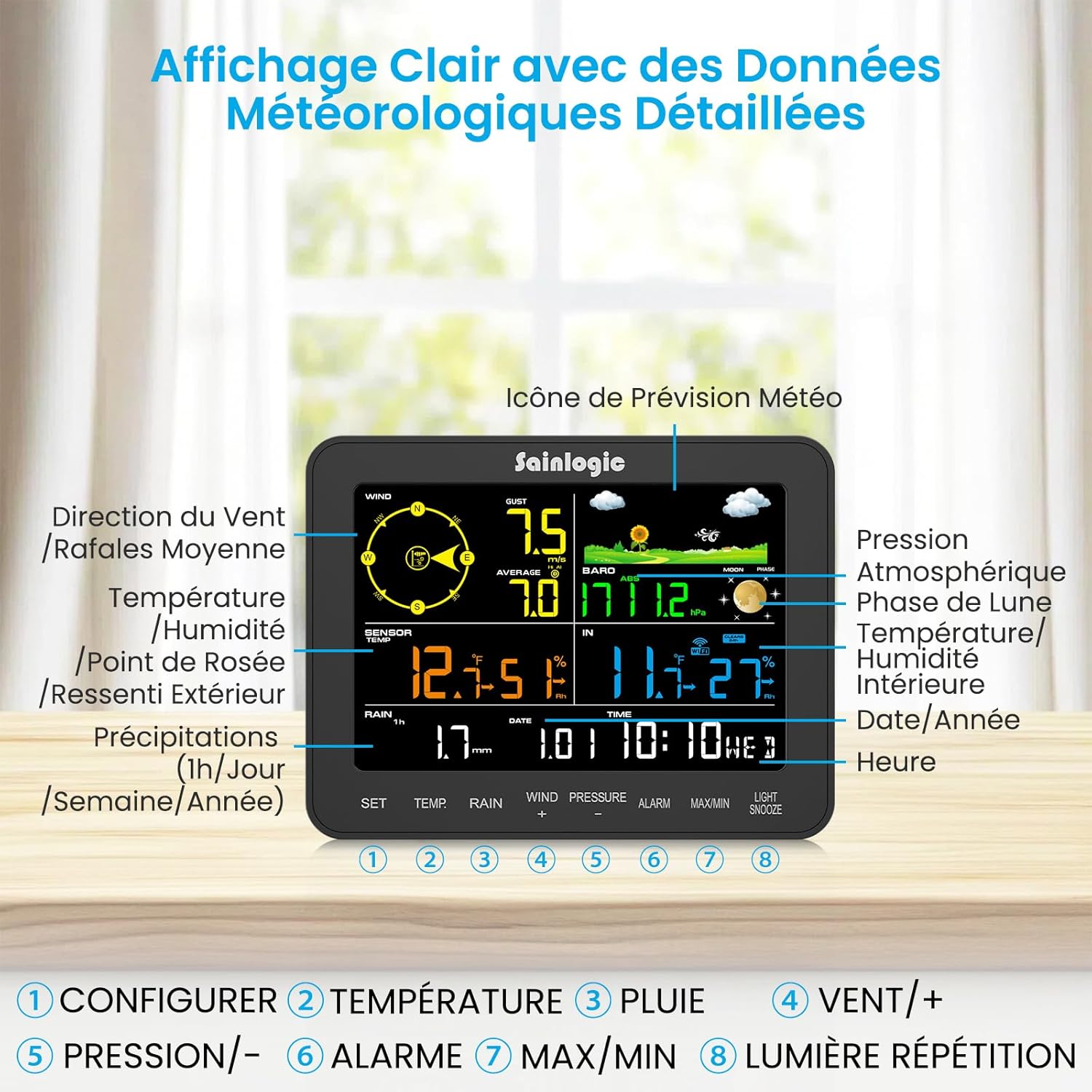
Image: Sainlogic SA6 Plus display console with labeled features and buttons.
- Wind Data: Displays wind direction, current gust, and average wind speed.
- Temperature & Humidity: Shows outdoor temperature and humidity, dew point, and 'feels like' temperature.
- Precipitation: Tracks hourly, daily, weekly, and yearly rainfall.
- Barometric Pressure: Current atmospheric pressure.
- Time & Date: Current time, date, and year.
- Indoor Conditions: Displays indoor temperature and humidity.
- Moon Phase: Graphical representation of the current moon phase.
2. Using the Weatherseed App
The Weatherseed app extends the functionality of your weather station, providing detailed forecasts, historical data, and customizable alerts.

Image: Weatherseed app interface displaying 24/7 AI weather forecasts.
- 24/7 AI Forecasts: Access precise weather predictions for your location.
- Customizable Alerts: Set thresholds for temperature, humidity, wind, and rain. Receive push notifications and email alerts when these thresholds are met.
- Historical Data: View up to two years of stored weather data. Export data to Excel for in-depth analysis of climate trends.

Image: Weatherseed app showing historical data storage and Excel export options.
Maintenance
1. Cleaning
- Outdoor Sensor: Periodically clean the rain collector funnel and wind cups to ensure accurate measurements. Use a soft, damp cloth. Avoid abrasive cleaners.
- Display Console: Wipe the screen and casing with a soft, dry cloth.
2. Battery Replacement
The display console uses 3 AAA batteries for backup. Replace them when the low battery indicator appears on the screen to maintain time and settings during power outages.
Troubleshooting
1. No Data from Outdoor Sensor
- Ensure the outdoor sensor is powered on and within range of the display console.
- Check for any physical obstructions between the sensor and console.
- Verify that the batteries in the outdoor sensor (if applicable) are fresh and correctly inserted.
2. Incorrect Readings
- Temperature/Humidity: Ensure the sensor is not in direct sunlight or near heat sources.
- Wind: Check that the wind cups and vane are spinning freely and not obstructed.
- Rain: Clean the rain collector funnel to remove any debris.
3. Wi-Fi Connectivity Issues
- Confirm your Wi-Fi network is 2.4GHz. The device does not support 5GHz networks.
- Ensure the display console is within range of your Wi-Fi router.
- Restart your router, the display console, and try the app connection process again.
Specifications
| Model Number | SA6 Plus |
| Brand | Sainlogic |
| Product Dimensions (L x W x H) | 2.5 x 17 x 13.2 cm |
| Weight | 2.74 kilograms |
| Material | Acrylonitrile Butadiene Styrene (ABS) |
| Color | Black |
| Power Source | Battery/Electric Cable |
| Batteries Required | 3 AAA (for console backup) |
| Connectivity Technology | Bluetooth, Wi-Fi (2.4GHz only) |
| Recommended Uses | Garden, Home |
| Specific Uses | Date; Time, Humidity, Moon Phase; Precipitation; Wind Gust, Dew Point, Pressure, Temperature, Average Wind Speed; Feels Like; Wind Arrow; Wind Direction |
| Special Features | Customizable Alert, Precise 24/7 AI Weather Forecast, Smart Weather Station, 2-Year Data Storage and Export, Precise Rain Monitoring |
| Country of Origin | China |
| Spare Parts Availability | Information unavailable |
Warranty Information
This product typically comes with a return policy allowing for refund or replacement within 30 days of purchase. For specific warranty terms and conditions, please refer to the documentation provided with your purchase or contact the retailer.
Customer Support
For technical assistance, troubleshooting, or further inquiries, please contact Sainlogic customer support. Refer to the contact information provided in your product packaging or visit the official Sainlogic website for support resources.
You can also visit the Sainlogic brand page on Amazon for more information.


