
1. Setup
1.1 Unboxing and Initial Inspection
Carefully remove the laptop and all accessories from the packaging. Inspect the device for any visible damage. The manufacturer's box may have been opened for customization and testing purposes.
1.2 Connecting the Power Adapter
Connect the 65W AC adapter to the laptop's power port (typically a USB-C Thunderbolt 4 port) and then to a power outlet. Allow the battery to charge sufficiently before initial use.
1.3 Initial Power On and Operating System Setup
Press the power button to turn on the laptop. Follow the on-screen instructions to complete the Windows 11 Home operating system setup, including language selection, network connection, and user account creation.
1.4 Connecting Peripherals
Utilize the available ports to connect external devices:
- USB Thunderbolt 4 / USB4 40Gbps Type-C: For high-speed data transfer, power delivery, and DisplayPort output.
- USB 3.2 Gen 1 Type-A: For standard USB devices, supports 'Always On' functionality for charging.
- HDMI 1.4: For connecting to external displays.
- Headphone/Microphone Combo Jack: For audio input and output.

2. Operating
2.1 2-in-1 Functionality
The Lenovo Yoga 7 is a versatile 2-in-1 device, allowing it to be used in multiple modes:
- Laptop Mode: Traditional laptop use with keyboard and touchpad.
- Tent Mode: Ideal for presentations or media consumption.
- Stand Mode: Positions the screen for viewing without the keyboard.
- Tablet Mode: Fully folded back for touchscreen interaction.


2.2 Touchscreen and Stylus Interaction
The 16-inch WUXGA (1920 x 1200) IPS touchscreen supports multi-touch gestures. For precise input, a compatible stylus can be used, especially in tablet or tent modes for drawing or note-taking.
2.3 Keyboard and Touchpad
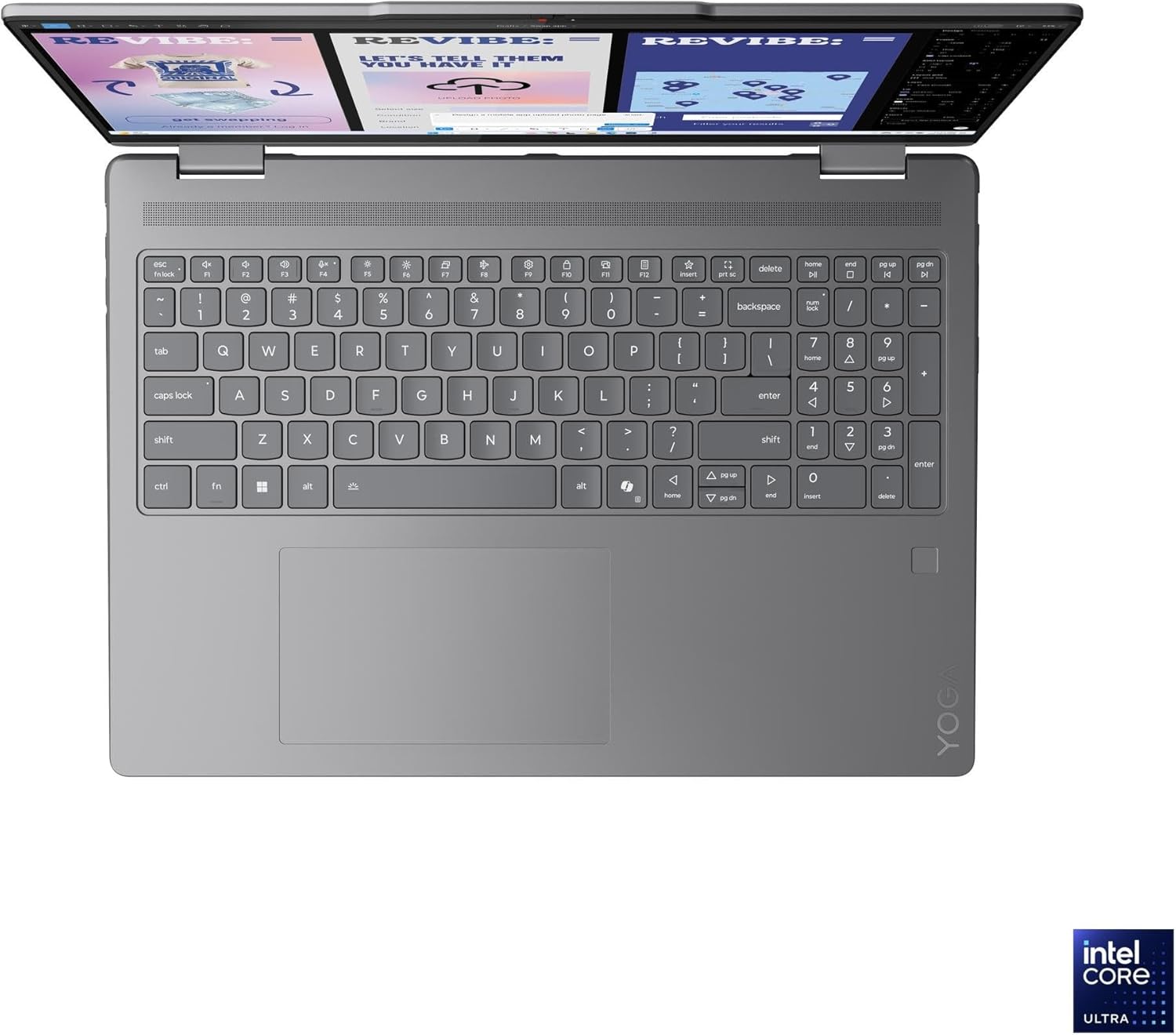
The laptop features a backlit keyboard with a dedicated Numpad for enhanced productivity. The integrated touchpad supports multi-finger gestures for navigation and control.
2.4 Fingerprint Reader
For secure and convenient login, the laptop includes a fingerprint reader. Configure your fingerprint in Windows Settings for biometric authentication.
2.5 Camera and Privacy Shutter
The integrated FHD 1080p + IR Camera is equipped with a physical privacy shutter. Slide the shutter to cover the camera lens when not in use to ensure privacy.
2.6 Wireless Connectivity
The laptop supports Realtek Wi-Fi 7 (2x2) for high-speed wireless internet access and Bluetooth 5.4 for connecting wireless peripherals such as headphones or mice.
2.7 Battery Management
The 70Wh Lithium-Ion battery provides an average battery life of up to 6 hours. To optimize battery longevity, avoid fully discharging the battery frequently and store the laptop in a cool, dry place when not in use for extended periods.
3. Maintenance
3.1 Cleaning the Laptop
- Screen: Use a soft, lint-free cloth lightly dampened with water or a screen-cleaning solution. Avoid harsh chemicals.
- Keyboard and Chassis: Use a soft, dry cloth. For stubborn dirt, a slightly damp cloth can be used. Ensure no liquid enters openings.
- Ports: Use compressed air to gently clear dust from ports.
3.2 Software Updates
Regularly update your Windows operating system and device drivers to ensure optimal performance, security, and compatibility. Check for updates through Windows Settings and Lenovo's official support website.
3.3 Storage and Handling
Store the laptop in a protective sleeve or bag to prevent scratches and impacts. Avoid exposing the laptop to extreme temperatures, direct sunlight, or high humidity.
4. Troubleshooting
4.1 Power Issues
- Laptop not turning on: Ensure the power adapter is securely connected and the battery has sufficient charge. Try a different power outlet.
- Battery not charging: Verify the power adapter is functioning correctly. Check the charging port for obstructions.
4.2 Display Problems
- No display: Connect an external monitor to check if the issue is with the laptop's internal display. Restart the laptop.
- Flickering or distorted screen: Update graphics drivers. Adjust display settings.
4.3 Connectivity Issues
- Wi-Fi not connecting: Ensure Wi-Fi is enabled. Restart your router and laptop. Check network settings.
- Bluetooth device not pairing: Ensure Bluetooth is enabled on both devices. Place devices close to each other.
4.4 General Performance Issues
- Slow performance: Close unnecessary applications. Check for malware. Ensure sufficient free storage space.
- Overheating: Ensure ventilation vents are clear. Use the laptop on a hard, flat surface.
5. Specifications
| Feature | Specification |
|---|---|
| Model Number | 83JT000ESCV |
| Display | 16" WUXGA (1920 x 1200) IPS Touchscreen, 300 nits, Glossy / Anti-fingerprint, 45% NTSC, 60Hz, Dolby Vision, TÜV Low Blue Light |
| Processor | Intel Core Ultra 7 256V 8-Core (Up to 4.8 GHz, 12 MB Intel Smart cache, 8 Cores: 4 Performance + 4 Efficient, 8 Threads) |
| Graphics | Intel Arc Graphics 140V (Integrated) |
| Memory | 16GB DDR5 SDRAM 8533 MHz |
| Storage | 2TB NVMe M.2 SSD |
| Operating System | Windows 11 Home |
| Wireless Connectivity | Realtek Wi-Fi 7 (2x2), Bluetooth 5.4 |
| Ports | 2x USB Thunderbolt 4 / USB4 40Gbps Type-C, 1x USB 3.2 Gen 1 Type-A, 1x HDMI 1.4, 1x Headphone/microphone combo |
| Camera | FHD 1080p + IR Camera with Privacy Shutter |
| Battery | 70Wh Lithium-Ion, up to 6 hours average battery life |
| Power Adapter | 65W AC Adapter |
| Dimensions (LxWxH) | 14.21" x 10.11" x 0.62" |
| Weight | 4.23 lbs |
| Color | Luna Grey |
| Keyboard | Backlit with Numpad and Fingerprint reader |
6. Warranty and Support
6.1 Warranty Information
Warranty terms and conditions for your Lenovo Yoga 7 2-in-1 16ILL10 Laptop are typically provided with the product documentation at the time of purchase. Please refer to these documents for specific details regarding coverage, duration, and service procedures. You can also find the most current warranty information on the official Lenovo support website.
6.2 Technical Support
For technical assistance, driver downloads, or further troubleshooting, please visit the official Lenovo Support website. You will need your product's serial number (found on the device or packaging) to access specific support resources.
Lenovo Support Website: support.lenovo.com


