
1. Introduction
This manual provides essential information for the proper setup, operation, and maintenance of your Veout 15.6-inch Portable Monitor. Please read these instructions thoroughly before using the product to ensure optimal performance and longevity.
2. Package Contents
Verify that all items listed below are present in your product packaging:
- 1 x Portable Monitor
- 1 x USB-A to USB-C Cable
- 1 x USB-C to USB-C Cable
- 1 x Mini HDMI to HDMI Cable
- 1 x User Manual

Figure 2.1: Included accessories with the portable monitor.
3. Product Overview
The Veout portable monitor features a 15.6-inch IPS display with a slim profile and integrated kickstand for versatile use.
3.1. Physical Features

Figure 3.1: Front view of the Veout 15.6-inch Portable Monitor.

Figure 3.2: Rear view highlighting connectivity ports.

Figure 3.3: Side profile demonstrating the monitor's thin design.
3.2. Ports and Controls
- Full-Function USB-C Ports: For video, audio, data, and power delivery with a single cable.
- Mini-HDMI Port: For video and audio input. Requires external power via USB-C when used.
- 3.5mm Audio Jack: For connecting external headphones or speakers.
- Control Wheel/Buttons: Used for adjusting volume, brightness, and navigating the On-Screen Display (OSD) menu.
3.3. Integrated Kickstand
The monitor features a foldable kickstand for stable positioning at various viewing angles.
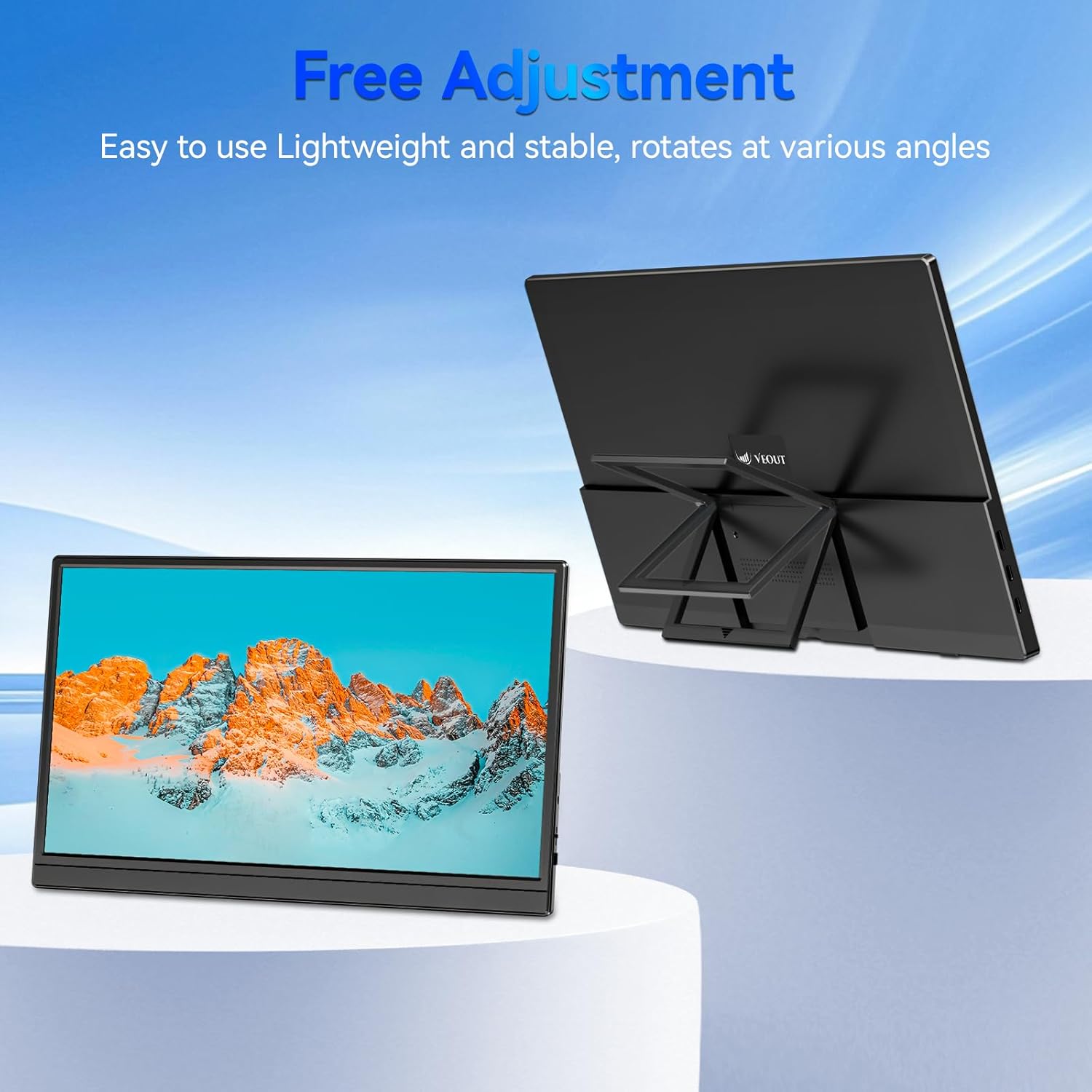
Figure 3.4: Monitor with kickstand for adjustable viewing.
4. Setup
The Veout portable monitor supports plug-and-play functionality, requiring no driver installation for most devices.
4.1. Connecting to a Device
- USB-C Connection (Single Cable):
- Connect one end of the USB-C to USB-C cable to a full-function USB-C port on your laptop, smartphone, or other compatible device.
- Connect the other end of the USB-C to USB-C cable to one of the full-function USB-C ports on the portable monitor.
- This connection provides video, audio, and power to the monitor.
- HDMI Connection (Requires Additional Power):
- Connect one end of the Mini-HDMI to HDMI cable to the Mini-HDMI port on the monitor.
- Connect the other end of the Mini-HDMI to HDMI cable to the HDMI port on your device.
- For power, connect the USB-A to USB-C cable or a USB-C to USB-C cable from your device's USB port or a power adapter (not included) to one of the monitor's USB-C ports.
4.2. Positioning the Monitor
Deploy the integrated kickstand to position the monitor on a flat surface. Adjust the angle for optimal viewing. The monitor can be used in both landscape and portrait orientations.

Figure 4.1: Monitor used in portrait mode for document viewing.
5. Operating Instructions
5.1. Display Modes
When connected to a computer, you can configure the display mode through your operating system's display settings:
- Copy Mode (Mirror Display): Duplicates your primary screen's content onto the portable monitor. Useful for presentations or sharing content.
- Extended Mode: Extends your desktop across both screens, providing additional workspace for multitasking.
- Second Screen Only Mode: Displays content only on the portable monitor, with the primary device's screen turned off.
5.2. Adjusting Settings
The monitor features an intuitive control mechanism for quick adjustments:
- Brightness Adjustment: Scroll the control wheel up or down to instantly adjust screen brightness.
- Volume Adjustment: Scroll the control wheel up or down to instantly adjust speaker volume.
- OSD Menu: Press the control wheel or designated button to access the On-Screen Display menu for advanced settings like color, contrast, and input source selection.
5.3. Eye Care Technology
The monitor incorporates advanced eye-care technology designed to reduce blue light emission and screen flicker, promoting comfortable viewing during extended use.
6. Maintenance
To maintain your monitor's performance and appearance, follow these guidelines:
- Cleaning the Screen: Gently wipe the screen with a soft, lint-free cloth. For stubborn marks, lightly dampen the cloth with water or a screen-cleaning solution. Avoid harsh chemicals or abrasive materials.
- Cleaning the Casing: Use a soft, dry cloth to clean the monitor's casing.
- Storage: When not in use, store the monitor in a cool, dry place, preferably in its original packaging or a protective sleeve.
- Avoid Liquids: Do not expose the monitor to excessive moisture or spill liquids directly onto it.
7. Troubleshooting
If you encounter issues with your monitor, refer to the following common problems and solutions:
| Problem | Possible Cause | Solution |
|---|---|---|
| No display/"No Signal" message | Incorrect cable connection, insufficient power, incorrect input source. | Ensure cables are securely connected. If using HDMI, ensure a separate power source is connected to the monitor's USB-C port. Check your device's display settings to ensure the monitor is detected and enabled. Select the correct input source via the OSD menu. |
| Flickering screen | Loose cable connection, incompatible resolution/refresh rate, power fluctuations. | Reconnect cables. Adjust display resolution or refresh rate on your connected device. Ensure stable power supply. |
| No sound from monitor speakers | Monitor volume too low, incorrect audio output selected on device. | Increase monitor volume using the control wheel. On your connected device, ensure the portable monitor is selected as the audio output device. |
| Monitor not powering on | No power supply, faulty cable. | Ensure the monitor is receiving power via a USB-C connection from a compatible device or power adapter. Try a different USB-C cable. |
8. Specifications
| Feature | Detail |
|---|---|
| Product Model Number | Veout-15.6 |
| Screen Size | 15.6 inches |
| Resolution | 1920 x 1080 Pixels (FHD 1080p) |
| Aspect Ratio | 16:9 |
| Panel Type | IPS |
| Screen Surface | Matte |
| Product Dimensions | 1.97 x 13.78 x 11.02 inches |
| Item Weight | 3.08 pounds |
| Input Voltage | 5V |
| Rated Current | 3A |
| Output Power | 5.5W |
| Manufacturer | Guangdong Zhanwei electronic Technology Co., LTD |

Figure 8.1: Product information and certification details.
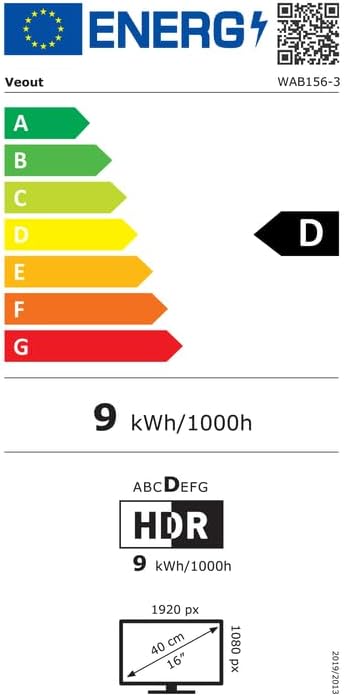
Figure 8.2: EU Energy Label for model WAB156-3. For more details, visit eprel.ec.europa.eu/qr/2209122.
9. Warranty and Support
Your Veout Portable Monitor is backed by a 12-month warranty from the date of purchase. We are committed to providing customer service and support.
- Warranty Period: 12 Months
- Return Policy: 30-day money-back guarantee
- Customer Service: Available 24 hours

Figure 9.1: Warranty and support information.
For technical assistance or warranty claims, please contact Veout customer support at support@veout.com.
