
Introduction
This manual provides detailed instructions for the installation, operation, and maintenance of your Uckazy 12.3 Inch Android 14 Car Radio. Please read this manual thoroughly before installation and use to ensure proper function and to maximize your product experience. This device is designed to enhance your driving experience by integrating modern features like Android 14, wireless CarPlay, and Android Auto into your Mercedes-Benz vehicle while retaining original system functionalities.
Compatibility
This Uckazy 12.3 Inch Android 14 Car Radio is specifically designed for Mercedes-Benz C218/W218 2013 models equipped with the NTG 4.5 or NTG 4.7 system. It is crucial to verify your vehicle's original system type before installation. This unit is not compatible with original radios featuring NTG 4.0, NTG 5.0, or NTG 5.1 systems.

Figure 1: Compatible Models & Year. This image illustrates the visual differences between compatible NTG 4.5/4.7 systems and incompatible NTG 4.0 and NTG 5.0/5.1 systems, based on the original radio's button layout and connector type. Ensure your vehicle's system matches the compatible configuration.
Key Features
- Plug and Play Installation: Designed for direct integration with Mercedes-Benz C218/W218 2013 models with NTG 4.5/4.7 System.
- 12.3-inch IN-CELL Screen: Features an HD 1920x720 resolution display with full lamination technology for enhanced transparency and reduced reflection.
- Android 14 System: Powered by a 13 NM MediaTek Octa-core processor (4*Cortex A72 2.2GHz + 4*Cortex A51 1.8GHz) with 4GB RAM and 64GB ROM.
- Wireless CarPlay & Android Auto: Seamless integration with your smartphone for navigation, music, calls, and voice assistants (Siri/Google Voice Assistant).
- Built-in DSP: 16 EQ segments for advanced audio tuning, allowing customization of sound quality and speaker positioning.
- Retains Original iDrive Control: Maintains full functionality of the original iDrive system and navigation within both the original and Android interfaces.
- OEM System Support: Supports original steering wheel controls, OEM reversing camera, parking radar, and retains the original car stereo sound and CD player functionality.

Figure 2: Original OEM System Support. This image highlights the integration capabilities, ensuring that essential original vehicle functions remain operational after the new unit is installed.

Figure 3: Wireless CarPlay & Android Auto. This image illustrates the user interface for both wireless CarPlay and Android Auto, showcasing various applications available for use in driving situations.

Figure 4: Built-in DSP. This image displays the Digital Signal Processor (DSP) interface, allowing users to fine-tune audio settings with 16 EQ segments for a personalized sound experience.

Figure 5: Product Feature Icons. This image provides a visual overview of the diverse functionalities offered by the car radio, from connectivity to multimedia and vehicle integration.
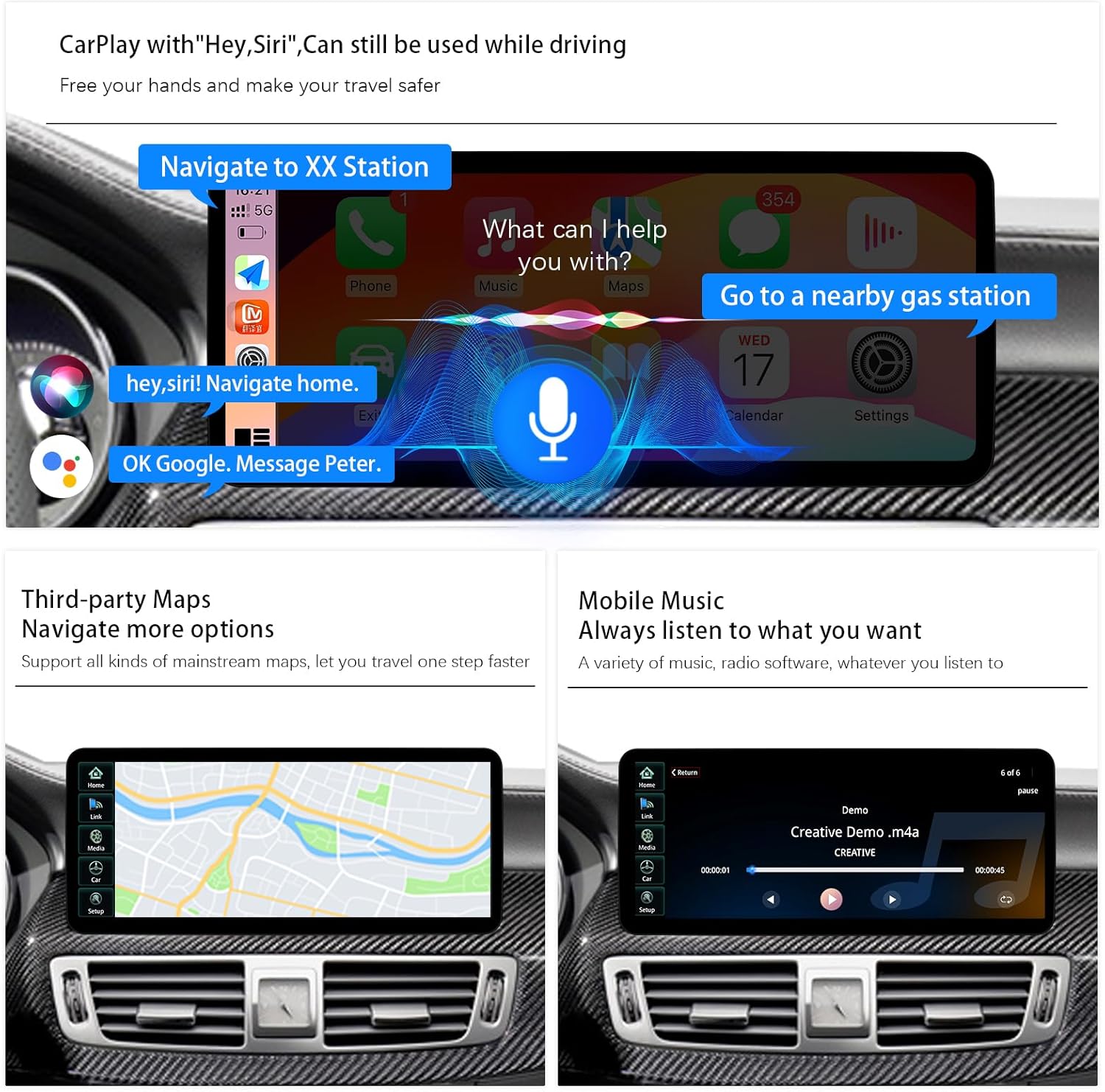
Figure 6: CarPlay Voice Control and Navigation. This image illustrates the convenience of voice-activated commands through CarPlay for navigation and communication, along with examples of third-party map and music applications.

Figure 7: Before vs. After Installation. This image provides a visual comparison of the dashboard with the original screen versus the upgraded 12.3-inch Android display, showcasing the aesthetic and functional improvement.
Package Contents
Please ensure all the following items are included in your package:
- 12.3 Inch Android Display Unit
- Benz C-CLS Frame
- AUX Cable
- AMI Cable
- Power Cable/USB Cable Harness
- Installation Tools (e.g., plastic pry tools)
- Touch Pen

Figure 8: Package Contents. This image displays all the accessories and main unit included in the product package, ensuring you have everything needed for installation.
Setup and Installation
Installation of this unit requires careful handling of vehicle wiring. If you are not confident in performing the installation yourself, it is recommended to seek professional assistance.
Fiber Optic Cable Connection
The fiber optic cable is crucial for audio transmission. Incorrect connection can lead to a 'no sound' issue. Follow these steps:
- Locate the original vehicle's wiring harness.
- Carefully cock the snap on the original connector and pull out the fiber optic cable.
- Transfer this fiber optic cable to the designated slot on the new power cable harness provided with the Uckazy unit. Ensure it is securely seated.
Video 1: Fiber Optic Cable Transfer. This video demonstrates the correct procedure for transferring the fiber optic cable from the original wiring harness to the new power cable, which is essential for proper audio functionality.
Power Cable Connection
After handling the fiber optic cable, connect the main power cable:
- Locate the power cord from the new unit's harness.
- Plug it into the correct interface on the original vehicle's power cable. Pay close attention to the orientation and ensure a secure snap connection.
General Installation Notes
- Ensure all cables are securely connected to prevent intermittent issues.
- Route cables carefully to avoid pinching or damage during reassembly.
- Test the unit's functionality (power, audio, touch screen, steering wheel controls) before fully reassembling the dashboard.
- If you encounter any difficulties, refer to the troubleshooting section or contact customer support.
Operating Instructions
Basic Navigation
The 12.3-inch touchscreen allows for intuitive control. Swipe left/right to navigate between screens, tap icons to open applications, and use the back button or gesture controls to return to previous menus. The original iDrive controller remains functional for navigating the original system and can also be used for some Android functions.
Wireless CarPlay / Android Auto
To connect your smartphone wirelessly:
- Ensure Bluetooth and Wi-Fi are enabled on your smartphone.
- On the car radio, navigate to the CarPlay or Android Auto application.
- Follow the on-screen prompts to pair your phone via Bluetooth first, then confirm the Wi-Fi connection.
- Once connected, your phone's interface will appear on the car radio screen, allowing access to navigation, music, calls, and messaging.
- Use voice commands (e.g., "Hey Siri" or "OK Google") for hands-free operation.
DSP Audio Settings
The built-in DSP allows for advanced audio customization:
- Access the "EQ" or "DSP" settings from the main menu.
- Adjust the 16 EQ segments to fine-tune frequencies according to your preference.
- Utilize preset EQ modes for quick sound adjustments.
- Adjust speaker positioning and balance to optimize the sound stage within your vehicle.
Maintenance
To ensure the longevity and optimal performance of your Uckazy car radio, follow these maintenance guidelines:
- Screen Cleaning: Use a soft, lint-free cloth specifically designed for electronic screens. Lightly dampen the cloth with water or a screen-safe cleaner if necessary. Avoid harsh chemicals or abrasive materials.
- General Cleaning: Keep the unit free from dust and debris. Use a soft brush or compressed air to clean around buttons and vents.
- Software Updates: Periodically check for software updates provided by Uckazy to ensure you have the latest features and bug fixes. Follow the instructions provided with the update carefully.
- Temperature: Avoid exposing the unit to extreme temperatures for prolonged periods, as this can affect performance and lifespan.
Troubleshooting
If you encounter any issues with your Uckazy car radio, refer to the following common problems and solutions:
No Sound
- Fiber Optic Cable: The most common cause for no sound is an incorrectly transferred fiber optic cable. Refer to the "Fiber Optic Cable Connection" section and Video 1 to ensure the fiber optic cable from your original harness is correctly inserted into the new power cable.
- AUX Mode: Ensure your original car radio is set to AUX mode. The Android unit outputs audio through the AUX input of your original system.
- Volume Levels: Check both the car radio's volume and your original car stereo's volume.
Touch Screen Unresponsive or Random Selections
- Restart Unit: Try restarting the car radio unit.
- Firmware Update: Ensure the unit has the latest firmware. Contact Uckazy support for available updates.
- Environmental Factors: Extreme temperatures or moisture can sometimes affect touchscreen performance.
Wireless CarPlay/Android Auto Connectivity Issues
- Bluetooth/Wi-Fi: Confirm that Bluetooth and Wi-Fi are active on both your phone and the car radio.
- Forget Device: On your phone, forget the car radio from your Bluetooth and Wi-Fi settings, then attempt to pair again.
- Phone Compatibility: Ensure your smartphone's operating system is up to date and compatible with CarPlay/Android Auto.
Specifications
| Feature | Specification |
|---|---|
| Screen Size | 12.3 inches |
| Display Resolution | HD 1920x720 |
| Operating System | Android 14 |
| Processor | 13 NM MediaTek Octa-core (4*Cortex A72 2.2GHz + 4*Cortex A51 1.8GHz) |
| RAM | 4GB |
| ROM | 64GB |
| Connectivity | 2.4G & 5.0G Wi-Fi, Bluetooth |
| Special Features | Touchscreen, Wireless CarPlay, Wireless Android Auto, Built-in DSP (16 EQ segments) |
| Compatible Devices | Smartphone |
| Item Weight | 3.4 pounds |
| Package Dimensions | 22 x 20 x 16 inches |
Warranty and Support
For warranty information, technical support, or any product-related inquiries, please contact Uckazy customer service directly. Refer to the contact information provided with your purchase or visit the official Uckazy website for assistance. Keep your purchase receipt as proof of purchase for warranty claims.