
1. Introduction
This manual provides detailed instructions for the ZOGGCOX XZL003 1080P WiFi USB Charger Hidden Camera. This device is designed for discreet indoor surveillance, functioning as both a standard USB charger and a high-definition camera. It features motion detection, night vision, and remote viewing capabilities via a mobile application.

Image 1.1: The ZOGGCOX XZL003 USB Charger Hidden Camera, showing its discreet design with an integrated camera lens.
2. Package Contents
Verify that all items are present in the package:
- ZOGGCOX XZL003 USB Charger Hidden Camera (1 unit)
- User Manual (this document)
3. Product Overview
The ZOGGCOX XZL003 integrates a 1080P camera into a functional USB wall charger. Key features include:
- Invisible Lens & Sleek Design: Discreetly integrated for seamless blending into any environment.
- Motion Detection: Automatically records and sends alerts upon detecting movement.
- Continuous Recording: Supports 24-hour loop recording.
- Remote WiFi Camera: View and control the camera from a smartphone or mobile device.
- 1080P FHD Image & Wide Angle: Captures clear 1920*1080 resolution video with a 100° wide-angle lens.
- Dual Functionality: Functions as a standard USB charger while recording.

Image 3.1: The camera plugged into a wall outlet, demonstrating its dual functionality as a USB charger and a hidden surveillance device.
4. Setup
4.1 Inserting the SD Card
- Locate the SD card slot on the device.
- Gently insert a compatible Micro SD card (not included) into the slot until it clicks into place. Ensure the card is inserted in the correct orientation.
- To remove, gently press the SD card until it pops out.
4.2 Powering On the Device
Plug the ZOGGCOX XZL003 camera into a standard wall outlet. The device will automatically power on and begin its initialization sequence.
4.3 App Download and Installation
- Scan the QR code provided in the packaging or search for the designated application in your smartphone's app store (e.g., App Store for iOS, Google Play Store for Android).
- Download and install the application.
- Register an account and log in.
4.4 Connecting to Wi-Fi
- Open the installed application on your smartphone.
- Follow the in-app instructions to add a new device. This typically involves selecting the camera model and connecting to the camera's temporary Wi-Fi hotspot.
- Once connected to the camera's hotspot, the app will guide you to select your home or office Wi-Fi network and enter the password.
- After successful connection, the camera will be accessible remotely via the application.
5. Operating Instructions
5.1 Live View
Once the camera is connected to your Wi-Fi network and linked to the app, you can access the live video feed from anywhere using your smartphone. Open the app and select the camera to view real-time footage.
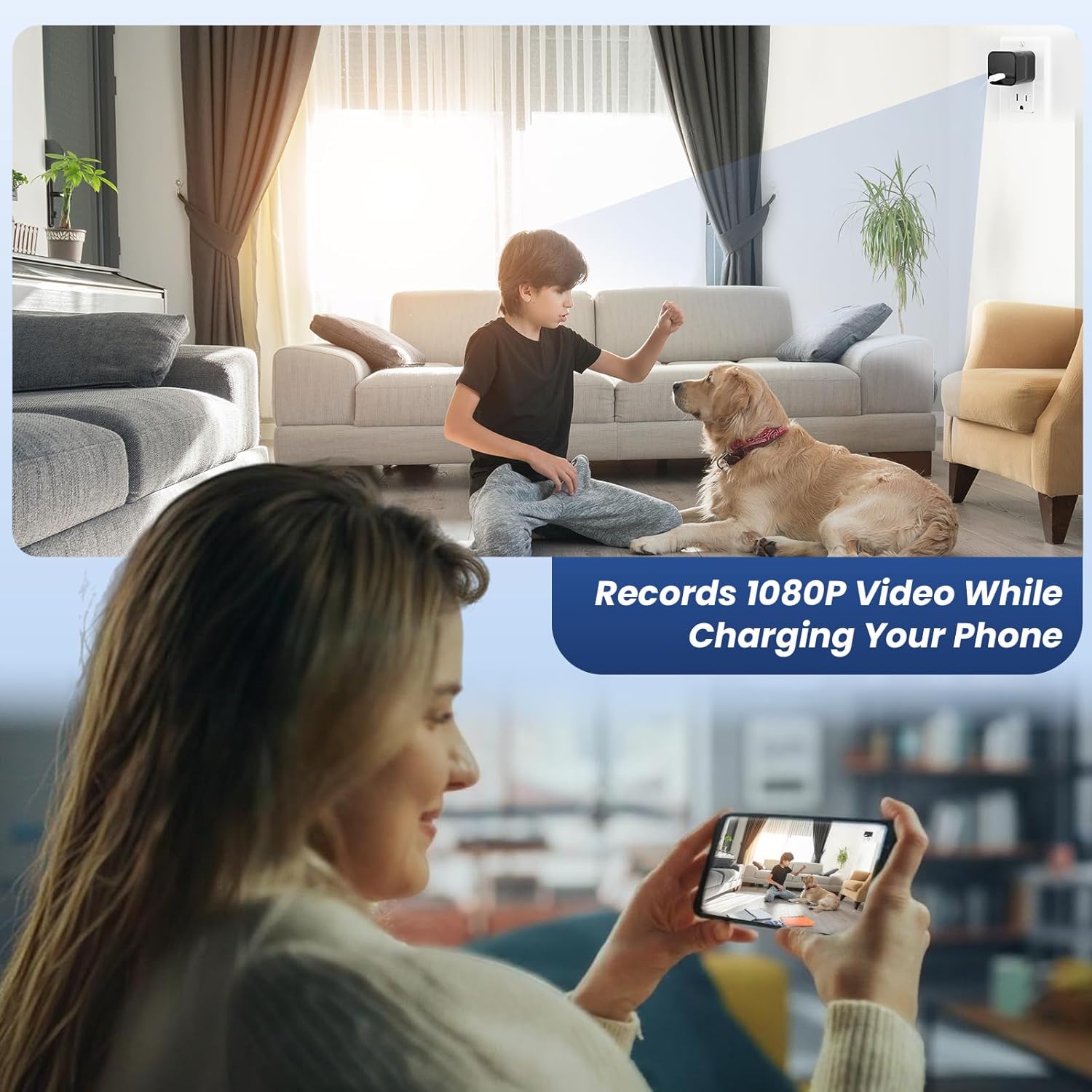
Image 5.1: A user viewing the live feed from the ZOGGCOX XZL003 camera on a smartphone, demonstrating remote monitoring capabilities.
5.2 Motion Detection
The camera features a built-in motion sensor. When motion is detected within approximately 3 meters, the camera will automatically begin recording and send alert notifications to your connected smartphone.
- Enabling/Disabling: Access the camera settings within the mobile app to enable or disable motion detection.
- Sensitivity: Adjust motion detection sensitivity levels in the app settings to minimize false alarms.
- Alerts: Ensure app notifications are enabled on your smartphone to receive timely alerts.

Image 5.2: A smartphone screen showing a 'Motion detected' notification from the camera, indicating an alert event.
5.3 Continuous Recording (Loop Recording)
The camera supports 24-hour loop recording. When the SD card is full, the oldest footage will be overwritten by new recordings. This ensures continuous surveillance without manual intervention.
- Ensure an SD card is inserted for recording functionality.
- Recording settings can be managed via the mobile application.
5.4 Night Vision
The camera is equipped with night vision capabilities to capture clear images in low-light conditions. This feature typically activates automatically when ambient light levels are insufficient.
5.5 Using as a USB Charger
The device functions as a standard USB wall charger. You can plug any compatible USB charging cable into the port to charge your electronic devices while the camera operates.
6. Maintenance
6.1 Cleaning
To clean the camera, gently wipe the exterior with a soft, dry cloth. Do not use liquid cleaners or abrasive materials, as these can damage the device or obscure the lens.
6.2 Storage
When not in use, store the camera in a cool, dry place away from direct sunlight and extreme temperatures.
6.3 SD Card Management
Regularly check the SD card status via the app. For optimal performance, it is recommended to format the SD card periodically. Back up any important recordings before formatting.
7. Troubleshooting
If you encounter issues with your ZOGGCOX XZL003 camera, refer to the following common problems and solutions:
| Problem | Possible Cause | Solution |
|---|---|---|
| Camera not connecting to Wi-Fi | Incorrect Wi-Fi password; camera too far from router; router settings (e.g., 5GHz network) | Verify Wi-Fi password. Move camera closer to router. Ensure your Wi-Fi network is 2.4GHz (most cameras do not support 5GHz). Reset camera and try setup again. |
| No live feed or offline status | No power; Wi-Fi disconnected; app issue | Check if the camera is properly plugged in. Verify Wi-Fi connection. Restart the app or your smartphone. |
| Poor video quality (grainy, unclear) | Insufficient lighting; dirty lens; network bandwidth issues | Ensure adequate lighting. Clean the camera lens gently. Check your internet speed. |
| Motion detection not working or too many false alarms | Feature disabled; incorrect sensitivity settings; environmental factors | Enable motion detection in the app. Adjust sensitivity settings. Ensure camera is placed in an area free from constant movement (e.g., curtains blowing). |
| SD card not recording | SD card full; faulty SD card; incorrect format | Check SD card capacity. Format the SD card via the app. Try a different, compatible SD card. |
8. Specifications
Detailed technical specifications for the ZOGGCOX XZL003 camera:
| Feature | Detail |
|---|---|
| Model Name | XZL003 (Home and office security camera) |
| Brand | ZOGGCOX |
| Video Capture Resolution | 1080p (1920*1080) |
| Connectivity Technology | Wireless (Wi-Fi) |
| Indoor/Outdoor Usage | Indoor |
| Power Source | AC Power (Wall Outlet) |
| Special Feature | HD Resolution, Motion Detection, Night Vision |
| Mounting Type | Wall Outlet (Plug-in) |
| Item Dimensions (L x W x H) | 3 x 3 x 2 inches |
| Item Weight | 1.76 ounces (0.05 Kilograms) |
| Color | Black |
| Included Components | Surveillance camera |
| Water Resistance Level | Not Water Resistant |
9. Warranty and Support
For product support, technical assistance, or warranty inquiries, please contact ZOGGCOX customer service through the contact information provided with your purchase or on the official ZOGGCOX website. Please have your model number (XZL003) and purchase details ready when contacting support.


