
1. Introduction
This manual provides comprehensive instructions for the installation, setup, operation, and maintenance of your AVATTO Smart Fingerprint Door Lock Cylinder (Model SDL-S1-B60). Please read this manual carefully before installation and use to ensure proper function and safety. Keep this manual for future reference.
2. Safety Information
- Ensure all components are present and undamaged before installation.
- Do not attempt to disassemble or modify the lock cylinder, as this may void the warranty and compromise security.
- Use only the specified 1.5V alkaline batteries. Do not mix old and new batteries or different types of batteries.
- Keep mechanical keys in a safe place outside the property.
- Protect the fingerprint sensor from sharp objects or excessive force.
- This lock is designed for indoor use. Avoid exposure to extreme weather conditions.
3. Package Contents
Verify that all the following items are included in your package:
- 1 x AVATTO Smart Door Lock Cylinder (60mm)
- 2 x Mechanical Keys
- 3 x RFID Cards
- 1 x Screwdriver
- 1 x User Manual (German, refer to this document for English instructions)
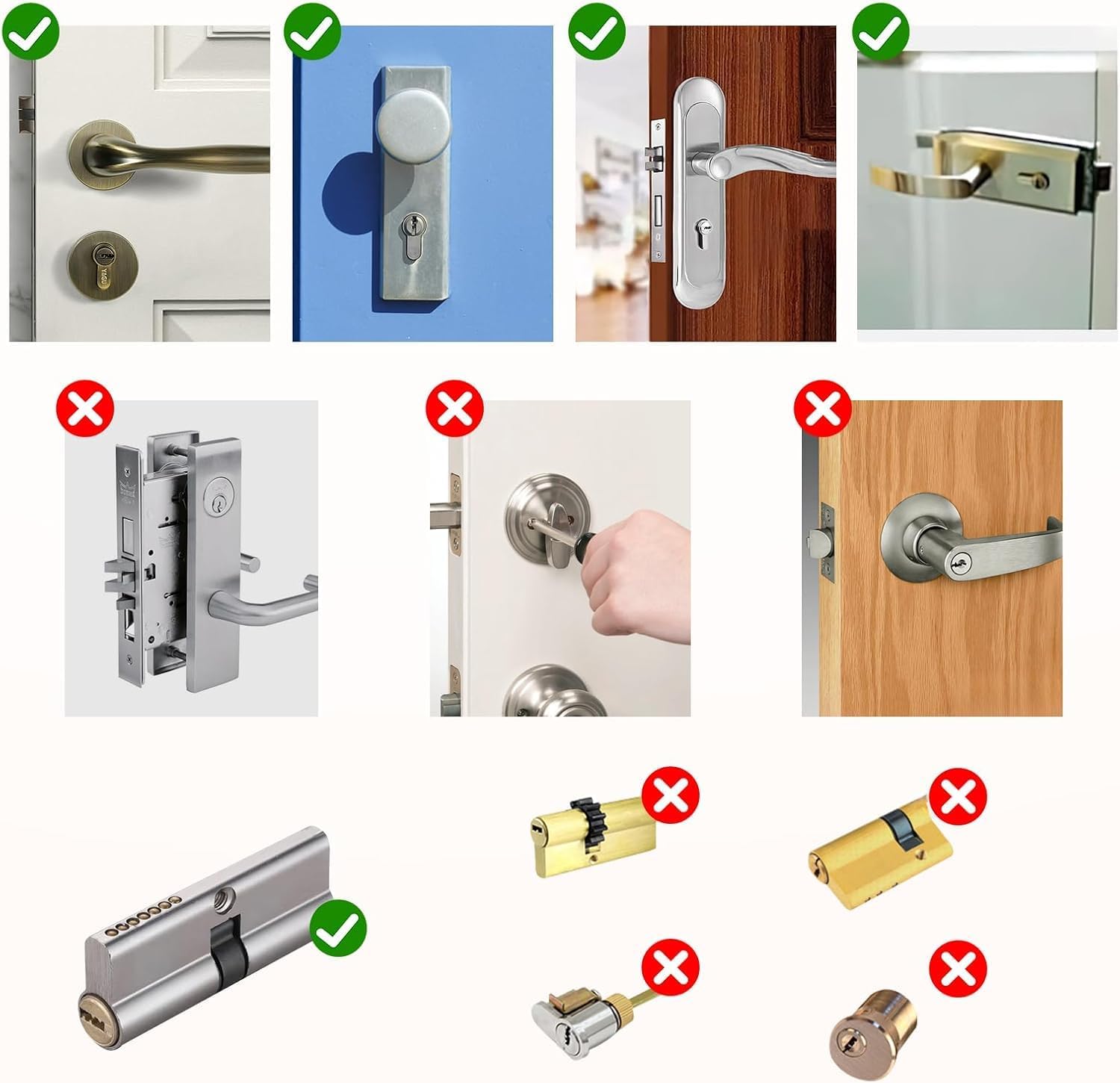
4. Installation
4.1 Pre-Installation Checks
Before proceeding with installation, ensure your door and existing lock cylinder are compatible:
- Cylinder Type: Confirm your existing cylinder type is compatible. This smart lock is designed to replace standard European profile cylinders.
- Cylinder Hole Size: Measure the dimensions of your door's lock cylinder hole. The required dimensions are approximately 20mm diameter, 35mm height, and 10mm width.
- Door Thickness: This lock is suitable for doors with a thickness between 60mm and 85mm.


4.2 Cylinder Dimensions
The smart lock cylinder has the following dimensions:
| Measurement | Value |
|---|---|
| Cylinder Size | 60 mm |
| Lock Cylinder Hole Size | Diameter 20mm, Height 35mm, Width 10mm |
| Inner Cylinder Dimensions (Adjustable) | 30 to 55 mm |
| Outer Cylinder Dimensions (Fixed) | 30 mm |
| Suitable for Door Thickness | 60 to 85 mm |

4.3 Installation Steps
- Remove Existing Cylinder: Unscrew the retaining screw on the side of your door that holds the current lock cylinder in place. Insert your key and turn it slightly (about 15-20 degrees) to align the cam, then pull the cylinder out.
- Adjust Inner Cylinder Length: The inner cylinder length is adjustable from 30mm to 55mm. Adjust it to match the inner side of your door. The outer cylinder length is fixed at 30mm.
- Insert Smart Lock Cylinder: Insert the AVATTO Smart Lock Cylinder into the door's cylinder hole. Ensure it fits snugly and the outer fingerprint module is correctly oriented.
- Secure the Cylinder: Re-insert and tighten the retaining screw on the side of the door to secure the smart lock cylinder.
- Install Batteries: Open the battery compartment on the inner side of the lock. Insert 3 x 1.5V alkaline batteries (CR123A type recommended, not included). Ensure correct polarity.
- Test Functionality: Before closing the door, test the mechanical key and the inner knob to ensure smooth operation.
Installation typically takes about 10 minutes using a hex screwdriver (provided).
5. Setup
5.1 Smart Life App Connection
- Download App: Download the "Smart Life" application from your smartphone's app store (iOS or Android).
- Register/Log In: Create an account or log in to your existing Smart Life account.
- Add Device: In the app, tap '+' to add a new device. Select 'Security & Video Surveillance' > 'Smart Lock' or search for 'AVATTO Smart Lock'.
- Pair via Bluetooth: Ensure your phone's Bluetooth is enabled. The app will guide you through the pairing process. The lock uses Bluetooth protocol with an effective transmission range of 50 meters.
- Remote Control (Optional): For remote control functionality outside the Bluetooth range (e.g., from office or on the go), an AVATTO Bluetooth Gateway (sold separately) is required. Connect the gateway to your home Wi-Fi and link it to the lock via the Smart Life app.
5.2 Adding Users and Unlocking Methods
Through the Smart Life app, you can manage various unlocking methods:
- Fingerprint Registration: Follow the in-app instructions to register fingerprints. You will typically need to place your finger on the sensor multiple times from different angles.
- RFID Card Registration: In the app, select to add an RFID card, then present the RFID card to the lock's sensor as instructed.
- User Management: Add new users, assign specific unlocking methods (fingerprint, RFID, app), and set administration permissions.

6. Operating Instructions
6.1 Unlocking
- Fingerprint Unlock: Place your registered finger on the fingerprint sensor. The lock will unlock if the fingerprint is recognized.
- RFID Card Unlock: Present a registered RFID card to the lock's sensor. The lock will unlock upon recognition.
- Smart Life App Unlock: Open the Smart Life app, select your lock, and tap the unlock button. This works via Bluetooth or remotely if a gateway is connected.
- Mechanical Key Unlock: Insert one of the provided mechanical keys into the keyhole and turn to unlock the door.
6.2 Locking
- Automatic Locking: The lock may be configured for automatic locking after a set period.
- Manual Locking: From the inside, turn the knob to lock the door. From the outside, the lock will automatically engage after closing, or you can manually lock it via the app.
7. Maintenance
7.1 Battery Management
The lock requires 3 x 1.5V alkaline batteries. Batteries are not included.
- Battery Status: You can check the battery level through the Smart Life app interface.
- Low Battery Warning: The lock will provide an indication (e.g., sound or light) when batteries are low. Replace them promptly.
- Battery Replacement: When replacing batteries, ensure the lock is in an unlocked state if possible. Open the battery compartment, remove old batteries, and insert new ones with correct polarity.
7.2 Emergency Unlock
In case of completely drained batteries, you can still access your property:
- Mechanical Key: Use one of the provided mechanical keys to unlock the door.
- External Power: The lock features a USB port for emergency power. Connect a portable power bank to the USB port to temporarily power the lock and unlock it using a registered fingerprint, RFID card, or the app.
8. Troubleshooting
- Lock does not respond: Check battery level. Replace batteries if low. Ensure the lock is properly installed and not obstructed.
- Fingerprint not recognized: Ensure your finger is clean and dry. Try re-registering your fingerprint in the app.
- RFID card not working: Ensure the card is registered. Try re-registering the card.
- App connection issues: Ensure Bluetooth is enabled on your phone. If using remote control, check the AVATTO Bluetooth Gateway's connection to Wi-Fi and the lock. Restart the app or your phone.
- Motor sounds but latch doesn't move: This could indicate an obstruction or incorrect installation. Recheck the cylinder's alignment and ensure no parts are binding.
- Lock is unresponsive after battery change: Ensure batteries are inserted with correct polarity. If issues persist, contact support.
9. Specifications
| Feature | Detail |
|---|---|
| Manufacturer | AVATTO |
| Model Number | SDL-S1-B60 |
| Dimensions (Package) | 25.1 x 10.3 x 7.2 cm |
| Weight | 550 grams |
| Size (Cylinder) | 60mm (Inner adjustable 30-55mm, Outer fixed 30mm) |
| Color | Black |
| Material | Metal |
| Recommended Door Thickness | 60mm - 85mm |
| Special Features | Fingerprint Unlock, RFID Unlock, Smart Life App Unlock, USB Emergency Unlock, Mechanical Key Unlock |
| Included Components | 2 Keys, 3 RFID Cards, User Manual, Door Lock Cylinder, Screwdriver |
| Batteries Required | 3 x 1.5V Alkaline Batteries (not included) |
| Controller Type | Smart Life Application |
10. Warranty and Support
For warranty information and technical support, please refer to the documentation provided with your purchase or contact AVATTO customer service through their official website or the retailer where the product was purchased. Please have your model number (SDL-S1-B60) and purchase details ready when contacting support.


