
1. Product Overview
The NETGEAR Orbi 370 Series WiFi 7 Mesh Network System provides high-speed wireless connectivity for home environments. It utilizes WiFi 7 technology to achieve speeds up to 5 Gbps, which is 1.7 times faster than WiFi 6. The Orbi 370 system offers comprehensive WiFi coverage for entire homes. Each unit measures 8.02 x 4.72 x 2.95 inches (203.7 x 120 x 75 mm).

Image: The Orbi 370 Series system, consisting of a router and satellites, positioned within a modern home to illustrate whole-home WiFi coverage.
Key Features:
- WiFi 7 Technology: Delivers speeds up to 5 Gbps, offering 1.7 times faster performance compared to WiFi 6.
- Extensive Coverage: Provides up to 6,000 sq. ft. of 360° WiFi coverage with the 3-pack system.
- High Device Capacity: Supports connectivity for up to 70 devices simultaneously.
- Multi-Gig Internet Port: Features a 2.5 Gig internet port to support ultra-fast internet plans.
- Enhanced Security: Includes built-in security measures and a 30-day trial of NETGEAR Armor for advanced protection.
- Dual-Band Technology: Utilizes dual-band technology with enhanced backhaul for reliable speeds.

Image: A visual summary of the Orbi RBE373's capabilities, including maximum streaming speed, WiFi coverage area, internet port speed, and security features.
2. Package Contents
Verify that your package contains the following items:
- (1) Orbi WiFi 7 Router (RBE371)
- (2) Orbi WiFi 7 Satellites (RBE370)
- (1) Ethernet cable
- (3) Power adapters
- Quick start guide
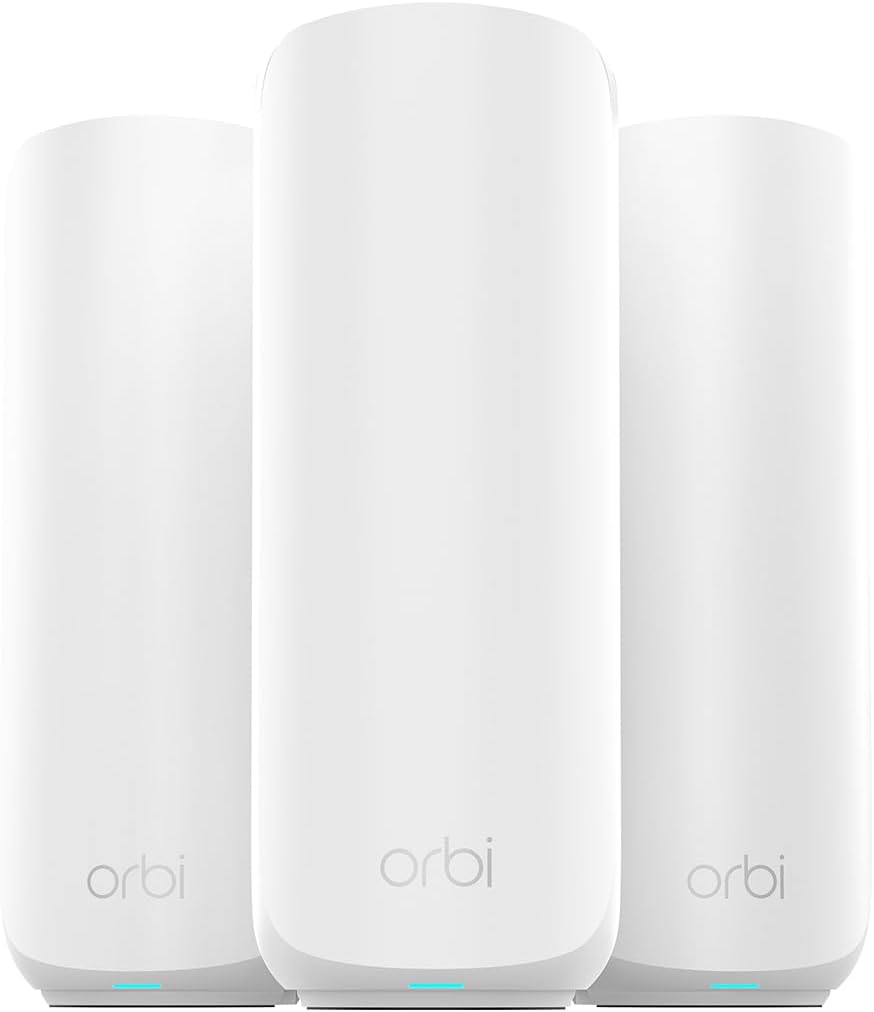
Image: The three Orbi units included in the RBE373 3-pack system.
3. Setup Instructions
Setting up your NETGEAR Orbi WiFi 7 Mesh System is facilitated through the Orbi app. Follow these general steps for installation:
- Download the Orbi App: Search for "NETGEAR Orbi" in your mobile device's app store and download the application.
- Position Your Orbi Units: Place the Orbi router near your modem and the satellites in locations that provide optimal coverage throughout your home. Ensure they are within range of each other.
- Connect the Router: Connect your internet modem to the 2.5 Gig internet port on the Orbi router using the provided Ethernet cable.
- Power On: Connect the power adapters to the Orbi router and satellites, then plug them into electrical outlets. Wait for the units to power on and stabilize.
- Follow In-App Instructions: Open the Orbi app and follow the on-screen prompts to configure your mesh network, including setting up your WiFi name (SSID) and password.

Image: The Orbi mobile application, which guides users through the setup process and allows for network management.
Wired Connections:
The Orbi router and satellites include 2.5 Gig Ethernet ports for wired connections. These ports can be used to connect devices requiring a stable wired connection or for a wired backhaul between Orbi units to maximize performance.

Image: Detail of the Orbi unit's rear panel, highlighting the 2.5 Gig Internet port and additional 2.5 Gbps Ethernet ports for high-speed wired connectivity.
4. Operating Your Orbi System
WiFi 7 Performance:
The Orbi 370 Series leverages WiFi 7 to provide a robust and high-speed wireless experience. This includes:
- Faster Speeds: Experience significantly faster data transfer rates for all connected devices.
- Lower Latency: Reduced delay in network communication, beneficial for online gaming and real-time applications.
- Increased Capacity: Efficiently handles numerous devices simultaneously without performance degradation.

Image: A graphical representation comparing the performance benefits of WiFi 7 over previous WiFi standards like WiFi 6 and WiFi 5.
Optimized for Various Activities:
- 4K Streaming: Stream high-resolution video content to multiple screens without buffering.
- Video Conferencing: Conduct stable and clear video calls for work or personal use.
- Gaming: Enjoy responsive online gaming with minimal lag.
- Smart Home Devices: Maintain reliable connectivity for a large number of smart home devices.

Image: An Orbi unit positioned in a living room, illustrating its capability to support multiple devices for activities like 4K streaming and video conferencing.
Network Segmentation:
The Orbi system allows you to create separate WiFi networks to manage traffic and enhance security:
- Home Network: Your primary network for trusted devices.
- Guest Network: A separate network for visitors, isolating them from your main network.
- IoT Network: Dedicated network for smart home and Internet of Things devices, improving security and performance.

Image: A diagram showing an Orbi unit creating distinct Guest, Home, and IoT networks for optimized performance and security.
5. Maintenance and Security
Automatic Firmware Updates:
Your Orbi system is designed to receive automatic firmware updates. These updates ensure your system has the latest features, performance enhancements, and security patches without manual intervention.
NETGEAR Armor Security:
NETGEAR Armor, powered by Bitdefender, provides comprehensive cybersecurity for your network and connected devices. This service offers protection against various online threats, including:
- Protection against hackers and malware.
- Safeguards against identity theft.
- VPN for secure browsing.
- Priority support.
A 30-day trial of NETGEAR Armor is included with your purchase.

Image: A visual representation of NETGEAR Armor's features, including cybersecurity, VPN, and priority support, as displayed on a mobile device.
6. Troubleshooting
If you encounter issues with your Orbi system, consider the following troubleshooting steps:
- Check Connections: Ensure all Ethernet cables are securely connected to the correct ports on your modem, router, and satellites.
- Power Cycle: Disconnect the power from your modem, Orbi router, and satellites. Wait for 30 seconds, then reconnect power to the modem first. Once the modem is fully online, reconnect power to the Orbi router, and then the satellites.
- Orbi App Diagnostics: Use the Orbi app to check the status of your network and individual units. The app often provides diagnostic information and solutions.
- Reposition Satellites: If certain areas have weak signal, try repositioning the satellites closer to the main router or to a more central location.
- Factory Reset: As a last resort, you can perform a factory reset on your Orbi system. Refer to the quick start guide or the Orbi app for specific instructions on how to do this. Note: A factory reset will erase all custom settings and require you to set up the network again.
- Contact Support: If problems persist, contact NETGEAR customer support for further assistance.
7. Technical Specifications
| Feature | Specification |
|---|---|
| Model Number | RBE373-100NAS |
| Brand | NETGEAR |
| Wireless Standard | 802.11be (WiFi 7) |
| Frequency Band Class | Dual-Band |
| Connectivity Technology | Ethernet, Wi-Fi |
| Internet Port | 1 x 2.5 Gig Ethernet |
| LAN Ports | Multiple 2.5 Gbps Ethernet ports (on router and satellites) |
| Coverage Area | Up to 6,000 sq. ft. (with 3-pack) |
| Max Devices Supported | Up to 70 devices |
| Special Feature | Multi-Gig Ethernet |
| Compatible Devices | Gaming Console, Personal Computer, Printer, Security Camera, Smart Home Devices |
| Package Dimensions | 13.78 x 9.8 x 6.85 inches |
| Item Weight | 4.71 pounds |
| UPC | 606449172539 |
8. Warranty and Support
Product Warranty:
For detailed warranty information, please refer to the warranty card included in your product packaging or visit the official NETGEAR support website. Warranty terms and conditions may vary by region.
Customer Support:
If you require technical assistance, have questions about your Orbi system, or need to troubleshoot an issue, please contact NETGEAR customer support. Support resources, including FAQs, knowledge bases, and contact information, are available on the official NETGEAR website.
The NETGEAR Orbi app also provides access to support features and resources.