
NETGEAR RBE372-100NAS
Contents
NETGEAR Orbi 370 Series WiFi 7 Mesh Network System Instruction Manual
Model: RBE372-100NAS | Brand: NETGEAR
Introduction
The NETGEAR Orbi 370 Series Dual-Band WiFi 7 Mesh Network System is designed to provide comprehensive and high-speed wireless coverage for your home. This system includes a wireless router and one extender, offering advanced security features and supporting speeds up to 5 Gbps. It is capable of covering up to 4,000 sq.ft. and connecting up to 70 devices simultaneously, making it suitable for modern homes with extensive connectivity needs. The Orbi 370 Series leverages WiFi 7 technology for enhanced performance, including 1.7x faster speeds than WiFi 6, and features a 2.5GB Internet Port for ultra-fast internet plans.
What's in the Box
Verify that all components are present in your package:
- (1) Orbi WiFi 7 Router (RBE371)
- (1) Orbi WiFi 7 Satellite (RBE370)
- (1) Ethernet cable
- (2) Power adapters
- Quick start guide
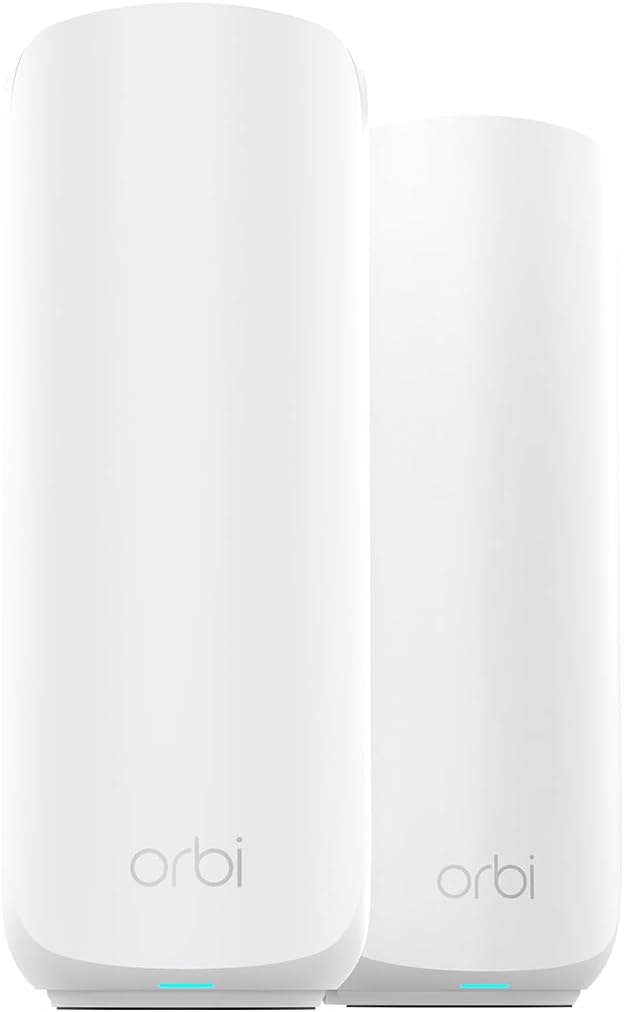
Image: The Orbi WiFi 7 Router and Satellite units, typically white and cylindrical, are shown side-by-side.
Setup Instructions
Follow these steps to set up your Orbi WiFi 7 Mesh Network System:
- Positioning the Orbi Router: Place the Orbi Router (RBE371) in a central location in your home, preferably near your internet modem. Ensure it is in an open area, away from large metal objects, concrete walls, and other electronic devices that might cause interference.
- Connect to Modem: Connect one end of the provided Ethernet cable to the 2.5G Internet port (yellow) on your Orbi Router and the other end to your internet modem's Ethernet port.
- Power On Router: Connect the power adapter to the Orbi Router and plug it into a power outlet. Wait for the LED on the router to turn solid white, indicating it is ready.
- Positioning the Orbi Satellite: Place the Orbi Satellite (RBE370) in a location that is roughly halfway between the Orbi Router and the area where you need extended WiFi coverage. Ensure it is within range of the router for optimal backhaul connection.
- Power On Satellite: Connect the power adapter to the Orbi Satellite and plug it into a power outlet. The LED on the satellite will cycle through colors and eventually turn solid blue or magenta, indicating its connection status.
- Download Orbi App: Download the NETGEAR Orbi app from your mobile device's app store (Apple App Store or Google Play Store).
- Follow App Instructions: Open the Orbi app and follow the on-screen instructions to complete the setup process. This typically involves scanning a QR code on the router, creating a NETGEAR account, and configuring your WiFi network name (SSID) and password.

Image: Close-up of the Orbi router's rear ports, highlighting the 2.5 Gig Internet port (yellow) and 2.5 Gbps Ethernet LAN port (blue).
Operating Your Orbi System
Once your Orbi system is set up, it will automatically provide seamless WiFi coverage. Here are some key operational aspects:
- Connecting Devices: Devices will automatically connect to the strongest Orbi signal (router or satellite). Use the WiFi network name (SSID) and password you set during setup to connect new devices.
- Orbi App Management: The Orbi app allows you to manage your network from anywhere. You can view connected devices, pause internet access for specific devices, run speed tests, and update settings.
- Guest Network: Create a separate guest network for visitors to keep your main network secure. This can be configured via the Orbi app.
- IoT Network: The system supports creating a dedicated IoT (Internet of Things) network for smart home devices, optimizing performance and security.
- Wired Connections: Both the router and satellite units feature 2.5 Gbps Ethernet ports for wired connections, ideal for devices like gaming consoles, PCs, or network-attached storage (NAS) that require stable, high-speed connections.

Image: An Orbi unit placed in a living room setting, illustrating its capability to support 4K streaming, video conferencing, and gaming for multiple devices.

Image: A diagram showing an Orbi unit with three concentric circles labeled "GUEST NETWORK", "HOME NETWORK", and "IoT NETWORK", indicating the ability to create separate WiFi networks.
Maintenance
To ensure optimal performance and longevity of your Orbi system:
- Firmware Updates: Keep your Orbi system's firmware updated. The Orbi app will notify you of available updates, which can be installed directly through the app. These updates often include performance improvements and security enhancements.
- Cleaning: Gently wipe the exterior of the Orbi units with a soft, dry cloth. Avoid using liquid cleaners or abrasive materials.
- Ventilation: Ensure the units have adequate ventilation and are not placed in enclosed spaces that could lead to overheating.
- Rebooting: Periodically rebooting your router and satellite (unplugging from power for 10 seconds and plugging back in) can help resolve minor connectivity issues and improve performance.
Troubleshooting
If you encounter issues with your Orbi system, try the following solutions:
| Problem | Possible Cause | Solution |
|---|---|---|
| No Internet Connection | Modem issue, cable disconnected, Orbi not configured. | Check modem status. Ensure Ethernet cable is securely connected. Reboot modem and Orbi system. Verify setup via Orbi app. |
| Slow WiFi Speeds | Interference, poor satellite placement, outdated firmware. | Relocate Orbi units away from interference. Adjust satellite position for better signal. Update firmware via Orbi app. |
| Satellite Not Connecting | Out of range, sync issue. | Move satellite closer to the router. Press the Sync button on both router and satellite. |
| Cannot Access Orbi App | Incorrect login, app glitch. | Ensure correct username/password. Restart the app or reinstall it. |
Specifications
- Model Number: RBE372-100NAS
- WiFi Technology: WiFi 7 (802.11be)
- Frequency Band Class: Dual-Band
- Wireless Speed: Up to 5 Gbps
- WiFi Coverage: Up to 4,000 sq.ft.
- Connected Devices: Up to 70 devices
- Internet Port: 1 x 2.5 Gig Ethernet WAN port
- LAN Ports: 1 x 2.5 Gbps Ethernet LAN port (on router), 1 x 2.5 Gbps Ethernet LAN port (on satellite)
- Dimensions (each unit): 8.02 x 4.72 x 2.95 inches (203.7 x 120 x 75 mm)
- Item Weight: 3.26 pounds
- Security Features: NETGEAR Armor (30-day trial included), WPA3, VPN support
- Compatible Devices: Gaming Consoles, Personal Computers, Printers, Security Cameras, Smart Home Devices

Image: A graphic summarizing key features: Up to 5 Gbps streaming speed, Up to 4,000 sq. ft. WiFi coverage, 2.5 Gig internet port, and NETGEAR Armor (30-day trial included).

Image: A visual comparison showing WiFi 7 as 1.7x faster with high-throughput connection, resilient WiFi, and significantly lower latency compared to WiFi 6 and WiFi 5.
Warranty and Support
NETGEAR provides a limited hardware warranty for its products. For specific warranty terms and conditions, please refer to the warranty card included with your product or visit the official NETGEAR support website.
Technical Support: For technical assistance, product registration, or to access the full user manual and FAQs, visit the NETGEAR support website or contact their customer service. You can find contact information on the NETGEAR website or in the Orbi app.
NETGEAR Armor: Your Orbi system includes a 30-day trial of NETGEAR Armor, powered by Bitdefender. This suite of tools provides enhanced protection against online threats. After the trial, a subscription is required to continue using these features.

Image: A graphic illustrating NETGEAR Armor features, including cybersecurity, VPN, and priority support, accessible via a mobile app interface.
Ask a question about this manual
Ask about setup, troubleshooting, compatibility, parts, safety, or missing instructions. Manuals+ will review the question and use this page’s manual context to help answer it.