
1. Introduction
Thank you for choosing the Technoview CY900 Smart Projector. This manual provides essential information for setting up, operating, and maintaining your projector to ensure optimal performance and longevity. The CY900 is designed to deliver a high-quality visual experience with its Full HD 1080P resolution, 4K support, and integrated Android 13 operating system.
Key features include electronic focus, auto keystone correction, 300 ANSI lumens brightness, dual-band WiFi, Bluetooth connectivity, and a built-in 5W speaker, making it a versatile solution for home entertainment, presentations, and gaming.
2. Important Safety Information
- Do not look directly into the projector lens when the lamp is on. The intense light can cause eye damage.
- Ensure proper ventilation around the projector. Do not block ventilation openings.
- Use only the power adapter supplied with the projector.
- Keep the projector away from water, moisture, and extreme temperatures.
- Do not attempt to disassemble or repair the projector yourself. Refer all servicing to qualified personnel.
- Place the projector on a stable, level surface to prevent it from falling.
3. Package Contents
Please check that all items are present in your package:
- 1 x Technoview CY900 Smart Projector
- 1 x Remote Control
- 1 x Power Adapter
- 1 x User Manual (this document)
4. Product Overview
4.1 Projector Components
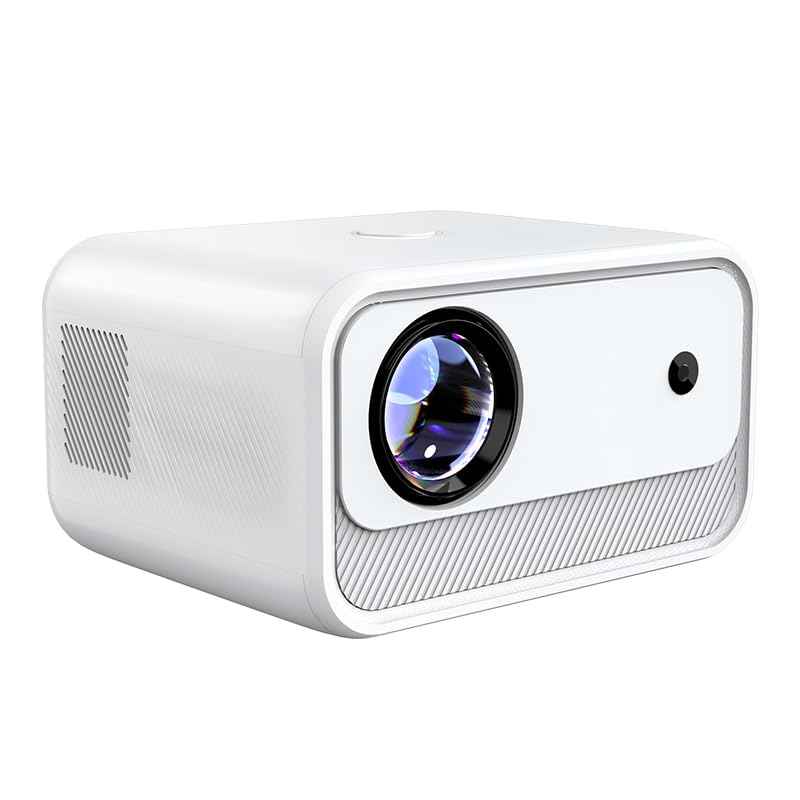
Figure 4.1: Front View
Shows the projector lens and front sensor. The sleek white design integrates well into various environments.

Figure 4.2: Side View
Illustrates the ventilation grilles on the side, crucial for heat dissipation and maintaining optimal operating temperature.

Figure 4.3: Rear View with Ports
Displays the various input/output ports including HDMI, USB, and AV, allowing for diverse connectivity options.
4.2 Interface Ports
- HDMI Port: Connect to laptops, gaming consoles, Blu-ray players, and other HDMI-enabled devices.
- USB Port: Connect USB drives for media playback or external devices.
- AV Port: Connect to older devices using an AV cable.
- Power Input: Connect the supplied power adapter.
5. Setup
5.1 Placement
Place the projector on a stable, flat surface. Ensure there is adequate space around the projector for ventilation. The optimal projection distance ranges from 4 feet to 15 feet, depending on the desired screen size.
5.2 Power Connection
- Connect the power adapter to the projector's power input port.
- Plug the power adapter into a wall outlet.
- Press the power button on the projector or remote control to turn it on.
5.3 Initial Focus and Keystone Correction
The Technoview CY900 features electronic focus and auto keystone correction for a clear and properly aligned image.
- Electronic Focus: The projector will automatically adjust the focus. If manual adjustment is needed, use the remote control's focus buttons.
- Auto Keystone Correction: The projector automatically corrects image distortion caused by angled projection. For fine-tuning, manual horizontal and vertical keystone correction options are available in the settings menu.

Figure 5.1: Keystone Correction
Illustrates how keystone correction adjusts the image to be rectangular, even when the projector is not perfectly centered.
6. Operating Instructions
6.1 Android 13 Smart OS
The projector runs on Android 13, providing a smart TV experience. You can access pre-installed applications like Netflix, YouTube, and Prime Video directly. Connect to your Wi-Fi network to enable online streaming.

Figure 6.1: Powerful Chip and Memory
Highlights the internal hardware that ensures smooth operation and low latency for streaming and applications.
6.2 Screen Mirroring
Share content from your smartphone or tablet directly to the projector screen.
- Ensure your mobile device and the projector are connected to the same Wi-Fi network.
- Select the 'Screen Mirroring' or 'Cast' option on the projector's home screen.
- On your mobile device, enable screen mirroring (e.g., 'Smart View' for Android, 'Screen Mirroring' for iOS) and select the projector from the list of available devices.

Figure 6.2: Screen Mirroring Functionality
Shows how to cast content from both Android and iOS devices to the large projector screen.
6.3 Audio Output
The projector features a built-in 5W speaker for integrated audio. For an enhanced audio experience, you can connect external speakers or headphones via Bluetooth.

Figure 6.3: High-Fidelity Speaker
Illustrates the integrated speaker system, providing clear audio without the need for external speakers.
7. Connectivity
7.1 Wi-Fi Connection
The projector supports dual-band Wi-Fi (2.4GHz and 5GHz) for stable and fast internet access.
- Go to 'Settings' on the projector's home screen.
- Select 'Network & Internet'.
- Turn on Wi-Fi and select your desired network from the list.
- Enter the password if prompted and connect.
7.2 Bluetooth Connection
Connect Bluetooth-enabled devices such as soundbars, headphones, or game controllers.
- Go to 'Settings' on the projector's home screen.
- Select 'Connected Devices' or 'Bluetooth'.
- Turn on Bluetooth and put your device into pairing mode.
- Select your device from the list and confirm pairing.
7.3 Wired Connections (HDMI, USB, AV)
To use external devices:
- Connect your device (e.g., laptop, USB drive) to the corresponding port on the projector.
- On the projector's home screen, select the appropriate input source (e.g., HDMI, USB, AV).
8. Maintenance
8.1 Cleaning the Lens
Use a soft, lint-free cloth specifically designed for optical lenses. Gently wipe the lens to remove dust or smudges. Do not use abrasive cleaners or excessive force.
8.2 Cleaning the Projector Body
Wipe the exterior of the projector with a soft, dry cloth. For stubborn marks, a slightly damp cloth can be used, followed by a dry cloth. Avoid using harsh chemicals.
8.3 Ventilation
Regularly check that the ventilation openings are clear of dust and debris to prevent overheating. Do not obstruct the airflow during operation.
9. Troubleshooting
| Problem | Possible Cause | Solution |
|---|---|---|
| No power | Power cable not connected; Power outlet faulty | Ensure power cable is securely connected; Try a different power outlet. |
| No image | Incorrect input source; Device not connected; Projector in standby | Select correct input source (HDMI, USB, AV); Check cable connections; Press power button to wake. |
| Image blurry | Focus not adjusted | Use the remote control to adjust electronic focus. |
| Image distorted (trapezoid) | Keystone not corrected | Allow auto keystone correction to run; Adjust manual keystone in settings. |
| No sound | Volume too low; Muted; External audio device not connected/selected | Increase volume; Unmute; Check Bluetooth connection or external audio settings. |
| Wi-Fi connection issues | Incorrect password; Router issues; Signal interference | Re-enter Wi-Fi password; Restart router; Move projector closer to router. |
10. Specifications
- Brand: TECHNOVIEW
- Model: CY900
- Native Resolution: 1920 x 1080 (Full HD)
- Maximum Display Resolution: 3840 x 2160 (4K Supported)
- Brightness: 300 ANSI Lumens
- Contrast Ratio: 1000:1
- Operating System: Android 13
- Connectivity: Dual Wi-Fi, Bluetooth, HDMI, USB, AV
- Speaker: Built-in 5W Speaker
- Special Features: Electronic Focus, Auto Keystone Correction, 180° Rotation
- Light Source Operating Life: 50,000 Hours
- Minimum Throw Distance: 4 Feet
- Maximum Throw Distance: 15 Feet
- Item Dimensions (L x W x H): 20.7 x 16.5 x 12.2 Centimeters
- Item Weight: 1.53 Kilograms
11. Warranty and Support
The Technoview CY900 Smart Projector comes with a standard manufacturer's warranty. Please refer to the warranty card included in your package for specific terms and conditions.
For technical support, troubleshooting assistance, or warranty claims, please contact Technoview customer service through their official website or the contact information provided with your purchase. Please have your model number (CY900) and purchase details ready when contacting support.