1. Introduction
This manual provides detailed instructions for the setup, operation, and maintenance of your MechLands AJAZZ AK870 V2 TKL Gasket Mechanical Keyboard. Designed for both gaming and productivity, this keyboard offers versatile connectivity, advanced features, and a compact layout.
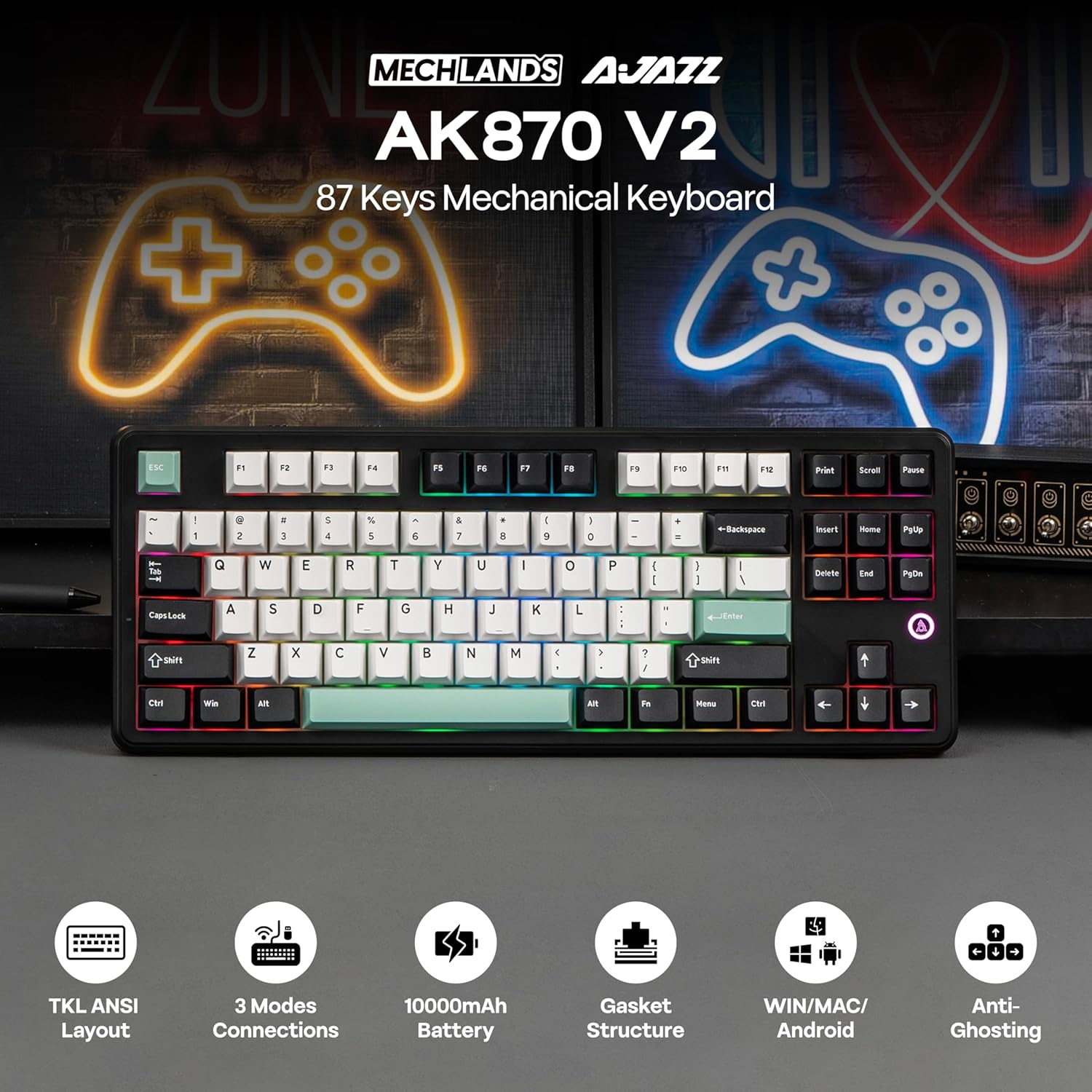
Figure 1: MechLands AJAZZ AK870 V2 TKL Gasket Mechanical Keyboard highlighting its key features.
2. Package Contents
Please verify that all items listed below are included in your package:
- AJAZZ AK870 V2 TKL Gasket Mechanical Keyboard
- USB-C Cable
- Keycap Puller
- User Manual (this document)

Figure 2: The keyboard and its included accessories.
3. Setup
Before first use, it is recommended to fully charge the keyboard. Connect the provided USB-C cable to the keyboard's port and the other end to a power source (e.g., computer USB port, USB wall adapter).
3.1. Operating System Compatibility
The keyboard supports Windows, macOS, and Android operating systems. Use the physical switch located on the rear of the keyboard to select your desired operating system (WIN/MAC).

Figure 3: The keyboard is compatible with multiple platforms and systems.
4. Connectivity Modes
The AK870 V2 keyboard offers three versatile connectivity options:
- USB-C Wired: For a direct and stable connection.
- 2.4GHz Wireless: For low-latency wireless performance using a dedicated dongle.
- Bluetooth 5.0: For convenient wireless connection to multiple devices.
Use the physical switch on the rear of the keyboard to select your preferred connection mode (BT, 2.4G, USB).

Figure 4: The keyboard supports three modes of connection for various devices.
4.1. USB-C Wired Connection
- Connect the provided USB-C cable to the keyboard's USB-C port.
- Connect the other end of the cable to your computer's USB port.
- Set the mode switch on the keyboard to 'USB'. The keyboard will be recognized automatically.
4.2. 2.4GHz Wireless Connection
- Locate the 2.4GHz wireless dongle (usually stored in a slot on the keyboard).
- Plug the dongle into an available USB port on your computer.
- Set the mode switch on the keyboard to '2.4G'. The keyboard will connect automatically.
4.3. Bluetooth 5.0 Connection
- Set the mode switch on the keyboard to 'BT'.
- On your device (computer, tablet, smartphone), enable Bluetooth and search for new devices.
- Select 'AJAZZ AK870 V2' from the list of available devices to pair.
- The keyboard can store up to three Bluetooth profiles (BT1, BT2, BT3). Use FN + Q/W/E to switch between paired Bluetooth devices.

Figure 5: The connectivity hub on the keyboard's rear.
5. Key Features
5.1. 87-Key Tenkeyless (TKL) Layout
The compact TKL design saves desk space while retaining essential keys for gaming and productivity. This layout is ideal for users who prefer a smaller footprint without sacrificing functionality.

Figure 6: The TKL compact layout offers 20% less space compared to full-size keyboards.
5.2. Creamy Gasket-Mounted Structure
The keyboard features a gasket-mounted design with multiple layers of sound-dampening materials, including Poron foam, IXPE switch pad, PET sound absorption material, EPDM socket foam, and a silicone base pad. This construction enhances typing comfort and reduces noise, providing a satisfying acoustic experience.

Figure 7: The internal structure with 5-layer padding for dampening sound and enhanced durability.
5.3. Hot-Swappable Switches
The AK870 V2 supports hot-swappable switches, allowing users to easily change mechanical switches without soldering. This feature enables customization of typing feel and sound.

Figure 8: Easily customize your keyboard by swapping switches without soldering.
5.4. South-Facing RGB Backlighting & Sidelight
Experience vibrant RGB backlighting with 16.8 million colors and various effects. The south-facing LEDs ensure optimal illumination for custom keycaps. A dedicated sidelight further enhances the aesthetic.

Figure 9: The keyboard features 16.8 million RGB backlights and a dynamic sidelight.
5.5. 10000mAh Battery
Equipped with a large 10000mAh battery, the keyboard provides extended usage times. Enjoy up to 36 hours with RGB backlighting on, or up to 196 hours with RGB off.

Figure 10: The 10000mAh battery offers long-lasting performance.
5.6. N-Key Rollover (NKRO)
NKRO ensures that every key press is registered accurately, even when multiple keys are pressed simultaneously. This anti-ghosting feature is crucial for fast-paced gaming and typing.

Figure 11: NKRO ensures every keystroke is detected, preventing ghosting.
5.7. Customizable Driver Software
Utilize the dedicated driver software for advanced customization, including key remapping, macro editing, layer definition, and detailed backlight settings. The software is available for download from the official MechLands website.

Figure 12: The customizable driver allows for key remapping, macro editing, and backlight settings.
5.8. Functionality Options: Screen vs. Keys
The AJAZZ AK870 V2 is available in two configurations:
- Variant 1 (No Screen): Features three dedicated function keys (Prtsc, Scrlk, Pause) for quick screenshot capture, toggling scrolling functions, and pausing processes.
- Variant 2 (With Screen & Knob Module): Includes a hot-swap 1.06'' TFT display and a knob. The display allows users to customize visuals, monitor battery status, view date and time, check connectivity and OS data, and adjust backlighting effects. The knob typically controls volume and screen functions.
6. Operating Instructions
6.1. RGB Backlighting Control
- Toggle Backlight Effects: Press Fn + \|
- Adjust Backlight Brightness: Press Fn + ↑ (increase) or Fn + ↓ (decrease)
- Backlight ON/OFF: Press Fn + X
- Adjust Sidelight Effect: Press Fn + Enter
6.2. Multimedia Knob (Screen Variant Only)
The knob typically controls volume by rotating it. Pressing the knob may cycle through different screen display options or mute/unmute audio.
6.3. Adjustable Stands
The keyboard features adjustable stands on the underside, allowing you to set your preferred typing angle for ergonomic comfort.

Figure 13: The keyboard features adjustable stands for ergonomic customization.
7. Maintenance
To ensure the longevity and optimal performance of your keyboard, follow these maintenance guidelines:
- Regular Cleaning: Use a soft, lint-free cloth to wipe down the keycaps and frame. For deeper cleaning, use a keycap puller to remove keycaps and clean underneath with compressed air or a small brush.
- Avoid Liquids: Do not expose the keyboard to liquids. If spills occur, immediately disconnect the keyboard and allow it to dry completely before re-using.
- Proper Storage: Store the keyboard in a cool, dry place away from direct sunlight and extreme temperatures.
8. Troubleshooting
If you encounter any issues with your keyboard, please refer to the following common solutions:
- Keyboard Not Responding: Ensure the keyboard is charged and the correct connectivity mode (USB, 2.4G, BT) is selected. Try reconnecting the cable or re-pairing the Bluetooth device.
- RGB Lights Not Working: Check if the backlight is turned off (Fn + X). Adjust brightness (Fn + ↑/↓). Ensure the keyboard is sufficiently charged.
- Connectivity Issues: For 2.4GHz, ensure the dongle is securely plugged in. For Bluetooth, ensure the keyboard is in pairing mode and within range of your device. Try removing the device from your Bluetooth list and re-pairing.
- Inconsistent Battery Indicator: The battery indicator may sometimes show slight fluctuations. Ensure the keyboard is fully charged periodically for accurate readings.
9. Technical Specifications
| Feature | Specification |
|---|---|
| Brand | MechLands |
| Model | AK870 V2 |
| Layout | 87-Key Tenkeyless (TKL) |
| Connectivity | Bluetooth 5.0, 2.4GHz Wireless, USB-C Wired |
| Battery Capacity | 10000mAh |
| RGB Backlighting | 16.8 Million Colors, South-facing LEDs |
| Key Rollover | N-Key Rollover (NKRO) |
| Hot-Swappable | Yes |
| Gasket Structure | Yes (Multi-layer dampening) |
| Compatible Devices | Gaming Console, Laptop, PC, Smartphone, Tablet |
| Dimensions | 17.72 x 5.91 x 1.97 inches |
| Item Weight | 2.2 pounds |

Figure 14: Detailed technical specifications and compact layout dimensions.
10. Warranty & Support
For warranty information and technical support, please refer to the documentation provided with your purchase or visit the official MechLands website. Keep your proof of purchase for any warranty claims.


