
1. Important Compatibility Notice
This Naifay Android Car Radio (Model A) is specifically designed for Toyota Camry models from 2012, 2013, and 2014. It is crucial to verify your vehicle's specifications before installation.
- Model A Compatibility: This unit is suitable for vehicles that DO NOT have a premium J.B.L sound system and DO NOT have a large factory navigation screen.
- If your car has a J.B.L sound system or a large factory screen, you require Model B.
To ensure correct model selection, please send your car's model, year, and a picture of your car's dashboard to customer support via Amazon chat. Online assistance, user manuals, and installation videos are provided to aid in this process.
2. Product Overview
The Naifay Android Car Radio is a 10.1-inch touchscreen head unit featuring Android 12, 2GB RAM, and 32GB ROM. It offers a responsive touch interface and a clear color display. Key functionalities include wireless CarPlay, Android Auto, MirrorLink, GPS navigation, Wi-Fi connectivity, Bluetooth, FM radio, AHD backup camera support, and steering wheel control (SWC).

Image: Comparison of the car dashboard before and after installing the Naifay Android Car Radio. The top image shows the new 10.1-inch touchscreen unit seamlessly integrated into the dashboard, while the bottom image displays the original factory radio.
3. Installation Guide
3.1. Pre-Installation Check
- Confirm your vehicle's compatibility (Model A) as per Section 1.
- Ensure all components listed in the packing list are present.
- Disconnect the vehicle's battery before starting installation to prevent electrical damage.
3.2. Removing the Old Unit
- Use the provided dash removal tool to carefully pry off the trim pieces surrounding the factory radio.
- Unscrew the mounting bolts/screws holding the factory radio in place.
- Gently pull out the old unit and disconnect all wiring harnesses.
3.3. Wiring Connections
Connect the new Naifay head unit using the provided wiring harnesses. Refer to the wiring diagram included in the package. Key connections include:
- Power Cord: Connect to the vehicle's power supply.
- RCA Cables: For audio/video input/output.
- USB Cables: Connect the two USB ports for external devices.
- GPS Antenna: Mount in a location with a clear view of the sky for optimal signal reception.
- Radio Cable: Connect to the vehicle's antenna.
- Reverse Input: For the backup camera.
- Microphone: Connect the external microphone for clear hands-free calls.

Image: Detailed wiring diagram for the reversing camera. It illustrates connecting the camera power cable to the reversing lamp and the video signal cable to the head unit's reverse input.
3.4. Installing the Backup Camera
The unit supports an AHD backup camera and includes one in the package. Follow the wiring diagram for proper connection:
- Mount the camera at the rear of your vehicle.
- Connect the camera's power wire to the vehicle's reversing lamp power source.
- Run the video cable from the camera to the 'Reverse Input' on the head unit.
3.5. Final Assembly
- Carefully slide the new head unit into the dashboard opening.
- Secure it with the mounting bolts/screws.
- Reattach the trim pieces.
- Reconnect the vehicle's battery.
4. Operating Instructions
4.1. Initial Power On and Setup
- After installation, turn on your vehicle's ignition. The unit should power on automatically.
- Follow any on-screen prompts for initial language and time zone settings.
4.2. Wireless CarPlay & Android Auto
This unit supports wireless Apple CarPlay and Android Auto. Connect your smartphone via Bluetooth for seamless integration.
- Enable Bluetooth on your smartphone and the car radio.
- Pair your phone with the car radio.
- Once connected, CarPlay or Android Auto will launch automatically, allowing access to navigation, calls, messages, and music through the car radio's interface or voice commands.

Image: Diagram illustrating the connectivity options for Apple CarPlay (Bluetooth/WiFi), Android Auto (Bluetooth/WiFi), and MirrorLink (WiFi/Bluetooth/USB) with the Naifay Android Car Radio.
4.3. MirrorLink Function
The MirrorLink feature allows you to project your iOS or Android phone's screen onto the car radio display. Connect via Bluetooth or USB cable.
- Connect your phone via Bluetooth or a USB cable to the unit.
- Select the MirrorLink application on the car radio.
- Follow on-screen instructions to establish the connection and mirror your phone's content.
4.4. GPS Navigation & Wi-Fi Connection
The unit includes a GPS module for navigation. It supports both online and offline maps.
- Offline Maps: Connect the unit to Wi-Fi or a mobile hotspot to download maps in advance.
- Online Maps: Use a Wi-Fi connection for real-time traffic and map updates.
- You can download navigation applications from the software store. It is recommended to download only 1-2 applications to prevent system slowdowns.

Image: Displays the GPS navigation interface with online and offline map options, alongside the Wi-Fi connection feature for downloading apps and maps.
4.5. Bluetooth & FM Radio
- Bluetooth: Built-in Bluetooth allows for hands-free calling and audio streaming. An external microphone is included for improved call quality.
- FM Radio: The unit features an FM radio tuner (no AM radio). You can perform automatic, semi-automatic, or precision channel searches to listen to radio stations.
4.6. Steering Wheel Control (SWC)
The unit supports your vehicle's existing steering wheel controls, allowing you to manage calls, adjust volume, or switch songs without taking your hands off the wheel.
- Access the SWC settings in the unit's menu.
- Follow the on-screen instructions to map your steering wheel buttons to the desired functions.
4.7. AHD Backup Camera
When the vehicle is shifted into reverse, the display automatically switches to the backup camera view, providing assistance for parking and maneuvering.
4.8. Split Screen Function
The split-screen feature allows you to run two applications simultaneously on the 10.1-inch display, such as navigation and music playback.
- To activate, open an application, then long-press the recent apps button or drag another compatible app to the side of the screen.

Image: A collage showcasing various features: Bluetooth hands-free calling, FM radio interface, a car parking with backup camera view, steering wheel control buttons, and the split-screen functionality displaying two apps simultaneously.
5. Maintenance
To ensure the longevity and optimal performance of your Naifay Android Car Radio, follow these simple maintenance guidelines:
- Screen Cleaning: Use a soft, lint-free cloth slightly dampened with water or a screen cleaner specifically designed for electronics. Avoid harsh chemicals or abrasive materials.
- Software Updates: Periodically check for available software updates through the unit's settings to ensure you have the latest features and bug fixes.
- Avoid Extreme Temperatures: Do not expose the unit to prolonged direct sunlight or extreme cold, as this can affect performance and lifespan.
- Cable Connections: Ensure all cables are securely connected. Loose connections can lead to intermittent issues.
6. Troubleshooting
If you encounter issues with your Naifay Android Car Radio, refer to the following common troubleshooting steps:
- Unit Not Powering On: Check all power connections and ensure the vehicle's battery is properly connected. Verify fuses.
- Screen Freezes or Slows Down: This can occur if too many applications are running or installed. Try closing unnecessary apps or uninstalling rarely used ones. A system restart may also resolve temporary freezes.
- No Sound: Check volume settings on the unit and your phone (if connected via Bluetooth/CarPlay/Android Auto). Ensure all speaker wires are correctly connected.
- GPS Signal Issues: Ensure the GPS antenna is mounted in a location with a clear view of the sky. Check for obstructions.
- Bluetooth/Wi-Fi Connectivity Problems: Ensure Bluetooth/Wi-Fi is enabled on both the unit and your device. Try unpairing and re-pairing devices. Restarting both devices can also help.
- Backup Camera Not Displaying: Verify the camera's power and video connections. Ensure the 'Reverse Input' wire is correctly connected to the vehicle's reversing lamp power.
- Steering Wheel Controls Not Working: Recheck the SWC wiring connections and ensure the controls are properly configured in the unit's settings menu.
For persistent issues or problems not covered here, please contact Naifay customer support for assistance.
7. Specifications
Detailed technical specifications for the Naifay Android Car Radio (Model A).
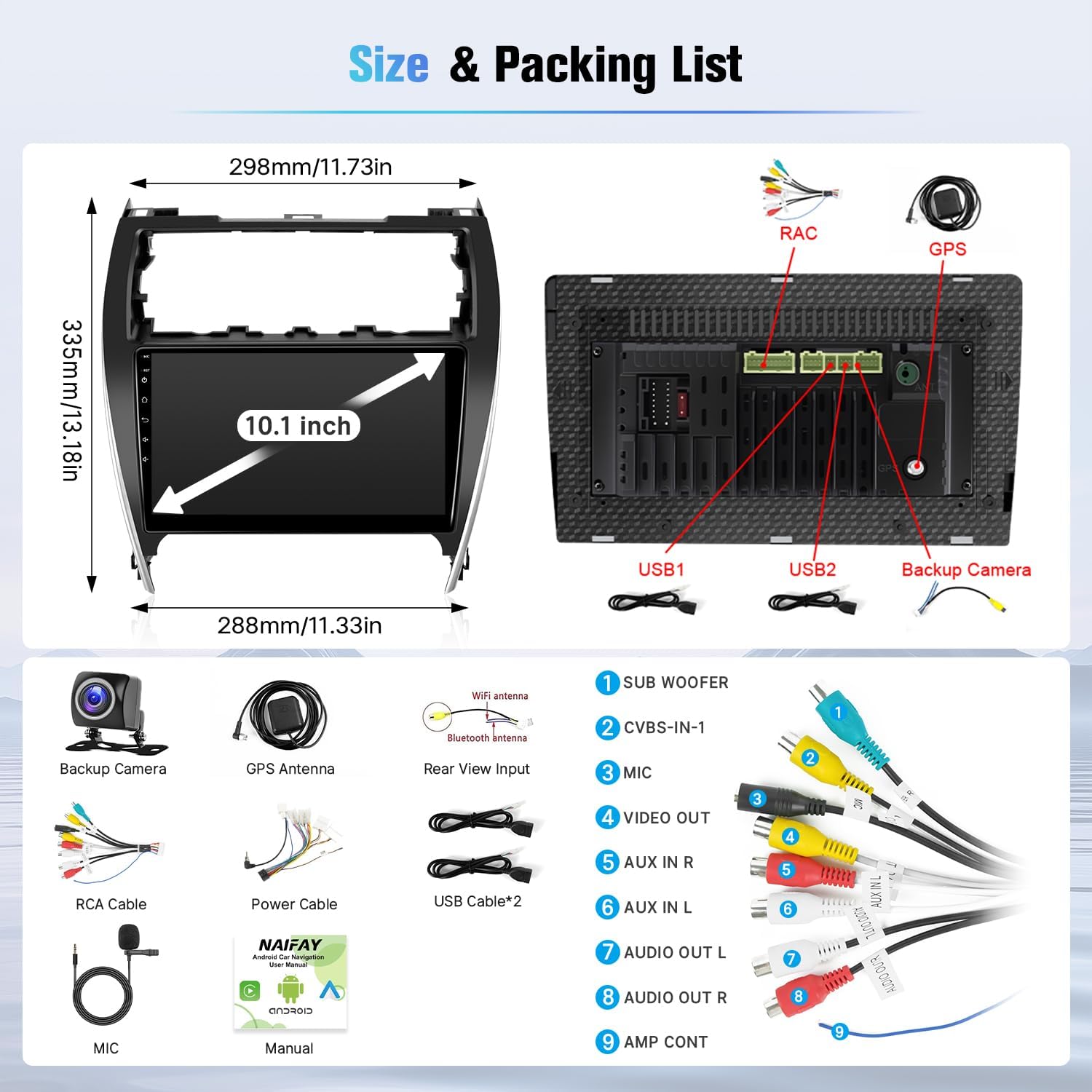
Image: Diagram showing the dimensions of the 10.1-inch head unit and a visual representation of the included accessories and cables in the packing list.
| Feature | Specification |
|---|---|
| Brand | Naifay |
| Vehicle Service Type | Car (Toyota Camry 2012-2014, Model A) |
| Screen Size | 10.1 Inches |
| Operating System | Android 12 |
| Memory Storage Capacity | 32 GB |
| RAM | 2 GB |
| Special Features | Bluetooth, Touchscreen, Wireless CarPlay, Android Auto, MirrorLink, GPS, WiFi, SWC, AHD Backup Camera |
| Connectivity Technology | Wireless, Bluetooth, USB, Wi-Fi |
| Map Type | Worldwide (Online/Offline) |
| Audio Output Mode | Stereo |
| Mounting Type | Dashboard Mount |
| Touch Screen Type | Capacitive |
| Display Type | LED |
| Human-Interface Input | Touchscreen |
| Compatible Devices | iPhone, Android Phone |
| Control Method | App, Touch, Voice |
| Supported Satellite Navigation System | GPS |
| Item Weight | 1.5 Kilograms |
8. Warranty and Support
Naifay is committed to providing excellent products and customer service. For any inquiries, technical assistance, or warranty claims, please utilize the following resources:
- Online Help: Refer to the user manuals and installation videos provided with your purchase.
- Contact Seller: For direct support, you can contact Naifay through the Amazon platform. Navigate to your order details and select 'Contact Seller' or 'Ask a question' on the Naifay store page.

Image: A visual guide demonstrating how to locate and use the 'Ask a question' feature to contact Naifay customer support via Amazon.