
1. Introduction
Thank you for choosing the Redragon GS516 Computer Speaker. This manual provides essential information for setting up, operating, and maintaining your speaker. Please read it thoroughly before use to ensure optimal performance and safety.
Package Contents
- Redragon GS516 Computer Speaker
- USB-A Power and Audio Cable (Integrated)
- User Manual (This document)
2. Safety Instructions
To prevent damage or injury, please observe the following safety precautions:
- Do not expose the speaker to water, moisture, or extreme temperatures.
- Avoid dropping or subjecting the speaker to strong impacts.
- Do not attempt to disassemble or repair the speaker yourself. Refer all servicing to qualified personnel.
- Ensure the power source (USB port) provides the correct voltage (5V).
- Keep the speaker away from heat sources and direct sunlight.
- Clean only with a dry, soft cloth.
3. Product Overview
The Redragon GS516 is a compact soundbar designed for versatile audio experiences, featuring dual connectivity options and dynamic RGB lighting.

Figure 3.1: Redragon GS516 Computer Speaker showcasing its dual-mode connection, clear bass, 2.0 channel audio, touch control, volume knob, RGB backlit, compact design, and plug & play functionality.
Components and Controls
- Front Grille: Protects the internal drivers.
- RGB Light Strips: Located on the bottom and sides, providing dynamic lighting effects.
- Volume Knob / Power Switch: Central knob to adjust volume and power the speaker on/off.
- RGB Mode Touch Button: (Marked 'RGB') Located on the top surface, used to cycle through lighting modes.
- Mode Switch Touch Button: (Marked 'M') Located on the top surface, used to switch between Bluetooth and USB modes.
- USB-A Cable: Integrated cable for power and wired audio connection.

Figure 3.2: An internal view of the Redragon GS516 speaker, highlighting its dual 3W audio drivers and dual diaphragm for enhanced Hi-Fi surround sound quality.

Figure 3.3: Detailed view of the convenient control knob on the Redragon GS516, indicating its function for power on/off and volume adjustment.
4. Setup
The Redragon GS516 offers both USB wired and Bluetooth connectivity.
4.1 USB Wired Connection
- Connect the integrated USB-A cable from the speaker to an available USB port on your computer, TV, or other compatible device.
- Rotate the volume knob clockwise to power on the speaker. The RGB lights will illuminate.
- Your device should automatically detect the speaker as an audio output device. If not, navigate to your device's sound settings and select "Redragon GS516" or similar as the output.
- Adjust the volume using the speaker's knob or your device's volume controls.
4.2 Bluetooth Connection
- Ensure the speaker is powered on by rotating the volume knob clockwise.
- Press the 'M' (Mode) touch button on the top of the speaker to switch to Bluetooth mode. The speaker will indicate it's in pairing mode (e.g., a blinking blue light or an audible prompt).
- On your Bluetooth-enabled device (smartphone, tablet, laptop), go to the Bluetooth settings.
- Search for available devices and select "Redragon GS516" from the list.
- Once connected, the speaker will provide a confirmation (e.g., a solid blue light or an audible prompt).
- Adjust the volume using the speaker's knob or your device's volume controls.

Figure 4.1: The Redragon GS516 demonstrating versatile compatibility with computers, laptops, smartphones, and tablets via both Bluetooth and USB connections.
5. Operating Instructions
5.1 Power On/Off and Volume Control
- Power On: Rotate the central volume knob clockwise until you hear a click and the RGB lights illuminate.
- Power Off: Rotate the central volume knob counter-clockwise until you hear a click and the RGB lights turn off.
- Volume Adjustment: Rotate the knob clockwise to increase volume and counter-clockwise to decrease volume.
5.2 RGB Lighting Modes
The GS516 features multiple RGB lighting modes. To change the lighting effect, gently touch the 'RGB' button on the top surface of the speaker.
- Dynamic RGB: A flowing, multi-color light effect.
- Solid Red: Static red illumination.
- Solid Green: Static green illumination.
- Solid Blue: Static blue illumination.
- Audio-Light Sync RGB: Lights pulse and change in rhythm with the audio playback.
- Flowing RGB: A smooth, continuous color transition effect.
- Light Off: Turns off all RGB lighting.

Figure 5.1: Visual representation of the various touch-control backlit modes available on the Redragon GS516, including Dynamic RGB, Solid Red/Green/Blue, Audio-Light Sync RGB, and Flowing RGB.
6. Maintenance and Care
- Cleaning: Use a soft, dry, lint-free cloth to wipe the surface of the speaker. Do not use liquid cleaners, aerosols, or solvents.
- Storage: When not in use for extended periods, store the speaker in a cool, dry place away from direct sunlight and extreme temperatures.
- Handling: Avoid placing heavy objects on the speaker or exposing it to excessive force.
7. Troubleshooting
If you encounter issues with your Redragon GS516 speaker, please refer to the following common solutions:
No Sound
- Ensure the speaker is powered on and the volume knob is turned up.
- Check that the speaker is correctly selected as the audio output device in your computer's or device's sound settings.
- Verify that the audio source (e.g., media player, YouTube) is playing and its volume is not muted or too low.
- If using USB, try a different USB port. If using Bluetooth, ensure it's properly paired and connected.
Bluetooth Connection Issues
- Ensure the speaker is in Bluetooth pairing mode (indicated by a blinking light).
- Make sure your device's Bluetooth is turned on and within range (up to 10 meters).
- Try unpairing "Redragon GS516" from your device's Bluetooth list and then re-pairing.
- Restart both the speaker and your Bluetooth device.
RGB Lights Not Working
- Ensure the speaker is powered on.
- Tap the 'RGB' touch button to cycle through modes; it might be set to "Light Off".
8. Specifications
| Feature | Specification |
|---|---|
| Model Name | GS516 |
| Brand | Redragon |
| Connectivity Technology | Bluetooth 5.0, USB Wired |
| Audio Output Mode | Stereo |
| Maximum Speaker Power Output | 6 Watts (2 x 3W) |
| Frequency Response | 20 Hz - 20 KHz |
| Input Voltage | 5 Volts (USB Powered) |
| Bluetooth Range | Up to 10 meters (33 feet) |
| Dimensions (W x D x H) | 19.3" x 2.6" x 2.6" (approx. 49cm x 6.6cm x 6.6cm) |
| USB Cable Length | 5.1 ft (approx. 1.55 meters) |
| Material | Metal, Plastic |
| Additional Features | RGB Backlighting (6 modes + off), Volume Knob, Touch Controls |
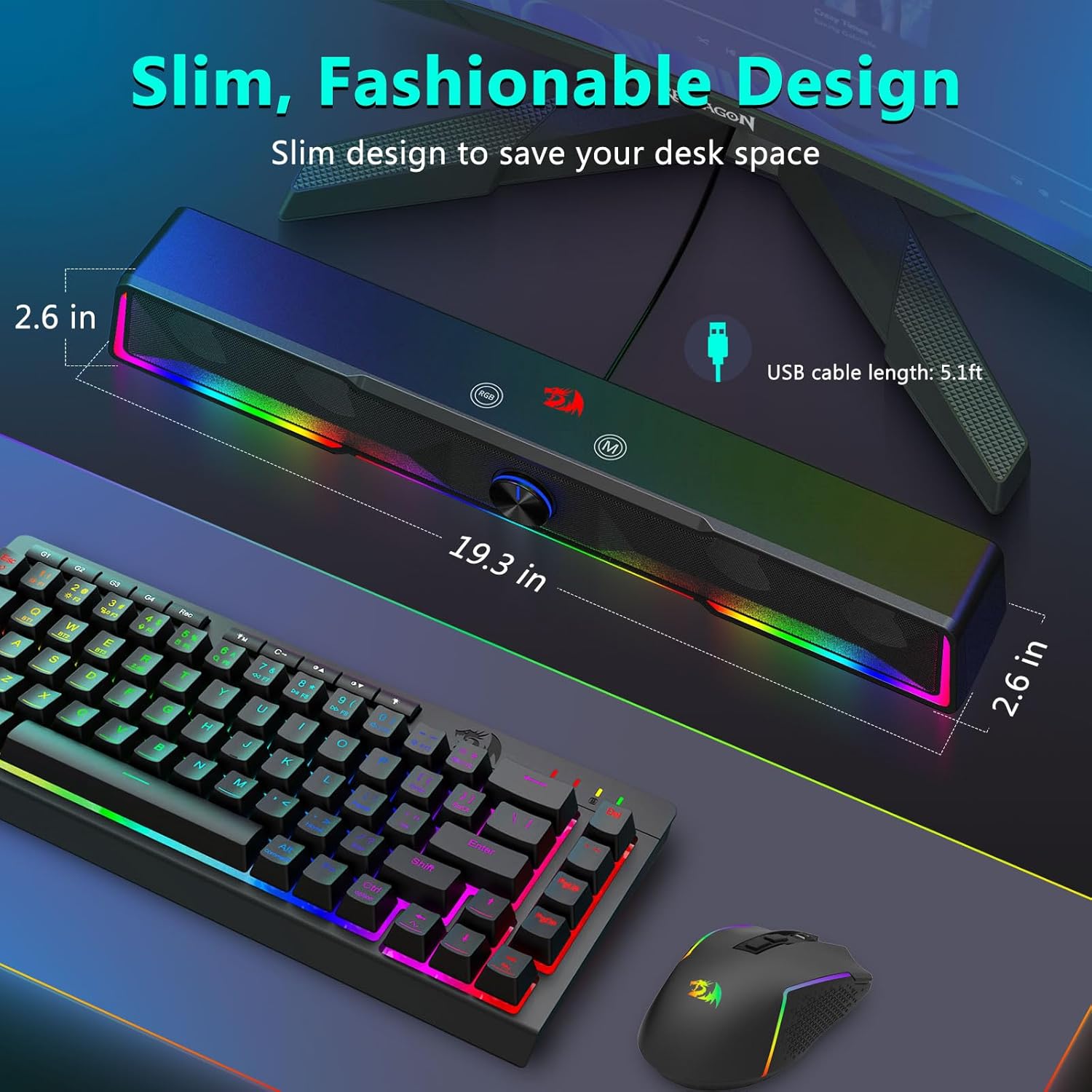
Figure 8.1: The Redragon GS516 speaker highlighting its slim design and dimensions: 19.3 inches wide, 2.6 inches deep, and 2.6 inches high, with a USB cable length of 5.1 feet.
9. Warranty and Support
Warranty Information
The Redragon GS516 Computer Speaker comes with a Limited Warranty. Please refer to the warranty card included with your purchase or visit the official Redragon website for detailed terms and conditions regarding warranty coverage, duration, and claims.
Customer Support
For technical assistance, troubleshooting beyond this manual, or warranty inquiries, please contact Redragon customer support through their official website or the contact information provided with your product documentation. Please have your product model (GS516) and proof of purchase ready when contacting support.
Official Redragon Website: www.redragonzone.com (Note: This is a general placeholder link; please refer to your product's specific support information.)