1. Introduction
This manual provides essential information for setting up, operating, and maintaining your MINISFORUM M1 Pro-125H Mini PC. Please read it thoroughly to ensure proper usage and to maximize the performance and longevity of your device.

Image 1.1: Front view of the MINISFORUM M1 Pro-125H Mini PC.
Key Features:
- Intel Core Ultra 5 125H Processor (14C/18T, up to 4.5GHz)
- Integrated Intel Arc Graphics
- 32GB DDR5-5600MHz RAM (expandable up to 128GB)
- 1TB M.2 2280 PCIe 4.0 SSD (dual slots, up to 8TB total)
- 2.5Gbps LAN Port, WiFi 7, Bluetooth 5.4
- OCuLink Port for external GPU connectivity
- Quad Display Support (HDMI 2.1, DisplayPort 1.4, 2x USB4)
- Dual USB4 Ports (40Gbps, 65-100W PD-IN, 15W PD-OUT)
- Built-in Dual Microphones & Speaker System
- Efficient Cooling System with Phase-Change Materials
2. Package Contents
Verify that all items are present in the package:
- 1x M1 Pro-125H Mini PC
- 1x US Power Adapter
- 1x HDMI cable
- 1x Wall Mount Bracket
- 1x Manual (this document)
3. Setup Guide
3.1 Connecting Peripherals
- Power Connection: Connect the US Power Adapter to the DC 19V port on the rear of the Mini PC, then plug it into a power outlet.
- Display Connection: Connect your monitor(s) to the Mini PC using the HDMI 2.1, DisplayPort 1.4, or USB4 ports. The device supports up to four displays simultaneously.
- Keyboard and Mouse: Connect your USB keyboard and mouse to the available USB 3.2 Gen2 Type-A ports or USB 2.0 Type-A port. Wireless peripherals can be connected via Bluetooth 5.4.
- Network Connection: For a wired connection, connect an Ethernet cable to the 2.5Gbps LAN port. For wireless, ensure your WiFi 7 network is available.
- Audio Devices: Connect headphones or external speakers to the 3.5mm audio jack if desired.
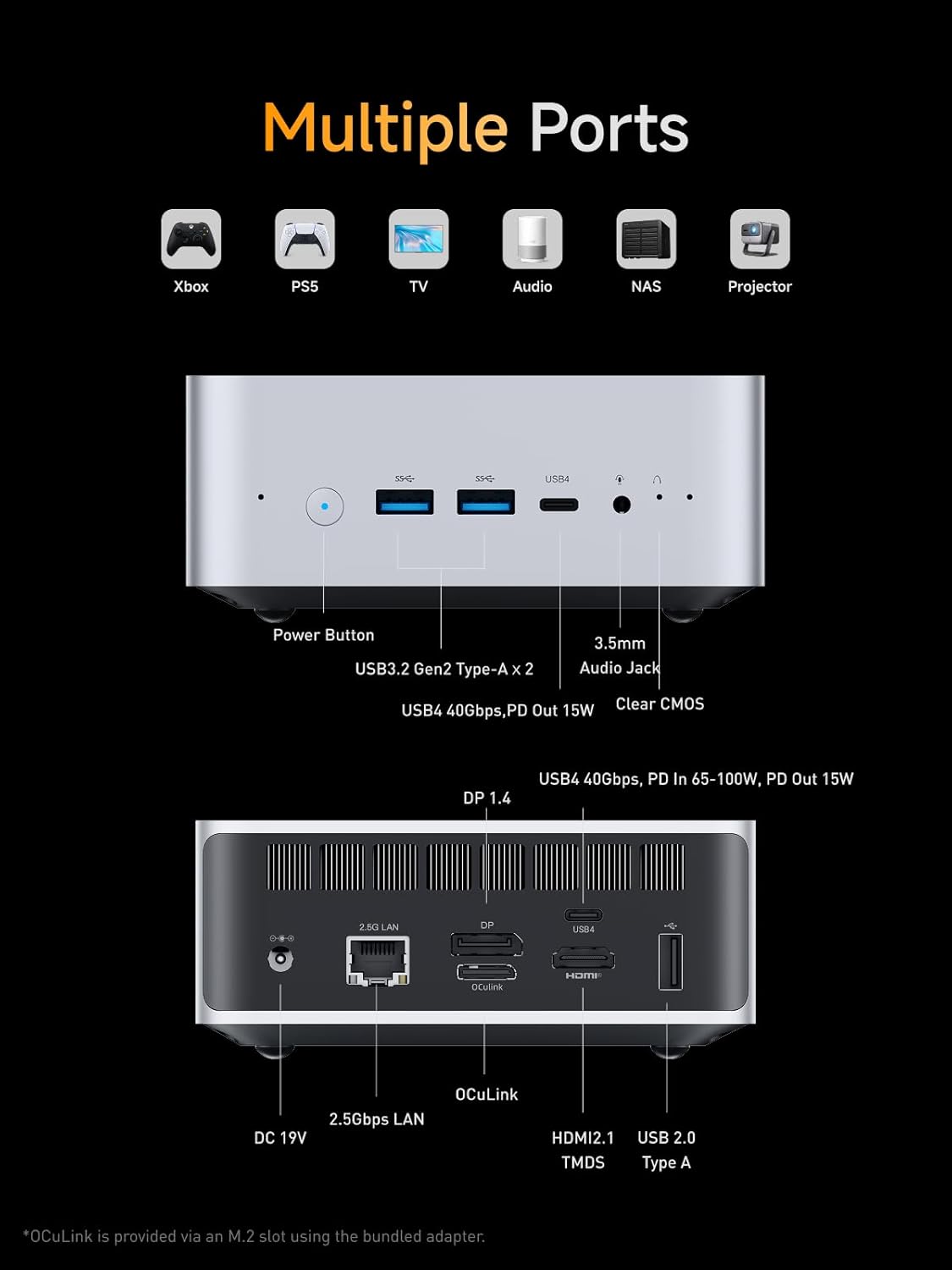
Image 3.1: Diagram illustrating the various ports on the MINISFORUM M1 Pro-125H Mini PC.
3.2 Initial Power On
After connecting all necessary peripherals, press the Power Button located on the front of the Mini PC. The system will boot up. Follow any on-screen instructions for initial operating system setup.
4. Operating Instructions
4.1 Power Management
- Power On: Press the power button once.
- Shut Down: Use the operating system's shutdown function.
- Restart: Use the operating system's restart function.
- Sleep Mode: Use the operating system's sleep function.
4.2 Network Connectivity
- Wired Network: Connect an Ethernet cable to the 2.5Gbps LAN port for high-speed internet access.
- Wireless Network (WiFi 7): Access network settings in your operating system to connect to available WiFi 7 networks. This provides ultra-fast and stable wireless connectivity.
- Bluetooth 5.4: Pair Bluetooth-enabled devices such as headphones, keyboards, or mice through your operating system's Bluetooth settings.

Image 4.1: Illustration of WiFi 7 capabilities for high-speed wireless connectivity.
4.3 Display Configuration (Quad Display)
The M1 Pro-125H supports connecting up to four displays simultaneously for an expanded workspace. Use a combination of the following ports:
- 1x HDMI 2.1 TMDS (up to 4K@60Hz)
- 1x DisplayPort 1.4 (up to 8K@60Hz / 4K@144Hz)
- 2x USB4 (each up to 8K@60Hz / 4K@144Hz)
Configure display settings within your operating system to extend or duplicate your desktop across multiple screens.

Image 4.2: Example of a quad display setup with the M1 Pro-125H Mini PC.
4.4 USB4 Port Functionality
The two full-featured USB4 ports offer versatile connectivity:
- High-Speed Data Transfer: Up to 40Gbps for rapid file transfers.
- Power Delivery (PD-IN): Supports 65-100W power input to charge the host device.
- Power Output (PD-OUT): Provides 15W power output to peripherals.
- Video Output: Supports up to 8K@60Hz or 4K@144Hz display output.
4.5 OCuLink Port
The OCuLink interface allows for external PCI Express connectivity, primarily for connecting an external discrete graphics card (eGPU) to enhance gaming and AI capabilities. This port offers PCIe 4.0 x4 speed (64Gbps).
Note: The OCuLink port is non-hot-swappable and requires one M.2 2280 PCIe 4.0 SSD slot for its functionality.

Image 4.3: Close-up of the OCuLink port on the Mini PC.
4.6 Audio System
The Mini PC features built-in dual digital microphones with noise cancellation for clear voice capture and an integrated speaker system for audio output.
5. Maintenance
5.1 Cleaning
Regularly clean the exterior of the Mini PC with a soft, dry cloth. Ensure ventilation grilles are free from dust accumulation to maintain optimal airflow. Do not use liquid cleaners directly on the device.
5.2 Storage and Memory Expansion
The M1 Pro-125H offers expandable storage and memory:
- RAM: Two SO-DIMM slots support up to 128GB DDR5-5600MHz RAM.
- SSD: Two M.2 2280 PCIe 4.0x4 slots support up to 4TB per SSD, for a total of up to 8TB.
For upgrades, it is recommended to consult a qualified technician or refer to detailed upgrade guides provided by MINISFORUM to avoid damaging the device.

Image 5.1: Illustration of the DDR5 SO-DIMM slots for memory expansion.

Image 5.2: Illustration of the M.2 2280 PCIe 4.0 SSD slots for storage expansion.
5.3 Thermal Management
The Mini PC incorporates phase-change materials, copper heat pipes, and a silent fan for efficient heat dissipation, maintaining stable performance even under heavy workloads. Ensure adequate ventilation around the device and avoid blocking air vents.
6. Troubleshooting
- No Power:
- Ensure the power adapter is securely connected to both the Mini PC and a working power outlet.
- Verify the power outlet is functional.
- No Display:
- Check that the display cable (HDMI, DisplayPort, or USB4) is securely connected to both the Mini PC and the monitor.
- Ensure the monitor is powered on and set to the correct input source.
- Try a different display cable or port.
- Network Connectivity Issues:
- For wired connections, ensure the Ethernet cable is properly connected and your router/modem is working.
- For wireless connections, check your WiFi settings, ensure the correct network is selected, and enter the password accurately. Restart your router if necessary.
- System Performance Issues:
- Close unnecessary applications running in the background.
- Ensure your operating system and drivers are up to date.
- Check for sufficient free storage space.
If you encounter persistent issues not covered here, please refer to the support section.
7. Specifications
| Feature | Specification |
|---|---|
| Processor | Intel Core Ultra 5 125H (14C/18T, up to 4.5GHz) |
| Graphics Coprocessor | Intel Arc Graphics |
| RAM | 32 GB DDR5-5600MHz (2x SO-DIMM slots, max 128GB) |
| Storage | 1 TB M.2 2280 PCIe 4.0 SSD (2x M.2 2280 PCIe 4.0x4 slots, max 8TB) |
| Max Screen Resolution | 7680x4320 (8K) |
| Video Outputs | 1x HDMI 2.1 TMDS, 1x DisplayPort 1.4, 2x USB4 |
| LAN | 2.5Gbps Ethernet |
| Wireless Connectivity | WiFi 7 (802.11ax), Bluetooth 5.4 |
| USB Ports | 2x USB4 (40Gbps, PD-IN 65-100W, PD-OUT 15W), 2x USB 3.2 Gen2 Type-A, 1x USB 2.0 Type-A |
| Other Ports | 1x OCuLink, 1x 3.5mm Audio Jack, 1x Clear CMOS |
| Operating System | OS (Pre-installed or user-installable) |
| Dimensions (Package) | 7.16 x 6.26 x 4.52 inches |
| Item Weight | 2.86 pounds |
| Power Source | DC |
| Color | Silver |
8. Warranty and Support
8.1 Warranty Information
Your MINISFORUM M1 Pro-125H Mini PC comes with a standard manufacturer's warranty. Please refer to the warranty card included in your package or visit the official MINISFORUM website for detailed terms and conditions regarding warranty coverage and duration.
8.2 Technical Support
For technical assistance, troubleshooting beyond this manual, or inquiries regarding your product, please contact MINISFORUM customer support. Contact information can typically be found on the official MINISFORUM website or in the documentation provided with your product.


