
1. Introduction
Welcome to the user manual for your TCL PlayCube 750 ISO 1080P FHD LED Portable Projector. This guide provides essential information for setting up, operating, maintaining, and troubleshooting your device. The PlayCube 750 offers a vivid 1080P FHD viewing experience with 4K input support, powered by Google TV for extensive entertainment options, and features smart auto-correction for effortless setup. Its unique rotatable design and built-in battery ensure flexible and portable use.

Figure 1: Overview of TCL PlayCube 750 features including 90-degree rotation, 30-150 inch projection, 3-hour battery, 750 ISO lumens, and Dolby Audio.
2. Setup
2.1 Unpacking and Initial Inspection
Carefully remove all components from the packaging. Verify that all included items are present: the TCL PlayCube 750 projector, remote control, power cord, HDMI cable, USB 2.0 cable, and 3.5mm audio cable. Inspect the projector for any signs of damage.
2.2 Powering On
- Connect the power cord to the DC input port on the projector.
- Plug the power cord into a suitable electrical outlet.
- Press and hold the power button on the projector or remote control to turn on the device.
2.3 Flexible Placement and Projection
The TCL PlayCube 750 features a unique rotatable design, allowing you to adjust the projection angle up to 90 degrees without needing a separate stand.

Figure 2: The compact and rotatable design of the PlayCube 750 for flexible placement.
Place the projector on a stable surface. Rotate the projector body to direct the image onto your desired screen or wall. The projector supports screen sizes from 30 to 150 inches, with a minimum projection distance of 0.8 feet and a maximum of 4.13 feet.

Figure 3: Projecting onto a ceiling by rotating the projector.
2.4 Automatic Image Correction
The PlayCube 750 features automatic focus and keystone correction. Upon startup or movement, the projector will automatically adjust the image for clarity and correct geometry.
- Auto Focus: Ensures a sharp image without manual adjustment.
- Auto Keystone Correction: Automatically corrects distorted images (trapezoidal effect) when the projector is not perfectly perpendicular to the screen.
- Obstacle Avoidance: Automatically adjusts the projection area to avoid obstacles on the wall.

Figure 4: Visual representation of the projector's auto-correction capabilities.
2.5 Eye Protection (TOF-Active Guard)
The TOF-Active Guard feature protects your eyes by automatically dimming the projection light if an object or person comes too close to the lens. This prevents direct exposure to bright light.

Figure 5: TOF-Active Guard in action, ensuring eye safety.
3. Operation
3.1 Navigating Google TV
The TCL PlayCube 750 comes with integrated Google TV, providing access to over 10,000 apps and streaming services.
- Use the remote control to navigate the Google TV interface.
- Access popular streaming apps like Netflix, YouTube, Disney+, and more.
- Utilize voice commands by saying "Hey Google" to search for content, control playback, and manage smart home devices hands-free.
- Cast content directly from your smartphone or tablet using Google Cast.

Figure 6: The Google TV home screen with available applications.

Figure 7: Smart features including Google Assistant, Google Cast, and Netflix certification.
3.2 Image Quality and Display
The PlayCube 750 delivers stunning visuals with its native 1080P FHD resolution and support for 4K input.
- ImmersiColor Technology: Provides vibrant and accurate colors, covering 124% of the REC.709 color gamut.
- OSRAM 3-Color LED: Ensures an eye-friendly viewing experience with natural light spectrum.
- 0.33-inch DMD Chip: Enhances pixel count for sharper images and finer details.
- Brightness: 750 ISO Lumens (750 ANSI Lumens) for clear projection in various lighting conditions.

Figure 8: Native 1080P resolution with 4K input support for sharp, detailed images.

Figure 9: Enhanced color accuracy with 124% REC.709 color gamut.
3.3 Audio Experience
Enjoy immersive sound with Dolby Digital Plus support and powerful audio output.
- Dolby Digital Plus: Delivers rich, detailed, and immersive sound.
- Custom Tuning Modes: Switch between four audio modes for optimal sound, featuring powerful bass and clear stereo.
- Output: Up to 85W maximum output for room-filling sound.

Figure 10: Immersive audio experience with Dolby Digital Plus.
3.4 Portability and Battery Life
The PlayCube 750 is designed for portability, featuring a compact size and a built-in battery.
- Built-in 66Wh Battery: Provides up to 3 hours of cordless playback.
- Quick Charge: 30 minutes of charging provides an additional hour of playback.
- Compact and Lightweight: Weighing only 1.3 kg with dimensions of 14.9 x 9.6 x 9.6 cm, it's easy to carry for outdoor adventures or moving between rooms.

Figure 11: Enjoying portable projection with the built-in battery.
4. Maintenance
4.1 Cleaning the Lens
To maintain optimal image clarity, regularly clean the projector lens.
- Use a soft, lint-free cloth specifically designed for optical lenses.
- Gently wipe the lens in a circular motion.
- Avoid using abrasive cleaners or excessive pressure, as this can damage the lens coating.
4.2 General Cleaning
Wipe the exterior of the projector with a soft, dry cloth. Do not use liquid cleaners or solvents.
4.3 Storage
When not in use for extended periods, store the projector in a cool, dry place, away from direct sunlight and extreme temperatures.
5. Troubleshooting
| Problem | Possible Cause | Solution |
|---|---|---|
| No image projected | Power not connected; Projector off; Input source not selected. | Check power connection; Press power button; Select correct HDMI/USB input. |
| Image is blurry | Lens is dirty; Auto-focus issue. | Clean the lens; Move the projector slightly to trigger auto-focus. |
| Image is distorted (trapezoid shape) | Projector not perpendicular to screen; Auto-keystone issue. | Reposition the projector; Move the projector slightly to trigger auto-keystone. |
| No sound | Volume too low; Muted; External audio device connected. | Increase volume; Unmute; Disconnect external audio or select internal speaker. |
| Remote control not working | Batteries low/dead; Obstruction between remote and projector. | Replace batteries; Ensure clear line of sight to the projector's IR receiver. |
| Projector overheats or fan is loud | Ventilation blocked; Prolonged use in hot environment. | Ensure vents are clear; Operate in a well-ventilated area; Allow to cool down. |
6. Specifications
| Feature | Detail |
|---|---|
| Brand | TCL |
| Model Number | P30D8F |
| Display Resolution | Native 1920 x 1080 (FHD) |
| Input Support | Up to 4K |
| Brightness | 750 ISO Lumens (750 ANSI Lumens) |
| Contrast Ratio | 1,000,000:1 |
| Color Gamut | 124% REC.709 coverage (ImmersiColor Technology) |
| Light Source | OSRAM 3-Color LED |
| DMD Chip | 0.33-inch TI DMD |
| Projection Size | 30 - 150 inches |
| Projection Distance | 0.8 - 4.13 feet |
| Operating System | Google TV |
| Connectivity | Wi-Fi |
| Hardware Interface | HDMI, USB 2.0, 3.5mm Audio Output, DC Input |
| Audio | Dolby Digital Plus, Built-in 5W Speaker, Max 85W Output |
| Battery | 66 Wh, up to 3 hours playback |
| Cooling System | DualScythe Cooling System (26dB noise level) |
| Dimensions (L x W x H) | 14.9 x 9.6 x 9.6 cm |
| Weight | 1.3 kg |
| Control Method | Remote Control |
7. Warranty & Support
7.1 Product Warranty
The TCL PlayCube 750 projector comes with a 2-year warranty from the date of purchase. This warranty covers manufacturing defects and malfunctions under normal use. Please retain your proof of purchase for warranty claims.
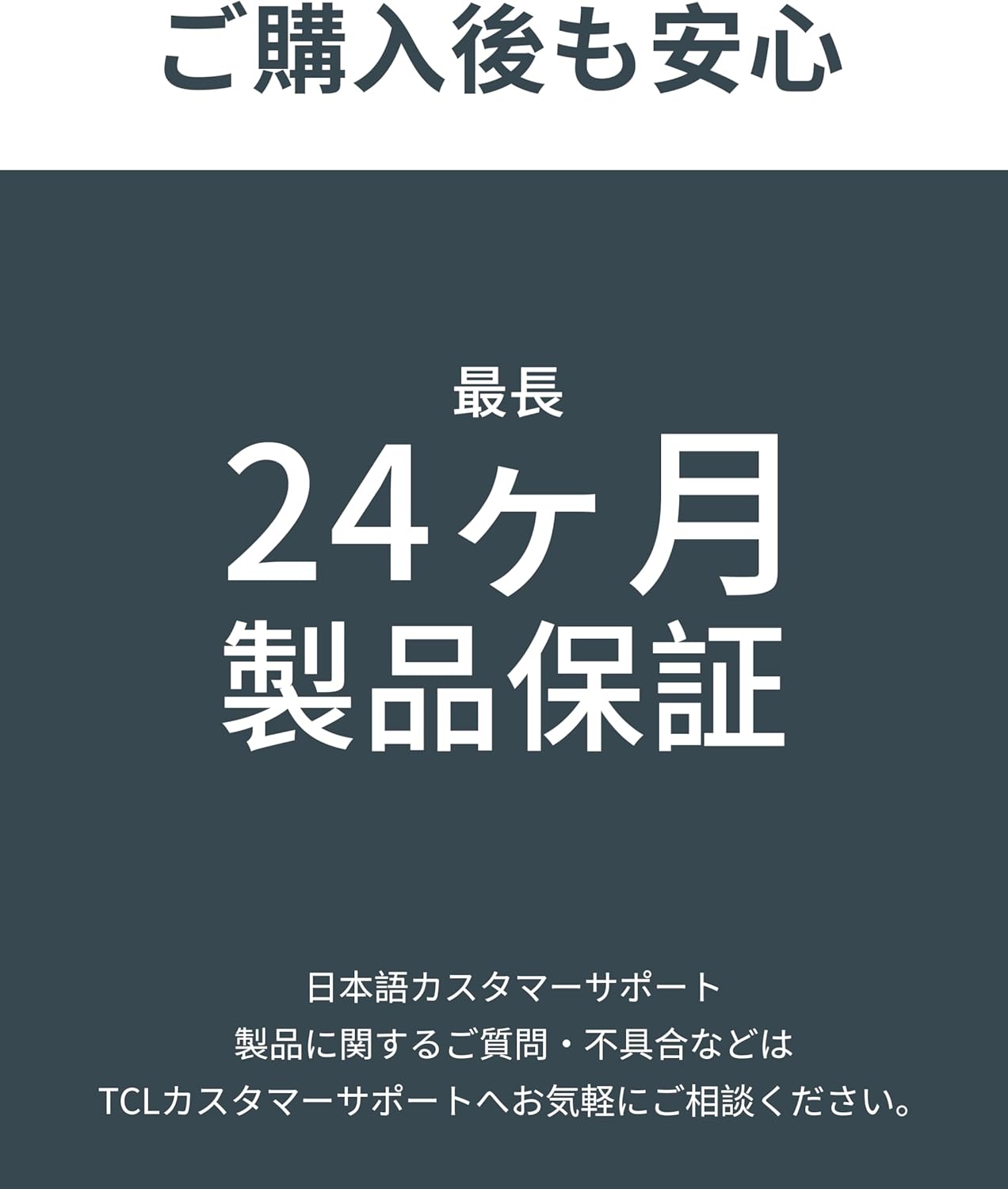
Figure 12: Warranty details and customer support information.
7.2 Customer Support
For any questions, issues, or technical support regarding your TCL PlayCube 750, please contact TCL Customer Support.
- Online Support: Visit the official TCL support website for FAQs, troubleshooting guides, and contact options.
- Contact Information: Refer to the contact details provided in your product packaging or on the official TCL website for your region.


