
1. Introduction
Thank you for choosing the Aiandcc M8 MP3 Player. This device is designed for portable audio playback, featuring Bluetooth 5.3 connectivity, a 1.77-inch screen, and expandable storage. This manual provides detailed instructions for setup, operation, and maintenance to ensure optimal performance and longevity of your device.
2. Product Overview
2.1 Package Contents
- Aiandcc M8 MP3 Player
- USB Type-C Charging Cable
- Wired Earphones
- Armband
- User Manual
2.2 Device Layout and Controls
Familiarize yourself with the buttons and ports on your Aiandcc M8 MP3 Player.

Image: Front and side view of the Aiandcc M8 MP3 Player, highlighting the 1.77" TFT screen, Previous Track Button, Play/Pause/Confirm Button, Next Track Button, Submenu Button, USB C charging Port, Headphone Jack, Power on/off, TF Card Slot, Volume -, Volume +, and Fast Forward/Retreat controls.
- 1.77" TFT Screen: Displays menus, track information, and settings.
- Previous Track Button: Single click to go to the previous track.
- Play / Pause / Confirm Button: Single click to play/pause, long press to confirm selection.
- Next Track Button: Single click to go to the next track.
- Submenu Button: Accesses context-sensitive menus.
- USB C Charging Port: For charging the device and connecting to a computer.
- Headphone Jack: 3.5mm port for wired headphones.
- Power On/Off: Long press to power the device on or off.
- TF Card Slot: Insert a MicroSD card for expanded storage.
- Volume - / Volume +: Adjusts the playback volume.
- Retreat / Fast Forward: Long press during playback to rewind or fast forward.
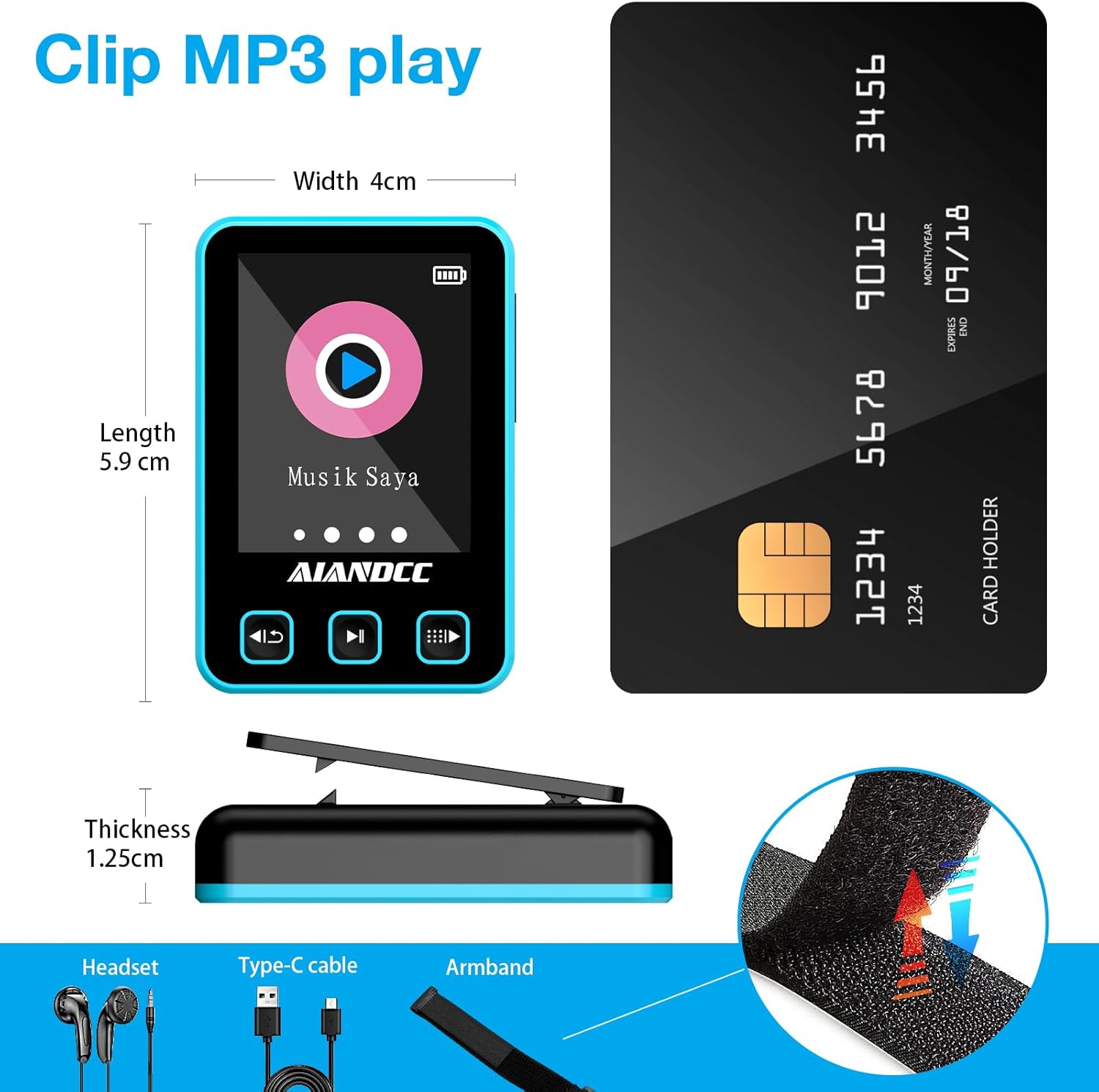
Image: Diagram showing the dimensions of the Aiandcc M8 MP3 Player (Length 5.9cm, Width 4cm, Thickness 1.25cm) and included accessories: Headset, Type-C cable, and Armband with a clip mechanism.
2.3 Wearing the Armband
The included armband allows for convenient, hands-free use during activities like sports or running.
- Attach the MP3 player to the clip on the armband.
- Secure the armband around your arm, ensuring a comfortable fit that is not too tight.
- Adjust the position for easy access to controls.

Image: A person wearing the Aiandcc M8 MP3 Player on an armband during a workout, demonstrating its portability and suitability for active lifestyles with Bluetooth connectivity.
3. Setup
3.1 Charging the Device
Before first use, fully charge the MP3 player. A full charge takes approximately 2.5 hours.
- Connect the provided USB Type-C cable to the charging port on the device.
- Connect the other end of the cable to a USB power adapter (not included) or a computer's USB port.
- The battery icon on the screen will indicate charging status.
- Once fully charged, disconnect the cable.

Image: Illustration of the Aiandcc M8 MP3 Player connected to a Type-C charging cable, showing the charging port and estimated playback times (31 hours with wired headphones, 11 hours with Bluetooth).
3.2 Powering On/Off
- To Power On: Long press the Power On/Off button located on the side of the device until the screen lights up.
- To Power Off: Long press the Power On/Off button until the screen turns off.
3.3 Inserting a TF Card (MicroSD Card)
The device has 32GB of internal storage and supports external TF cards up to 128GB for additional music storage.
- Locate the TF Card Slot on the side of the device.
- Gently insert the TF card into the slot until it clicks into place. Ensure the card is oriented correctly.
- To remove, gently push the card in again until it springs out.

Image: The Aiandcc M8 MP3 Player showing the TF card slot and indicating support for up to 128GB via TF card, along with support for 28 languages.
4. Basic Operation
4.1 Navigating Menus
- Use the Previous Track and Next Track buttons to scroll through menu options.
- Press the Play/Pause/Confirm button to select an option.
- Press the Submenu button to go back to the previous menu or exit a function.
4.2 Playing Music
- From the main menu, navigate to "Music" and press the Play/Pause/Confirm button.
- Browse your music library by Artist, Album, Songs, or Playlists.
- Select a song and press Play/Pause/Confirm to start playback.
- During playback:
- Press Play/Pause/Confirm to pause or resume.
- Press Previous Track or Next Track to skip songs.
- Long press Previous Track or Next Track to fast forward or rewind within a song.
- Use Volume - and Volume + buttons to adjust the volume.
The Aiandcc M8 supports various audio formats including MP3, APE, FLAC, ACELP, WMA, and WAV.

Image: The Aiandcc M8 MP3 Player screen showing supported audio formats (MP3, APE, FLAC, ACELP, WMA, WAV) and equalizer presets (Auto, Normal, Rock, Classic, Jazz, Pop).
5. Bluetooth Connection
The Aiandcc M8 features Bluetooth 5.3 for wireless audio streaming to compatible headphones, speakers, or car audio systems. It offers a stable transmission range of up to 10 meters.
- From the main menu, navigate to "Bluetooth" and press the Play/Pause/Confirm button.
- Ensure Bluetooth is enabled on your external device (headphones, speaker, etc.) and it is in pairing mode.
- On the MP3 player, select "Search Device" to scan for available Bluetooth devices.
- Once your device appears in the list, select it and press Play/Pause/Confirm to pair.
- After successful pairing, the Bluetooth icon on the MP3 player's screen will indicate a connected status.

Image: The Aiandcc M8 MP3 Player screen showing the Bluetooth connection interface, surrounded by various Bluetooth headphones and speakers, illustrating its compatibility and stable connection features.
6. File Management
To transfer music files to your Aiandcc M8 MP3 Player:
- Connect the MP3 player to your computer using the provided USB Type-C cable.
- The device will appear as a removable disk drive on your computer.
- Open the device's storage folder.
- Drag and drop your music files (MP3, FLAC, etc.) into the appropriate folders on the MP3 player (e.g., "Music" folder).
- Once files are transferred, safely eject the device from your computer before disconnecting the cable.
7. Specifications
| Feature | Specification |
|---|---|
| Brand | Aiandcc |
| Model Number | M8 |
| Internal Storage Capacity | 32 GB |
| Expandable Storage | Up to 128 GB via TF Card (MicroSD) |
| Screen Size | 1.77 Inches |
| Bluetooth Version | 5.3 |
| Supported Audio Formats | MP3, APE, FLAC, ACELP, WMA, WAV |
| Item Weight | 31 Grams |
| Manufacturer | shenzhen ChenFec technology co., LTD |
8. Troubleshooting
8.1 Device Will Not Turn On
- Ensure the device is fully charged. Connect it to a power source and try again after a few minutes.
- Long press the Power On/Off button for at least 10 seconds to perform a hard reset.
8.2 No Sound
- Check the volume level and increase it if necessary.
- If using wired headphones, ensure they are fully plugged into the 3.5mm jack. Test with another pair of headphones.
- If using Bluetooth, ensure the device is correctly paired and connected to your audio output. Check the volume on both the MP3 player and the Bluetooth device.
- Ensure the audio files are not corrupted and are in a supported format.
8.3 Cannot Transfer Files
- Ensure the USB cable is securely connected to both the MP3 player and the computer.
- Try a different USB port on your computer or a different USB cable.
- Restart both the MP3 player and your computer.
- Check if the device appears in "My Computer" or "This PC" as a removable drive.
8.4 Bluetooth Connection Issues
- Ensure both devices are within 10 meters of each other.
- Make sure the external Bluetooth device is in pairing mode.
- Delete previous pairings on both the MP3 player and the external device, then attempt to pair again.
- Restart both devices.
9. Safety Information
- Do not expose the device to extreme temperatures, direct sunlight, or high humidity.
- Avoid dropping or subjecting the device to strong impacts.
- Do not attempt to disassemble or repair the device yourself. This may void the warranty and cause damage.
- Keep the device away from water and other liquids.
- Use only the provided or recommended charging cables and accessories.
- Dispose of the device and its battery responsibly according to local regulations.
10. Warranty and Support
The Aiandcc M8 MP3 Player comes with a standard manufacturer's warranty. For specific warranty details, please refer to the warranty card included in your package or contact Aiandcc customer support.
For technical support, troubleshooting assistance, or general inquiries, please visit the official Aiandcc website or contact their customer service department. Contact information can typically be found on the product packaging or the brand's official online presence.