
Introduction
Welcome to the user manual for your Logitech Pebble 2 Combo Wireless Keyboard and Mouse Bundle. This compact and slim-designed set offers seamless productivity with dual connectivity options and quiet operation. This manual provides essential information for setting up, operating, maintaining, and troubleshooting your new device.

Image: The Logitech Pebble 2 Combo, featuring the compact wireless keyboard, the slim mouse, and an included cleaning cloth, all in graphite color.
Setup
1. Unboxing and Initial Inspection
Carefully remove all components from the packaging. Ensure you have the Logitech Pebble 2 Keyboard, Pebble Mouse 2, and any included accessories like the Logi Bolt USB receiver and cleaning cloth. Inspect for any visible damage.
2. Battery Installation
The Logitech Pebble 2 Combo requires batteries for operation. The keyboard and mouse come with pre-installed batteries. If replacement is needed:
- Keyboard: Locate the battery compartment on the underside of the keyboard. Open the cover and insert 2 AAA batteries, ensuring correct polarity.
- Mouse: Locate the battery compartment on the underside of the mouse. Open the cover and insert 1 AA battery, ensuring correct polarity.
The keyboard has a battery life of up to 36 months, and the mouse up to 24 months, thanks to auto-sleep features.
3. Connecting Your Devices
The Pebble 2 Combo offers dual connectivity via Bluetooth or the Logi Bolt USB receiver. You can connect up to three devices simultaneously.
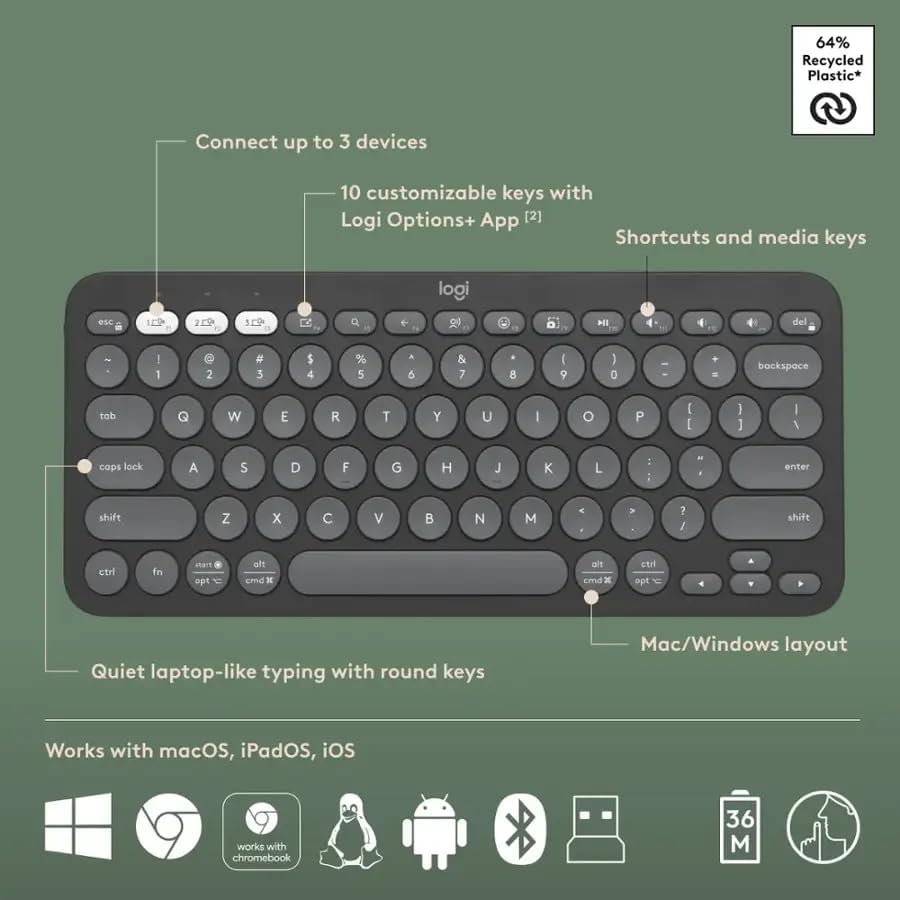
Image: An overhead view of the Logitech Pebble 2 keyboard highlighting its features, including multi-device connectivity buttons (1, 2, 3), customizable keys, media keys, quiet typing, and compatibility with various operating systems.
Bluetooth Connection:
- Keyboard: Turn on the keyboard. Press and hold one of the Easy-Switch keys (1, 2, or 3) for three seconds until the LED light above the key starts blinking rapidly. This indicates pairing mode.
- Mouse: Turn on the mouse. Press and hold the Easy-Switch button on the bottom of the mouse for three seconds until the LED light starts blinking rapidly.
- On your device (computer, tablet), go to Bluetooth settings and select 'Logitech Pebble Keys 2 K380s' for the keyboard and 'Logitech Pebble Mouse 2 M350s' for the mouse to pair.
Logi Bolt USB Receiver Connection:
- Plug the Logi Bolt USB receiver into an available USB port on your computer.
- Keyboard: Turn on the keyboard. Press and hold one of the Easy-Switch keys (1, 2, or 3) for three seconds. If the device doesn't connect automatically, you may need to use the Logi Options+ app to pair.
- Mouse: Turn on the mouse. Press and hold the Easy-Switch button on the bottom of the mouse for three seconds. If the device doesn't connect automatically, you may need to use the Logi Options+ app to pair.
For optimal performance and customization, download the Logi Options+ App from the official Logitech website.
Operating Instructions
1. Keyboard Functions

Image: A close-up of the Logitech Pebble 2 keyboard, highlighting the function keys and media shortcuts available at the top row, indicating quick access to various commands.
- Silent Scissor Keys: The keyboard features quiet, laptop-like scissor keys for a comfortable and silent typing experience.
- Easy-Switch Keys (1, 2, 3): Use these keys to instantly switch between up to three connected devices. The LED light indicates the currently active device.
- Customizable Keys: The top row of function keys (F1-F12) can be customized using the Logi Options+ App to perform specific actions or shortcuts.
- Media Keys: Dedicated media control keys allow you to manage audio and video playback directly from the keyboard.
- Compatibility: The keyboard is compatible with Windows, macOS, iPadOS, Chrome OS, Android, and Linux.
2. Mouse Functions
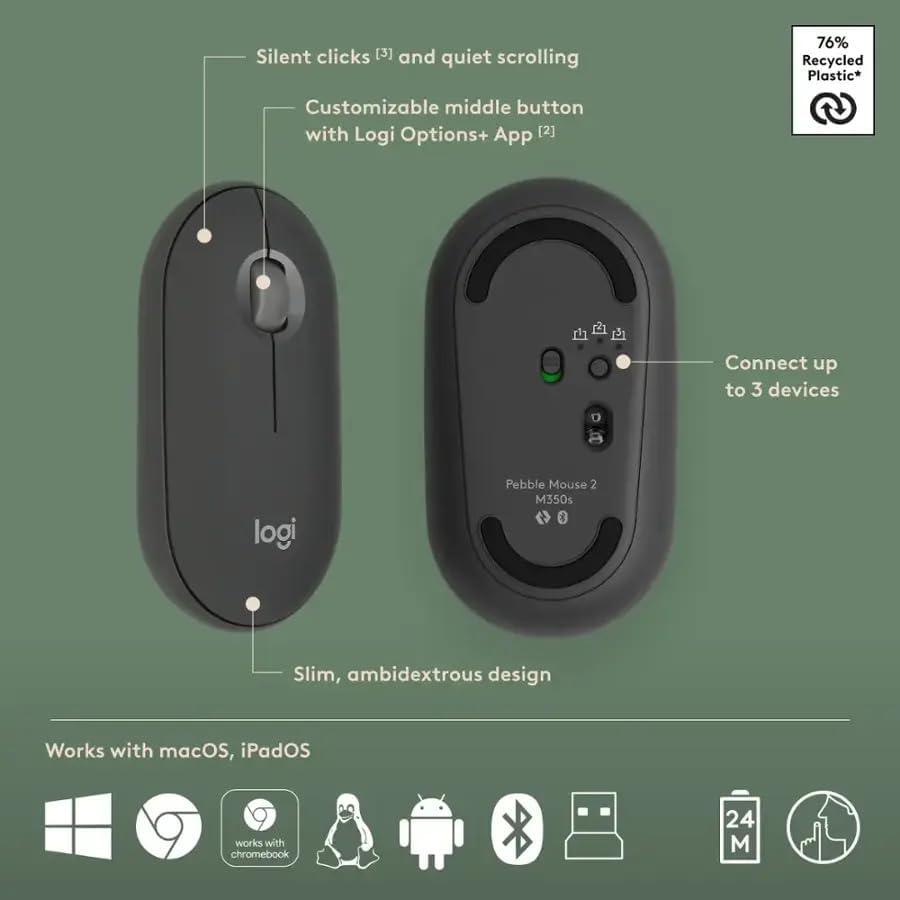
Image: Top and bottom views of the Logitech Pebble 2 mouse, illustrating its slim, ambidextrous design, silent clicks, customizable middle button, and the Easy-Switch button for connecting to up to three devices.
- Silent Clicks: The mouse is designed for whisper-quiet clicks, ideal for shared workspaces.
- Smooth Scrolling: The scroll wheel provides precise and quiet scrolling.
- Customizable Middle Button: The middle button can be customized via the Logi Options+ App for various functions.
- Easy-Switch Button: Located on the bottom, this button allows you to switch between up to three paired devices.
- Ambidextrous Design: The slim and symmetrical design is comfortable for both left and right-handed users.
- Compatibility: The mouse is compatible with Windows, macOS, iPadOS, Chrome OS, Android, and Linux.
3. Multi-Device Usage

Image: A desktop setup showing the Logitech Pebble 2 keyboard and mouse connected to a monitor and a tablet, illustrating its capability to connect to multiple devices simultaneously for seamless workflow.
The Pebble 2 Combo allows you to connect to up to three devices and switch between them effortlessly. Simply press the corresponding Easy-Switch button (1, 2, or 3) on the keyboard or mouse to change the active device.
Maintenance
1. Cleaning
To maintain the appearance and functionality of your Pebble 2 Combo:
- Use the included cleaning cloth or a soft, lint-free cloth.
- Dampen the cloth slightly with water or a mild, non-abrasive cleaner.
- Wipe the surfaces of the keyboard and mouse gently. Avoid excessive moisture.
- Do not use harsh chemicals, solvents, or abrasive materials.
2. Battery Replacement
When the battery indicator light on your keyboard or mouse signals low power, or if performance degrades, replace the batteries:
- Keyboard: Replace with 2 new AAA alkaline batteries.
- Mouse: Replace with 1 new AA alkaline battery.
Dispose of used batteries according to local regulations.
Troubleshooting
1. Device Not Connecting
- Check Batteries: Ensure batteries are correctly installed and have sufficient charge.
- Power On: Make sure both the keyboard and mouse are switched on.
- Re-pair: Try re-pairing the device via Bluetooth or Logi Bolt. For Bluetooth, ensure the device is in pairing mode (blinking LED).
- Logi Bolt Receiver: If using Logi Bolt, ensure the receiver is securely plugged into a working USB port. Try a different USB port.
- Interference: Move the devices closer to your computer and away from other wireless devices that might cause interference.
- Logi Options+ App: Use the Logi Options+ App to manage connections and troubleshoot pairing issues.
2. Keys or Mouse Not Responding
- Battery Check: Replace batteries if they are low.
- Connection Stability: Ensure a stable connection. Reconnect if necessary.
- Clean Sensors: For the mouse, ensure the optical sensor on the bottom is clean and free from obstructions.
- Surface: Ensure the mouse is used on a suitable surface.
3. Multi-Device Switching Issues
- Correct Button: Ensure you are pressing the correct Easy-Switch button (1, 2, or 3) for the desired device.
- Device Active: Verify that the target device's Bluetooth is on and ready to receive input.
Specifications
| Feature | Detail |
|---|---|
| Model Number | 920-012061-Cloth |
| Brand | Logitech |
| Connectivity Technology | Bluetooth, Logi Bolt USB Receiver |
| Keyboard Battery Life | Up to 36 months (2 AAA batteries, included) |
| Mouse Battery Life | Up to 24 months (1 AA battery, included) |
| Special Features | Lightweight, Portable, Silent Scissor Keys, Silent Clicks, Multi-Device Pairing |
| Compatible Devices | Personal Computer, Tablet (Windows, macOS, iPadOS, Chrome OS, Android, Linux) |
| Color | Graphite |
| Item Weight | 14.8 ounces (approximate for combo) |
| Package Dimensions | 12.25 x 9.25 x 1.25 inches |
| Recycled Plastic Content | Keyboard: 64%, Mouse: 76% (excluding receiver and packaging) |

Image: The Logitech Pebble 2 keyboard and mouse, along with headphones and a smartphone, being placed into a bag, emphasizing their lightweight and portable design for on-the-go use.
Warranty and Support
Logitech products are manufactured to high quality standards and are designed to provide reliable performance. For detailed warranty information, please refer to the warranty card included with your product or visit the official Logitech website.
For technical support, frequently asked questions, and driver downloads (including Logi Options+ App), please visit the Logitech support website. You can also find contact information for customer service there.
Online Support: www.logitech.com/support