
1. Introduction
This manual provides essential information for setting up, operating, maintaining, and troubleshooting your VIBOX I-96 Gaming PC. Please read these instructions carefully before using your new computer.
The VIBOX I-96 is a complete gaming PC designed for smooth gameplay and productive work. It features an AMD Ryzen 3 3200G processor with integrated Radeon Vega 8 graphics, 8GB of DDR4 RAM, and a fast 480GB SSD. The system comes pre-installed with Linux Mint, offering a lightweight and user-friendly operating environment.
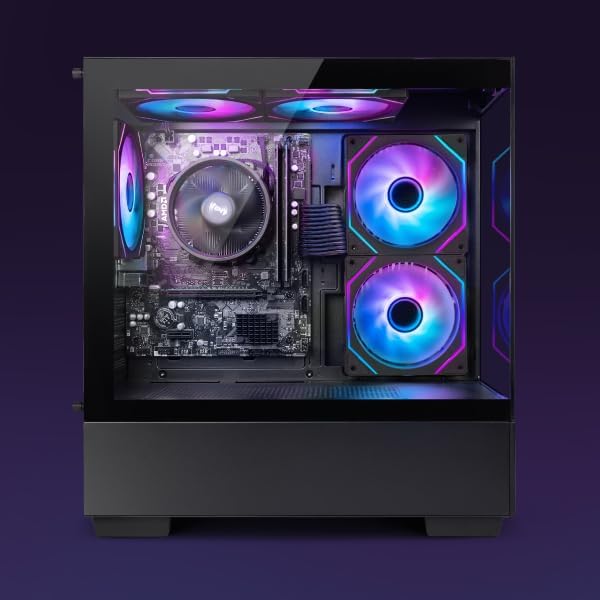
Image 1.1: The VIBOX I-96 Gaming PC tower, showcasing its internal RGB lighting and transparent side panel.
2. What's in the Box
Before proceeding with the setup, ensure all components listed below are present in your package:
- VIBOX I-96 Gaming PC Tower
- 22-inch Monitor
- Gaming Keyboard
- Gaming Mouse
- RGB Lighting accessories
- Power Cables
- Display Cable (HDMI)
- Wi-Fi Adapter

Image 2.1: An illustration detailing the main components included within the VIBOX I-96 PC, such as the Ryzen 3 3200G, Radeon Vega 8, 8GB DDR4 RAM, 480GB SSD, 5 Hex 120mm fans, Wi-Fi, Linux, and AMD stock cooler.
3. Initial Setup
Follow these steps to set up your VIBOX I-96 Gaming PC:
- Unpacking: Carefully remove all components from their packaging.
- Placement: Place the PC tower on a stable, flat surface with adequate ventilation. Ensure there is enough space around the vents for proper airflow.
- Connect Monitor: Connect the monitor to the PC using the provided HDMI cable. Ensure it is securely plugged into the graphics output port on the back of the PC.
- Connect Peripherals: Plug in your keyboard and mouse into the available USB ports.
- Connect Wi-Fi Adapter: If using Wi-Fi, plug the Wi-Fi adapter into an available USB port.
- Power Connection: Connect the power cable to the PC and then to a wall outlet. Connect the monitor's power cable to a wall outlet as well.
- First Boot: Press the power button on the front of the PC tower. The system will boot into the pre-installed Linux Mint operating system.

Image 3.1: A detailed view of the versatile connectivity options on the PC's front panel, including USB 2.0, USB 3.0, headphone and microphone jacks, power button, and an RGB lighting control button.
4. Operating System (Linux Mint)
Your VIBOX I-96 PC comes with Linux Mint pre-installed. Linux Mint is a lightweight, fast, and user-friendly operating system ideal for maximizing system resources during gaming sessions.
4.1 Key Features of Linux Mint:
- Lightweight and Fast: Optimized to run efficiently, leaving more resources for games and applications.
- User-Friendly Interface: Easy to configure and manage, suitable for both new and experienced users.
- Gaming Compatibility: Supports Steam, Lutris, and Proton, allowing access to many Windows-based games.
- Community Support: Benefits from strong community support and regular updates.
- Enhanced Privacy: Offers better privacy compared to most commercial operating systems.
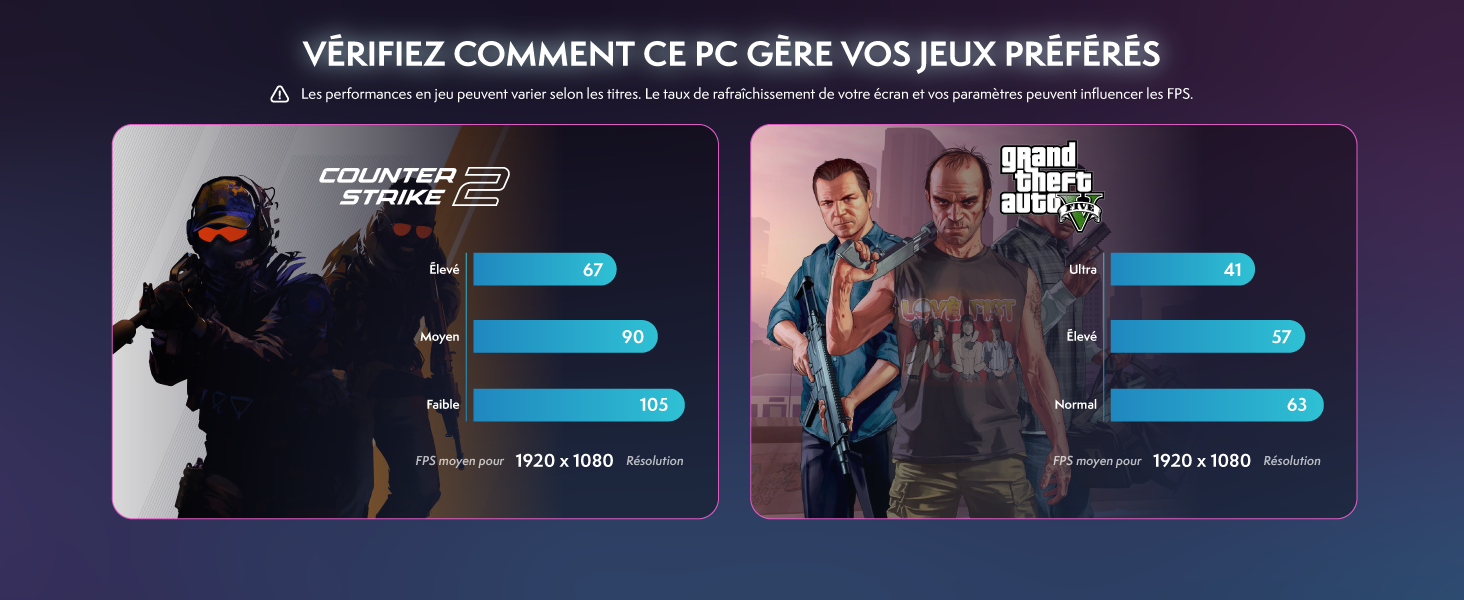
Image 4.1: The Linux Mint logo accompanied by a summary of its advantages, including its lightweight nature, user-friendly interface, gaming support, community backing, and privacy features.
4.2 Installing Windows (Optional):
If you prefer to use Windows, you will need to purchase a Windows license and install it yourself. A USB drive with instructions for installing Windows 11 may be included. For assistance, contact VIBOX support.
5. Hardware Overview
The VIBOX I-96 is equipped with reliable components for a balanced gaming and computing experience.
5.1 Processor (CPU)
The system is powered by an AMD Ryzen 3 3200G processor. This 4-core CPU offers a base clock speed of 3.6 GHz and can boost up to 4.0 GHz, providing solid performance for everyday tasks and gaming.
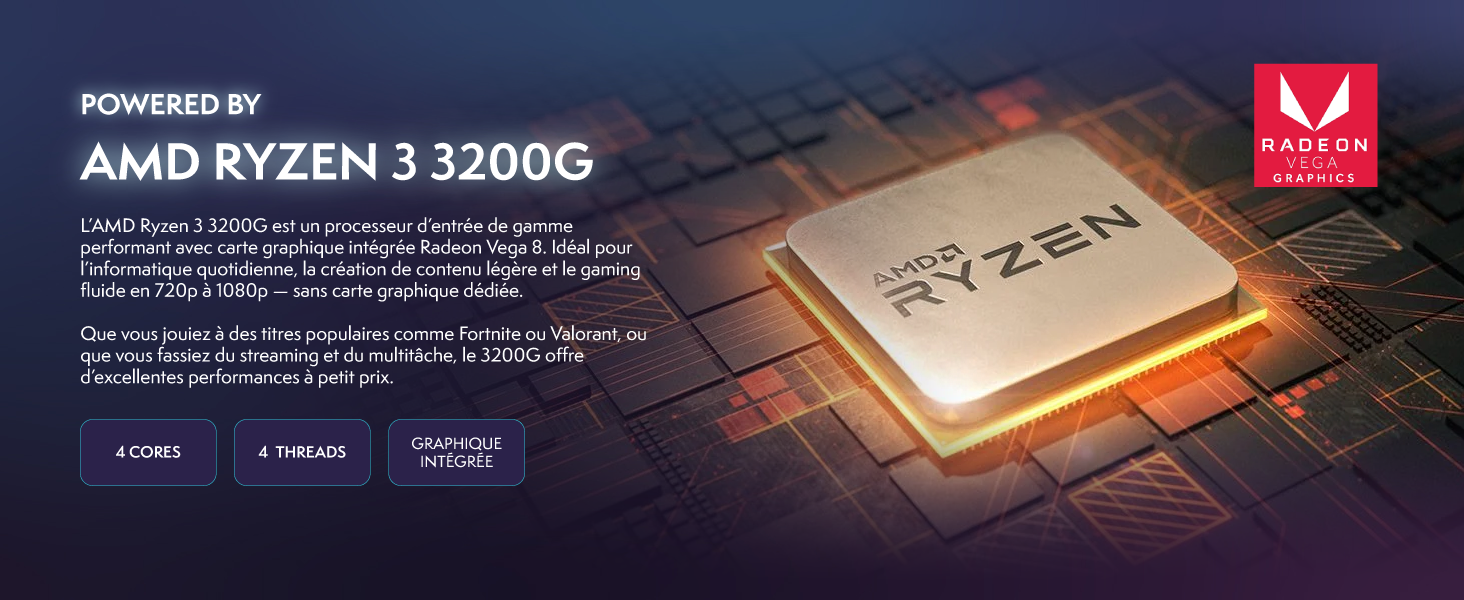
Image 5.1: A close-up of the AMD Ryzen 3 3200G processor, highlighting its integrated Radeon Vega 8 graphics and core specifications.
5.2 Graphics (GPU)
Integrated Radeon Vega 8 Graphics handle visual processing, suitable for 720p to 1080p gaming without a dedicated graphics card.
5.3 Memory (RAM)
The PC includes 8GB of DDR4 RAM, ensuring smooth multitasking and improved system performance. This is sufficient for running multiple applications and many modern games at medium to high settings.

Image 5.2: Two modules of 8GB DDR4 RAM, illustrating the system's memory capacity for fast loading times and efficient multitasking.
5.4 Storage
A 480GB SATA SSD provides ultra-fast storage for the operating system, games, and productive work, significantly reducing load times.
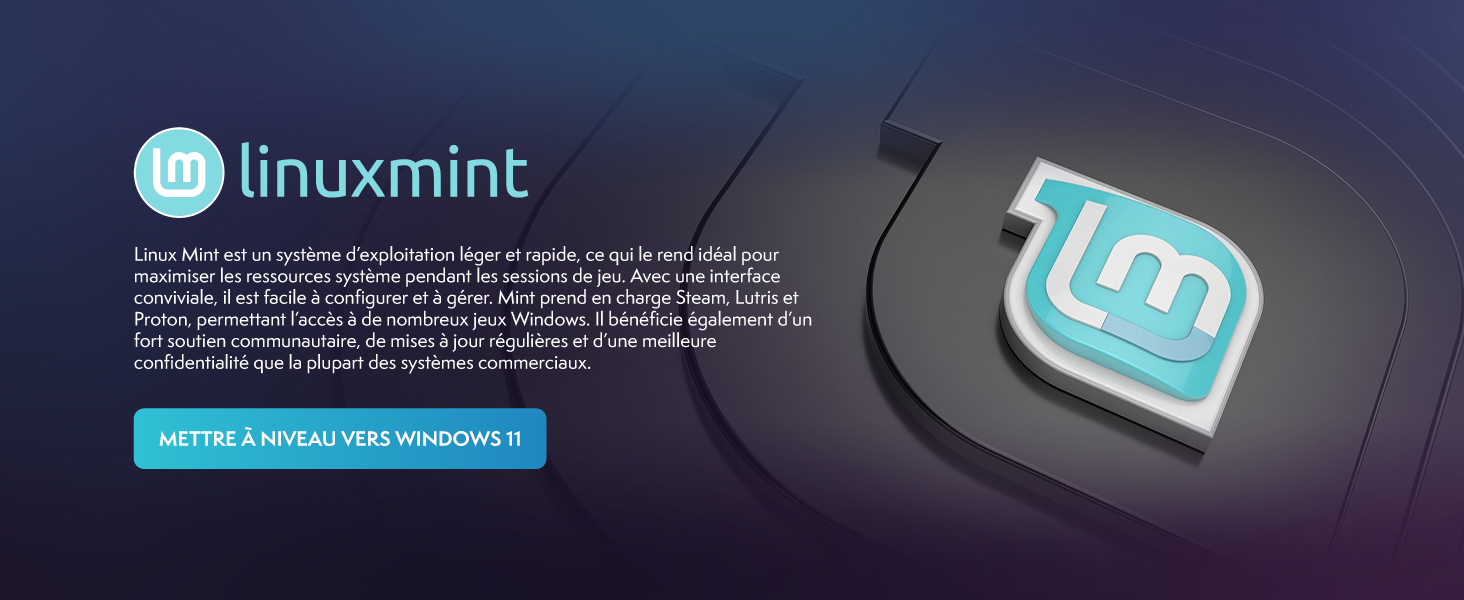
Image 5.3: A solid-state drive (SSD) with a 480GB capacity, emphasizing its role in providing rapid data access and system responsiveness.
5.5 Cooling System
The PC features 5 Hex RGB 120mm fans and an inverted airflow design for efficient cooling. This design optimizes air circulation, reduces heat buildup, and enhances system longevity without compromising aesthetics.
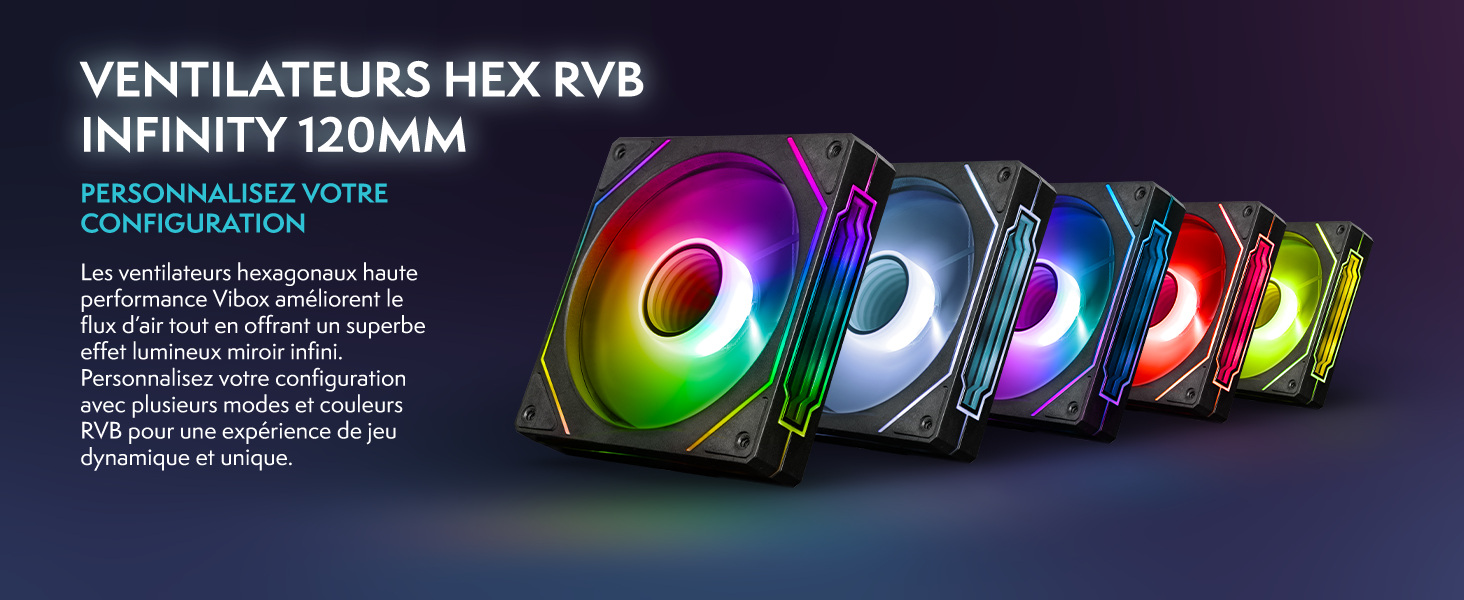
Image 5.4: Five 120mm RGB cooling fans, showcasing their customizable lighting effects and contribution to the PC's thermal management.

Image 5.5: A technical diagram demonstrating the inverted airflow pattern within the PC case, with red arrows indicating hot air exhaust and blue arrows showing cool air intake.
5.6 Physical Dimensions
The VTX-4 chassis offers a modern, sleek, and high-end design with tempered glass panels. Its compact ATX format (36 x 20 x 41 cm) makes it suitable for most desk setups.
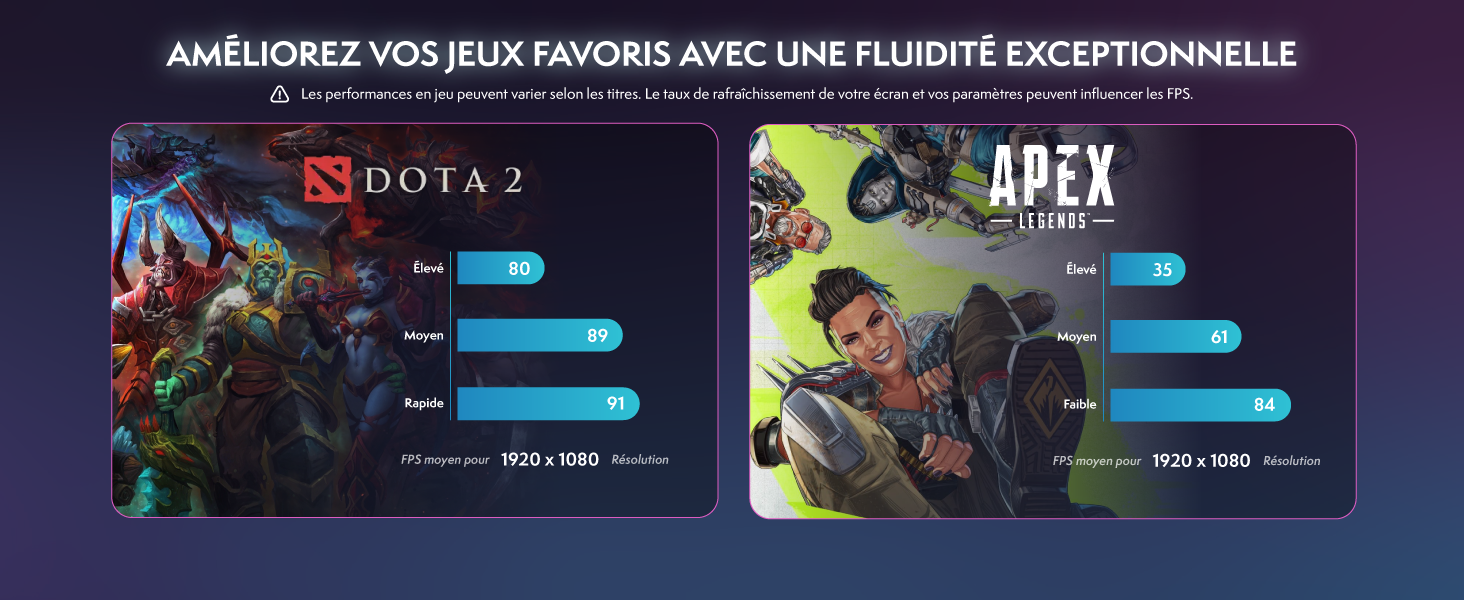
Image 5.6: The VIBOX I-96 PC case, highlighting its dimensions (36cm width, 20cm depth, 39cm height) and tempered glass design.
6. Maintenance
Regular maintenance helps ensure the longevity and optimal performance of your VIBOX I-96 PC.
6.1 Cleaning
- Exterior: Use a soft, damp cloth to clean the exterior surfaces. Avoid abrasive cleaners.
- Dust Removal: Periodically use compressed air to clear dust from the cooling fans and vents. Ensure the PC is powered off and unplugged before cleaning.
6.2 Software Updates
Regularly update your Linux Mint operating system and installed applications to ensure security and performance improvements. Use the built-in update manager in Linux Mint.
7. Troubleshooting
This section addresses common issues you might encounter.
7.1 No Display on Monitor
- Check Cables: Ensure the HDMI cable is securely connected to both the PC and the monitor.
- Power: Verify that both the PC and monitor are powered on and receiving electricity.
- Input Source: Check the monitor's input source settings to ensure it's set to the correct input (e.g., HDMI).
7.2 PC Not Powering On
- Power Cable: Ensure the power cable is firmly connected to the PC and the wall outlet.
- Power Strip/Outlet: Test the power strip or wall outlet with another device to confirm it's working.
7.3 Issues with Windows Installation
Installing Windows on a system pre-configured with Linux can be complex. Ensure you have a valid Windows license and follow official installation guides. If you encounter difficulties, refer to the support section or contact VIBOX customer service for guidance.
8. Specifications
| Feature | Specification |
|---|---|
| Brand | VIBOX |
| Model Number | I-96 |
| Operating System | Linux Mint |
| CPU Model | AMD Ryzen 3 3200G |
| CPU Speed | 3.6 GHz (Max 4.0 GHz) |
| Graphics Coprocessor | Radeon Vega 8 (Integrated) |
| RAM | 8 GB DDR4 |
| Max RAM Supported | 128 GB |
| Storage | 480 GB SSD |
| Connectivity | Ethernet, HDMI, USB, Wi-Fi |
| Video Output Interface | HDMI |
| USB Ports | Multiple (including USB 2.0, USB 3.0) |
| Cooling Method | Air (5 Hex RGB 120mm fans) |
| Dimensions (L x W x H) | 36 x 20 x 41 cm |
| Monitor Size | 22 Inches |
| Monitor Resolution | 1920 x 1080 Pixels |
| Keyboard Layout | AZERTY |
9. Warranty and Support
Your VIBOX I-96 Gaming PC comes with comprehensive warranty and support:
- Parts Warranty: 2 Years
- Labor Warranty: Lifetime
For technical assistance, troubleshooting, or warranty claims, please contact VIBOX customer support. You can find contact information on the VIBOX website or through your purchase platform.


