
1. Introduction
This manual provides detailed instructions for the installation, operation, and maintenance of your FOUKWAKC TY600S 6MP Outdoor Pan-Tilt WiFi Security Camera. This camera is designed to provide comprehensive surveillance for your home or property with advanced features such as 6MP resolution, 360° pan-tilt view, color night vision, two-way audio, and smart motion detection.
2. What's in the Box
- Smart Security Camera (TY600S)
- Power Adapter
- USB Power Cord
- Screw Accessories Package
- User Manual
3. Product Overview
The FOUKWAKC TY600S camera is a robust outdoor security solution. Key features include:
- 6MP HD Resolution: Captures clear video at 3072×1728 pixels.
- Pan-Tilt 360° View: Offers 355° horizontal and 90° vertical rotation for comprehensive coverage.
- Color Night Vision: Equipped with 4 IR lights for clear night vision up to 65 ft, supporting both infrared and full-color modes.
- Two-Way Audio: Built-in microphone and speaker for remote communication.
- Motion Detection & Smart Alerts: Records video and sends real-time alerts upon motion detection, with optional sound and light alarms.
- Dual-band WiFi: Supports both 2.4GHz and 5GHz Wi-Fi for stable connectivity.
- IP65 Weatherproof: Designed to withstand outdoor conditions, preventing dust intrusion.

Figure 3.1: This diagram illustrates the various components of the FOUKWAKC TY600S camera, including its lens, microphone, speaker, TF card slot, reset key, and Wi-Fi antenna.
4. Setup
4.1 App Installation and Pairing
To control your FOUKWAKC TY600S camera, you need to install the 'Tuya' mobile application on your smartphone. Follow the steps below to connect your camera:
- Ensure your phone's Wi-Fi and Bluetooth are turned on.
- Open the 'Tuya' app and tap 'Add Device'.
- Wait for the camera icon to appear, indicating it's in pairing mode. If unable to connect, hold the reset button for 5 seconds to restore factory settings and try again.
- Confirm your Wi-Fi details (SSID and password).
- Wait for the device to connect. Once successful, the camera will be added to your app.
Video 4.1: This video demonstrates the step-by-step process of connecting your FOUKWAKC TY600S camera to the Tuya app using Bluetooth.
4.2 Physical Installation
The FOUKWAKC TY600S camera is designed for both indoor and outdoor use. For outdoor installation, ensure it is placed in a location with a stable power supply. The camera requires a continuous power connection; it is not battery-operated. Use the provided screw accessories to securely mount the camera to a ceiling or wall.
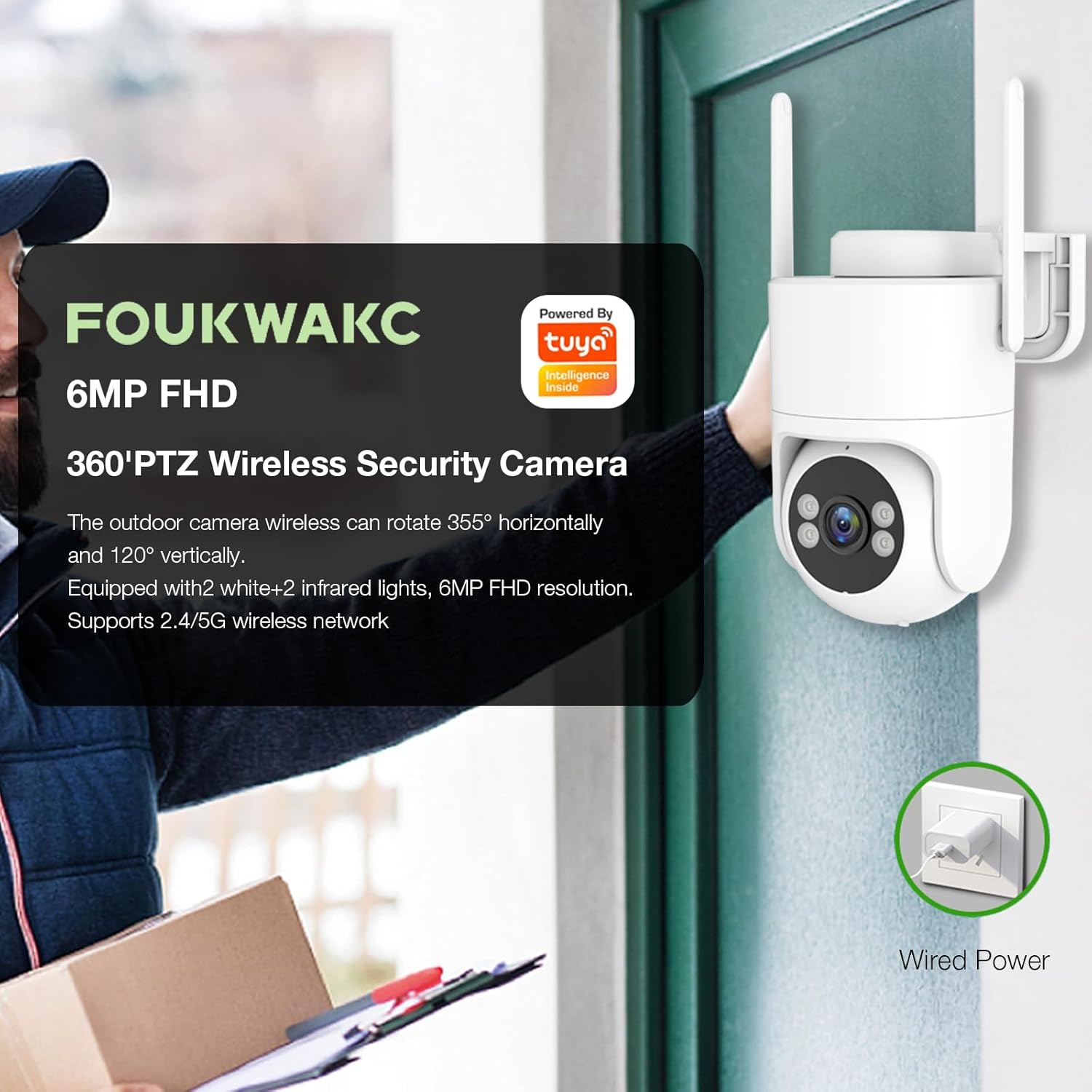
Figure 4.2: The camera can be mounted outdoors, typically under an eave for protection, and requires a power connection.
Video 4.3: This video provides a demonstration of the FOUKWAKC TY600S camera in an outdoor monitoring scenario, showcasing its capabilities.
5. Operating Instructions
5.1 Pan-Tilt Control
Once connected to the app, you can remotely control the camera's pan (horizontal) and tilt (vertical) movements. Use the directional controls within the app to adjust the camera's view, allowing for a full 360° surveillance area.
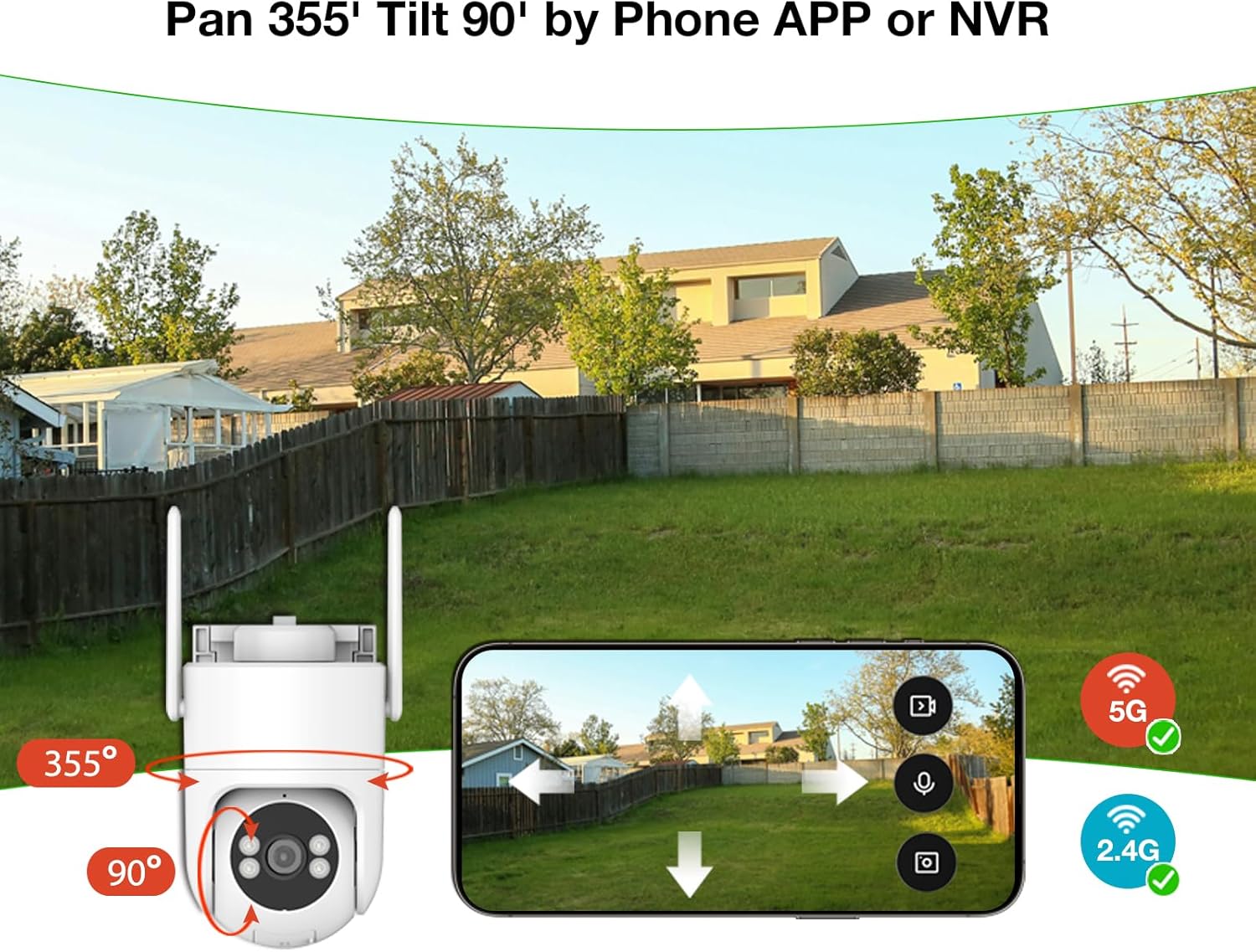
Figure 5.1: Control the camera's 355° horizontal and 90° vertical movement directly from the mobile application.
5.2 Night Vision Modes
The camera offers flexible night vision options:
- Infrared Mode: Provides clear black and white video in complete darkness.
- Full-Color Mode: Utilizes built-in white lights to provide color video even at night. This mode can also act as a deterrent.
You can switch between these modes via the mobile app settings.

Figure 5.2: The camera offers both infrared and full-color night vision modes for clear visibility up to 65 feet in low light conditions.
5.3 Motion Detection and Smart Alerts
The camera features advanced motion detection and tracking. When movement is detected, the camera will:
- Automatically record video footage.
- Send real-time alerts to your smartphone.
- Optionally activate a sound alarm and flash lights to deter intruders.
Sensitivity settings for motion detection can be adjusted in the app.

Figure 5.3: Receive real-time alerts on your phone when motion is detected, with options for sound and light alarms.
5.4 Two-Way Audio
Utilize the built-in microphone and speaker to communicate remotely through the mobile app. This allows you to speak to visitors or deter unwanted guests from anywhere.
6. Storage Options
Your FOUKWAKC TY600S camera offers two primary storage methods for recorded footage:
- Micro SD Card: Supports up to 128GB Micro SD cards for local storage. This ensures continuous 24/7 loop recording.
- Cloud Storage: An optional cloud storage service is available for secure off-site backup of your recordings. This provides an additional layer of security and accessibility.
You can manage storage settings and view recorded footage directly through the mobile app.

Figure 6.1: The camera supports local storage via Micro SD card (up to 128GB) and optional cloud storage for continuous recording.
7. Multi-User Sharing
The FOUKWAKC TY600S camera supports multi-user sharing, allowing you to grant access to your family members or trusted individuals. This feature enables multiple users to view live feeds, receive alerts, and manage camera settings through their own 'Tuya' app accounts. Access permissions can be customized for each shared user.
8. Specifications
| Feature | Detail |
|---|---|
| Model Name | TY600S |
| Brand | FOUKWAKC |
| Video Capture Resolution | 1920p (6MP CMOS sensor with 3072×1728 resolution) |
| Indoor/Outdoor Usage | Indoor, Outdoor |
| Connectivity Technology | Wireless (Wi-Fi) |
| Wireless Communication Technology | Wi-Fi (2.4GHz and 5GHz) |
| Power Source | Corded Electric |
| Special Features | 2-Way Audio, Built-In Light, Motion Sensor, Night Vision, PTZ Technology |
| Mounting Type | Ceiling, Table |
| Compatible Devices | Smartphone |
| Storage Options | Micro SD card (max 128GB), Cloud Storage |
| IP Rating | IP65 |
| Product Dimensions | 4.3 x 5.49 x 6.1 inches |
| Item Weight | 1.65 pounds |
9. Troubleshooting
- Camera not connecting to Wi-Fi: Ensure your Wi-Fi network is 2.4GHz or 5GHz and the password is correct. Try moving the camera closer to your router. Reset the camera to factory settings and attempt pairing again.
- No video feed: Check if the camera is powered on and connected to Wi-Fi. Verify your internet connection.
- Poor video quality: Ensure the camera lens is clean. Check your Wi-Fi signal strength; a weak signal can affect streaming quality.
- Motion alerts not received: Check app notification settings on your phone and within the 'Tuya' app. Ensure motion detection is enabled and sensitivity is adjusted appropriately.
- Two-way audio not working: Check microphone and speaker permissions for the 'Tuya' app on your phone. Ensure volume levels are adequate.
10. Maintenance
- Cleaning: Regularly clean the camera lens with a soft, dry cloth to ensure clear image quality. Do not use harsh chemicals.
- Firmware Updates: Check the 'Tuya' app periodically for firmware updates to ensure optimal performance and security.
- Power Connection: Ensure the power cable and adapter are securely connected and free from damage.
- Environmental Protection: While IP65 rated, avoid directing high-pressure water jets directly at the camera.
11. Warranty and Support
For warranty information and technical support, please refer to the documentation included with your product or contact FOUKWAKC customer service through their official channels. Keep your purchase receipt as proof of purchase.
