
1. Introduction
Welcome to the user manual for your new DOOGEE Fire 3 Rugged Phone. This device is engineered for durability and performance, designed to withstand challenging environments while providing a seamless Android 15 experience. This manual will guide you through the setup, operation, maintenance, and troubleshooting of your device to ensure optimal use.
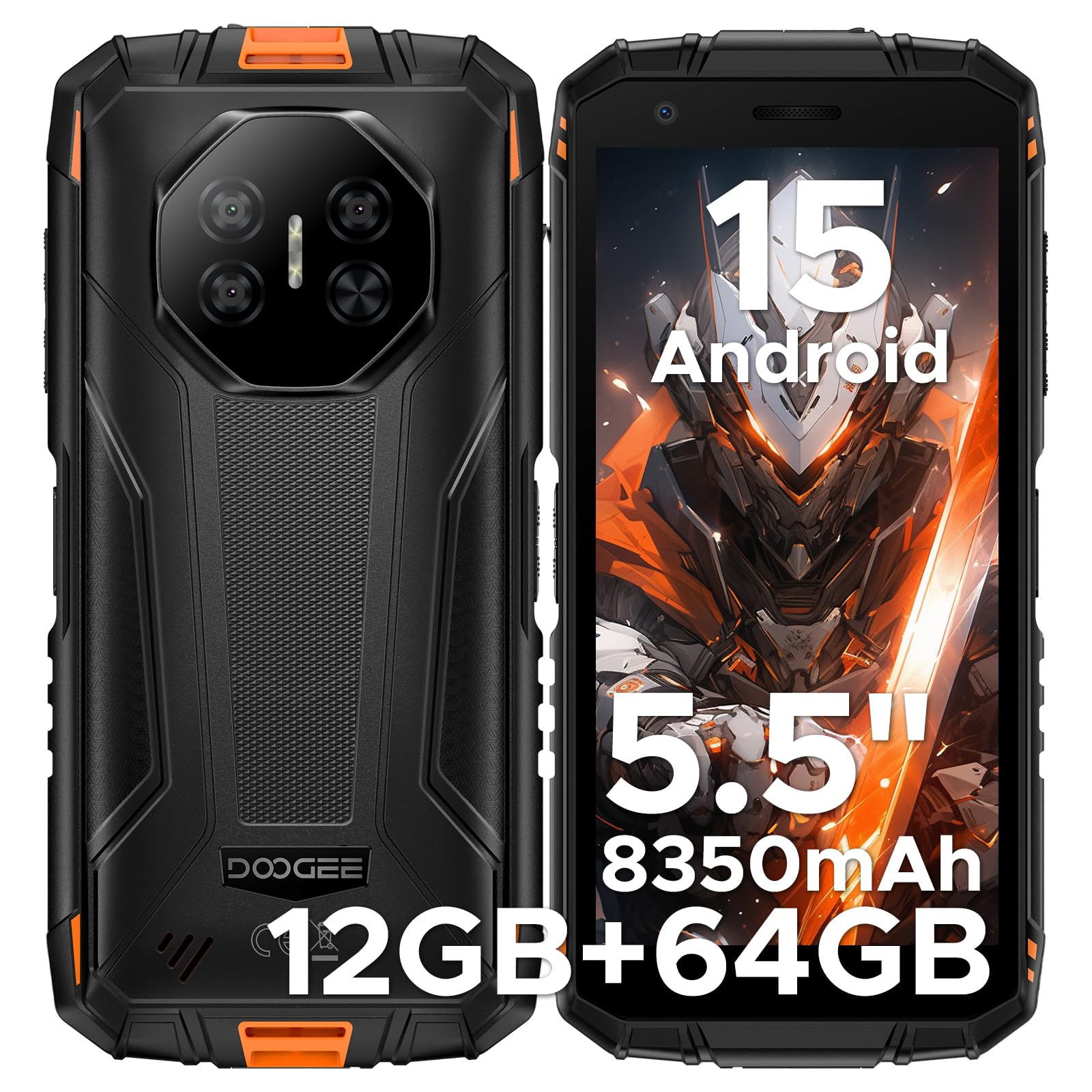
Image: Front and back view of the DOOGEE Fire 3 Rugged Phone.
2. What's in the Box
Upon opening your DOOGEE Fire 3 package, you should find the following items:
- DOOGEE Fire 3 Rugged Phone
- USB Cable
- Power Adapter
- SIM Ejector Tool
- User Manual (this document)
- Warranty Card
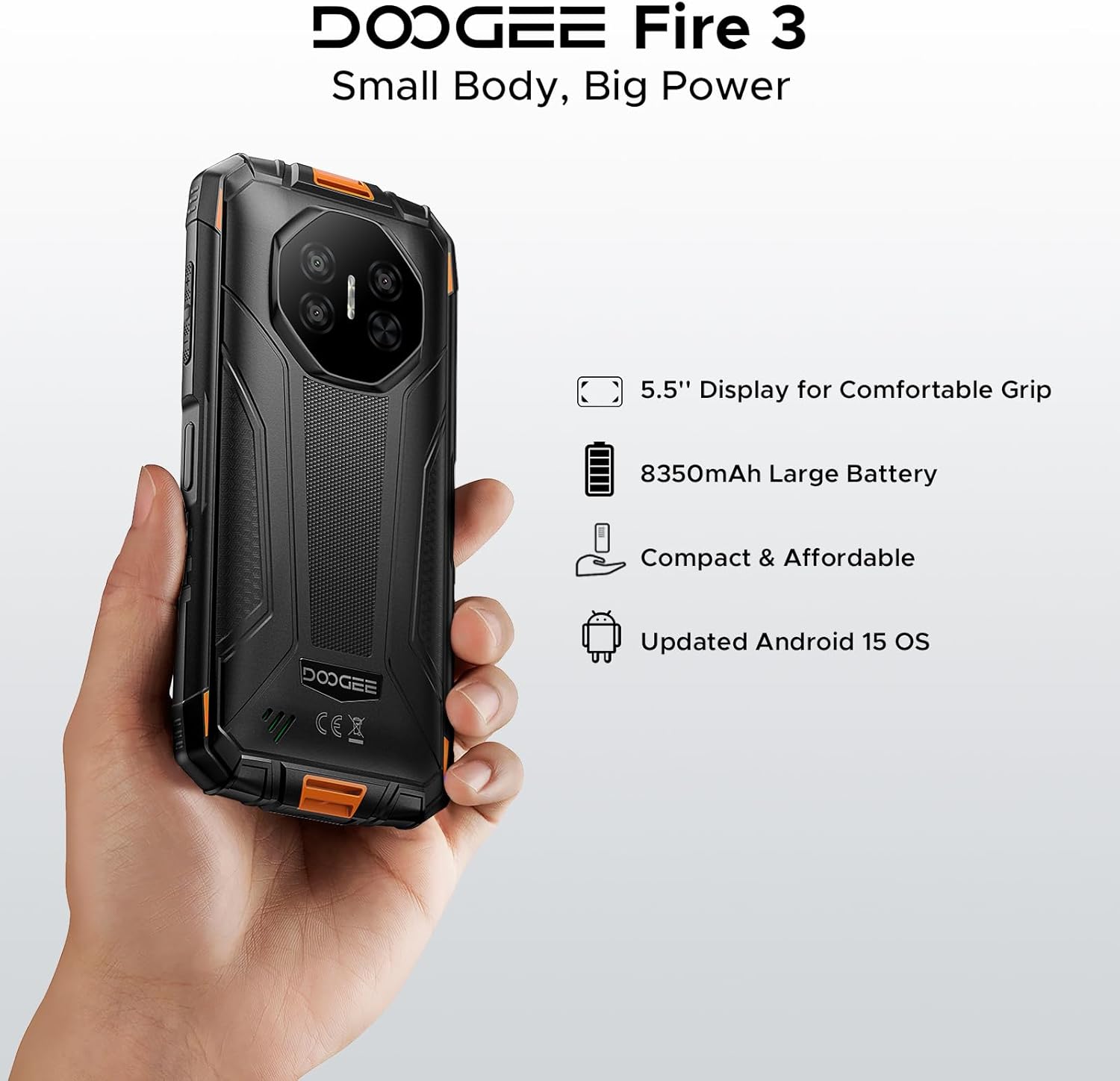
Image: All items included in the DOOGEE Fire 3 retail packaging.
Video: An unboxing video demonstrating the contents of the DOOGEE Fire 3 package.
3. Key Features
3.1. Display
The DOOGEE Fire 3 features a 5.5-inch HD+ IPS display, offering clear visuals and comfortable handling. It includes eye care modes and a dark mode to reduce strain during extended use.

Image: The DOOGEE Fire 3 showcasing its 5.5-inch HD+ IPS display.

Image: The phone's display highlighting eye care features for reduced strain.
3.2. Durability
The DOOGEE Fire 3 is built to military-grade standards, certified with IP68, IP69K, and MIL-STD-810H ratings. This ensures resistance against water, dust, and drops, making it suitable for rugged environments.
- Waterproof: Withstands submersion up to 4 feet (1.2 meters) for 30 minutes.
- Dustproof: Fully protected against dust, sand, and dirt ingress.
- Drop-proof: Designed to survive drops from up to 5 feet (1.5 meters).

Image: The DOOGEE Fire 3 submerged in water, demonstrating its waterproof capability.
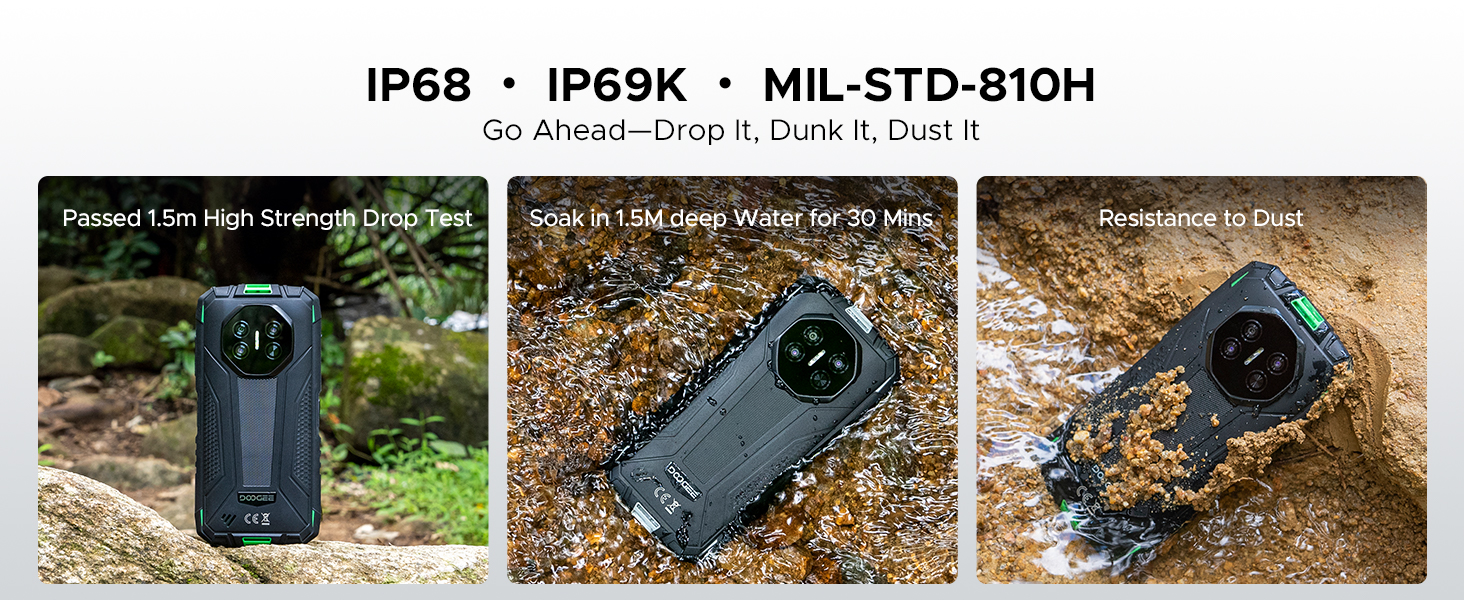
Image: The phone shown resisting impacts and dirt, highlighting its rugged design.
3.3. Performance and Storage
Powered by a Unisoc SC9863A Octa-Core Chipset, the Fire 3 delivers stable and efficient performance. It comes with 12GB RAM (3GB basic + 9GB virtual) and 64GB of internal storage, expandable up to 2TB via a microSD card (not included).
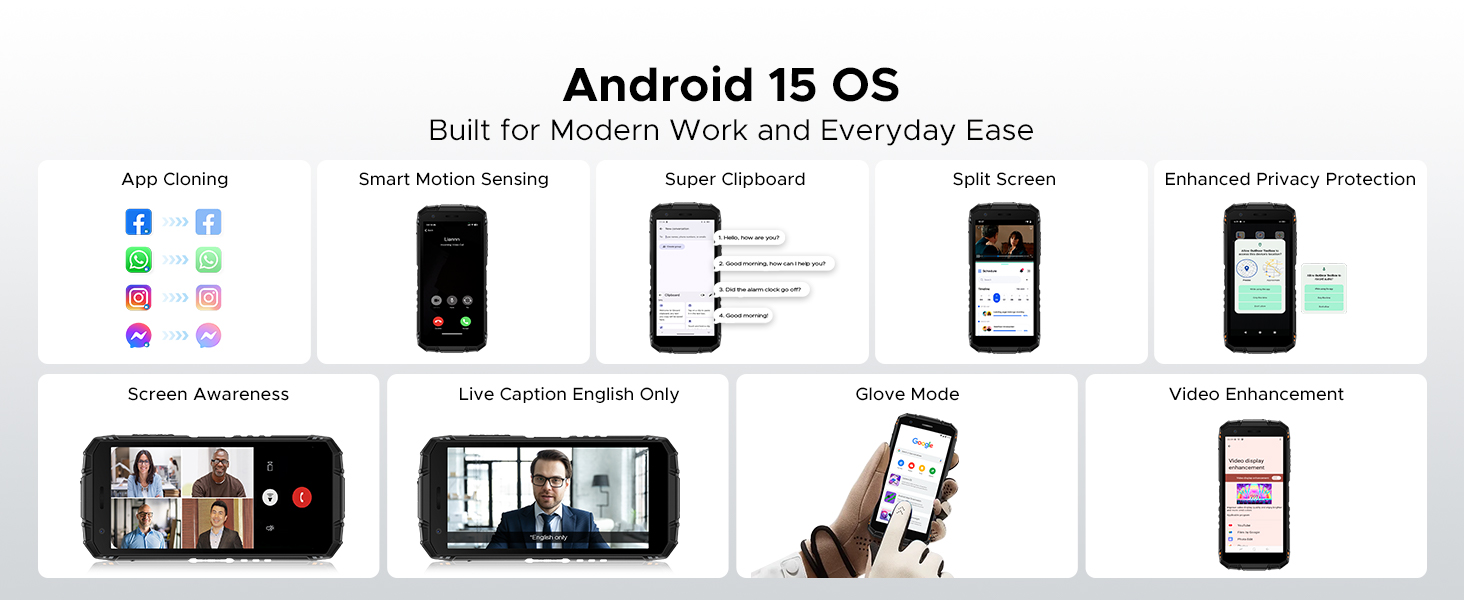
Image: Diagram illustrating the Unisoc SC9863A Octa-Core Chipset.
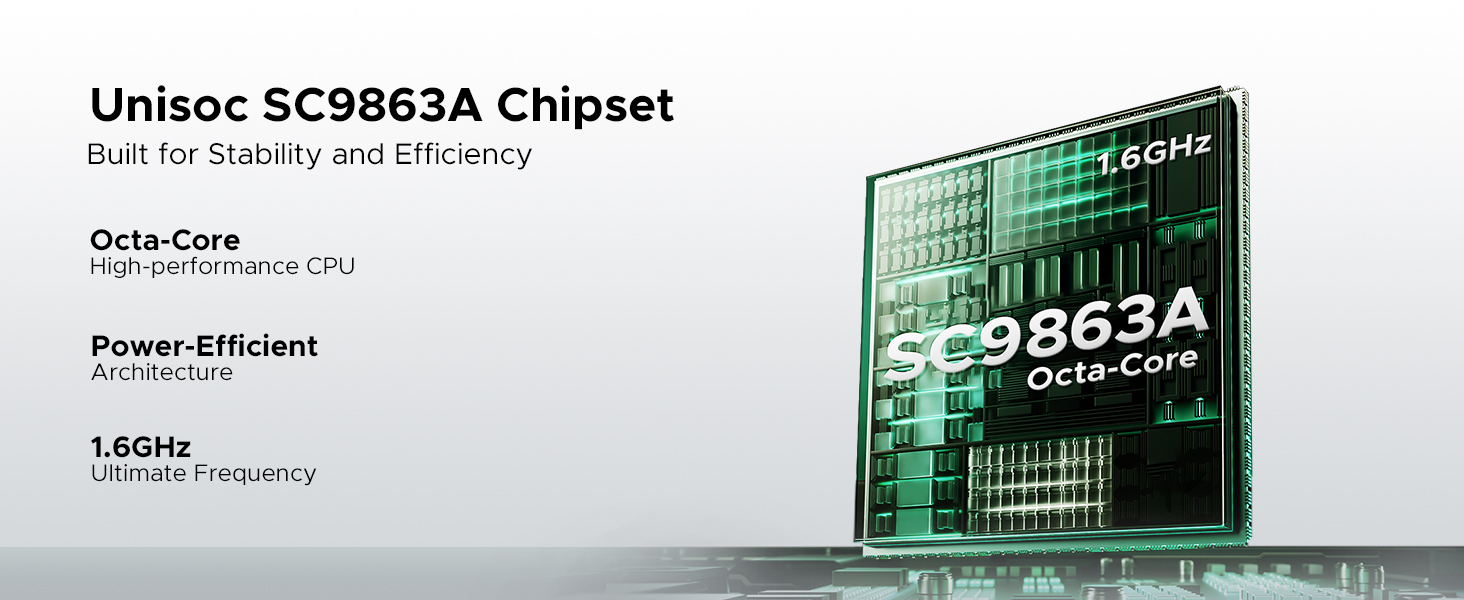
Image: Visual representation of the 12GB RAM and 64GB ROM storage capabilities.
3.4. Battery
Equipped with a massive 8350mAh battery, the DOOGEE Fire 3 provides extended usage times. It supports 10W charging and reverse charging, allowing you to power other devices.
- Up to 47 days standby
- Up to 87 hours of music playback
- Up to 28 hours of video watching
- Up to 44 hours of calling
Image: Infographic detailing the impressive battery life statistics of the 8350mAh battery.
Video: A short video highlighting the large battery capacity of the DOOGEE Fire 3.
3.5. Camera System
Capture your moments with the 13MP AI triple rear camera and take clear selfies with the 8MP front camera. The AI scene recognition optimizes settings for various environments.

Image: Visuals of the 13MP main camera and 8MP front camera in action.

Image: Examples of AI Scene Recognition optimizing photo quality for different scenarios.
3.6. Operating System and Features
The DOOGEE Fire 3 runs on the latest Android 15 OS, offering enhanced privacy, security, and a range of useful features:
- App Cloning: Run multiple instances of apps.
- Smart Motion Sensing: Intuitive gesture controls.
- Super Clipboard: Advanced clipboard functionality.
- Split Screen: Multitask with two apps simultaneously.
- Video Enhancement: Improved video playback quality.
- Live Caption: Real-time captions for media.
- Enhanced Privacy Protection: Greater control over personal data.
- Glove Mode: Use the touchscreen while wearing gloves.
- Screen Awareness: Keeps the screen on while you're looking at it.

Image: Overview of various Android 15 features available on the DOOGEE Fire 3.
3.7. Connectivity and Navigation
The Fire 3 supports Dual SIM functionality and is compatible with GSM T-Mobile networks. It includes NFC for contactless payments and data transfer, a 3.5mm audio jack, and Face Unlock for secure access. For navigation, it supports GPS, Glonass, and Galileo.

Image: Visuals demonstrating GPS, NFC, 3.5mm headphone jack, and Face Unlock features.
3.8. Digital Toolkit
The device comes with a built-in digital toolkit, providing practical utilities for various situations:
- Compass
- Sound Meter
- Pic Hanging
- Magnifier
- Protractor
- Plumb Bob
- Alarm Bell
- Gradienter
- Height Measure

Image: Icons representing the various tools available in the Digital Toolkit.
4. Setup
4.1. Inserting SIM Card and MicroSD Card
- Locate the SIM card tray on the side of the phone.
- Use the provided SIM ejector tool to open the tray.
- Carefully place your Nano-SIM card(s) and/or microSD card into the designated slots, ensuring correct orientation.
- Gently push the tray back into the phone until it clicks into place.
4.2. Initial Power On and Setup
- Press and hold the Power button (usually on the right side) until the DOOGEE logo appears.
- Follow the on-screen instructions to complete the initial setup, including language selection, Wi-Fi connection, Google account login, and security settings.
4.3. Charging the Device
- Connect the USB cable to the phone's charging port (usually USB-C at the bottom).
- Connect the other end of the USB cable to the power adapter.
- Plug the power adapter into a wall outlet.
- The charging indicator will appear on the screen. For optimal battery life, fully charge the device before first use.
5. Operating Instructions
5.1. Basic Navigation
- Power Button: Press to turn the screen on/off. Press and hold to power off or restart.
- Volume Buttons: Adjust media volume, call volume, or notification volume.
- Touchscreen Gestures: Swipe up for app drawer, swipe down for notifications/quick settings, tap to select, pinch to zoom.
5.2. Making Calls and Sending Messages
- Open the Phone app to dial a number or select a contact.
- Open the Messages app to compose and send text messages.
5.3. Connecting to Networks
- Wi-Fi: Go to Settings > Network & internet > Wi-Fi to connect to available networks.
- Mobile Data: Ensure your SIM card is active. Go to Settings > Network & internet > Mobile network to enable or disable mobile data.
5.4. Using the Camera
- Open the Camera app.
- Tap the shutter button to take a photo.
- Switch between front and rear cameras using the icon on the screen.
- Explore different modes like Video, Portrait, or Night mode.
5.5. Security Features
- Face Unlock: Set up Face Unlock in Settings > Security > Face Unlock for convenient and secure access to your device.
- PIN/Pattern/Password: Configure a traditional unlock method as a backup.
6. Maintenance
6.1. Cleaning Your Device
To maintain the integrity of your rugged phone:
- Wipe the screen and body with a soft, damp cloth.
- Avoid harsh chemicals or abrasive materials.
- Ensure all port covers are securely closed before exposing the phone to water or dust.
6.2. Battery Care
- Avoid extreme temperatures, which can degrade battery life.
- Use the original charger and cable for optimal charging.
- Do not leave the phone fully charged or fully discharged for extended periods.
6.3. Software Updates
Regularly check for and install software updates to ensure your device has the latest features, security patches, and performance improvements. Go to Settings > System > System update.
7. Troubleshooting
7.1. Common Issues
| Issue | Solution |
|---|---|
| Phone not turning on | Ensure the battery is charged. Press and hold the Power button for at least 10-15 seconds to force a restart. |
| Network connectivity problems | Check if the SIM card is correctly inserted. Restart the phone. Verify network settings or contact your carrier. |
| Apps crashing or freezing | Clear the app's cache (Settings > Apps > [App Name] > Storage > Clear cache). Update the app. |
| Battery drains quickly | Reduce screen brightness, close unused apps, disable unnecessary features like GPS or Bluetooth when not in use. Check battery usage in Settings. |
7.2. Factory Reset
If you encounter persistent software issues, a factory reset may resolve them. Warning: This will erase all data on your phone. Back up important data before proceeding.
- Go to Settings > System > Reset options.
- Select "Erase all data (factory reset)".
- Confirm your decision and enter your PIN/pattern/password if prompted.
8. Specifications
| Feature | Specification |
|---|---|
| Model Number | Fire3 |
| Operating System | Android 15 |
| Display | 5.5 Inches IPS HD+ (1080 x 2280 Resolution) |
| Processor | MediaTek Helio Octa Core (Unisoc SC9863A) |
| RAM | 12 GB (3GB Basic + 9GB Virtual) |
| Internal Storage | 64 GB (Expandable up to 2TB via microSD) |
| Rear Camera | 13 MP |
| Front Camera | 8 MP |
| Battery Capacity | 8350 mAh |
| Charging | 10W, Supports Reverse Charging |
| Durability Ratings | IP68, IP69K, MIL-STD-810H |
| SIM Card Slot Count | Dual SIM |
| Wireless Carrier Compatibility | T-Mobile, Unlocked (GSM, LTE) |
| Connectivity | NFC, 3.5 mm Audio Jack |
| Navigation | GPS, Glonass, Galileo |
| Dimensions | 162.5 x 77.4 x 17.8 mm |
| Item Weight | 1.08 pounds (approx. 490g) |
9. Warranty and Support
DOOGEE is committed to providing quality products and support. Your DOOGEE Fire 3 comes with the following:
- 2-Year Free Warranty: Covers manufacturing defects and hardware malfunctions under normal use.
- 30-Day Money Back Guarantee: Return the product within 30 days for a full refund, no questions asked.
- 24/7 Professional Support: A dedicated customer service team is available to assist you with any issues or questions.
For support, please refer to the contact information provided on your warranty card or visit the official DOOGEE website.

Image: Overview of DOOGEE's customer support and warranty offerings.


