1. Introduction
Thank you for choosing the MOMENTPLUS VIE16 16-inch Laptop. This manual provides essential information for setting up, operating, maintaining, and troubleshooting your new device. Please read it thoroughly to ensure optimal performance and longevity of your laptop.
2. What's in the Box
Upon opening the package, please verify that all the following items are included:
- MOMENTPLUS Laptop (VIE16) x1
- Power Adapter x1
- Instruction Manual x1
3. Product Overview
The MOMENTPLUS VIE16 is a high-performance 16-inch laptop designed for productivity and entertainment. It features a powerful processor, ample memory and storage, and a vibrant display.
3.1 Key Features
- Processor: Equipped with a 12th Generation Alder Lake N95 quad-core processor (up to 3.40 GHz) for smooth performance in office software, web browsing, and video conferencing.
- Memory & Storage: Features 16GB DDR4 RAM for fluid multitasking and a 512GB M.2 NVMe PCIe 3.0 x4 2280 SSD for rapid boot and loading times. Storage is expandable up to 2TB with an additional SSD.
- Display & Keyboard: A 16-inch Full HD (1920x1200) display with an ultra-thin bezel provides vivid and sharp visuals. The integrated backlit keyboard enhances visibility in low-light conditions.
- Connectivity: Includes versatile ports such as Type-C, two USB 3.0 ports, HDMI 1.4, a TF card slot, and a 3.5mm headphone jack. Supports Wi-Fi 5 and Bluetooth 5.0 for seamless wireless connections.
- Portability & Battery: Designed with a slim body for easy portability, weighing approximately 1.7 kg. It includes a high-capacity 6000 mAh rechargeable battery for extended use.
3.2 Visual Overview
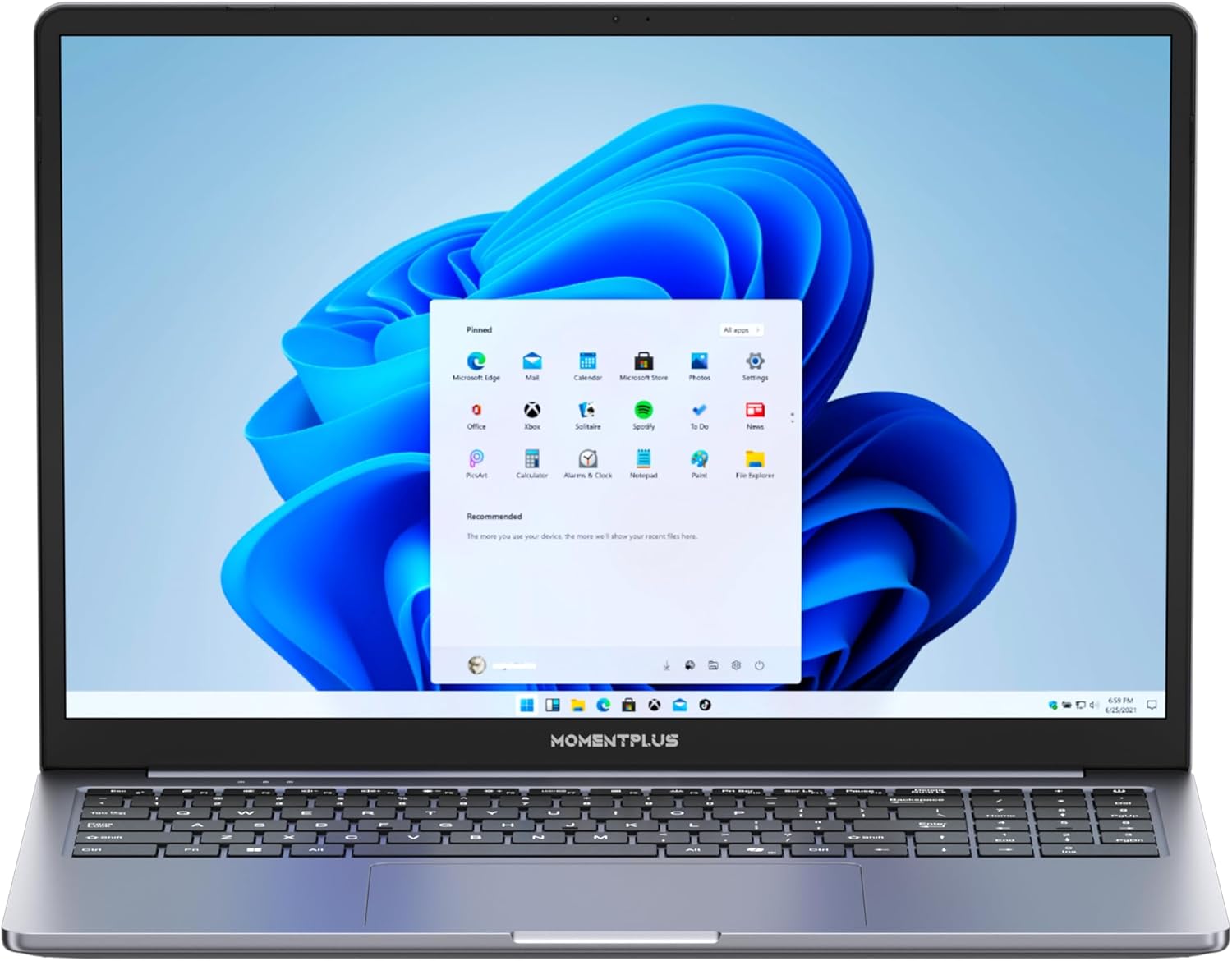
Description: Front view of the MOMENTPLUS VIE16 laptop displaying the Windows operating system desktop. The screen shows various application icons, indicating a ready-to-use state.
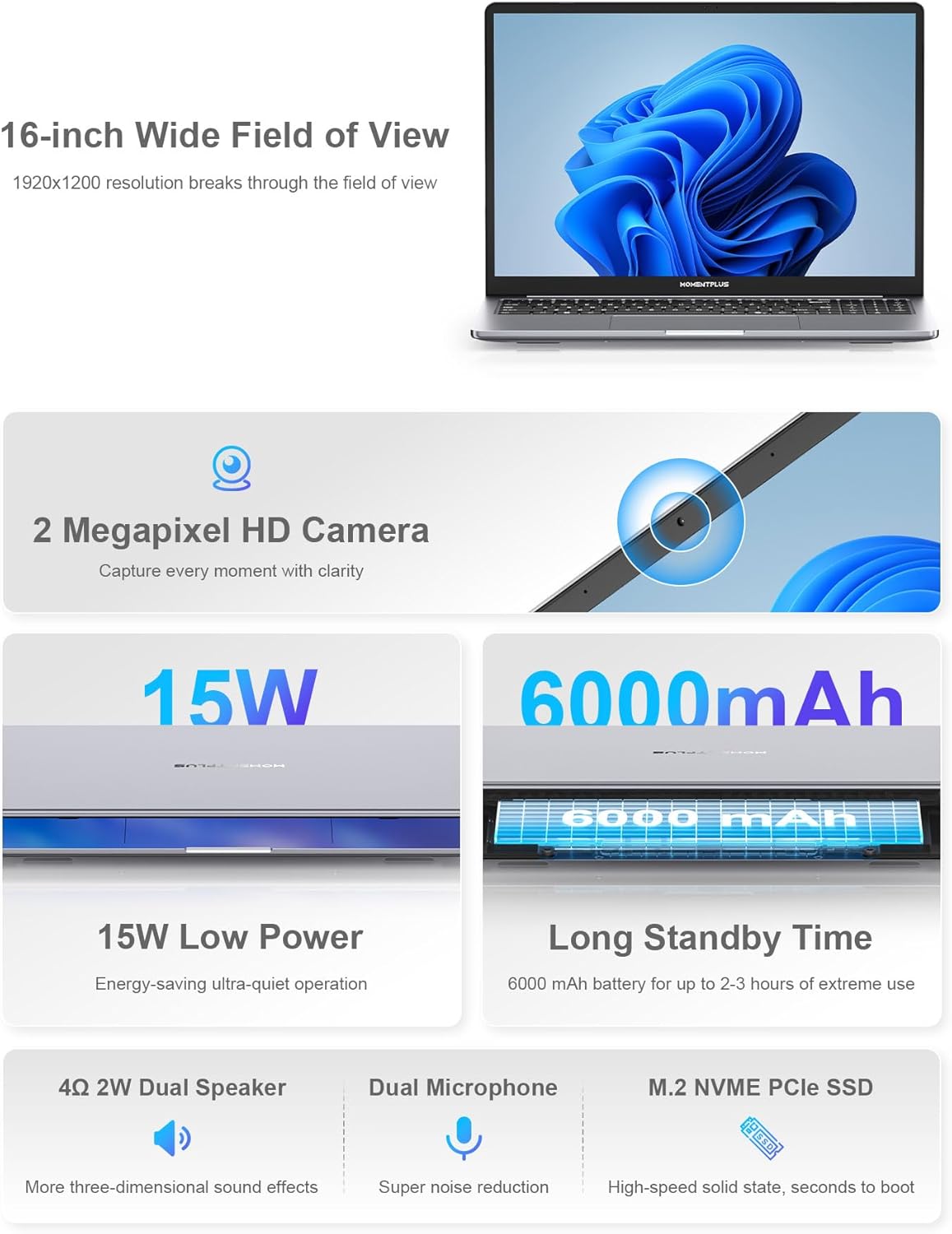
Description: An infographic highlighting key features of the laptop, including a 16-inch wide field of view, 2 Megapixel HD camera, 15W low power consumption, 6000mAh battery for long standby time, 4Ω 2W dual speakers, dual microphone, and M.2 NVME PCIe SSD.

Description: A close-up image of the Alder Lake-N95 processor chip on a circuit board, detailing its specifications: 4 cores, 4 threads, 6MB L3 Cache, 3.40 GHz Max. Boost Clock, and 15W Default TDP.
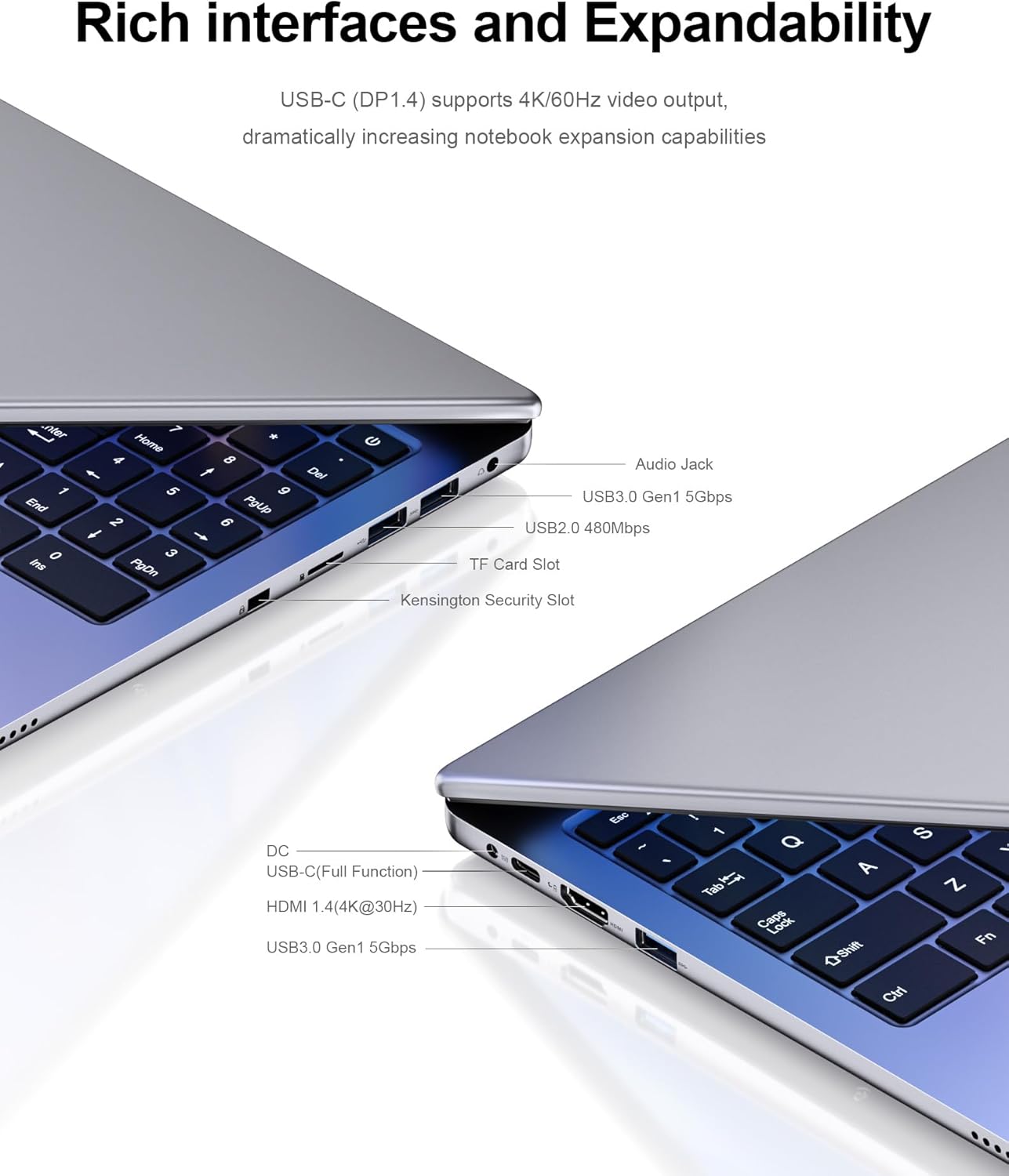
Description: A detailed view of the laptop's side ports, illustrating the rich interfaces and expandability. Ports include Audio Jack, USB3.0 Gen1 5Gbps, USB2.0 480Mbps, TF Card Slot, Kensington Security Slot on one side, and DC power, USB-C (Full Function), HDMI 1.4 (4K@30Hz), and another USB3.0 Gen1 5Gbps on the other side.
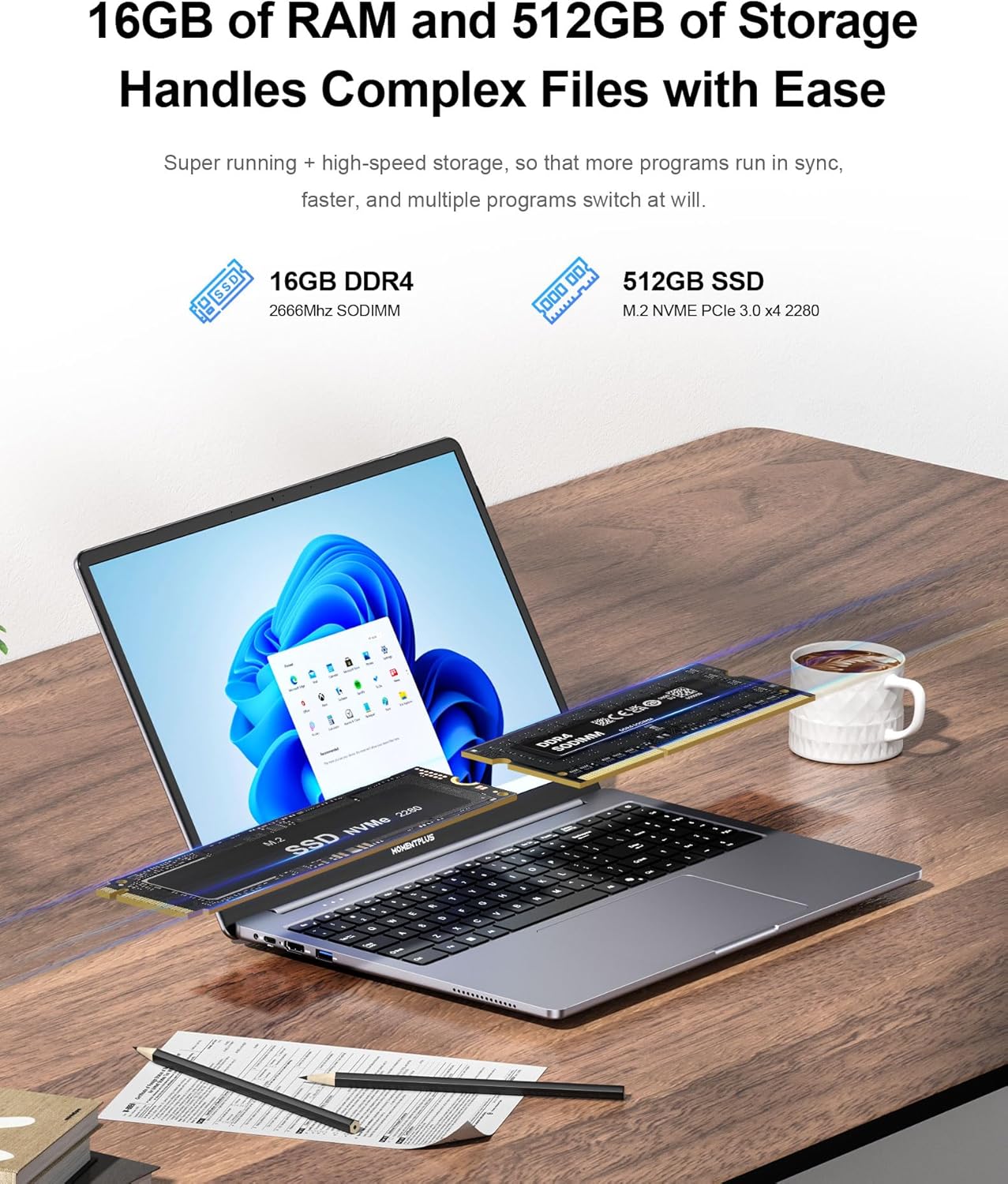
Description: An image depicting the laptop's 16GB DDR4 RAM and 512GB M.2 NVME PCIe SSD, emphasizing its capability to handle complex files with ease due to super running and high-speed storage.
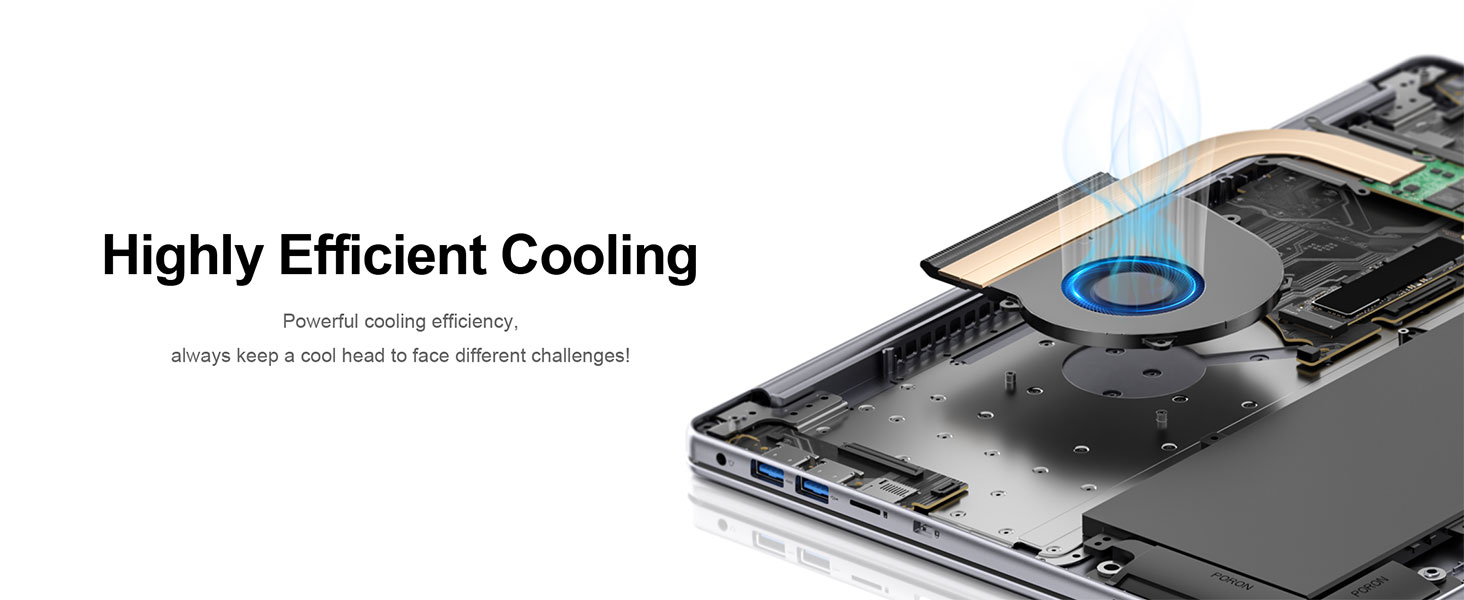
Description: An internal view of the laptop showcasing its highly efficient cooling system, designed to maintain optimal temperature during operation.
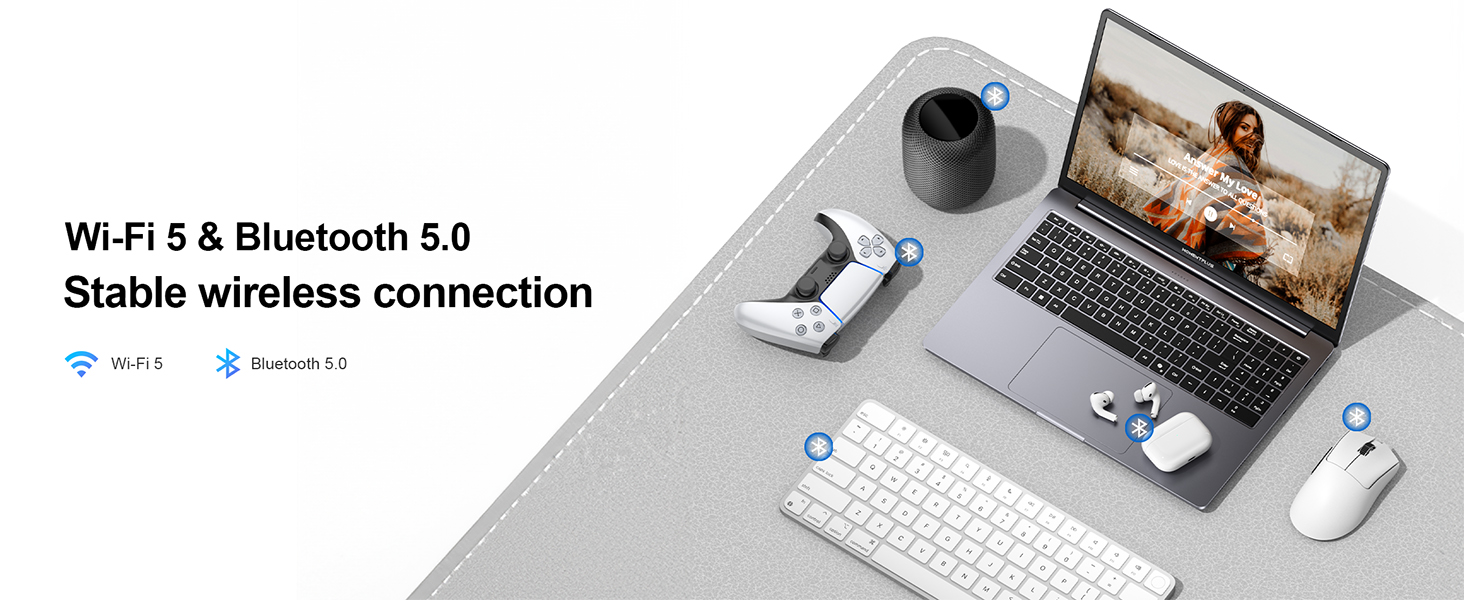
Description: The laptop is shown alongside various wireless peripherals, illustrating its stable Wi-Fi 5 and Bluetooth 5.0 connectivity for seamless integration with other devices.

Description: Technical drawing showing the dimensions of the MOMENTPLUS VIE16 laptop: 362 mm width, 251.4 mm depth, and 18.5 mm thickness.

Description: A person holding the MOMENTPLUS VIE16 laptop, demonstrating its lightweight (1.7kg) and portable design (18.5mm thickness) for easy travel.

Description: The laptop is shown connected to two external monitors, illustrating its capability to expand the display across multiple screens via HDMI 1.4 (4K@30Hz) and USB-C (4K@60Hz).
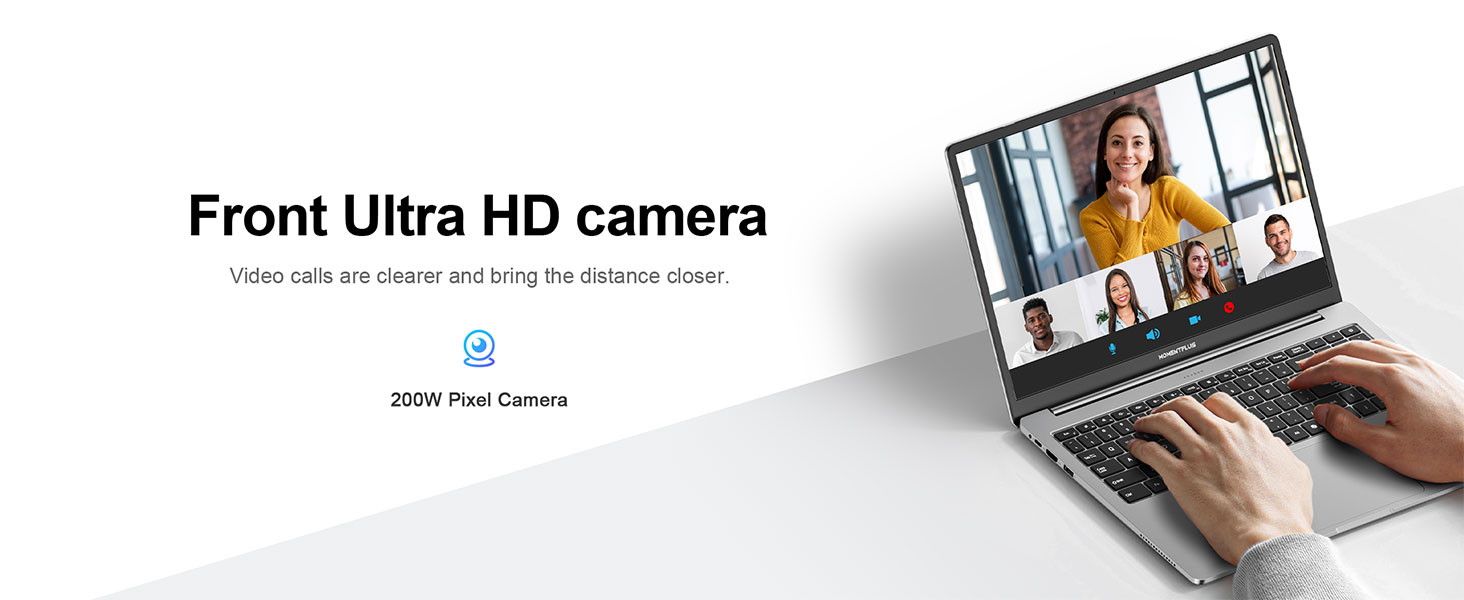
Description: The laptop is depicted during a video call, highlighting its front Ultra HD camera (200W Pixel Camera) for clear communication.
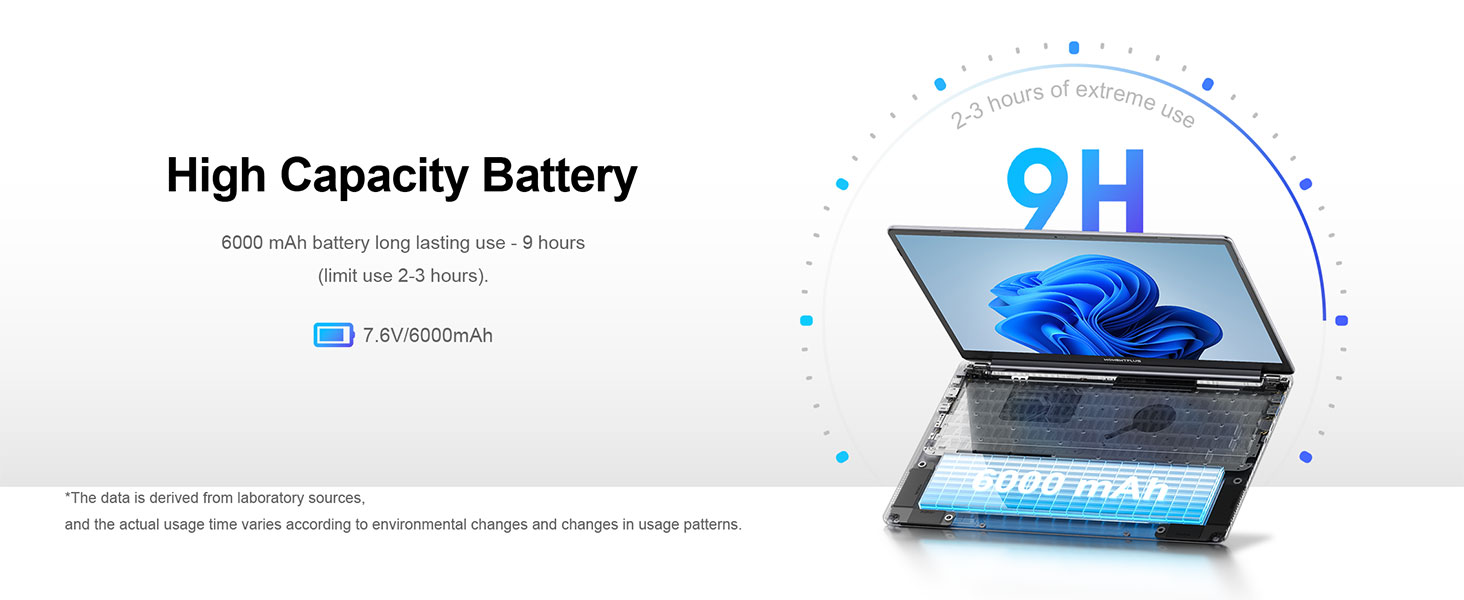
Description: An exploded view of the laptop showing the internal 6000 mAh high-capacity battery, indicating its long-lasting power for up to 9 hours of use (2-3 hours under extreme use).

Description: The laptop's multi-function USB-C interface is shown, capable of PD 3.0 power supply, 4K video output, and 5Gbps data transmission, demonstrated by charging a smartphone.
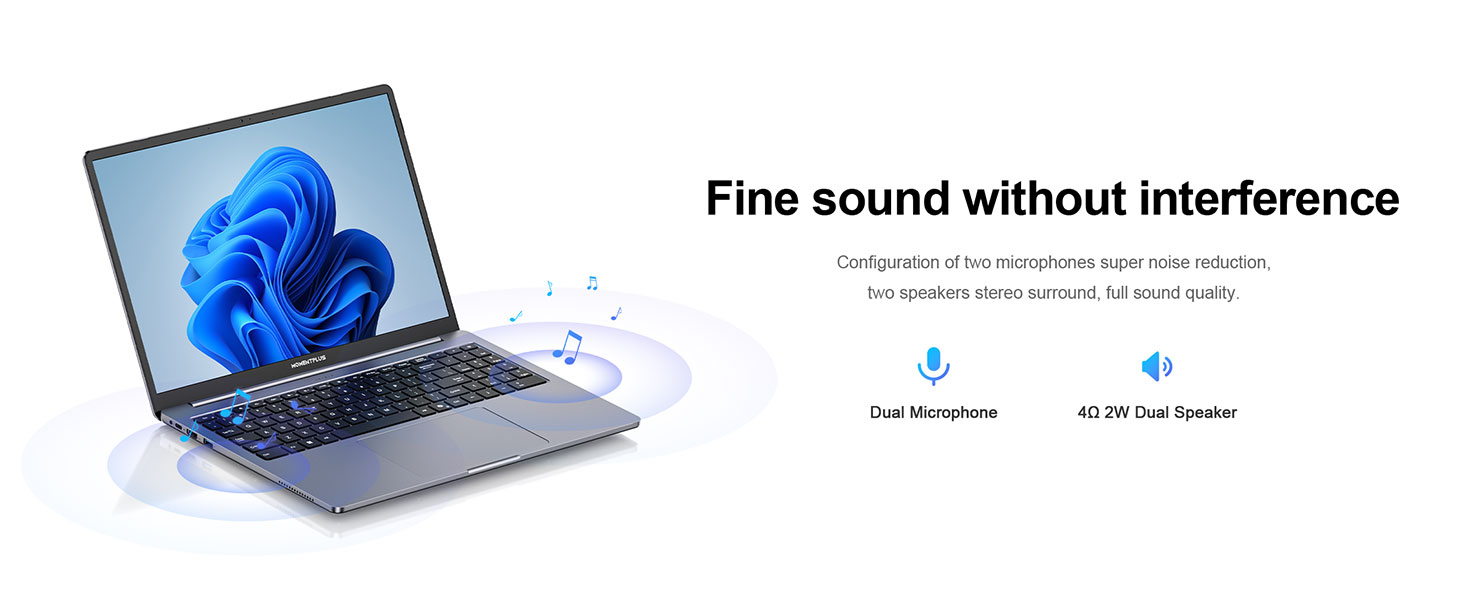
Description: The laptop is shown with musical notes floating around it, representing its fine sound quality from the dual microphone (super noise reduction) and 4Ω 2W dual speaker configuration.
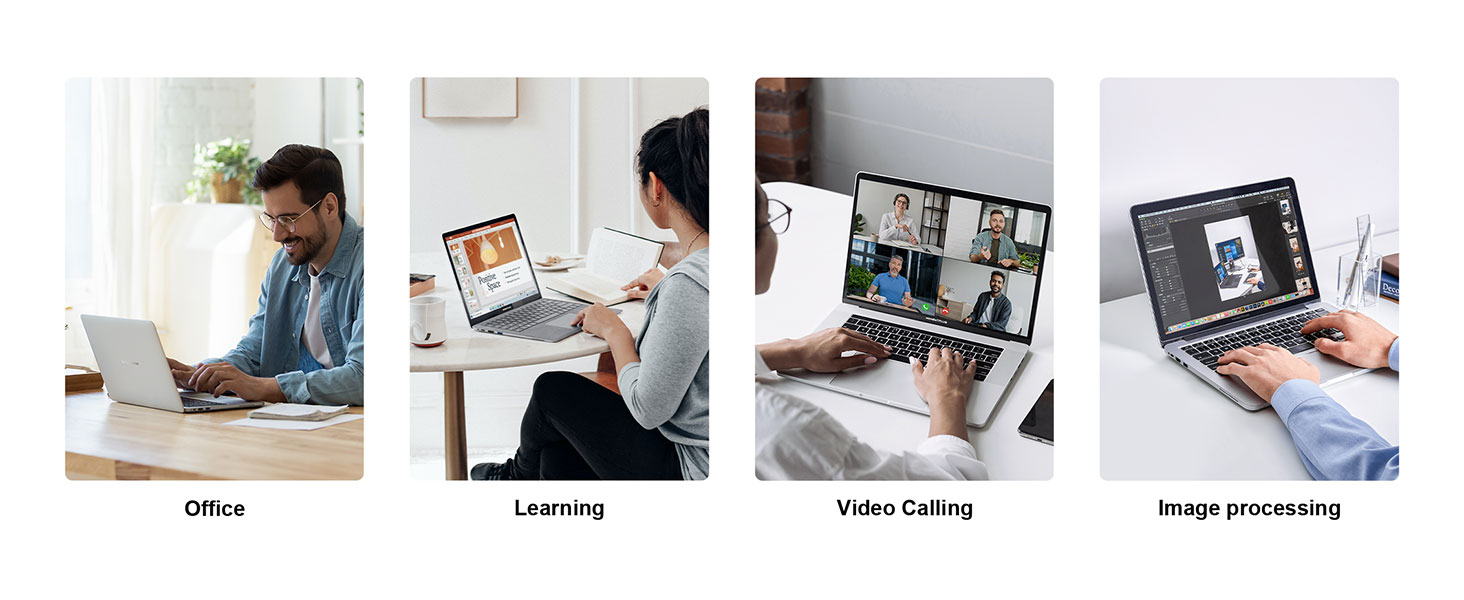
Description: A collage of four images demonstrating various usage scenarios for the laptop: office work, learning, video calling, and image processing, highlighting its versatility.
4. Setup Guide
4.1 Initial Unboxing and Inspection
- Carefully remove the laptop and all accessories from the packaging.
- Inspect the laptop for any visible damage during transit. If any damage is found, contact customer support immediately.
- Ensure all items listed in the 'What's in the Box' section are present.
4.2 Connecting the Power Adapter
- Connect the power adapter cable to the DC-in port on the side of the laptop.
- Plug the power adapter into a grounded electrical outlet.
- The battery indicator light will illuminate, indicating that the laptop is charging. It is recommended to fully charge the battery before first use.
4.3 First Boot and Operating System Setup
- Open the laptop lid.
- Press the power button located on the keyboard to turn on the laptop.
- Follow the on-screen instructions to complete the initial setup of the pre-installed operating system (OS-11 Pro). This typically involves selecting language, region, connecting to Wi-Fi, and creating a user account.
5. Operating Instructions
5.1 Power On/Off and Sleep Mode
- Power On: Press the power button.
- Power Off: Click the Start button (Windows icon), then select Power > Shut down.
- Sleep Mode: Close the laptop lid or click the Start button, then select Power > Sleep.
5.2 Connecting to Networks
- Wi-Fi: Click the Wi-Fi icon in the taskbar, select your desired network, enter the password if prompted, and click Connect.
- Bluetooth: Go to Settings > Bluetooth & devices, turn on Bluetooth, and pair with your desired device.
5.3 Using External Devices
- USB Devices: Insert USB devices (e.g., mouse, keyboard, flash drive) into the available USB 3.0 or USB 2.0 ports.
- External Display: Connect an external monitor using the HDMI 1.4 port or the full-function USB-C port. Ensure the monitor is powered on and select the correct input source.
- TF Card: Insert a TF (microSD) card into the dedicated TF card slot for additional storage or data transfer.
5.4 Keyboard Functions
- Backlit Keyboard: Use the dedicated function key (often Fn + F key) to toggle or adjust the keyboard backlight intensity.
- Function Keys (Fn): Many keys have dual functions. Press and hold the 'Fn' key while pressing the corresponding function key (F1-F12) to activate its secondary function (e.g., volume control, screen brightness).
6. Maintenance
6.1 Cleaning the Laptop
- Screen: Use a soft, lint-free cloth slightly dampened with water or a screen cleaner. Do not spray liquid directly onto the screen.
- Keyboard and Chassis: Use a soft, dry cloth. For stubborn dirt, a slightly damp cloth can be used, ensuring no liquid enters the ports. Compressed air can be used to remove dust from between keys.
- Always power off the laptop and disconnect the power adapter before cleaning.
6.2 Battery Care
- Avoid completely discharging the battery frequently.
- Do not expose the laptop to extreme temperatures (hot or cold).
- If storing the laptop for an extended period, charge the battery to about 50% and store it in a cool, dry place.
6.3 Software Updates
- Regularly check for and install operating system updates to ensure security and performance.
- Keep your drivers updated for optimal hardware compatibility and performance.
7. Troubleshooting
This section addresses common issues you might encounter with your MOMENTPLUS VIE16 laptop.
7.1 No Power / Laptop Not Turning On
- Ensure the power adapter is securely connected to both the laptop and a working electrical outlet.
- Check if the power outlet is functional by plugging in another device.
- If the battery is completely drained, allow it to charge for at least 30 minutes before attempting to power on.
- Try a hard reset: Disconnect the power adapter, press and hold the power button for 15-20 seconds, then reconnect the power and try to power on.
7.2 Display Issues
- Blank Screen: Ensure the laptop is powered on. Try pressing Fn + F7 (or the key with a display icon) to cycle through display modes.
- Dim Screen: Adjust screen brightness using the function keys (e.g., Fn + F5/F6).
- External Monitor Not Detected: Verify cable connections. Ensure the external monitor is powered on and set to the correct input source. Try restarting the laptop.
7.3 Wi-Fi / Bluetooth Connectivity Problems
- Wi-Fi: Ensure Wi-Fi is enabled in the operating system settings. Restart your router/modem. Forget the network and reconnect.
- Bluetooth: Ensure Bluetooth is enabled and the device you are trying to connect to is in pairing mode. Remove and re-pair the device.
7.4 Slow Performance
- Close unnecessary applications running in the background.
- Check for and install any pending operating system updates.
- Ensure there is sufficient free space on your SSD.
- Run a virus scan to check for malware.
If you encounter issues not covered here, please refer to the Warranty and Support section for further assistance.
8. Specifications
| Feature | Specification |
|---|---|
| Brand | MOMENTPLUS |
| Model Name | VIE16 |
| Processor | Intel Alder Lake N95 Quad-Core (up to 3.4 GHz) |
| RAM | 16GB DDR4 |
| Storage | 512GB M.2 NVMe PCIe 3.0 x4 2280 SSD (Expandable up to 2TB) |
| Display | 16-inch Full HD (1920 x 1200 pixels) |
| Graphics | Integrated UHD Graphics |
| Operating System | OS-11 Pro |
| Wi-Fi | Wi-Fi 5 |
| Bluetooth | Bluetooth 5.0 |
| Ports | 1x Type-C (Full Function), 2x USB 3.0, 1x USB 2.0, 1x HDMI 1.4, 1x TF Card Slot, 1x 3.5mm Headphone Jack, 1x Kensington Security Slot |
| Camera | 2 Megapixel HD Camera |
| Audio | 4Ω 2W Dual Speakers, Dual Microphone |
| Battery | 6000 mAh |
| Weight | 1.7 Kilograms |
| Dimensions (Package) | 47 x 30 x 8 cm |
9. Warranty and Support
MOMENTPLUS provides a 12-month quality guarantee for your laptop from the date of purchase. Additionally, customers are offered lifetime technical support.
For technical assistance, warranty claims, or any other inquiries, please contact MOMENTPLUS customer service through the contact information provided with your purchase or on the official MOMENTPLUS website.
Please retain your proof of purchase for warranty validation.