
Introduction
Thank you for choosing the SABLUTE KM41pro Wireless Keyboard and Mouse Combo. This manual provides essential information for the proper setup, operation, and maintenance of your new device. Please read it thoroughly before use to ensure optimal performance and longevity.
Package Contents
- SABLUTE KM41pro Wireless Keyboard
- SABLUTE Wireless Mouse
- Detachable Wrist Rest
- 2.4GHz USB Receiver (stored in keyboard)
- USB-A to USB-C Charging Cable
- User Manual
Setup Guide
Follow these steps to quickly set up your SABLUTE KM41pro Wireless Keyboard and Mouse Combo:
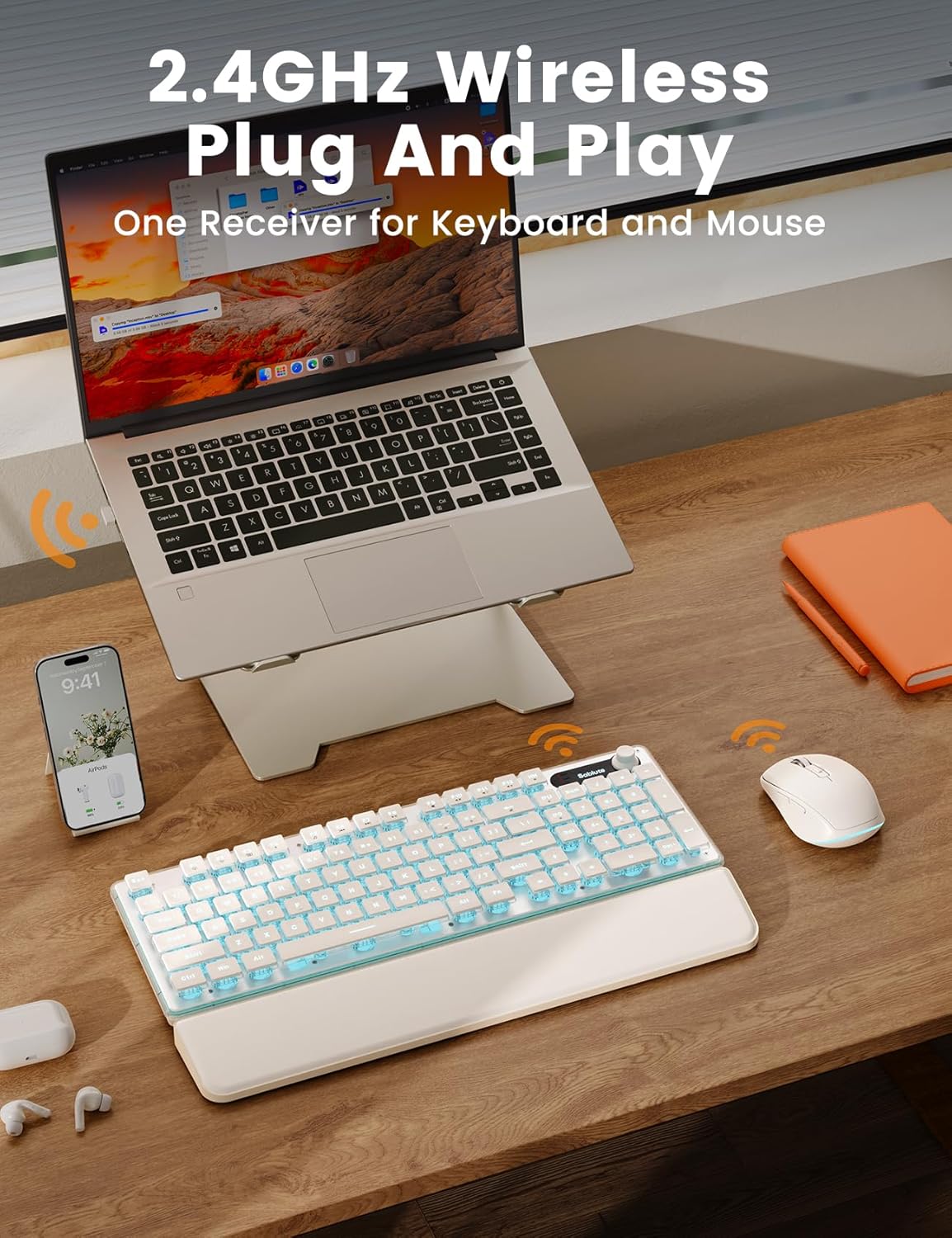
- Locate the USB Receiver: The 2.4GHz USB receiver is conveniently stored in a compartment on the underside of the keyboard. Gently remove it.
- Connect the Receiver: Plug the USB receiver into an available USB-A port on your computer (Desktop PC, Laptop, etc.).
- Power On Devices:
- For the keyboard, locate the ON/OFF switch on the back edge and slide it to the 'ON' position.
- For the mouse, locate the ON/OFF switch on its underside and slide it to the 'ON' position.
- Automatic Connection: The keyboard and mouse will automatically connect to your computer. No additional drivers are typically required for Windows or macOS.
- Attach Wrist Rest (Optional): Position the detachable wrist rest in front of the keyboard for enhanced comfort during extended use.
Keyboard Features and Operation
Backlight Control
The keyboard features 9 backlight modes, 6 speed levels, and 5 brightness settings for a customizable typing experience. Use the following key combinations:
- Fn + HM: Switch between 9 backlight modes (Streaming Light, Color Cycle, Breathing Mode, Flash Wave, etc.).
- Fn + PU/PD: Increase/Decrease brightness (5 levels).
- Fn + -/+: Slow Down/Speed Up lighting effect (6 levels).
- Fn + Left Arrow: Turn off backlight.

Volume Knob
The integrated volume knob provides convenient audio control:
- Rotate Clockwise: Increase volume.
- Rotate Counter-clockwise: Decrease volume.
- Press Knob: Mute/Unmute audio.

Keycaps and Panel
The keyboard features premium ABS+PC pudding double-shot keycaps for durability and crisp backlighting. The sturdy metal panel ensures stability and a premium feel.

Mouse Features and Operation
The wireless mouse is designed for precision and comfort:
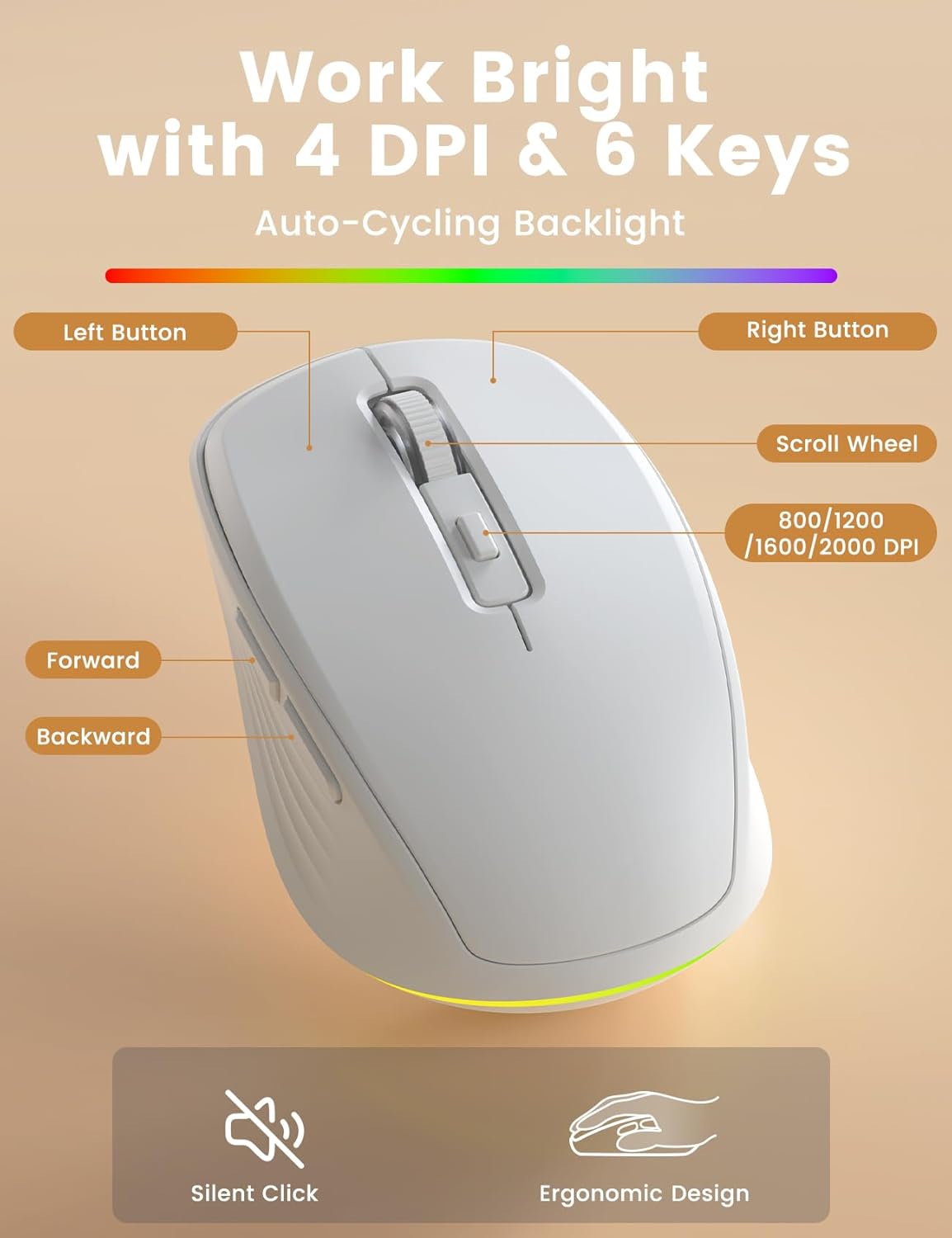
- DPI Settings: Adjust sensitivity with 4 DPI levels (800/1200/1600/2000) for smooth and precise control.
- Navigation Buttons: Includes forward and back buttons for convenient web browsing and file navigation.
- Silent Clicks: Designed with silent click technology to reduce noise in your workspace.
- Soft Backlight: The mouse features a soft backlight that adds style without distraction.
Charging and Battery Information
Both the keyboard and mouse are rechargeable via Type-C connection, offering long-lasting performance:
- Keyboard Battery: 4000mAh, providing up to 800 hours with backlight off and up to 80 hours with backlight on.
- Mouse Battery: 750mAh, offering up to 50% longer runtime than typical mice.
- Charging: Use the provided USB-A to USB-C cable to charge both devices.
- Auto-Sleep: Devices enter auto-sleep mode after 2 minutes (keyboard) or 15 minutes (mouse) of inactivity to conserve battery. Wake up by pressing any key/button.

Ergonomics and Comfort
The KM41pro combo is designed for extended use and comfort:
- Detachable Wrist Rest: Reduces wrist strain and supports proper typing posture.
- Dual-Angle Feet: Adjustable feet on the keyboard allow you to set your preferred typing angle.
- Non-Slip Pads: Ensures stability during fast typing.

Specifications
| Feature | Detail |
|---|---|
| Brand | SABLUTE |
| Model | KM41pro |
| Color | White |
| Connectivity Technology | 2.4GHz wireless connection |
| Special Features | Backlit, Ergonomic, Rechargeable, Volume Roller, Wrist Rest |
| Compatible Devices | Desktop PC, Laptop, Personal Computer |
| Movement Detection (Mouse) | Optical |
| Keyboard Backlighting Color Support | RGB (9 modes, 6 speeds, 5 brightness) |
| Operating System | Windows, macOS |
| Power Source | Battery Powered |
| Keyboard Layout | QWERTY |
| Keyboard Battery Capacity | 4000mAh |
| Mouse Battery Capacity | 750mAh |
| Item Weight | 1.07 Kilograms |
Troubleshooting
If you encounter issues with your device, please refer to the following common solutions:
- Keyboard and Mouse Cannot Be Connected:
- Ensure the USB receiver is securely plugged into your computer.
- Verify both the keyboard and mouse are switched to the 'ON' position.
- For pairing, press 'Esc' + 'C' on the keyboard; the LED indicator light will flash quickly. Within 10 seconds, put the keyboard within 10 cm of the receiver.
- For mouse pairing, hold down the left and right mouse buttons as well as the scroll wheel simultaneously. The light at the bottom of the mouse will light up. Insert the USB receiver into the computer and place the mouse within 10 cm of the receiver for pairing.
- Keyboard Gets Delayed or Stuck:
- Check for 2.4GHz device interference (e.g., router) nearby.
- Ensure there is no full metal case that may block the signal between the devices and the receiver.
- Low Battery Warning: The indicator light will flash slowly when the battery is almost empty. Recharge the device using the provided USB-C cable.
Warranty and Support
Your SABLUTE KM41pro Wireless Keyboard and Mouse Combo comes with a one-year warranty.
For FAQs and more information, please visit: sablute.com/pages/contact
Customer service is available Monday-Friday, 9am-6pm (Worktime), 1pm-2pm (Rest) at 1-888-858-1618 (US).
You can also email: sabluteservices@outlook.com


