
1. Introduction
This manual provides detailed instructions for the installation, operation, and maintenance of your KTC H32D6 32-inch QHD 2K 120Hz IPS Monitor. Please read this manual thoroughly before using the product to ensure proper functionality and to prevent damage.

Image: Front and rear view of the KTC H32D6 monitor, highlighting its sleek design and connectivity options.
The KTC H32D6 monitor features a 32-inch IPS panel with WQHD (2560x1440) resolution, offering clear and vibrant visuals. It supports a 120Hz refresh rate and Adaptive Sync technology for smooth performance. Designed with eye care features, it aims to reduce strain during extended use.
2. Package Contents
Verify that all items listed below are present in your product package:
- 32 Inch Monitor Screen (x1)
- Monitor Base (x1)
- Quick Start Guide (QSG) (x1)
- HDMI Cable (x1)
- Power Adapter (x1)
- Power Cord (x1)
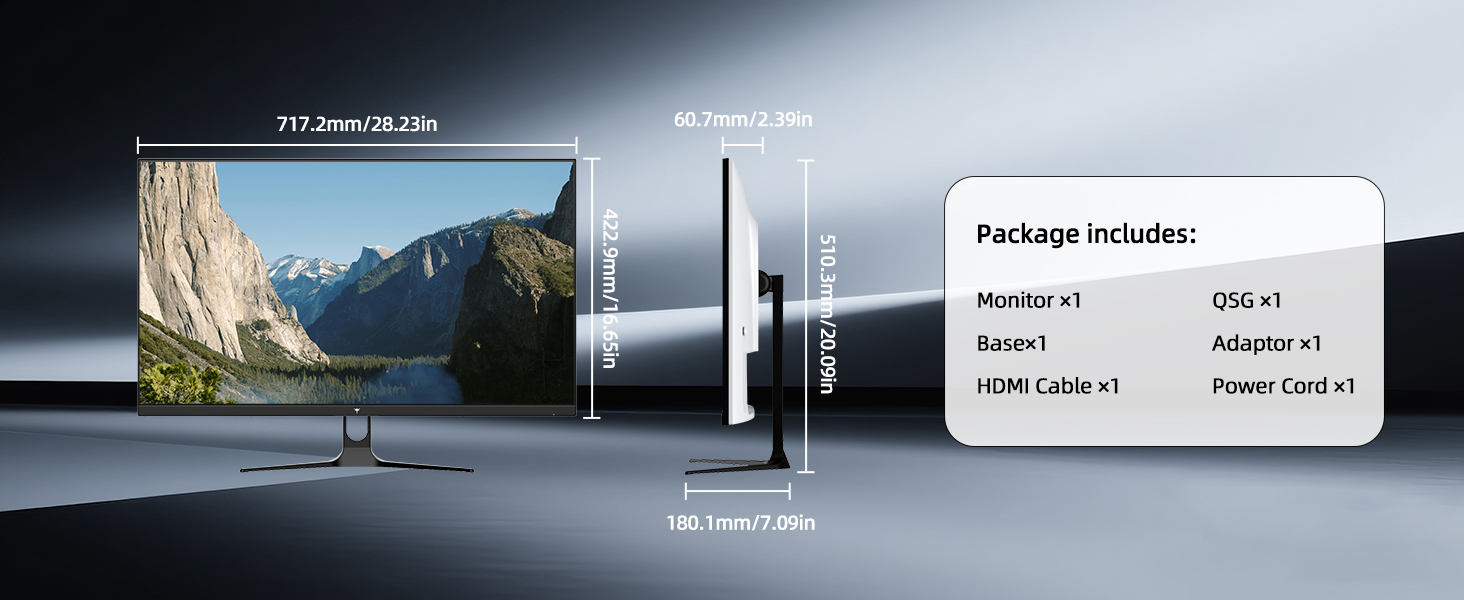
Image: Visual representation of the monitor's dimensions and the accessories included in the package.
3. Assembly and Setup
3.1 Attaching the Stand
- Carefully remove the monitor and stand components from the packaging.
- Place the monitor screen face down on a soft, clean surface to prevent scratches.
- Align the stand base with the mounting point on the back of the monitor.
- Secure the stand to the monitor using the provided screws. Ensure it is firmly attached.
- Gently lift the monitor and place it on a stable, flat surface.
3.2 VESA Mounting
The monitor supports VESA mount standard 100mm x 100mm. To mount the monitor on a VESA-compatible arm or wall mount, remove the stand and attach the VESA mount according to its instructions.
3.3 Adjusting the Monitor Angle
The monitor allows for tilt adjustment from -5° to 20° (±2°). Gently hold both sides of the monitor and adjust it to your preferred viewing angle.

Image: Illustration of the monitor's tilt range and its 178-degree viewing angle, suitable for multi-monitor setups.
4. Connectivity
The KTC H32D6 monitor offers multiple connectivity options for various devices:
- HDMI 2.0 (x2): Supports resolutions up to 2560x1440 at 100Hz (overclockable to 120Hz).
- DisplayPort 1.4 (x1): Supports resolutions up to 2560x1440 at 100Hz (overclockable to 120Hz).
- Earphone Jack (x1): For connecting external audio devices.
4.1 Connecting to a Computer
- Ensure both the monitor and your computer are powered off.
- Connect one end of the HDMI or DisplayPort cable to the corresponding port on your computer's graphics card.
- Connect the other end of the cable to an available HDMI or DisplayPort input on the monitor.
- Connect the power adapter to the monitor and then plug the power cord into an electrical outlet.
- Power on your computer, then power on the monitor.
- Select the correct input source on the monitor using the On-Screen Display (OSD) menu.

Image: Detailed view of the monitor's rear panel, showing the power input, two HDMI 2.0 ports, one DisplayPort 1.4, and an earphone jack.
5. Operating Instructions and Features
5.1 On-Screen Display (OSD) Menu
The OSD menu allows you to adjust various monitor settings. Refer to the Quick Start Guide for specific button functions and navigation.
5.2 Key Features
- QHD (2560x1440) Resolution: Experience sharp and detailed images. This resolution provides a significant upgrade over Full HD (1920x1080) without distortion or stretching.
- 120Hz Refresh Rate: Enjoy smoother and more fluid visuals, especially beneficial for fast-paced content and gaming. The monitor's native refresh rate is 100Hz, with an overclock option to achieve 120Hz through the OSD settings.
- Adaptive Sync Technology: Compatible with FreeSync and G-Sync, this technology synchronizes the monitor's refresh rate with your graphics card's frame rate, eliminating screen tearing and stuttering for a seamless visual experience.
- HDR10 Support: Provides enhanced contrast and color accuracy, delivering a more immersive viewing experience with brighter whites and deeper blacks.
- IPS Panel: Offers wide 178° viewing angles and consistent color reproduction from various perspectives.
- 109% sRGB Color Gamut: Delivers a broad spectrum of colors, ensuring accurate and vivid image representation.
- Eye Care Technology: Features anti-blue light and flicker-free technologies to minimize eye strain and fatigue during prolonged use.

Image: Visual comparison demonstrating the increased detail and screen space offered by QHD resolution compared to FHD.

Image: A side-by-side illustration highlighting the difference in motion smoothness between a 60Hz monitor and the KTC 120Hz monitor.

Image: A visual demonstration of screen tearing when Adaptive Sync is off, and smooth rendering when it is enabled.
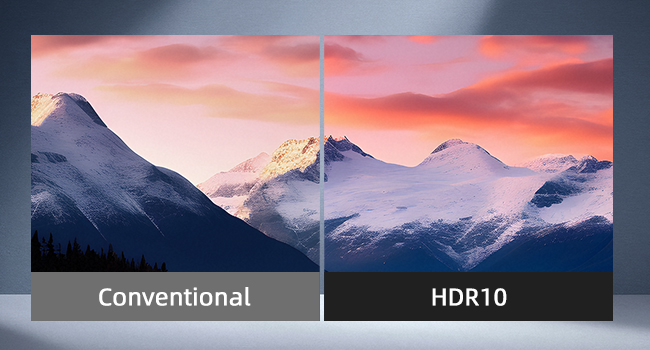
Image: A split image comparing a conventional display with an HDR10 display, illustrating the expanded dynamic range and vibrant colors of HDR10.

Image: A graphic illustrating the benefits of flicker-free technology, general eye care, and blue light reduction for user comfort.
6. Care and Maintenance
- Cleaning the Screen: Gently wipe the screen with a soft, lint-free cloth. For stubborn marks, lightly dampen the cloth with water or a specialized screen cleaner. Avoid using harsh chemicals or abrasive materials.
- Cleaning the Casing: Use a soft, dry cloth to clean the monitor's casing.
- Power Off When Not in Use: Turn off the monitor when not in use for extended periods to conserve energy and prolong its lifespan.
- Avoid Direct Sunlight: Do not expose the monitor to direct sunlight or extreme temperatures.
- Ventilation: Ensure adequate ventilation around the monitor to prevent overheating.
7. Troubleshooting
| Problem | Possible Cause | Solution |
|---|---|---|
| No image on screen | Power cable disconnected; Video cable disconnected; Incorrect input source selected. | Check power and video cable connections; Select the correct input source via the OSD menu. |
| Image is blurry or distorted | Incorrect resolution setting; Loose video cable. | Set the display resolution to 2560x1440; Ensure video cable is securely connected. |
| Screen tearing or stuttering | Adaptive Sync is off; Graphics card driver issues. | Enable Adaptive Sync in the OSD menu and your graphics card settings; Update graphics card drivers. |
| Cannot achieve 120Hz refresh rate | Overclock setting not enabled; Cable limitation. | Enable 'Overclock' in the monitor's OSD settings; Ensure you are using a high-quality HDMI 2.0 or DisplayPort 1.4 cable. |
| No audio from earphone jack | Audio output not selected; External device issue. | Ensure the monitor is selected as the audio output device in your computer's sound settings; Check the external audio device. |
8. Technical Specifications
- Model Number: H32D6
- Screen Size: 32 Inches
- Panel Type: IPS
- Resolution: 2560 x 1440 (QHD Wide 1440p)
- Aspect Ratio: 16:9
- Refresh Rate: 100Hz (Up to 120Hz via Overclock)
- Brightness: 350 Candela per Square Meter (350 cd/m²)
- Contrast Ratio: 1000:1
- Color Gamut: 109% sRGB
- Color Support: 16.7 Million Colors (8-bit)
- HDR Support: HDR10
- Connectivity: 2x HDMI 2.0, 1x DisplayPort 1.4, 1x Earphone Jack
- VESA Compatibility: 100mm x 100mm
- Tilt Adjustment: -5° to 20° (±2°)
- Product Dimensions: 7.09 x 28.24 x 20.09 inches
- Item Weight: 12.57 pounds
- Manufacturer: KTC
9. Warranty and Customer Support
KTC provides a three-year warranty for this product. For any issues or inquiries regarding your KTC H32D6 monitor, please contact customer support.
9.1 Contacting Support
If you purchased your monitor through Amazon, you can contact the seller, Ktcmonitor-Official, directly through the Amazon platform for assistance. Navigate to your order details and select the option to 'Ask a question' or 'Contact Seller'.


