
Introduction
Thank you for choosing the Rii RK900Pro Large Print Backlit Keyboard. This full-size wired USB keyboard is designed for enhanced visibility and comfortable typing, featuring large print keys and a blue LED backlight. It is compatible with various operating systems, including Windows, Mac, Chrome, and Linux. This manual provides detailed instructions for setup, operation, maintenance, and troubleshooting to ensure optimal performance of your keyboard.
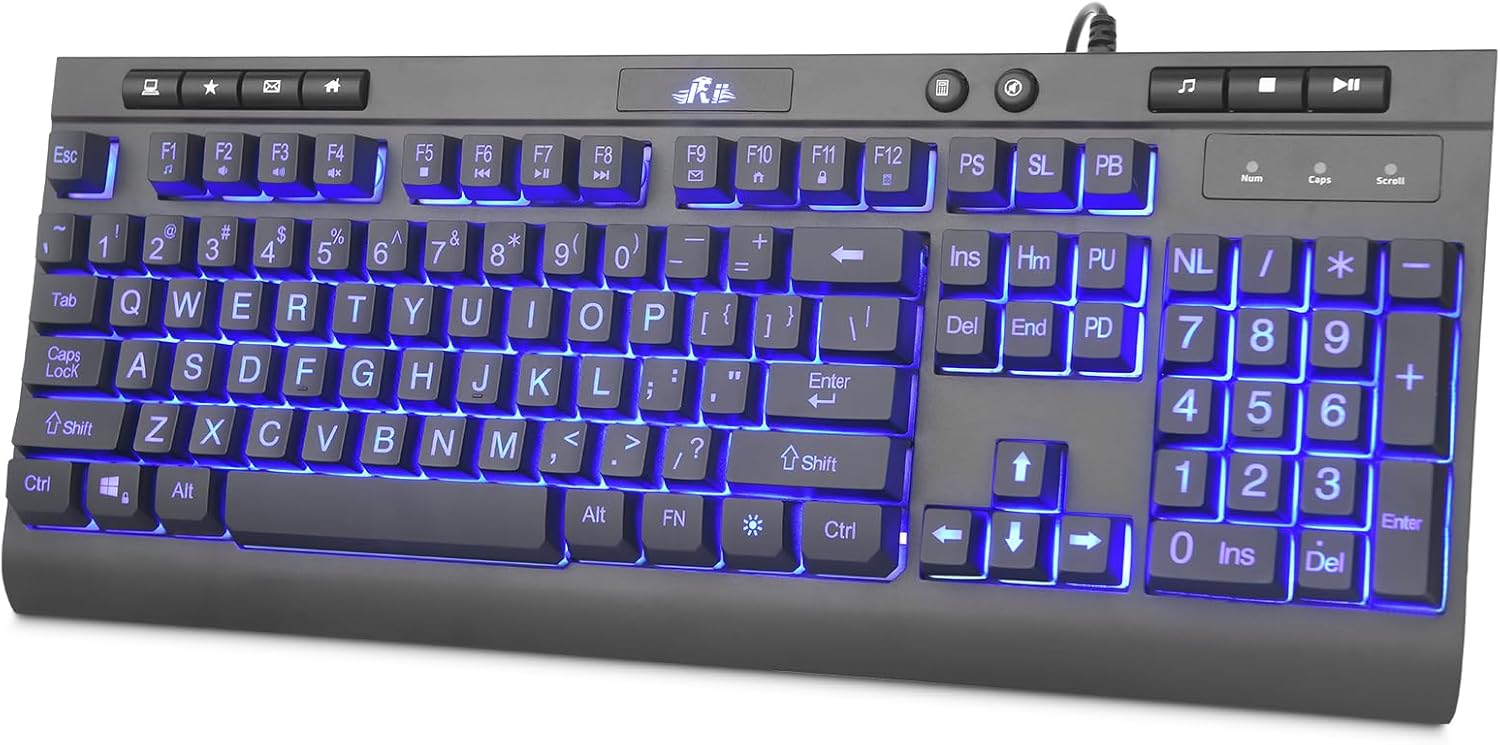
Image: The Rii RK900Pro keyboard showcasing its large print keys and blue LED backlight, positioned on a desk with a monitor.
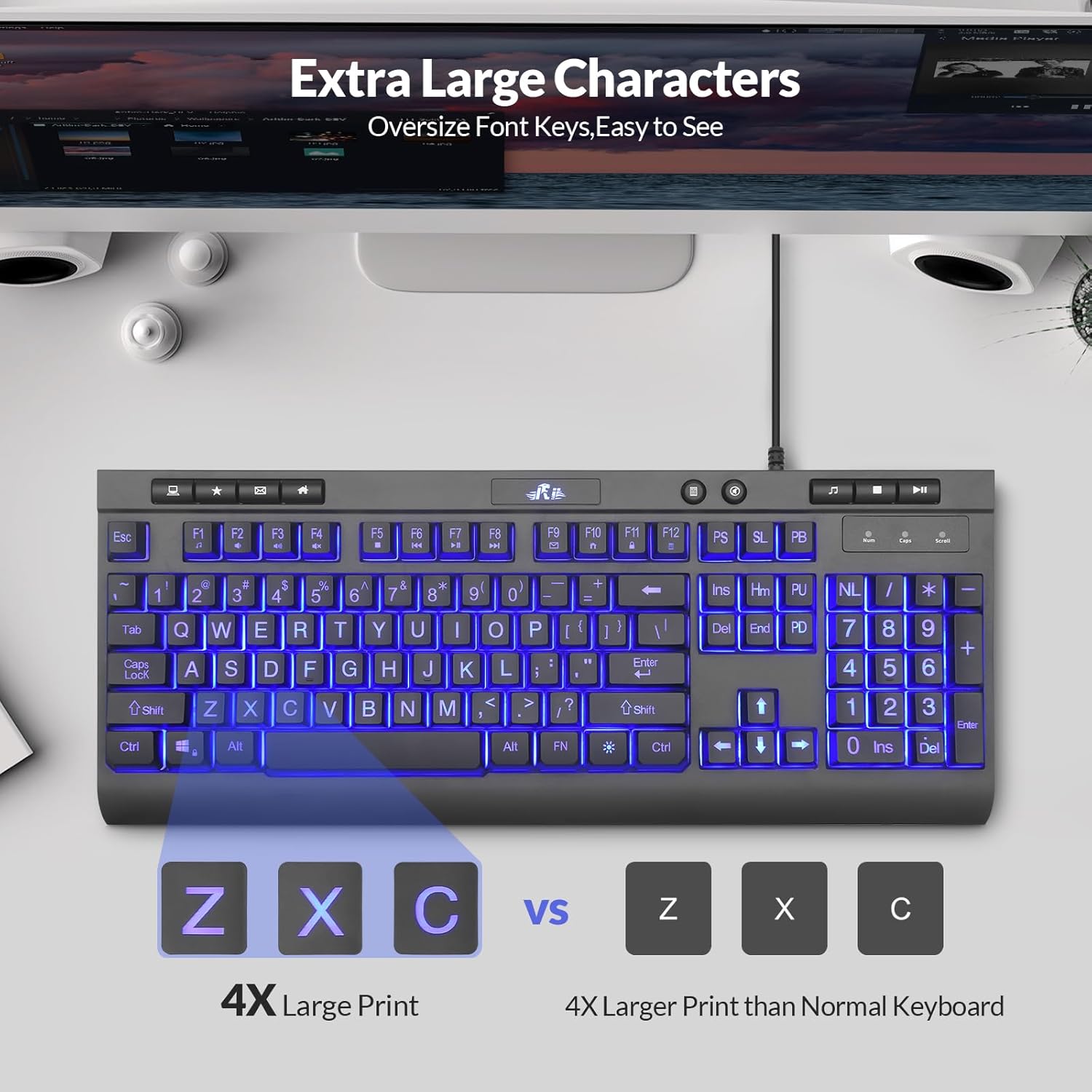
Image: A visual comparison highlighting the 4X larger print on the Rii RK900Pro keyboard keys compared to standard keyboard keys, emphasizing improved readability.
Setup Instructions
The Rii RK900Pro keyboard features a simple plug-and-play design, requiring no additional drivers for most operating systems. Follow these steps to set up your keyboard:
- Locate an available USB-A port on your computer (desktop, laptop, Mac, etc.).
- Plug the USB connector of the keyboard's 4.6-foot cable into the USB-A port.
- Your operating system should automatically detect and install the necessary drivers.
- The keyboard is now ready for use.

Image: The Rii RK900Pro keyboard displaying its full size and the attached 4.6-foot USB cable, illustrating its wired connectivity.
Operating Instructions
Backlight Control
The Rii RK900Pro keyboard features an adjustable blue LED backlight to enhance visibility in low-light conditions. Use the following key combinations to control the backlight:
- Turn On/Off Backlight: Press the Light Bulb key (usually located near the top right of the keyboard).
- Breathing Light Mode: Press FN + Light Bulb key.
- Adjust Backlight Brightness: Press FN + PU (Page Up) to increase brightness, or FN + PD (Page Down) to decrease brightness.

Image: The Rii RK900Pro keyboard illustrating the key combinations for turning the LED backlight on/off, activating breathing mode, and adjusting brightness.
Multimedia Function Shortcuts
The keyboard includes 12 multimedia function shortcuts accessible by pressing the FN key in combination with the F1-F12 keys. These shortcuts provide quick access to common media and system functions:
- FN + F1: Music Player
- FN + F2: Volume Down
- FN + F3: Volume Up
- FN + F4: Mute
- FN + F5: Stop
- FN + F6: Previous Track
- FN + F7: Play/Pause
- FN + F8: Next Track
- FN + F9: Email
- FN + F10: Browser
- FN + F11: Lock Keyboard
- FN + F12: Calculator

Image: A detailed diagram illustrating the 12 multimedia function shortcuts available on the Rii RK900Pro keyboard, activated by combining the FN key with F1-F12.
Maintenance
Proper maintenance can extend the lifespan of your Rii RK900Pro keyboard. Follow these guidelines:
- Cleaning: Use a soft, dry cloth to wipe the surface of the keyboard. For dust or debris between keys, use compressed air. Avoid using harsh chemicals, abrasive cleaners, or excessive moisture.
- Spills: In case of liquid spills, immediately disconnect the keyboard from your computer. Turn it upside down to drain any liquid and allow it to dry completely before reconnecting.
- Storage: Store the keyboard in a clean, dry environment away from extreme temperatures and direct sunlight.
- Handling: Avoid dropping the keyboard or subjecting it to strong impacts, which can damage internal components.
Troubleshooting
If you encounter issues with your Rii RK900Pro keyboard, refer to the following troubleshooting tips:
- Keyboard Not Responding:
- Ensure the USB cable is securely plugged into a working USB-A port on your computer.
- Try plugging the keyboard into a different USB port.
- Restart your computer.
- Test the keyboard on another computer to determine if the issue is with the keyboard or the computer.
- Backlight Not Working:
- Press the Light Bulb key to ensure the backlight is turned on.
- Adjust the brightness using FN + PU / PD.
- Specific Keys Not Working:
- Check for any physical obstructions or debris under the non-functioning keys.
- Clean the keyboard as described in the Maintenance section.
- Compatibility Issues:
- Verify that your operating system (Windows, Mac, Chrome, Linux) is supported.
Specifications
| Feature | Description |
|---|---|
| Brand | Rii |
| Model | RK900 Large print |
| Connectivity Technology | Wired USB-A |
| Number of Keys | 113 |
| Keyboard Layout | QWERTY |
| Special Features | Large Print Keys, Blue LED Backlight, Ergonomic Design (Foldable Stand), Multimedia Keys |
| Product Dimensions (L x W x H) | 17.24" x 6.97" x 1.26" |
| USB Cable Length | 4.6 feet |
| Material | Aluminum |
| Compatible Devices | Laptop, Mac, PC, Windows, Chrome, Linux |
| Power Source | USB Powered |
| Color | Black |

Image: The Rii RK900Pro keyboard from a side angle, highlighting its adjustable kickstand designed to provide an ergonomic typing experience.
Warranty Information
The Rii RK900Pro Large Print Backlit Keyboard comes with a 1 Year Manufacturer Warranty. Please retain your proof of purchase for any warranty claims. For specific terms and conditions, refer to the warranty documentation provided with your product or contact Rii customer support.
Customer Support
If you require further assistance or have questions not covered in this manual, please contact Rii customer support through the retailer's platform or the official Rii website. Provide your product model number (RK900 Large print) and a detailed description of your issue for efficient support.