
1. Introduction
This manual provides essential information for the safe and efficient operation of your KTC H27P6 27-inch 4K Gaming Monitor. Please read this manual thoroughly before using the product and retain it for future reference.

Front view of the KTC H27P6 27-inch 4K Gaming Monitor.

Key features of the KTC H27P6 monitor, highlighting its capabilities.
2. Safety Information
Observe the following safety precautions to prevent damage to the monitor or injury to yourself.
- Do not expose the monitor to rain, moisture, or extreme temperatures.
- Ensure proper ventilation around the monitor.
- Use only the power adapter supplied with the monitor.
- Avoid placing heavy objects on the power cord.
- Do not attempt to disassemble or repair the monitor yourself. Refer all servicing to qualified personnel.
- Keep the monitor away from strong magnetic fields.
3. Package Contents
Verify that all items are present in the package:
- KTC H27P6 27-inch 4K Gaming Monitor
- Monitor Stand (Base and Neck)
- Power Adapter and Cable
- HDMI Cable
- DisplayPort Cable
- USB-C Cable
- USB-B to USB-A Cable (for KVM/USB Hub)
- User Manual
4. Setup
4.1 Assembling the Stand
- Carefully remove the monitor and stand components from the packaging.
- Attach the stand neck to the monitor panel. Ensure it clicks securely into place or is fastened with screws if provided.
- Connect the stand base to the stand neck, typically by aligning and tightening a screw from the bottom of the base.
- Place the assembled monitor on a stable, flat surface.

The adjustable stand allows for various ergonomic positions.

Diagram showing height, tilt, pivot, and swivel adjustments, along with VESA mounting compatibility.
4.2 Connecting the Monitor
The KTC H27P6 monitor offers multiple connectivity options:
- HDMI 2.1: Connect to your PC or console using an HDMI cable for 4K@160Hz or FHD@320Hz.
- DisplayPort 1.4: Connect to your PC using a DisplayPort cable for 4K@160Hz or FHD@320Hz.
- USB-C (PD 90W): Connect to compatible laptops or devices for video, data, and power delivery (up to 90W) with 4K@160Hz or FHD@320Hz.
- USB-A 3.0 Ports: Use the upstream USB-B to USB-A cable to connect the monitor to your PC to enable the monitor's built-in USB 3.0 hub.
- Audio Out: Connect headphones or external speakers to the 3.5mm audio jack.

Detailed view of the monitor's input/output ports.

Illustration of various connection options and usage scenarios.
4.3 Powering On
Connect the power adapter to the monitor's DC input and then plug it into a power outlet. Press the power button on the monitor to turn it on.
5. Operating
5.1 Dual Mode Switching (4K@160Hz / FHD@320Hz)
The KTC H27P6 features an innovative dual-mode display technology, allowing you to switch between ultra-high 4K@160Hz UHD resolution and ultra-high FHD 1080P@320Hz refresh rate. This enables optimization for different content, such as high-fidelity AAA games or fast-paced FPS titles.
- Access the On-Screen Display (OSD) menu.
- Navigate to the 'Display' or 'Gaming' settings.
- Select the desired resolution and refresh rate mode (4K@160Hz or FHD@320Hz).

Visual representation of the dual mode display capability.

Demonstration of the monitor's dual resolution and refresh rate modes.
5.2 OSD Menu Navigation
The On-Screen Display (OSD) menu allows you to adjust various monitor settings. Typically, buttons are located on the back or bottom of the monitor. Use these buttons to navigate through the menu options and make selections.
5.3 Adaptive Sync Technology
The monitor supports Adaptive Sync (FreeSync/G-Sync compatible) to eliminate screen tearing and stuttering, providing a smoother gaming experience. Ensure your graphics card supports Adaptive Sync and that the feature is enabled in both your graphics card settings and the monitor's OSD menu.
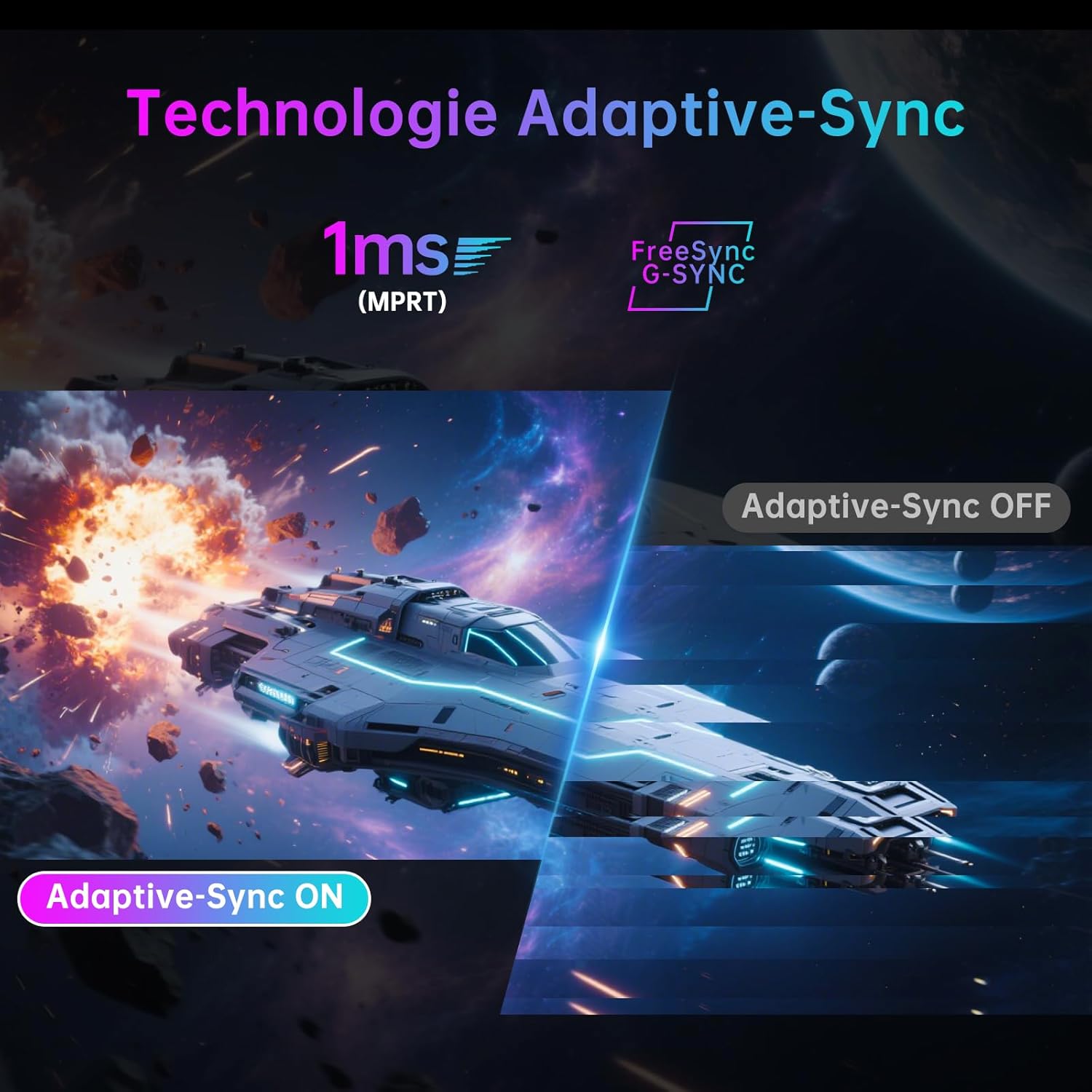
Visual comparison of Adaptive Sync enabled and disabled.

Demonstration of Adaptive Sync technology with Sync ON and Sync OFF.
5.4 HDR400 Support
With HDR400 support, the monitor achieves a peak brightness of 400 cd/m², enhancing contrast and color accuracy. This allows for more distinct dark details and bright scenes without loss of information, providing a more immersive visual experience.

Visual comparison of HDR400 enabled versus standard display.

Illustration of HDR 400 impact on image quality in a gaming scene.
5.5 KVM Functionality
The KVM (Keyboard, Video, Mouse) switch allows you to control multiple computers with a single set of keyboard, mouse, and monitor. Connect your peripherals to the monitor's USB ports and connect the monitor's USB-C and/or USB-B upstream ports to your computers. Switch between connected computers via the OSD menu.
5.6 USB-C 90W Power Delivery
The USB-C port supports up to 90W Power Delivery, allowing you to charge compatible laptops or devices directly through the monitor while simultaneously receiving video and data signals.

Illustration of USB-C 90W Power Delivery functionality.
5.7 Low Blue Light Technology
The monitor incorporates hardware-level Low Blue Light technology to reduce harmful blue light emissions, helping to minimize eye strain during prolonged use without compromising color accuracy.

Diagram explaining the Low Blue Light technology.
5.8 Game Plus Features
The monitor includes several Game Plus features designed to enhance your gaming experience:
- Timer: An on-screen timer for tracking in-game events.
- Reticle: Customizable crosshairs for improved aiming accuracy.
- FPS Counter: Displays the current frames per second for real-time performance monitoring.
6. Maintenance
6.1 Cleaning the Monitor
- Always unplug the monitor before cleaning.
- Use a soft, lint-free cloth lightly dampened with water or a mild, non-abrasive screen cleaner.
- Do not spray cleaner directly onto the screen.
- Avoid using harsh chemicals, solvents, or abrasive materials.
6.2 Storage
If storing the monitor for an extended period, unplug it from the power source and store it in a cool, dry place, preferably in its original packaging to protect it from dust and physical damage.
7. Troubleshooting
If you encounter issues with your monitor, refer to the following common troubleshooting steps:
| Problem | Possible Solution |
|---|---|
| No image on screen |
|
| Image flickering or distortion |
|
| Colors appear incorrect |
|
| USB ports not working |
|
8. Specifications
Detailed technical specifications for the KTC H27P6 monitor:
| Feature | Specification |
|---|---|
| Brand | KTC |
| Model Name | H27P6 |
| Screen Size | 27 Inches |
| Resolution | 4K UHD (3840 x 2160) |
| Maximum Display Resolution | 3840 x 2160 |
| Refresh Rate | 320 Hz (FHD), 160 Hz (4K) |
| Response Time | 1 Millisecond (GTG) |
| Display Type | IPS Panel |
| Aspect Ratio | 16:9 |
| Screen Surface Description | Glossy |
| Image Contrast Ratio | 3000:1 |
| Brightness | 400 cd/m² |
| Color Gamut | 125% sRGB, 97% DCI-P3 |
| Color Accuracy | ΔE<2 |
| HDR Support | HDR400 |
| Adaptive Sync | FreeSync Compatible |
| Connectivity Technology | HDMI, DisplayPort, USB-C, USB-A |
| Total HDMI Ports | 2 (HDMI 2.1) |
| Total DisplayPort | 1 (DisplayPort 1.4) |
| USB-C Ports | 1 (with 90W PD) |
| Total USB 3.0 Ports | 3 (downstream) |
| Audio Output | 1 (3.5mm Earphone Jack) |
| Special Features | Dual Mode (4K 160Hz/1080P 320Hz), KVM, Hardware Low Blue Light, Adjustable Stand (Height, Tilt, Swivel, Pivot) |
| Item Dimensions (D x W x H) | 21.3 x 53.6 x 61.6 cm |
| Color | White |
| Country of Origin | China |
9. Warranty and Support
For warranty information and technical support, please refer to the warranty card included with your product or visit the official KTC website. Contact details for customer service are typically provided in the product packaging or on the manufacturer's support page.


