
1. Introduction
Thank you for choosing the OffiGo 55-Inch L-Shaped Electric Standing Desk. This manual provides essential information for the safe and efficient assembly, operation, and maintenance of your new desk. Please read all instructions carefully before use and retain this manual for future reference.
2. Safety Information
General Safety Warnings:
- Ensure all parts are present and undamaged before assembly.
- Keep children and pets away from the desk during operation.
- Do not overload the desk. Refer to specifications for maximum weight capacity.
- Keep the area around the desk clear of obstructions during height adjustments.
- Unplug the power cord before cleaning or maintenance.
- Do not sit or stand on the desk.
- Avoid placing liquids directly on the desk surface without protective coasters.
3. Package Contents
Before beginning assembly, please verify that all components listed below are included in your package:
- Desktop Panels (L-shaped sections)
- Electric Lift Legs (2 units)
- Keyboard Tray
- Monitor Stand
- Built-in Power Strip (3 AC Outlets, 1 USB, 1 Type-C)
- Headphone/Bag Hook
- Control Panel with Memory Presets
- Assembly Hardware (screws, tools, etc.)
- User Manual

Image: All components of the OffiGo L-shaped electric standing desk laid out on the floor before assembly.
4. Setup & Assembly
Follow these step-by-step instructions for assembling your OffiGo L-Shaped Electric Standing Desk. It is recommended to have two people for certain steps.
4.1. Desktop Assembly
- Connect Desktop Panels: Join the main desktop panels (J and K) using the provided connectors (part 1). Ensure they are aligned correctly.
Video: Step-by-step assembly guide for the OffiGo L-shaped electric standing desk, demonstrating the connection of desktop panels and other components.
- Attach L-Extension: Connect the L-shaped extension panel (L) to the main desktop panels (J and K) using the designated connectors (part 1).
- Secure Panels: Use metal tabs (parts 14 and 15) and screws (part 3) to securely fasten the connected desktop panels. Ensure there are no gaps between the panels before fully tightening.
4.2. Frame Assembly
- Assemble Table Legs: Attach part I to table legs A and B using screws (part 4). Ensure both legs are at their lowest height before proceeding.
- Secure Crossbars: Secure parts E and F to the table legs with screws (part 6). Do not fully tighten these screws at this step.
- Connect Leg Supports: Connect part C to table leg A and part D to table leg B, securing them with screws (part 5). Attach part G to parts C and D.
- Attach Frame to Desktop: Connect parts E and F of the frame to the underside of the desktop using screws (part 18).
- Connect Part S: Connect part S to the desktop with screws (part 20).
- Connect Part I: Connect part I to the desktop with screws (part 24).
- Insert Hexagonal Rod: Firstly, insert the hexagonal rod H into table leg B. The marked point on shaft H must be fully inserted into leg B. Otherwise, the desk may not lift and lower properly. Secondly, connect two hexagonal rods and tighten the nut. Do not pull out the hexagonal rod from motor leg A, and ensure the marked point is fully inserted into the motor.
- Connect Part O: Connect part O to leg A with screw (part 17). Connect part O to part E with screw (part 3). When installing part O, please distinguish between screw 3 and screw 17.
4.3. Accessories & Final Touches
- Secure Headphone Hook: Secure part 21 (headphone hook) with screws (part 3).
- Secure Controller: Secure controller M with screws (part 7).
- Secure Keyboard Tray Rails: Secure parts R and T (keyboard tray rails) with screws (part 20). Please ensure that screw 20 is used to secure part R and T.
- Connect Power: Insert the power cord from power adapter N and leg A into controller M. Secure the excess cord with part 22.
- Assemble Monitor Stand: Fully insert parts 9 and 2 into part Q. Connect panel P to part Q, then screw the eccentric wheels 10 into P.
- Secure Keyboard Tray: Secure the keyboard tray with screws (part 8). Fully tighten one side first. On the other side, tighten the screws only about 70-80%. Then, test the keyboard tray slide. Once it moves smoothly, fully tighten all remaining screws.
- Secure Power Outlet: Secure part 23 (power outlet) with screws (part 8), then connect the power adapter N to part 23.
- Install Cable Management: Install part 25 (cable clips) on both sides of the panels.
- Reset Desk: After installation is complete, press the "↓" key until the screen displays "rES". This operation will keep the product in the best condition.
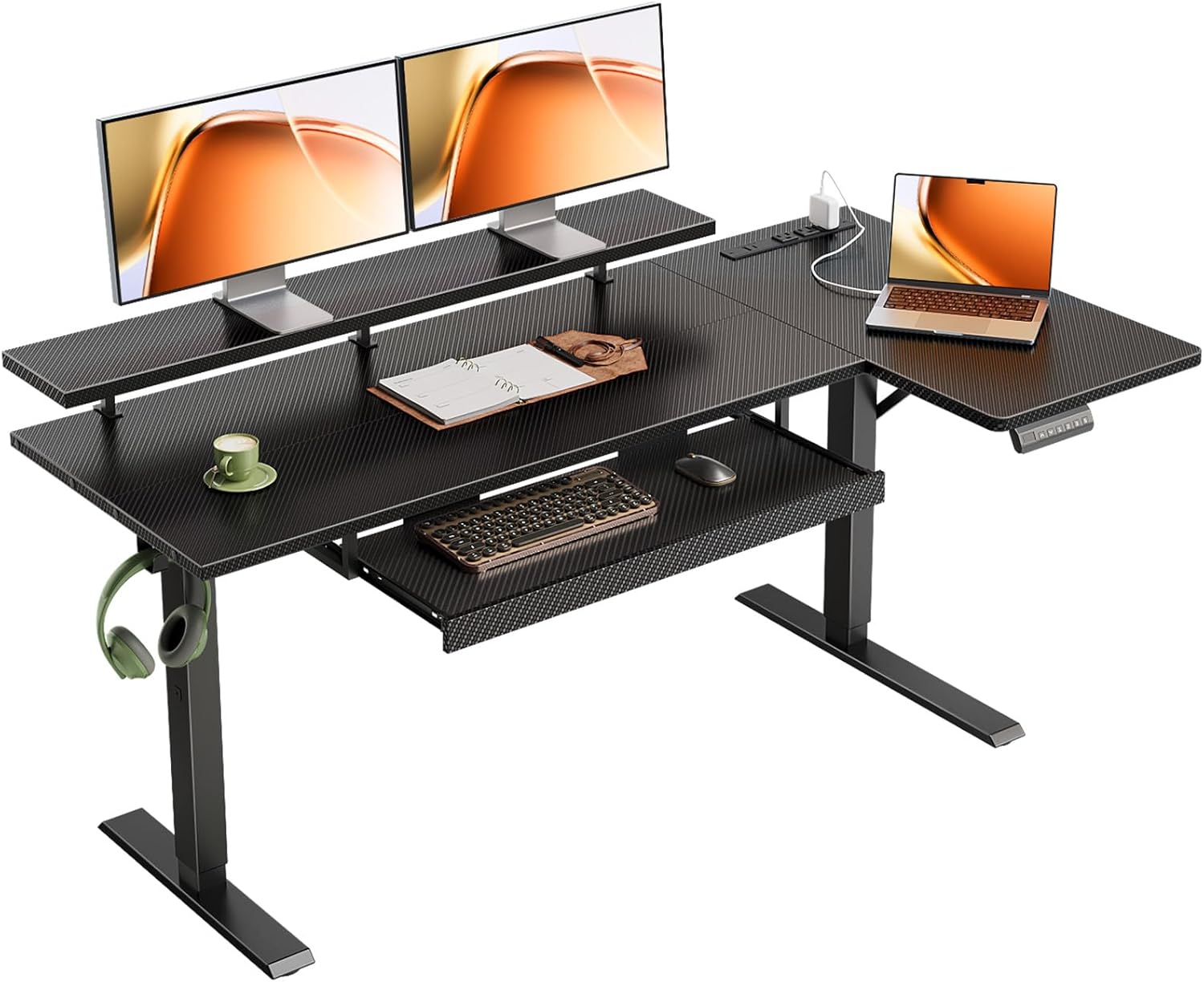
Image: The OffiGo L-shaped electric standing desk fully assembled, showcasing its design and features.
5. Operating Instructions
Your OffiGo Electric Standing Desk features intuitive controls for seamless height adjustment and convenience.
5.1. Height Adjustment
- Adjusting Height: Use the ^ (Up) and v (Down) buttons on the control panel to raise or lower the desk to your desired height. The height range is from 28.4" to 47.2".
- Memory Presets: The control panel features three memory buttons (1, 2, 3) to save your preferred sitting and standing heights.
- To Save a Height: Adjust the desk to your desired height. Press the S (Save) button, then immediately press one of the number buttons (1, 2, or 3) until you hear a beep or see a confirmation on the LED display.
- To Use a Saved Height: Simply press the corresponding number button (1, 2, or 3), and the desk will automatically move to the saved position.

Image: A user comfortably operating the OffiGo L-shaped electric standing desk in a sitting position, demonstrating the keyboard tray and monitor stand.

Image: The OffiGo L-shaped electric standing desk adjusted to a standing height, showing the range of motion.
5.2. Power Outlets
- The desk is equipped with a built-in power strip featuring 3 AC outlets, 1 USB port (5V/2A), and 1 Type-C port (5V/2A).
- Use these outlets to conveniently power and charge your electronic devices directly from your desk.

Image: A close-up view of the built-in power strip on the desk, showing the AC, USB, and Type-C ports.
5.3. Reversible L-Shaped Design
- The L-shaped extension can be installed on either the left or right side of the main desk during assembly to suit your workspace configuration.

Image: Illustration demonstrating the reversible L-shaped design, allowing the extension to be placed on either the left or right side.
6. Maintenance
- Cleaning: Wipe the desk surface with a soft, damp cloth. Avoid abrasive cleaners or harsh chemicals that could damage the finish.
- Motor Care: The electric motor is designed for durability. Avoid spilling liquids near the motor or control panel.
- Cable Management: Regularly check and organize cables to prevent tangles and damage.
- Screw Tightness: Periodically check all screws and bolts to ensure they are tight. Retighten if necessary.
7. Troubleshooting
| Problem | Possible Cause | Solution |
|---|---|---|
| Desk does not move. | Power cord unplugged; motor connection loose; overload. | Check power connections; ensure motor cables are secure; reduce weight on desk. |
| Desk moves unevenly. | Uneven weight distribution; loose screws. | Distribute weight evenly; check and tighten all assembly screws. |
| "rES" error on display. | Reset required after assembly or power interruption. | Press and hold the "↓" button until "rES" appears and the desk completes its reset cycle. |
| Keyboard tray is wobbly. | Screws not fully tightened during assembly. | Ensure all screws securing the keyboard tray are fully tightened. |
8. Specifications
- Model: B0FGX4JQW3
- Brand: OffiGo
- Shape: L-Shape
- Desk Design: Electric Standing Desk
- Product Dimensions: 31.5"D x 55"W x 33.1"H
- Height Adjustment Range: 28.4" to 47.2"
- Color: Carbon Fiber Black
- Top Material Type: Engineered Wood
- Base Material: Alloy Steel
- Item Weight: 66.1 Pounds
- Max Load: 154 lbs
- Special Features: Adjustable Height, Keyboard Tray Included, Monitor Stand, Power Outlet (3 AC, 1 USB, 1 Type-C), Reversible Design
- Assembly Required: Yes

Image: Detailed diagram showing the dimensions and adjustable height range of the OffiGo L-shaped electric standing desk.
9. Warranty & Support
This product is sold by OffiGo-US and includes a 30-day easy returns policy. For customer support or warranty inquiries, please contact OffiGo-US directly through your purchase platform.
Additional protection plans are available for purchase:
- 2-Year Protection Plan
- 3-Year Protection Plan
- NEW Complete Protect (monthly billing)
For more information, visit the OffiGo Store.