
Introduction
Thank you for choosing the OffiGo 63 Inch Electric L-Shaped Standing Desk. This manual provides detailed instructions for the assembly, operation, maintenance, and troubleshooting of your new desk. Please read this manual thoroughly before use to ensure proper function and longevity of your product.
Safety Warnings
- Ensure all parts are present and undamaged before assembly.
- Keep children and pets away from the desk during operation.
- Do not overload the desk. The maximum load capacity is 154 lbs.
- Avoid placing the desk in damp environments or near corrosive gases.
- Ensure the power cord is not pinched or damaged.
- Do not open the motor or control box. Contact customer support for service.
- Always keep a safe distance from the desk's moving parts to prevent injury.
Setup and Assembly
The OffiGo L-Shaped Standing Desk is designed for straightforward assembly. All necessary tools and hardware are included. Please follow the step-by-step instructions provided in the assembly video and diagrams below.
Official assembly video for the OffiGo L-Shaped Electric Standing Desk. This video demonstrates the complete installation process, including how to install the sub-board on the right side.
Key Assembly Steps:
- Unpack and Verify: Carefully remove all parts from the packaging and check against the parts list in the manual to ensure everything is included and in good condition.
- Connect Desktop Panels: Join the main desktop panels (J, K, L) using the provided metal tabs and screws. Ensure there are no gaps between the panels before fully tightening.
- Assemble Leg Frames: Attach the crossbar (I) to the table legs (A, B) using screws. Ensure both legs are at their lowest height before proceeding.
- Install Side Supports: Secure parts E and F to the leg frames. Do not fully tighten screws at this stage.
- Attach Crossbar (S): Secure the adjustable crossbar (S) to the leg frames. Tighten screws to approximately 80% to allow for final adjustments.
- Connect Leg Supports (C, D): Attach parts C and D to the table legs (A, B) respectively, using screws.
- Install Adjustable Feet (G): Attach the adjustable feet (G) to parts C and D.
- Mount Leg Frames to Desktop: Connect the assembled leg frames (E, F) to the underside of the desktop using screws.
- Secure Crossbar (S) to Desktop: Connect the adjustable crossbar (S) to the desktop using screws. Fully tighten all screws for the crossbar (S) to 100% at this point.
- Connect Power Adapter (N) and Controller (M): Insert the power cord from the power adapter (N) and leg A into the controller (M). Secure the excess cord with the provided clips (22).
- Install Monitor Stand (U, V): Secure the monitor stand parts (U) to the panel (V) using screws.
- Attach Monitor Stand to Desktop: Clamp the assembled monitor stand (U) onto the main desktop panel (J) and secure it using screws.
- Install Keyboard Tray: Secure the keyboard tray to the underside of the desktop using screws. Fully tighten one side first. On the other side, tighten screws to about 70-80%. Test the keyboard tray slide. Once it moves smoothly, fully tighten all remaining screws.
- Install Power Outlet (23): Secure the power outlet (23) to the desktop with screws. Then, connect the power adapter (N) to the power outlet (23).
- Install Cable Management Clips (25): Install the cable management clips (25) on both sides of the desktop panels to organize cables.
- Initialization: After assembly, press and hold the "↓" key until the screen displays "rES". This operation will reset the desk and ensure optimal function.
Reversible L-Shaped Design:
The L-shaped extension can be installed on either the left or right side of the main desk, allowing you to customize your workspace layout according to your preference.

The L-shaped section can be configured for either left or right-hand orientation during assembly.
Operating Instructions
Electric Height Adjustment:
The desk features an electric height adjustment system with a range from 28.4 inches to 47.2 inches. Use the control panel located on the front edge of the desk to adjust the height.
- Up/Down Arrows (↑ / ↓): Press and hold the up or down arrow buttons to continuously adjust the desk height. Release the button to stop at your desired height.
- Memory Presets (1, 2, 3): The desk has three programmable memory presets. To save a height:
- Adjust the desk to your desired height using the up/down arrows.
- Press the "S" (Set) button.
- Press the desired memory button (1, 2, or 3) within 3 seconds. The display will show "S-" followed by the number, confirming the height is saved.
- Recalling Presets: Simply press the corresponding memory button (1, 2, or 3) to automatically move the desk to the saved height.
The multi-function controller panel allows for precise height adjustments and saving up to three preferred positions.
Integrated Power Strip:
The desk is equipped with a built-in power strip for convenient device charging and power access.
- Outlets: 3 AC Outlets (125V/12A)
- USB Ports: 1 USB Port (5V/2A) and 1 Type-C Port (5V/2A)

The integrated power strip provides easy access to power for your devices.
Keyboard Tray:
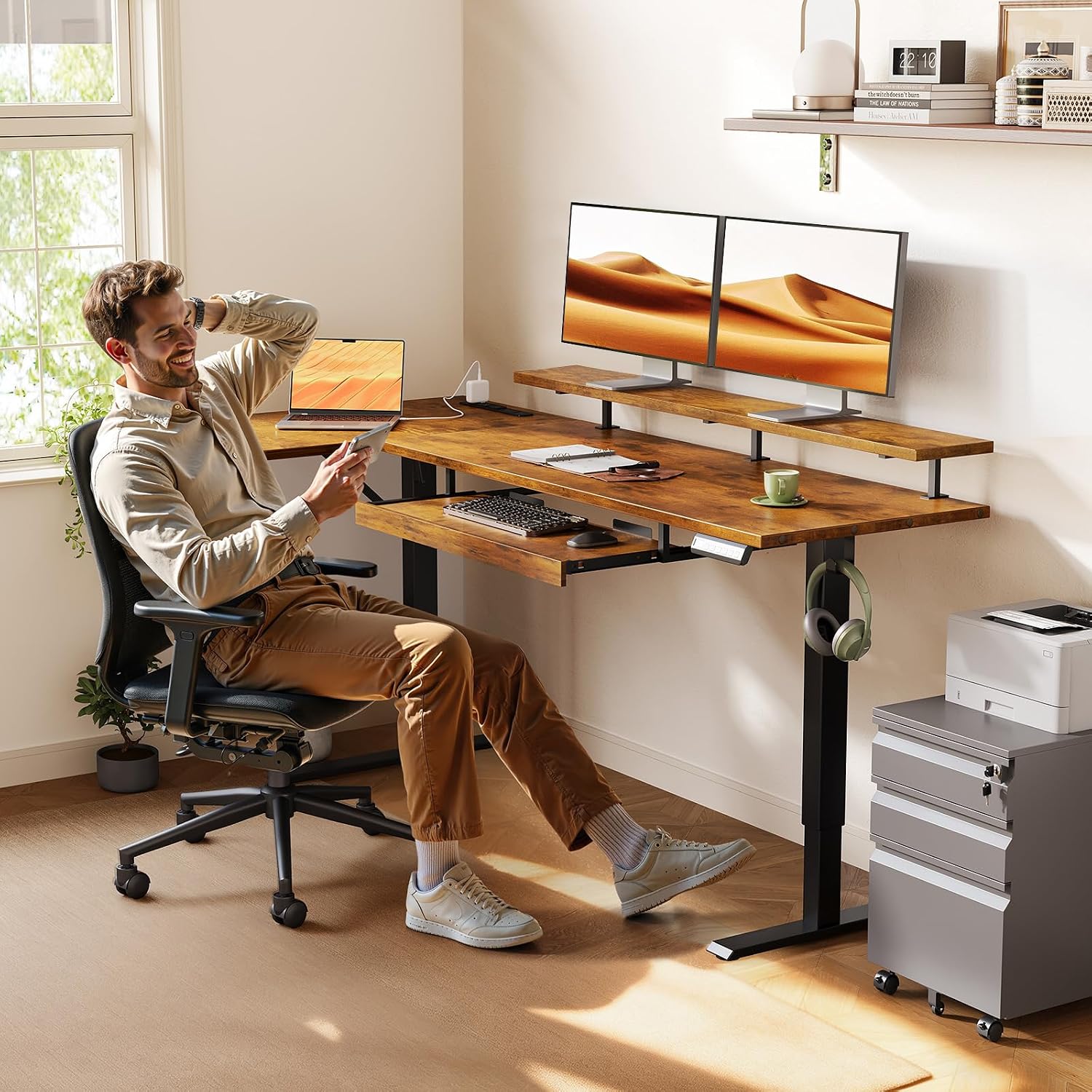
The 25.6-inch keyboard tray provides ample space for your keyboard and mouse, helping to keep your main desktop clear.
Monitor Stand:
The ergonomic monitor stand elevates your monitors to a comfortable viewing height, promoting healthier posture.

The monitor stand helps maintain an ergonomic viewing angle, reducing strain.
Headphone Hook:
A convenient hook is located on the side of the desk for storing headphones or a bag.
Maintenance
- Cleaning: Wipe the desk surface with a soft, damp cloth. Avoid using harsh chemicals or abrasive cleaners.
- Screw Tightness: Periodically check all screws and connections to ensure they are tight. Retighten if necessary.
- Cable Management: Ensure cables are neatly managed to prevent snagging or damage during height adjustments.
- Motor Care: The electric motor is maintenance-free. Do not attempt to lubricate or open it.
Troubleshooting
If you encounter any issues with your OffiGo standing desk, please refer to the following common solutions:
- Desk Not Responding: Check all power connections. Ensure the power adapter is securely plugged into both the wall outlet and the desk's control box.
- Error Code on Display: If an error code appears, try performing a reset by pressing and holding the "↓" button until "rES" is displayed. If the error persists, contact customer support.
- Uneven Height Adjustment: Perform a reset operation as described above. Ensure the desk is not overloaded or obstructed.
- Motor Noise: A slight motor noise during operation is normal. If the noise is excessive or unusual, discontinue use and contact customer support.
Specifications
| Feature | Detail |
|---|---|
| Brand | OffiGo |
| Model | 63 Inch Electric L Shaped Standing Desk |
| Product Dimensions | 31.5"D x 63"W x 33.1"H |
| Height Adjustment Range | 28.4" to 47.2" |
| Max Load Capacity | 154 lbs |
| Keyboard Tray Dimensions | 25.6"W x 11.8"D |
| Power Outlets | 3 AC Outlets, 1 USB Port, 1 Type-C Port |
| Top Material | Engineered Wood |
| Base Material | Alloy Steel |

Detailed dimensions of the OffiGo 63 Inch Electric L-Shaped Standing Desk.
Warranty and Support
OffiGo products come with a standard manufacturer's warranty. For specific warranty details, product support, or to report any issues, please contact OffiGo customer service through your purchase platform or the official OffiGo website.