
Inateck AceTouch KB04122NEW1
Inateck AceTouch KB04122NEW1 Keyboard Case for iPad User Manual
1. Introduction
This manual provides instructions for the Inateck AceTouch KB04122NEW1 Keyboard Case, designed to enhance your iPad experience with a detachable keyboard and integrated touchpad. This ultra-lightweight accessory offers versatility for various tasks.

Image 1.1: Inateck AceTouch Keyboard Case with iPad in use.
1.1 Lightweight Design
The keyboard case is engineered for portability, weighing approximately 450g. Its ultra-thin profile and single-layer hollow protective case design contribute to its reduced weight, making it convenient for transport.

Image 1.2: Visual representation of the keyboard case's lightweight design, weighing approximately 450 grams.
1.2 Detachable Magnetic Design
The keyboard and protective case are connected magnetically, allowing for quick and easy separation. This design enables flexible usage, supporting both horizontal and vertical viewing angles to suit various activities such as work, study, entertainment, and creative tasks.
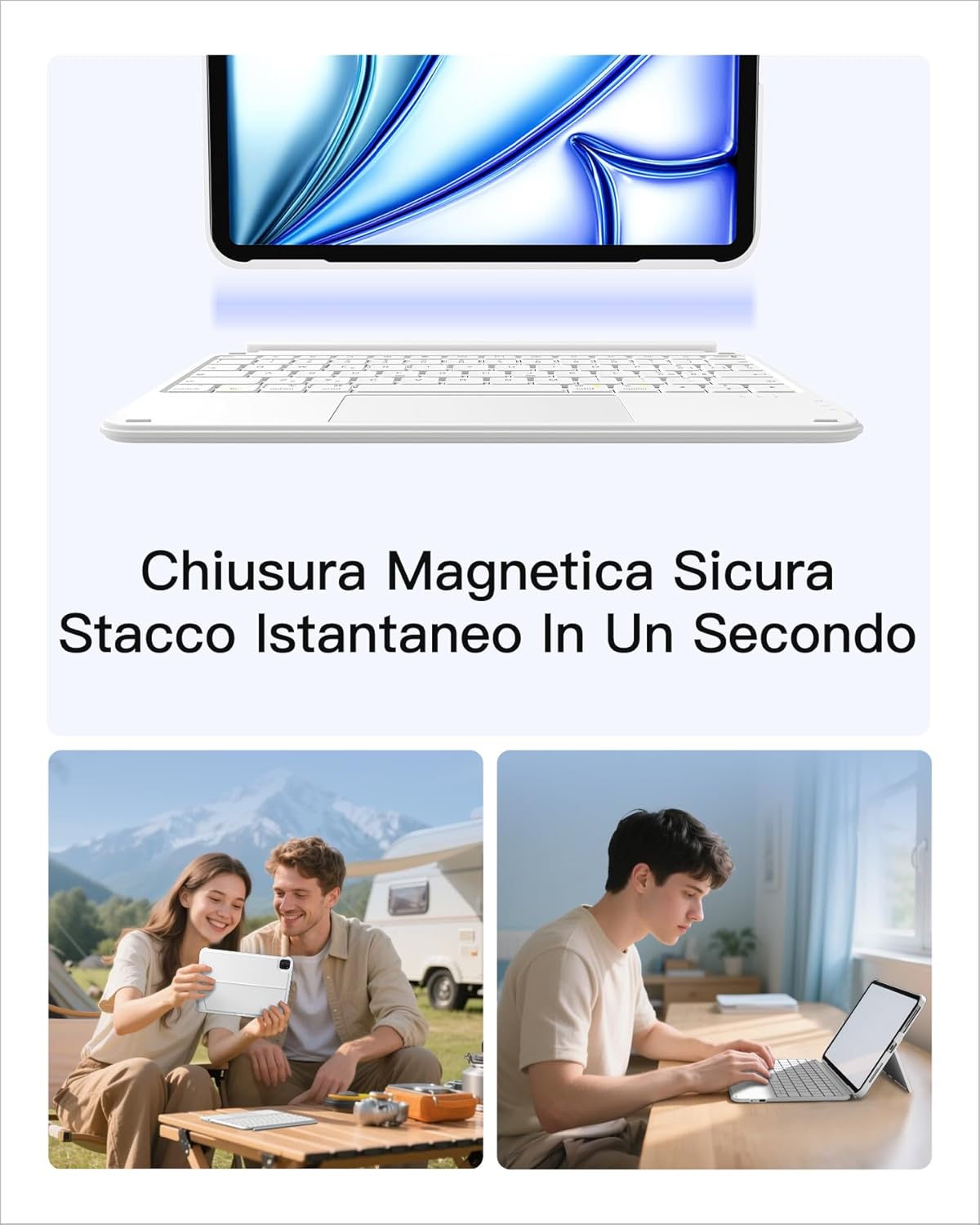
Image 1.3: The keyboard and case can be easily detached, offering versatile usage options.
2. Compatibility
The Inateck AceTouch Keyboard Case is designed for specific iPad models. Please verify your iPad model number to ensure compatibility.
2.1 Compatible iPad Models
- iPad 11th Gen (2025 A16): Models A3354, A3355, A3356
- iPad 10th Gen (10.9", 2022): Models A2696, A2757, A2777, A3162
- iPad Air 11" M3 (2025): Models A3266, A3267, A3270
- iPad Air 5th Gen (2022): Models A2591, A2589, A2588
- iPad Air 4th Gen (2020): Models A2325, A2324, A2316, A2072
- iPad Pro 11" 4th Gen (2022): Models A2435, A2759, A2761, A2762
- iPad Pro 11" 3rd Gen (2021): Models A2301, A2377, A2459, A2460
- iPad Pro 11" 2nd Gen (2020): Models A2228, A2068, A2230, A2231
- iPad Pro 11" 1st Gen (2018): Models A1980, A2013, A1934, A1979
Note: Not compatible with iPad Pro 11" M4 (2024).
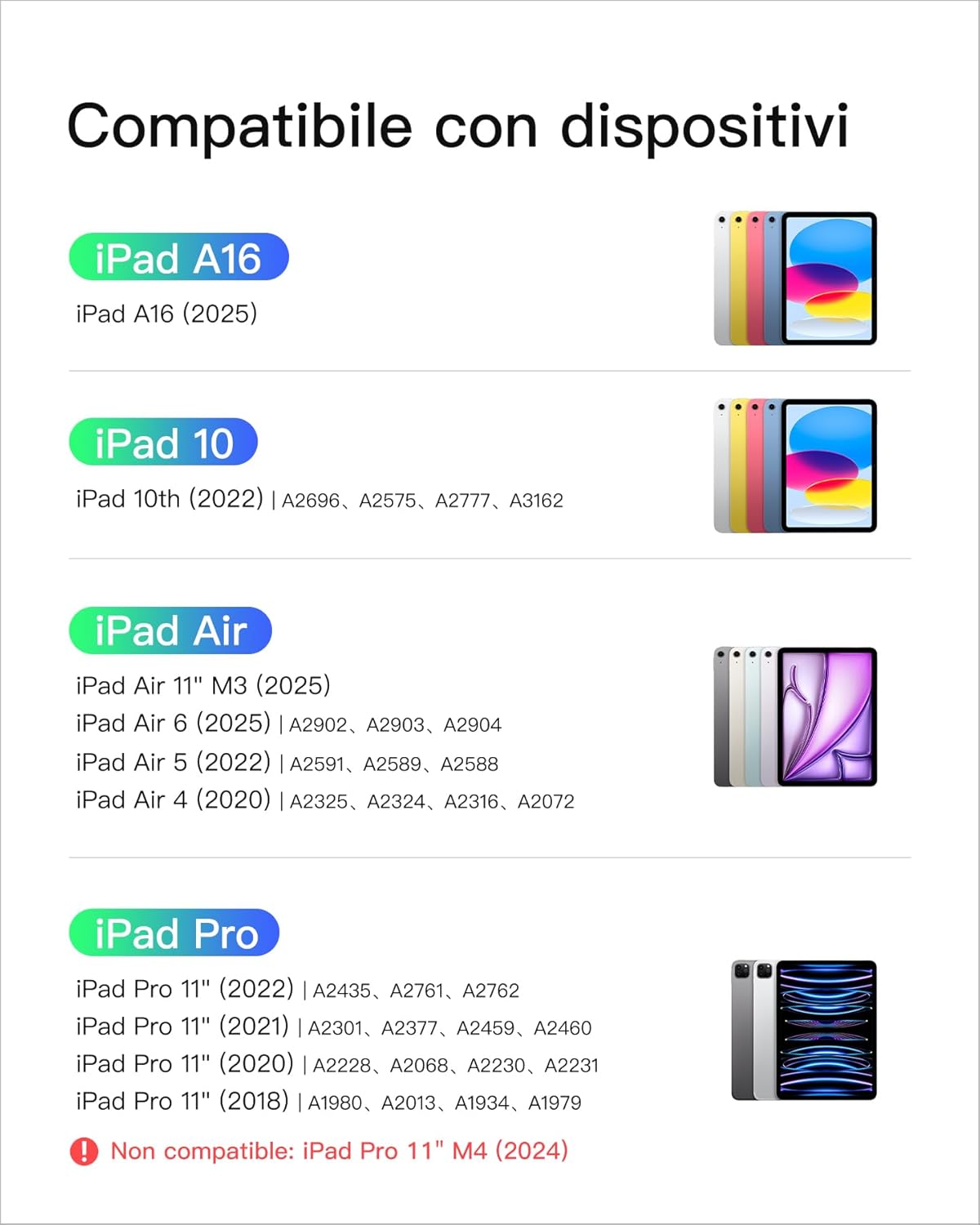
Image 2.1: Detailed compatibility list for iPad models.
3. Setup
3.1 Bluetooth Pairing
- Ensure the keyboard is charged.
- Turn on the keyboard using the power switch.
- On your iPad, go to Settings > Bluetooth.
- Enable Bluetooth.
- The keyboard (e.g., "Inateck Keyboard") should appear in the "Other Devices" list. Tap on it to connect.
- If prompted, enter the pairing code displayed on your iPad using the keyboard and press Enter.
- Once connected, the keyboard will show as "Connected" in your iPad's Bluetooth settings.
3.2 Touchpad Configuration for iPadOS
To optimize the touchpad experience, adjust the following settings on your iPad:
- Go to Settings > General > Trackpad.
- Adjust the "Tracking Speed" slider to your preference.
- Enable "Natural Scrolling" for intuitive content movement.
- Enable "Tap to Click" for single-finger tap actions.
- Enable "Two Finger Secondary Click" for right-click functionality.

Image 3.1: iPadOS Trackpad settings for enhanced touchpad functionality.
4. Operating Instructions
4.1 Keyboard Usage
The keyboard features a 1mm key travel and a scissor mechanism, providing a responsive and comfortable typing experience. It includes independent quick selection keys for efficient operation.

Image 4.1: Keyboard design with 1mm key travel for comfortable typing.

Image 4.2: Independent quick selection keys for enhanced productivity.
4.2 Touchpad Usage
The integrated multi-touch touchpad supports precise control with palm rejection. It allows for seamless navigation, clicking, application switching, and various creative gestures within iPadOS.

Image 4.3: Touchpad supporting precise multi-touch gestures for iPadOS.
4.3 Versatile Usage Modes
The detachable design and adjustable stand allow for multiple usage modes:
- Typing Mode: Use the keyboard for efficient text input.
- Viewing Mode: Detach the keyboard and use the case as a stand for watching videos or presentations.
- Drawing Mode: Position the iPad at a low angle for comfortable drawing or writing with a stylus.
- Reading Mode: Hold the iPad without the keyboard for a lightweight reading experience.
- Work Mode: Combine the keyboard and stand for a laptop-like setup.
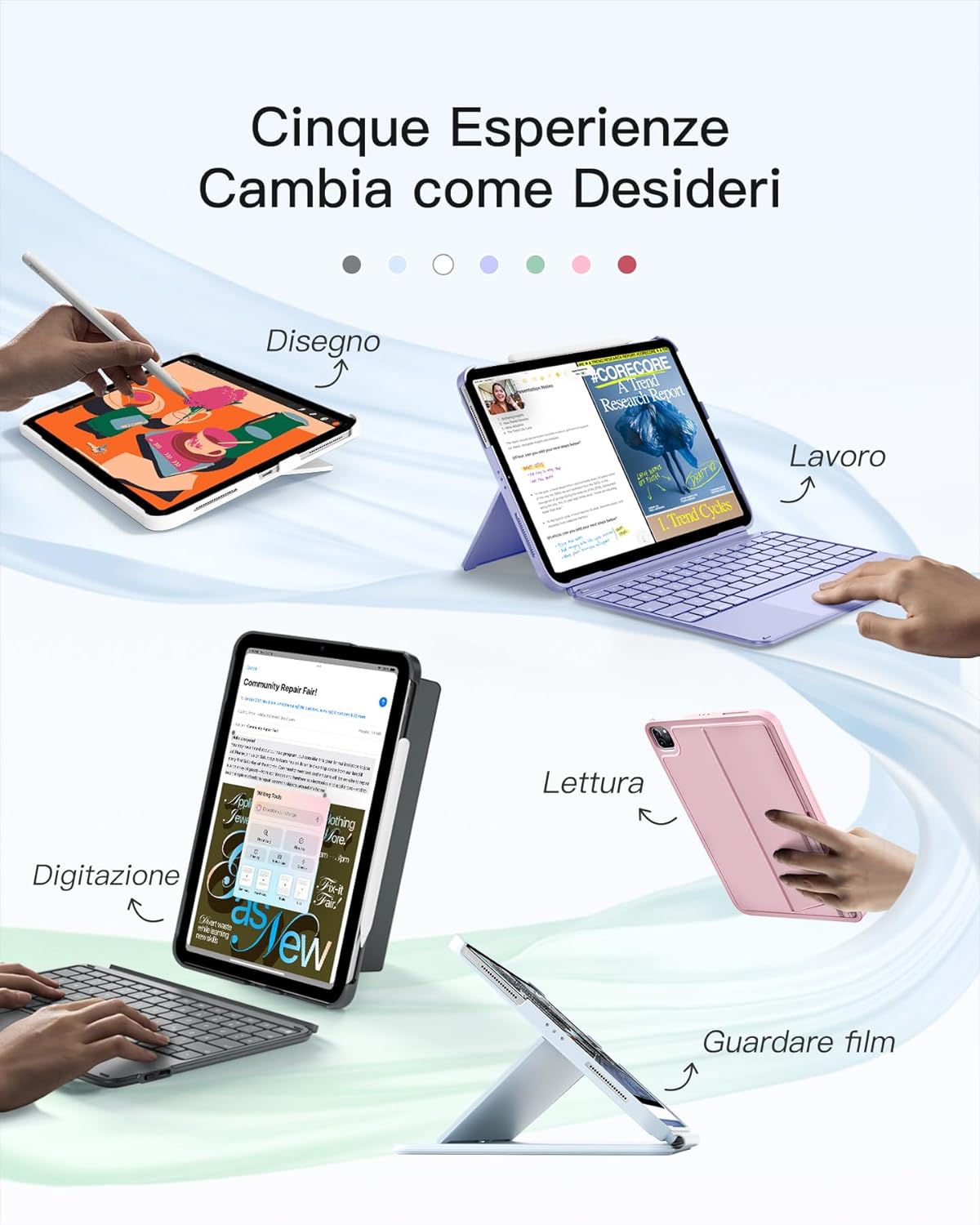
Image 4.4: The keyboard case supports five distinct usage experiences.
5. Maintenance
The Inateck AceTouch Keyboard Case is constructed from advanced materials that are comfortable to the touch and designed for easy cleaning.
5.1 Cleaning Instructions
- Gently wipe the exterior surfaces of the case and keyboard with a soft, damp cloth.
- Avoid using harsh chemicals, abrasive cleaners, or excessive moisture, as these can damage the product.
- Ensure the keyboard is powered off and disconnected from the iPad before cleaning.
- Allow all components to dry completely before reassembling or using.

Image 5.1: Advanced materials ensure comfort and ease of maintenance.
6. Troubleshooting
If you encounter issues with your Inateck AceTouch Keyboard Case, refer to the following common solutions:
6.1 Keyboard Not Connecting via Bluetooth
- Check Power: Ensure the keyboard is powered on and has sufficient battery charge.
- Re-pair Device: Go to iPad Settings > Bluetooth, forget the keyboard if it's listed, then re-initiate the pairing process (Section 3.1).
- Restart Devices: Restart both your iPad and the keyboard.
- Proximity: Ensure the keyboard is within close range of your iPad.
6.2 Touchpad Not Responding or Inaccurate
- Check iPadOS Settings: Verify that touchpad settings are correctly configured as described in Section 3.2.
- Clean Touchpad: Ensure the touchpad surface is clean and free of debris or moisture.
- Restart: Restart your iPad and the keyboard.
6.3 Keys Not Responding
- Bluetooth Connection: Confirm the keyboard is properly connected via Bluetooth.
- Battery Level: Check the keyboard's battery level.
- Restart: Power cycle the keyboard and iPad.
7. Specifications
| Brand | Inateck |
| Model Number | KB04122NEW1-BU-SWIT2 |
| Compatible Devices | Tablet (Specific iPad models listed in Section 2) |
| Connectivity Technology | Bluetooth |
| Special Feature | Integrated Trackpad |
| Keyboard Description | Flexible |
| Keyboard Layout | QWERTY |
| Hand Orientation | Ambidextrous |
| Item Weight | 449 g |
| Package Dimensions | 29.01 x 22.2 x 3.3 cm |
| Batteries | 1 Lithium Ion battery required (included) |
| Color | Blue |
8. Warranty and Support
For warranty information, technical support, or customer service inquiries, please refer to the documentation included with your product or visit the official Inateck website. Specific warranty terms and conditions may vary by region and purchase location.
You can typically find support resources, FAQs, and contact information on the manufacturer's website:
Related documentsAceTouch KB04122NEW1


Ask a question about this manual
Ask about setup, troubleshooting, compatibility, parts, safety, or missing instructions. Manuals+ will review the question and use this page’s manual context to help answer it.