1. Introduction
Thank you for choosing the SHOPLIX Wireless Wifi Video Doorbell. This manual provides detailed instructions for the installation, operation, and maintenance of your new device. Please read this manual thoroughly before use and retain it for future reference.
2. Package Contents
Ensure all items are present in the package:
- 1 x Wireless Video Doorbell Unit
- 1 x Wireless Chime Unit (European Standard Plug)
- Installation Accessories (screws, wall anchors)
- 1 x User Manual
- 1 x Sticker
3. Product Overview
3.1. Key Features
- 720P HD Video: Provides clear video resolution at 30 frames per second.
- Two-Way Talk: Real-time audio communication with echo cancellation.
- PIR Motion Detection: Detects movement and sends notifications.
- Wide-Angle Lens: 133-degree view for comprehensive coverage.
- Night Vision: Clear visibility in low-light conditions.
- Remote Monitoring: Access live video and notifications via mobile app.
- Wireless Chime: Audible alert inside your home when the doorbell is pressed.
3.2. Device Components
Familiarize yourself with the main components of your video doorbell system.

Figure 1: Wireless Video Doorbell Unit. This is the outdoor unit that houses the camera, microphone, speaker, and doorbell button.
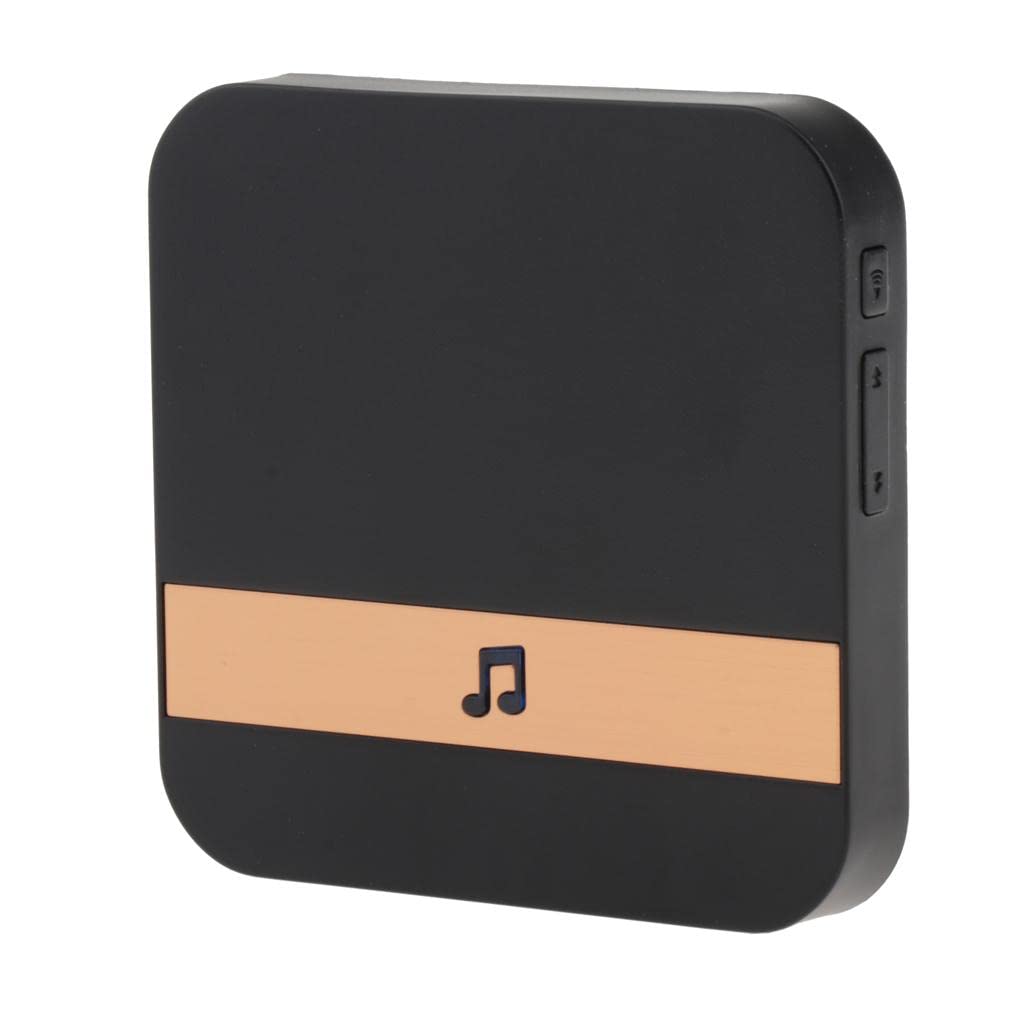
Figure 2: Wireless Chime Unit (Front View). This indoor unit plugs into a standard power outlet and produces an audible alert when the doorbell is pressed. It features volume and melody control buttons on the side.
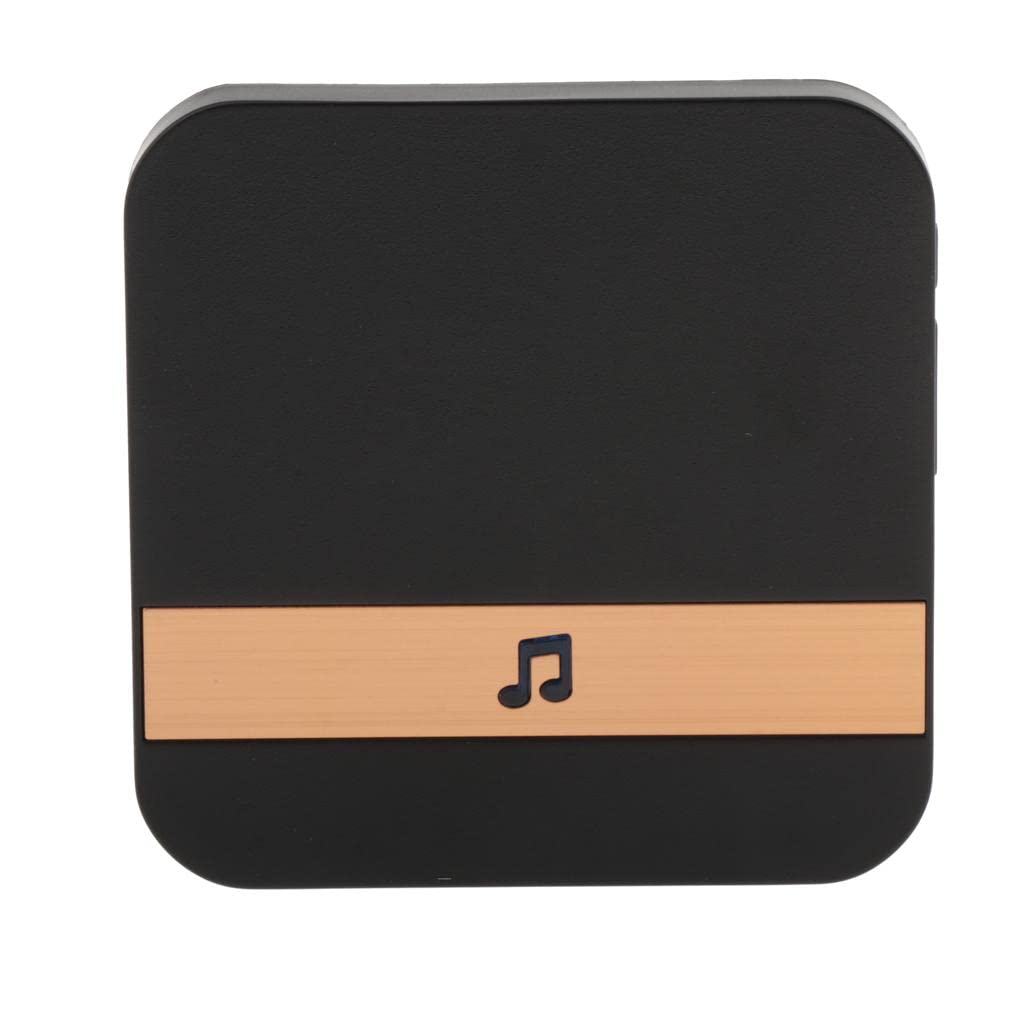
Figure 3: Wireless Chime Unit (Back View). Shows the European standard plug for power connection.
4. Setup and Installation
4.1. Doorbell Unit Installation
- Choose Location: Select a suitable location near your door, ensuring a clear view and good Wi-Fi signal.
- Mark Holes: Use the mounting bracket (if provided) to mark the screw holes on the wall.
- Drill Holes: Drill pilot holes and insert wall anchors if necessary.
- Mount Doorbell: Secure the doorbell unit to the wall using the provided screws.
4.2. Chime Unit Setup
Plug the wireless chime unit into a standard European power outlet inside your home. Ensure it is within range of the doorbell unit for optimal performance.
4.3. App Download and Wi-Fi Connection
- Download App: Search for the designated mobile application (refer to the packaging or included manual for the app name) on your smartphone's app store (iOS or Android).
- Create Account: Open the app and follow the on-screen instructions to create a new user account.
- Add Device: Select "Add Device" or a similar option within the app.
- Power On Doorbell: Ensure your doorbell unit is powered on and in pairing mode (usually indicated by a flashing light).
- Connect to Wi-Fi: Follow the app's instructions to connect the doorbell to your home 2.4GHz Wi-Fi network. You may need to scan a QR code generated by the app with the doorbell's camera.
- Complete Setup: Once connected, name your doorbell and complete the setup process in the app.
5. Operating Instructions
5.1. Receiving Notifications
When someone presses the doorbell button, you will receive an immediate notification on your smartphone via the connected app. The indoor chime unit will also sound an alert.
5.2. Two-Way Communication
Upon receiving a doorbell notification, open the app to view the live video feed. You can then initiate two-way communication by tapping the microphone icon in the app to speak with the visitor.
5.3. Motion Detection Alerts
The doorbell's passive infrared (PIR) sensor detects movement in its field of view. When motion is detected, you will receive a notification on your smartphone. You can adjust the sensitivity of motion detection within the app settings.
5.4. Remote Live View
You can access the live video feed from your doorbell at any time through the mobile app, allowing you to monitor your doorstep remotely.
5.5. Chime Volume and Melody
The indoor chime unit typically has buttons on its side to adjust the volume and cycle through different melody options. Refer to Figure 2 for button locations.
6. Maintenance
- Cleaning: Gently wipe the doorbell camera lens and body with a soft, damp cloth. Avoid abrasive cleaners or solvents.
- Battery (if applicable): If your doorbell uses rechargeable batteries, ensure they are charged regularly according to the app's notifications.
- Firmware Updates: Periodically check the mobile app for available firmware updates to ensure optimal performance and security.
- Wi-Fi Connection: Ensure your Wi-Fi network is stable and the doorbell has a strong signal.
7. Troubleshooting
| Problem | Possible Solution |
|---|---|
| Doorbell not connecting to Wi-Fi. |
|
| No notifications on phone. |
|
| Chime not sounding. |
|
| Poor video quality. |
|
8. Specifications
| Model Number | 11691 |
| Video Resolution | 720P / 30fps |
| Lens Sensor | OV 9732 |
| Lens Wide-Angle | 133 degrees (no distortion) |
| WIFI Model | DSX-H131 |
| Intercom Type | Two-way voice real-time intercom with echo canceller |
| Material | PVC |
| Doorbell Unit Dimensions | Approx. 144 x 74.5 x 32 mm (5.67 x 2.93 x 1.26 inches) |
| Chime Unit Dimensions | Approx. 8 x 8 x 3 cm (3.15 x 3.15 x 1.18 inches) |
| Power Supply (Chime) | European Standard Plug |
9. Safety Information
- Do not expose the device to extreme temperatures, direct sunlight, or excessive moisture.
- Avoid dropping or subjecting the device to strong impacts.
- Do not attempt to disassemble or repair the device yourself. Contact support for assistance.
- Ensure proper electrical connections for the chime unit to prevent hazards.
10. Warranty and Support
For warranty information and technical support, please refer to the documentation provided with your purchase or contact SHOPLIX customer service through their official website or the contact details listed on the product packaging.