
1. Introduction
Thank you for choosing the 4DRC V14 Professional Drone. This manual provides essential information for the safe operation, setup, and maintenance of your drone. Please read this manual thoroughly before operating the device to ensure proper function and to avoid damage.
2. What's in the Box
The 4DRC V14 Professional Drone package includes the following components:
- Drone
- Remote Control
- Spare Propellers (set)
- USB Charging Cable
- Carrying Case

Image: The 4DRC V14 Professional Drone shown with its remote control, spare propellers, USB charging cable, and carrying case, illustrating all components included in the package.
3. Setup Guide
3.1 Battery Installation and Charging
The 4DRC V14 drone utilizes modular batteries for extended flight time. Ensure batteries are fully charged before first use.
- Insert the modular battery into the designated compartment on the drone until it clicks securely into place.
- To charge, remove the battery from the drone. Connect the USB charging cable to the battery and a suitable USB power adapter (not included).
- The charging indicator light will show the charging status. Refer to the battery's specific instructions for full charge indication.

Image: A detailed view of the modular battery design, highlighting its easy insertion and removal for charging and replacement.
3.2 Propeller Attachment
Attach the propellers according to the markings on the drone arms and propellers (e.g., A and B). Ensure they are firmly secured.
3.3 Remote Control Preparation
Install 3x AAA batteries (not included) into the remote control. Power on the remote control and then the drone. Pair the devices by following the instructions in the quick start guide.
3.4 App Download and Connection
Download the official 4DRC drone application from your smartphone's app store. Connect your smartphone to the drone's Wi-Fi network (usually named '4DRC-V14-XXXX'). Open the app to access FPV view and advanced flight controls.
4. Operating Instructions
4.1 Basic Flight Controls
Familiarize yourself with the remote control's joysticks and buttons. The left joystick typically controls altitude and rotation, while the right joystick controls forward/backward and left/right movement.
One-Key Take-Off and Landing
Press the one-key take-off button to automatically launch the drone to a stable hovering altitude. Press the one-key landing button to initiate an automatic descent and landing.

Image: Two 4DRC V14 drones illustrating the one-key take-off (upward arrow) and one-key landing (downward arrow) functions, simplifying flight initiation and conclusion.
Altitude Hold Mode
The drone features an optical flow sensor that provides stable altitude and position holding, allowing it to hover steadily at a set height. This assists in easier control and photography.

Image: A man looking up at the 4DRC V14 drone, which is hovering stably in the air, demonstrating the intelligent stable hover feature enabled by its optical flow sensor.
4.2 Advanced Flight Features
FPV Function and Camera Operation
The 1080P HD camera with an adjustable wide-angle lens captures high-quality video and clear aerial photos. Utilize the FPV transmission to view live video feed from up to 80 meters away directly on your smartphone.
Trajectory Flight
Within the app, you can draw a desired flight path on your phone screen. The drone will automatically follow this pre-set route, allowing for complex flight maneuvers with ease.
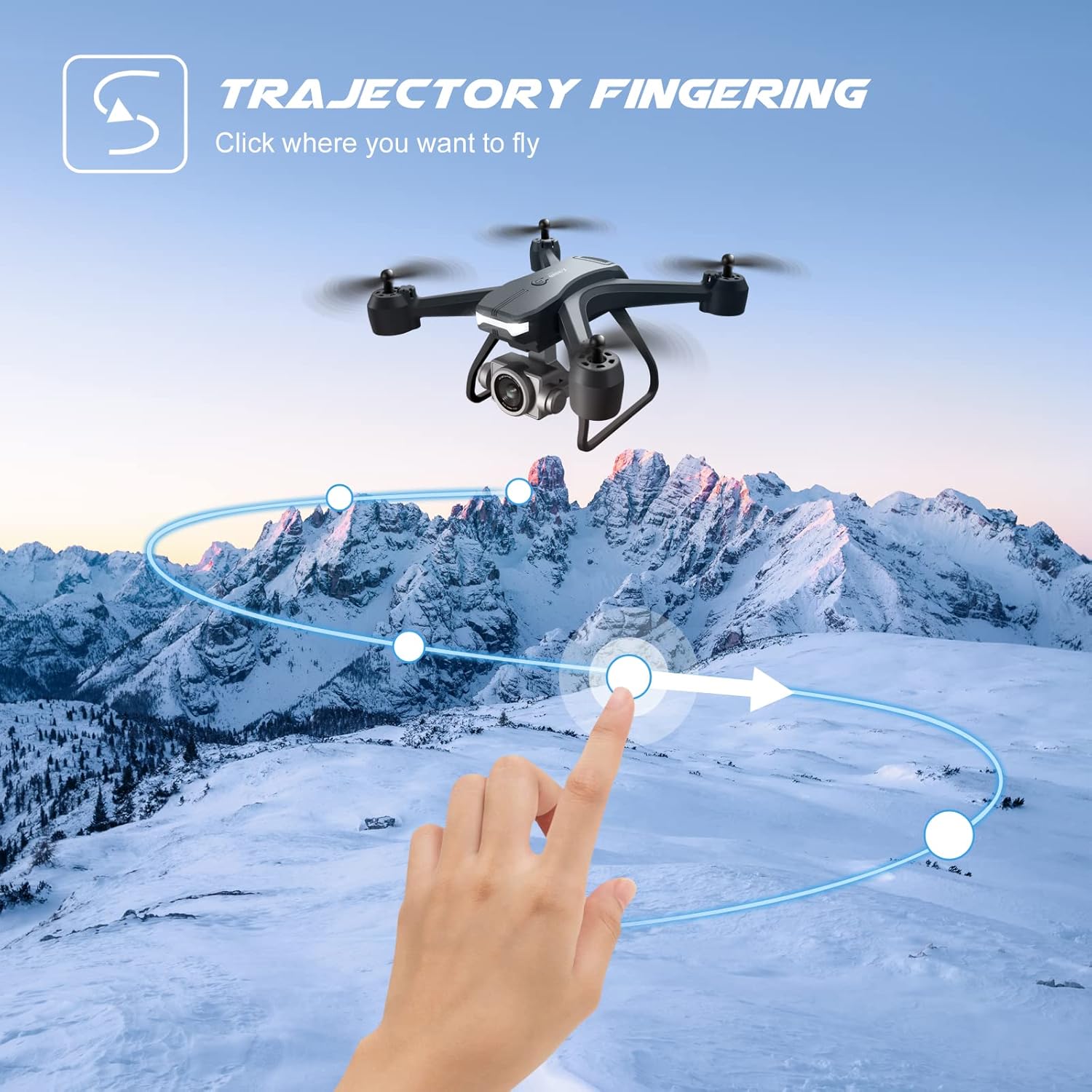
Image: A hand interacting with a smartphone screen, drawing a circular flight path for the 4DRC V14 drone, which is depicted flying along a similar trajectory over a snowy mountain landscape.
Gesture Control
The drone supports intelligent gesture control for convenient photo and video capture. Simply raise your hand to trigger a photo or pose a 'V' sign for video recording.

Image: Four individuals jumping with their hands raised, demonstrating the gesture control feature of the 4DRC V14 drone, which automatically recognizes gestures for taking photos or videos.
Multiple Flight Modes
The V14 drone offers various flight modes including 3D Flips, Gravity Sensor Mode, Headless Mode, and 3 Speed Mode adjustment, enhancing the flight experience for different skill levels.
5. Maintenance
5.1 Battery Care
Always store batteries in a cool, dry place. Avoid overcharging or completely draining the batteries. If not used for an extended period, charge them to approximately 50% capacity every three months.
5.2 Propeller Inspection and Replacement
Regularly inspect propellers for any signs of damage, cracks, or bends. Damaged propellers can affect flight stability and safety. Replace them with spare propellers as needed, ensuring correct orientation (A/B markings).
5.3 Cleaning the Drone
Use a soft, dry cloth to clean the drone's body and camera lens. Avoid using harsh chemicals or liquids that could damage electronic components.
5.4 Storage
When not in use, store the drone and its accessories in the provided carrying case to protect them from dust, impact, and environmental factors.

Image: The 4DRC V14 drone, remote control, and other accessories neatly organized within its dedicated carrying case, emphasizing convenient and protective storage.
6. Troubleshooting
If you encounter any issues with your 4DRC V14 drone, please refer to the following common solutions:
- Drone not powering on: Ensure batteries are fully charged and correctly inserted. Check the power button on both the drone and remote control.
- Unstable flight/Drifting: Calibrate the drone's gyroscope and accelerometer as per the quick start guide. Inspect propellers for damage or incorrect installation.
- No FPV video feed: Confirm your smartphone is connected to the drone's Wi-Fi network. Ensure the app is open and has necessary permissions.
- Remote control not responding: Check remote control batteries. Re-pair the remote control with the drone.
- Short flight time: Ensure batteries are fully charged. Flight time can be affected by wind conditions and aggressive flying.
For persistent issues or further assistance, please contact 4DRC customer support.
7. Specifications
| Feature | Detail |
|---|---|
| Brand | 4DRC |
| Model Name | V14 |
| Special Feature | First Person View (FPV) |
| Color | Grey |
| Video Capture Resolution | 4K |
| Effective Still Resolution | 6 MP |
| Connectivity Technology | Wi-Fi |
| Included Components | Carrying Case, Drone, Remote Control, Spare Propellers, USB Charging Cable |
| Skill Level | Intermediate |
| Item Weight | 1 Pounds |
| Remote Control Technology | Wifi Fpv |
| Material | Metal, Plastic |
| Battery Cell Composition | Lithium Ion |
| Are Batteries Included | Yes (2 Nonstandard Battery batteries required, included) |
| Product Dimensions | 11"L x 5.5"W x 11"H |
| Manufacturer Part Number | 4drc-v14 |
8. Support
For any questions regarding the 4DRC V14 Professional Drone, including features, operation, maintenance, or repairs, please contact our dedicated customer service representatives. We are committed to assisting you with any flying problems you may encounter.
Please refer to the product packaging or the official 4DRC website for specific contact information.


