
iphoenix IP190
IP190 Portable Bluetooth Speaker User Manual
Model: IP190
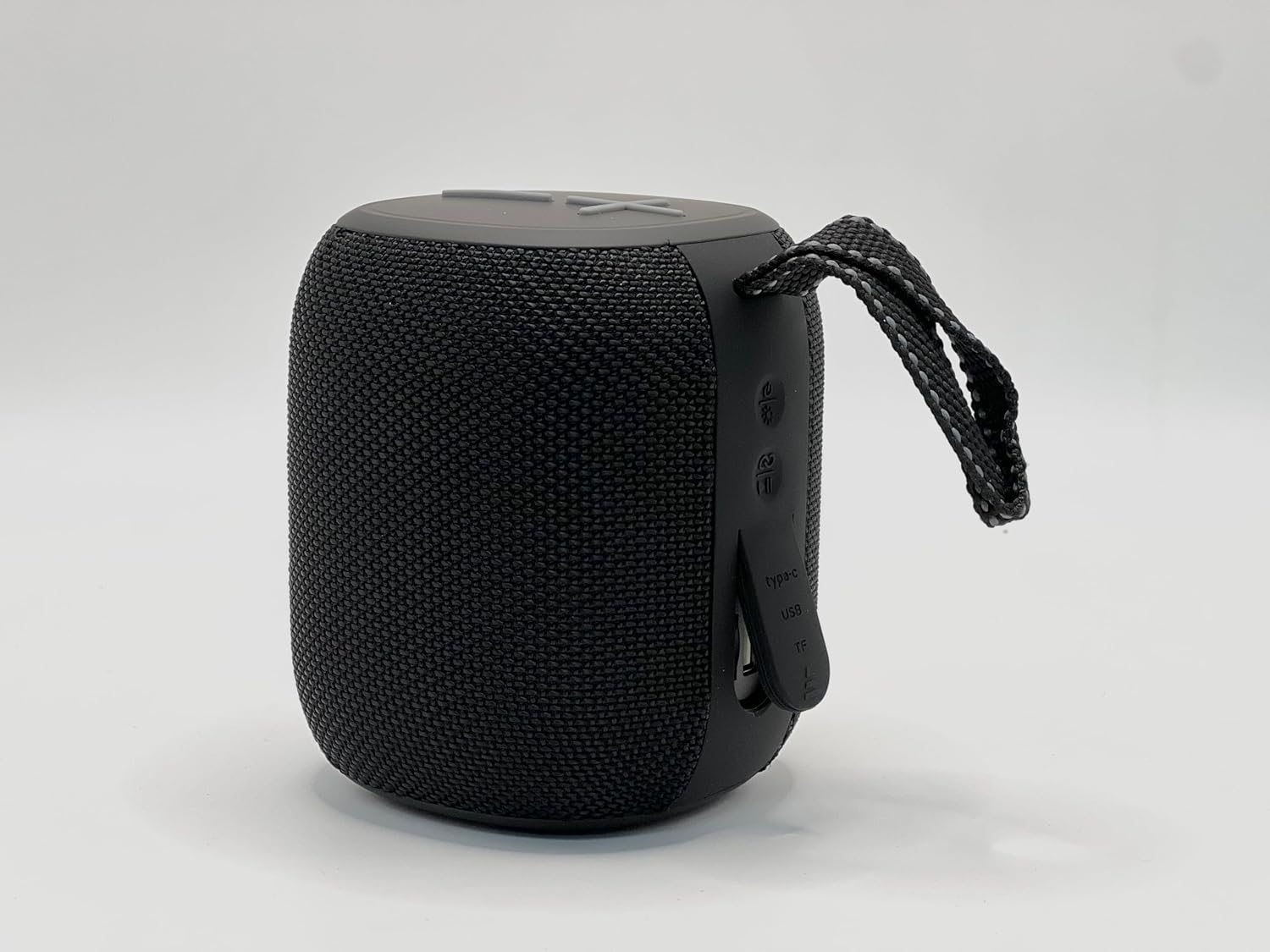
This image shows the iphoenix IP190 Portable Bluetooth Speaker from the front, highlighting its compact design and the integrated LED light ring.
Introduction
Thank you for choosing the iphoenix IP190 Portable Bluetooth Speaker. This manual provides essential information for setting up, operating, maintaining, and troubleshooting your new speaker. Please read it carefully before use to ensure optimal performance and longevity of your device.
Setup
What's in the Box
- IP190 Portable Bluetooth Speaker
- Charging Cable (USB Type-C)
- User Manual (this document)
Charging the Speaker
Before first use, fully charge the speaker. The IP190 speaker has a built-in rechargeable battery.
- Locate the Type-C USB charging port on the side of the speaker.
- Connect the provided USB Type-C cable to the speaker's charging port.
- Connect the other end of the USB cable to a compatible USB power adapter (not included) or a computer's USB port.
- The LED indicator will show charging status (e.g., solid red while charging, off when fully charged).
- A full charge typically takes approximately 3-4 hours.

This image displays the side of the IP190 speaker, clearly showing the Type-C USB charging port and the TF (MicroSD) card slot.
Initial Power On
To power on the speaker:
- Press and hold the Power button (usually indicated by a power symbol) located on the control panel for a few seconds until you hear an audible prompt or see the LED lights activate.
Operating Instructions
Bluetooth Pairing
The IP190 speaker is designed for wireless audio streaming via Bluetooth.
- Ensure the speaker is powered on and in Bluetooth pairing mode (indicated by a flashing blue LED). If not, briefly press the Bluetooth button (if available) or power cycle the device.
- On your smartphone, tablet, or other Bluetooth-enabled device, go to the Bluetooth settings.
- Search for available devices. You should see "IP190" or a similar name in the list.
- Select "IP190" to connect. Once successfully paired, you will hear a confirmation sound, and the LED indicator will turn solid blue.
- The speaker will automatically attempt to reconnect to the last paired device when powered on.
Controlling Playback
The speaker features top-mounted control buttons for easy operation.
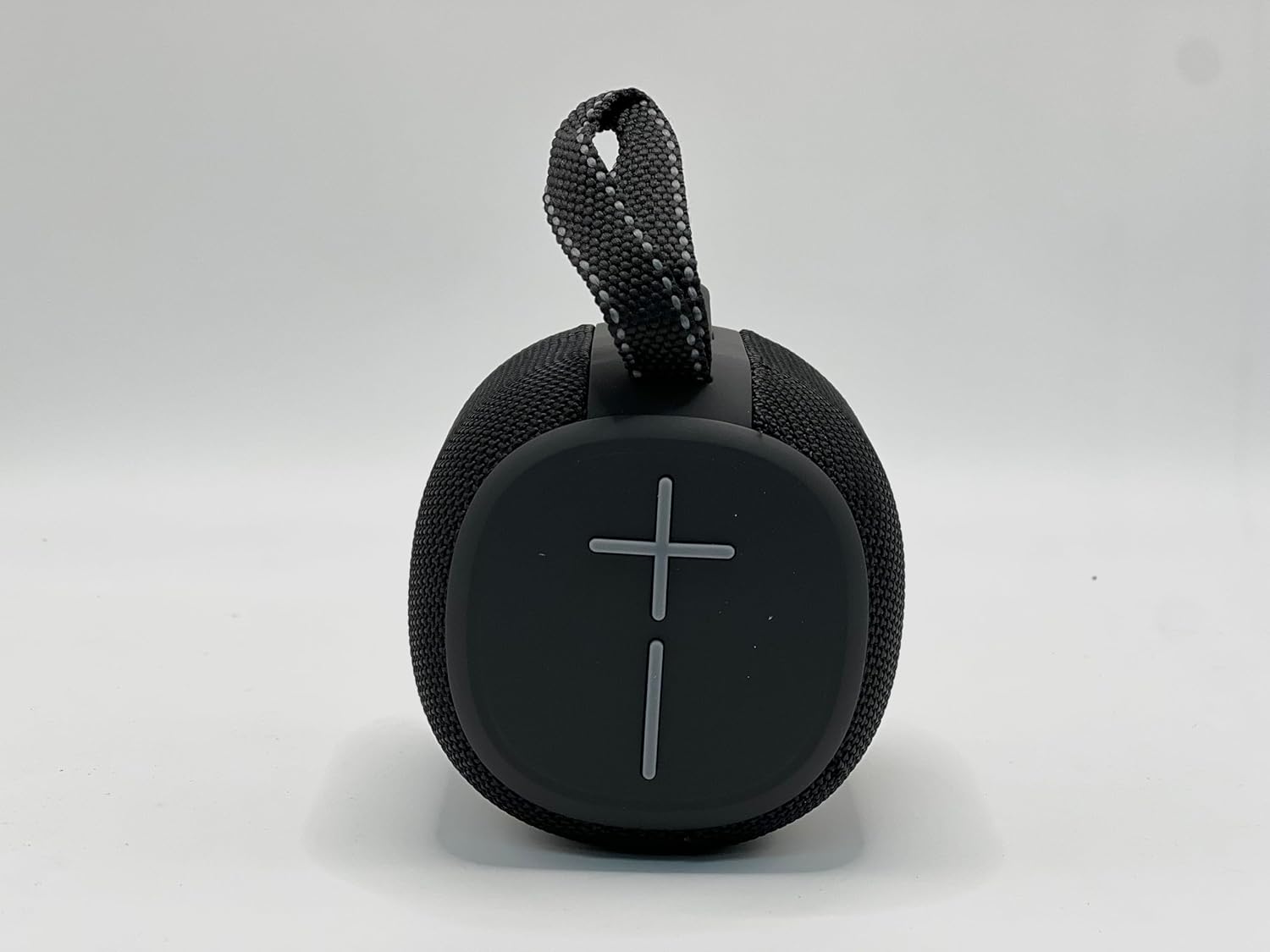
This image shows the top panel of the IP190 speaker with its intuitive control buttons, including volume and playback controls.
- Volume Up (+): Short press to increase volume.
- Volume Down (-): Short press to decrease volume.
- Play/Pause: Short press the Play/Pause button to play or pause audio.
- Next Track: Long press the Volume Up (+) button to skip to the next track.
- Previous Track: Long press the Volume Down (-) button to go to the previous track.
- Call Management: Short press Play/Pause to answer/end calls. Long press to reject calls.
LED Light Effects
The IP190 speaker features dynamic RGB light effects that enhance your listening experience.
- The LED ring around the speaker will pulse and change colors in sync with the music.
- To cycle through light modes or turn off the lights, refer to the specific light mode button (if available) or consult the quick start guide for your model.
Waterproof Usage (IPX6 Rated)
The IP190 speaker is IPX6 rated, meaning it is protected against high-pressure water jets from any direction. This makes it suitable for outdoor use and near water.
- Do not submerge the speaker in water. IPX6 rating protects against splashes and rain, not full submersion.
- Ensure the charging port cover is securely closed before exposing the speaker to water.
- After exposure to water, wipe the speaker dry with a soft cloth before charging.
Other Connectivity Options
- TF Card Playback: Insert a MicroSD (TF) card loaded with MP3 audio files into the TF card slot. The speaker will automatically switch to TF card mode and begin playback.
- USB Playback: Connect a USB flash drive with audio files to the USB port (if available and functional for playback).
Maintenance
- Cleaning: Use a soft, dry cloth to clean the speaker's exterior. For stubborn dirt, a slightly damp cloth can be used, but ensure the speaker is completely dry before use or charging. Do not use harsh chemicals or abrasive cleaners.
- Storage: Store the speaker in a cool, dry place away from direct sunlight and extreme temperatures.
- Battery Care: To prolong battery life, avoid fully discharging the speaker frequently. If storing for an extended period, charge the battery to about 50% every few months.
Troubleshooting
| Problem | Possible Cause | Solution |
|---|---|---|
| Speaker does not power on. | Battery is low or depleted. | Charge the speaker fully. |
| No sound from speaker. | Volume is too low; Speaker not paired; Audio source issue. | Increase speaker and device volume; Re-pair the speaker; Check audio source. |
| Bluetooth pairing fails. | Speaker not in pairing mode; Device too far; Interference. | Ensure speaker is in pairing mode; Move device closer (within 10 meters); Turn off other Bluetooth devices. |
| LED lights not working. | Light mode off; Malfunction. | Check if there's a dedicated light mode button to activate; If not, contact support. |
Specifications
| Feature | Detail |
|---|---|
| Model Name | IP190 |
| Brand | iphoenix |
| Connectivity Technology | Bluetooth |
| Wireless Communication Technology | Bluetooth |
| Water Resistance Level | IPX6 Rated |
| Speaker Type | Portable |
| Special Feature | LED Light |
| Power Source | Battery Powered |
| Battery Life | 6 Hours |
| Speaker Maximum Output Power | 10 Watts |
| Product Dimensions | 4.5"D x 4.5"W x 5"H |
| Item Weight | 2 Pounds |
| Color | Black |
| Material | Plastic |
| Maximum Range | 10 Meters (Bluetooth) |
| Included Components | Bluetooth Speaker |
Warranty and Support
The iphoenix IP190 Portable Bluetooth Speaker comes with a Limited Manufacturer Warranty. Please refer to the warranty card included in your product packaging for specific terms and conditions, including coverage duration and what is covered.
For technical support, troubleshooting assistance, or warranty claims, please contact iphoenix customer service through the contact information provided on the product packaging or the official iphoenix website. When contacting support, please have your product model number (IP190) and purchase details ready.
For more information, visit: iphoenix Brand Store on Amazon
Related documentsIP190


Ask a question about this manual
Ask about setup, troubleshooting, compatibility, parts, safety, or missing instructions. Manuals+ will review the question and use this page’s manual context to help answer it.