
Havit KB896L
Havit x VKS Keyd KB896L RGB Mechanical Gaming Keyboard User Manual
Model: KB896L
Introduction
Thank you for choosing the Havit x VKS Keyd KB896L RGB Mechanical Gaming Keyboard. This manual provides essential information for setting up, operating, maintaining, and troubleshooting your new keyboard. Please read it carefully to ensure optimal performance and longevity of your device.
Key Features
- Durable Aluminum Alloy Body: Crafted from anodized aluminum for a solid, stable, and aesthetic design.
- Customizable Modular Design: Features a plug-in internal module for easy switch and frame replacement, allowing personalized setups.
- Rapid Response: Ultra-low 8ms latency, full N-key rollover, and anti-ghosting for precise and quick actions.
- Advanced VIA Software Customization: Powerful and user-friendly software for customizing game modes, lighting effects, macros, and more.
- Exclusive VKS x HAVIT Accessories: Includes official VKS team emblem and custom stickers.
- RGB Lighting: Customizable RGB illumination to enhance your gaming experience.
- Compact 71-Key Layout: Efficient design for gaming and productivity.
- Hot-Swappable Switches: Easy keycap and switch replacement.

Figure 1: Overview of the Havit KB896L's 8 core features, including aluminum casing, modular design, rapid response, gasket structure, VIA software, RGB lights, 71-key layout, and hot-swappable switches.

Figure 2: A gamer utilizing the Havit KB896L keyboard, demonstrating its rapid response capabilities in action.
Setup Guide
- Unpack the Keyboard: Carefully remove the keyboard and all accessories from the packaging.
- Connect to PC:
- Locate the USB-C cable provided with your keyboard.
- Plug the USB-C end into the port on the keyboard.
- Plug the USB-A end into an available USB port on your computer.
The keyboard is plug-and-play and should be recognized by your operating system automatically. No additional drivers are typically required for basic functionality.
- Install VIA Software (Optional but Recommended):
- For advanced customization of key assignments, macros, and RGB lighting, download the VIA software from the official Havit website or the provided link (if available).
- Follow the on-screen instructions to install the software.
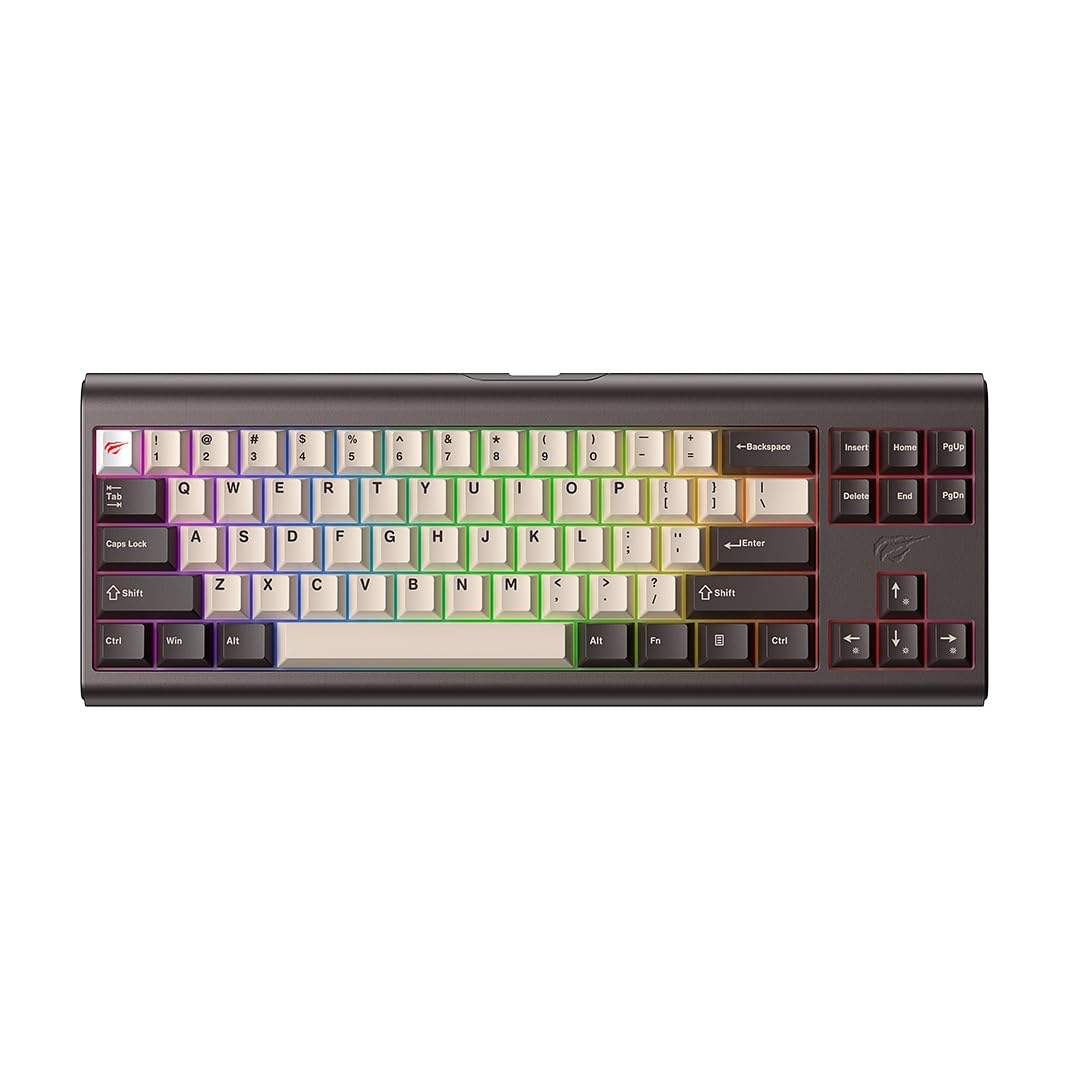
Figure 3: The Havit KB896L keyboard, ready for connection.
Operating Instructions
Basic Usage
The Havit KB896L functions as a standard QWERTY keyboard. Simply connect it to your PC, and it will be ready for use. The compact 71-key layout includes essential keys for gaming and general productivity.
RGB Lighting Control
Your keyboard features customizable RGB lighting. You can cycle through various lighting effects and adjust brightness directly on the keyboard using function key combinations, or through the VIA software for more granular control.
- Changing Lighting Modes: Refer to the keyboard's specific key combinations (often Fn + a designated key like '\' or 'Ins') to cycle through pre-set RGB effects.
- Adjusting Brightness/Speed: Use Fn + arrow keys (up/down for brightness, left/right for speed) to modify lighting parameters.

Figure 4: The KB896L keyboard showcasing its vibrant RGB illumination.
VIA Software Customization
The VIA software unlocks the full potential of your keyboard, allowing you to:
- Remap Keys: Assign any key to a different function.
- Create Macros: Record and assign complex sequences of keystrokes to a single key.
- Customize RGB Effects: Design your own lighting patterns and colors.
- Manage Layers: Configure multiple key layouts for different applications or games.
For detailed instructions on using the VIA software, please refer to the software's built-in help or the official VIA documentation online.

Figure 5: The customizable design of the KB896L, highlighting hot-swappable switches and keycaps.
Hot-Swappable Switches
The KB896L features hot-swappable switches, allowing you to change individual switches without soldering. This enables customization of typing feel and sound.
- Remove Keycap: Use the included keycap puller to gently remove the desired keycap.
- Remove Switch: Use the included switch puller to carefully grip and pull out the switch.
- Insert New Switch: Align the pins of the new switch with the holes on the PCB and press firmly until it clicks into place. Ensure pins are not bent.
- Replace Keycap: Press the keycap onto the new switch stem.

Figure 6: Internal structure of the KB896L, illustrating the layers including switches, aluminum plate, and various foam dampeners for sound and feel optimization.
Maintenance and Care
- Cleaning the Keyboard:
- Disconnect the keyboard from your computer before cleaning.
- Use a can of compressed air to remove dust and debris from between the keycaps.
- Wipe the keycaps and keyboard surface with a soft, slightly damp, lint-free cloth. Avoid excessive moisture.
- Do not use harsh chemicals, solvents, or abrasive cleaners.
- Keycap and Switch Care:
- When removing keycaps or switches, do so gently to avoid damaging the components.
- Store spare keycaps and switches in a safe, dry place.
- Cable Management: Avoid sharp bends or excessive pulling on the USB-C cable to prevent damage.
Troubleshooting
| Problem | Possible Cause | Solution |
|---|---|---|
| Keyboard not responding | Loose cable connection, faulty USB port, driver issue. |
|
| RGB lighting not working or incorrect | Lighting mode not selected, software conflict, power issue. |
|
| Specific keys not working | Faulty switch, bent switch pin, software remapping. |
|
| VIA software not detecting keyboard | Software not installed correctly, firmware issue, connection problem. |
|
Specifications
| Feature | Detail |
|---|---|
| Brand | Havit |
| Model Number | KB896L - VKS |
| Connectivity Technology | USB-C |
| Compatible Devices | PC |
| Keyboard Description | Mechanical |
| Switch Type | Mechanical (Longhua Red) |
| Special Features | Customizable RGB lighting, VIA customization software |
| Keyboard Layout | QWERTY |
| Color | BRONZE/BLACK |
| Material | Aluminum Alloy |
| Item Dimensions (L x W x H) | 36 cm x 13.2 cm x 4 cm |
| Item Weight | 1.8 kg |
| Number of Keys | 71 |
| Operating Voltage | 5V ± 0.5V |
| Operating Current | ≤350mA |
| Key Lifespan | 50,000,000 times |
| Cable Length | 1.2m (2.4m when stretched) |
| Country of Origin | China |
Warranty Information
The Havit x VKS Keyd KB896L RGB Mechanical Gaming Keyboard comes with a 1-year manufacturer's warranty. This warranty covers defects in materials and workmanship under normal use. It does not cover damage caused by misuse, accidents, unauthorized modifications, or normal wear and tear.
Please retain your proof of purchase for warranty claims. For specific warranty terms and conditions, refer to the documentation included with your product or visit the official Havit website.
Support
If you encounter any issues not covered in the troubleshooting section or require further assistance, please contact Havit customer support:
- Official Havit Website: www.havit.com (Check for support contact information, FAQs, and driver/software downloads)
- Email Support: Refer to the Havit website for the most current support email address.
- Online Resources: Look for community forums or support pages related to Havit products.
When contacting support, please have your product model (KB896L) and proof of purchase ready.
Related documentsKB896L


Ask a question about this manual
Ask about setup, troubleshooting, compatibility, parts, safety, or missing instructions. Manuals+ will review the question and use this page’s manual context to help answer it.