
1. Introduction
This manual provides essential information for the safe and efficient use of your DOOGEE U11 Android 16 Tablet. Please read it thoroughly before operating the device and retain it for future reference.

Image 1.1: Front and back view of the DOOGEE U11 Tablet, highlighting its sleek design and camera module.
2. Safety Information
To prevent damage to your device or injury to yourself or others, observe the following precautions:
- Do not expose the tablet to extreme temperatures, direct sunlight, or high humidity.
- Avoid dropping or subjecting the tablet to severe impact.
- Use only approved chargers and accessories.
- Do not attempt to disassemble or repair the tablet yourself. Refer to qualified service personnel.
- Keep the tablet away from medical devices, as it may interfere with their operation.
- Dispose of the tablet and its battery responsibly according to local regulations.
3. Package Contents
Verify that all items are present in your product package:
- DOOGEE U11 Android 16 Tablet
- USB Type-C Charging Cable
- Power Adapter
- Quick Start Guide
- SIM Eject Tool (if applicable)
4. Device Layout
Familiarize yourself with the physical components of your DOOGEE U11 Tablet.
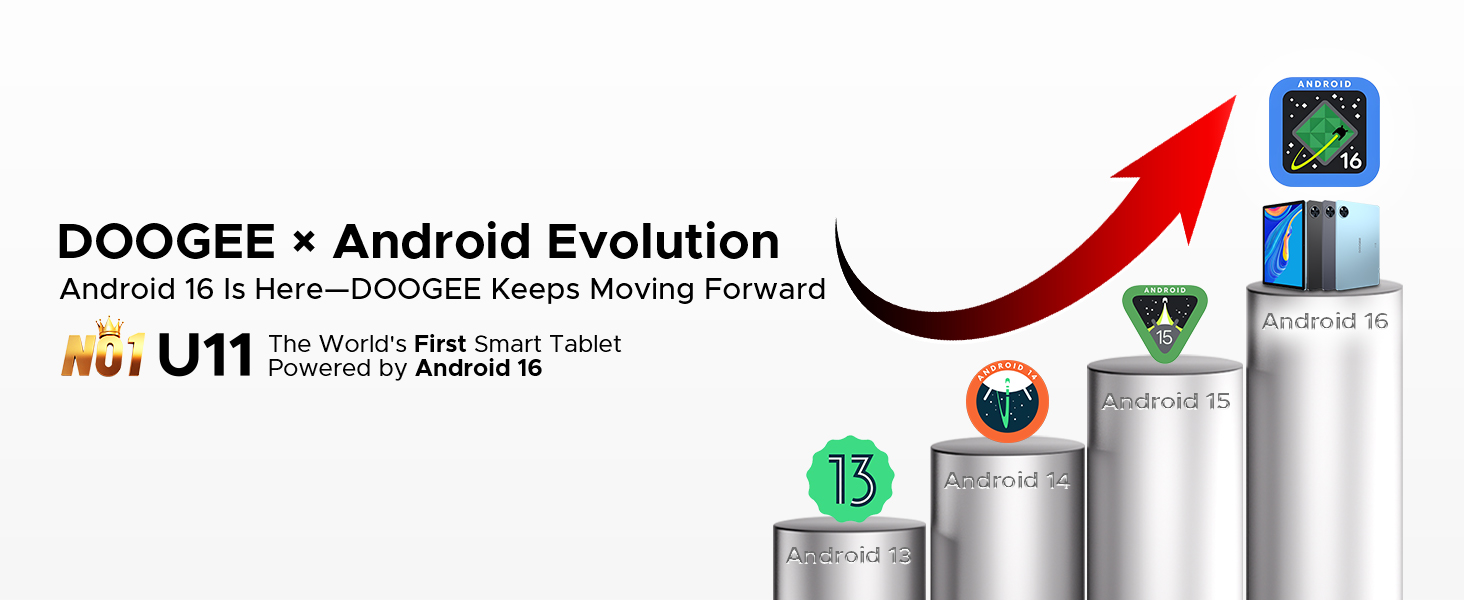
Image 4.1: The elegant metal body design of the DOOGEE U11 Tablet, showcasing its slim profile and rear camera placement.
The tablet features a durable metal body with a thickness of 8.0mm and weighs approximately 537g. Key physical features include:
- Power Button: Located on the side, used to turn the device on/off or wake/sleep the screen.
- Volume Buttons: Adjust the audio volume.
- USB Type-C Port: For charging and data transfer.
- 3.5mm Audio Jack: For connecting headphones.
- Speaker Grilles: Dual speakers for audio output.
- Front Camera: Located on the bezel above the screen.
- Rear Camera: Located on the back of the tablet.
- MicroSD Card Slot: For expandable storage.
5. Setup
5.1 Initial Power On
- Press and hold the Power button until the DOOGEE logo appears.
- Follow the on-screen prompts to select your language, connect to Wi-Fi, and set up your Google account.
5.2 Charging the Battery
Before first use, fully charge the tablet. Connect the USB Type-C cable to the tablet's charging port and the other end to the power adapter. Plug the adapter into a wall outlet. The battery indicator on the screen will show charging status.
5.3 Inserting a MicroSD Card
To expand storage, insert a MicroSD card (up to 2TB supported):
- Locate the card slot on the side of the tablet.
- Use the provided SIM eject tool to open the tray.
- Place the MicroSD card into the designated slot on the tray.
- Carefully reinsert the tray into the tablet.
6. Operating the Tablet
6.1 Basic Operations
- Power On/Off: Press and hold the Power button. Select 'Power off' or 'Restart'.
- Screen Lock/Unlock: Press the Power button briefly. Use Face ID or your set PIN/pattern/password to unlock.
- Navigation: Use gestures (swipe up for home, swipe from sides for back, swipe up and hold for recent apps) or the on-screen navigation bar.
6.2 Operating System: Android 16
The DOOGEE U11 runs on Android 16, offering enhanced app permission controls, stronger privacy protection, and a smoother user experience.

Image 6.2.1: The user interface of the Android 16 operating system on the DOOGEE U11 Tablet.
Image 6.2.2: Icons representing key Android 16 OS features: Bedtime Mode, Automatic Screen Brightness Adjustment, Multi-user System, and Parental Control.
Key OS features include:
- Bedtime Mode: Helps manage screen time and promotes better sleep.
- Automatic Screen Brightness Adjustment: Optimizes display brightness based on ambient light.
- Multi-user System: Allows multiple users to have separate profiles on the tablet.
- Parental Control: Tools to manage and restrict content for children.
6.3 Connectivity
- Wi-Fi: Supports dual-band Wi-Fi (2.4GHz/5GHz) for stable internet connection. Access Wi-Fi settings via the Quick Settings panel or Settings app.
- OTG (On-The-Go): Connect USB peripherals like flash drives, keyboards, or mice using an OTG adapter (sold separately). The tablet also supports 5W reverse charging to power other devices.
6.4 Camera Usage
The tablet is equipped with a 13MP rear camera and a 5MP front camera.

Image 6.4.1: Visual representation of the 13MP main camera and 5MP front camera, showing example photos.
To use the camera:
- Open the Camera application.
- Tap the shutter button to take a photo.
- Switch between front and rear cameras using the camera toggle icon.
6.5 Multimedia
- Audio: Enjoy immersive sound through dual professionally tuned speakers.
- Video: Widevine L1 certification ensures full 1080P HD playback on supported streaming platforms like Netflix, YouTube, Hulu, and Amazon Prime Video.

Image 6.5.1: Illustration of the tablet's dual speaker system, showing sound waves emanating from the device during use.

Image 6.5.2: The DOOGEE U11 Tablet displaying a movie scene, with logos of streaming services like Netflix, Hulu, Prime Video, HBO Max, and YouTube, indicating Widevine L1 support.
6.6 AI Features (Gemini AI)
The tablet integrates Gemini AI for intelligent optimization and enhanced functionality.
Image 6.6.1: Icons representing Gemini AI capabilities: Content Creation, Information Retrieval & Summarization, Image Analysis, Code Development, Language Learning, and Smart Assistant.
Gemini AI assists with tasks such as:
- Optimizing system resources for smoother performance.
- Assisting with photo editing and real-time translation.
- Providing smart assistance for various queries and tasks.
6.7 Productivity
- WPS Office: Built-in PC-level WPS Office suite for document creation and editing (Word, Excel, PPT).
- Split-screen Mode: Allows running two applications simultaneously for efficient multitasking.
- App Cloning: Run two instances of social media or messaging apps simultaneously.
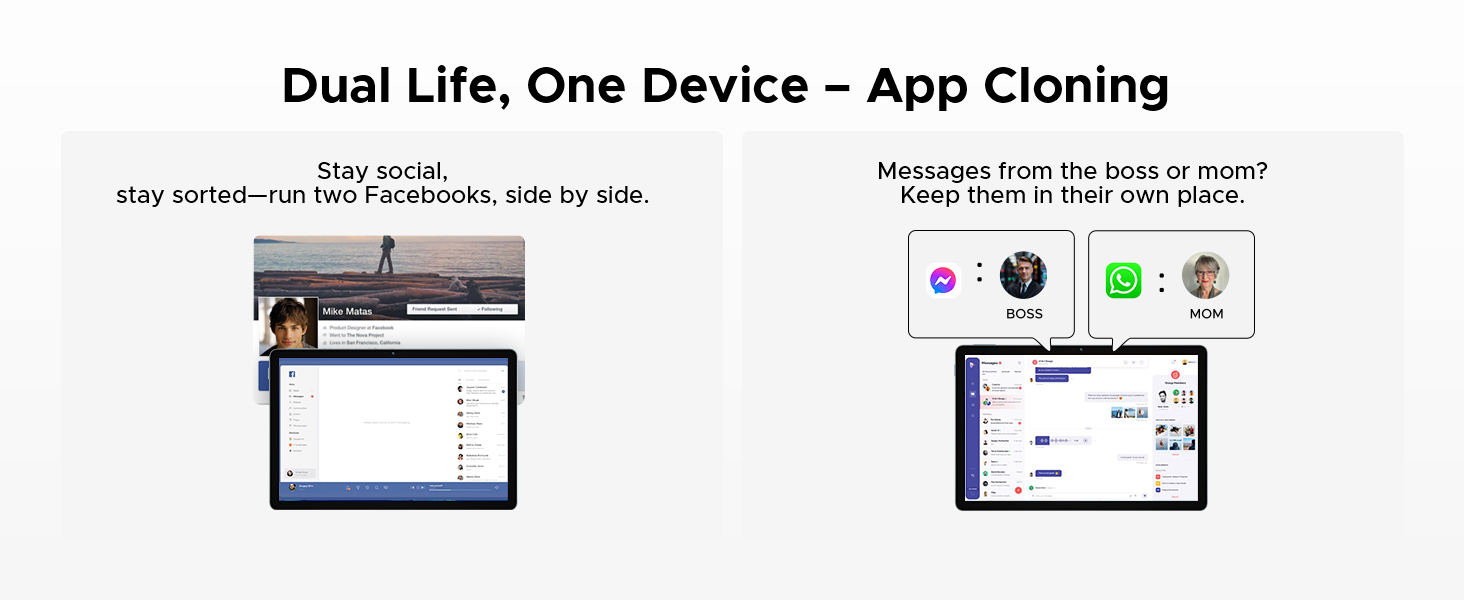
Image 6.7.1: The DOOGEE U11 Tablet displaying WPS Word, WPS Excel, and WPS PPT applications, demonstrating its productivity capabilities.
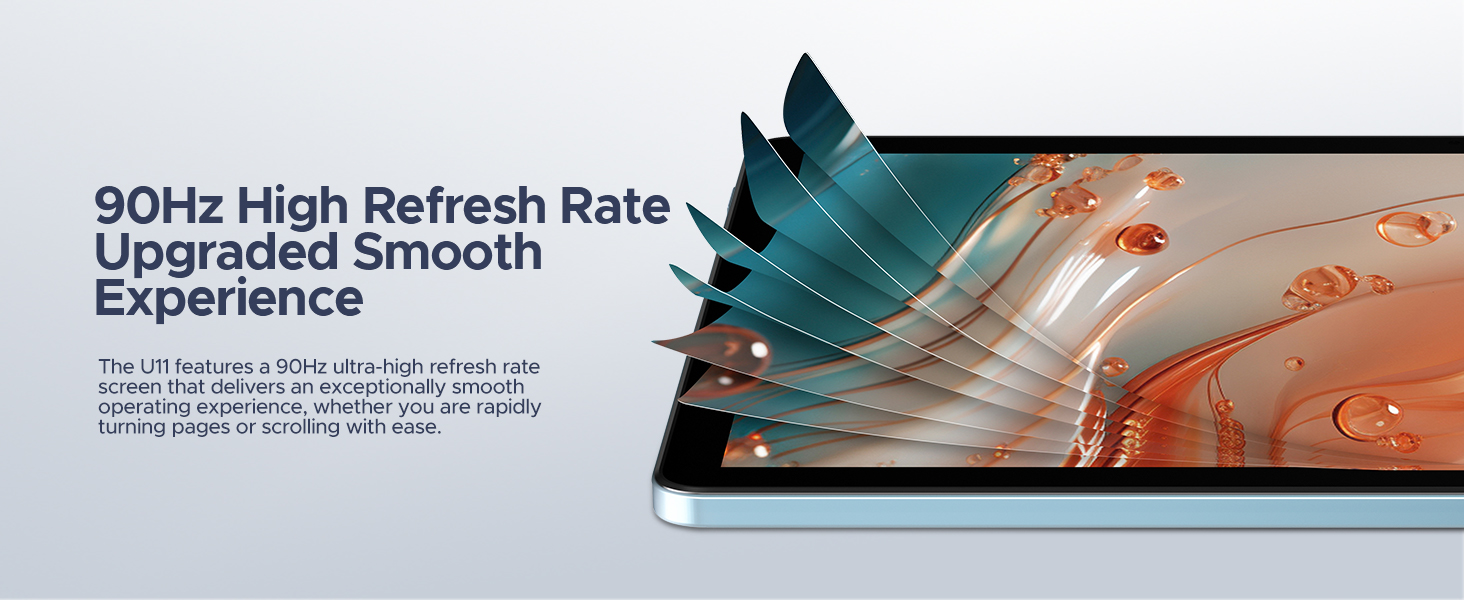
Image 6.7.2: The DOOGEE U11 Tablet in split-screen mode, showing two applications open side-by-side for efficient multitasking.

Image 6.7.3: Illustration of the App Cloning feature, showing two separate instances of Facebook and messaging apps running concurrently.
6.8 Gaming (Game Space)
The Game Space feature optimizes the tablet for gaming, ensuring high frame rates and an immersive experience.

Image 6.8.1: The Game Space feature displaying a split view of a game in SDR and HDR modes, highlighting visual enhancements.
6.9 Other Features
- Face Unlock: Securely unlock your device using facial recognition.
- FM Radio: Enjoy local radio stations by plugging in headphones (which act as an antenna).
- Navigation System: Supports GPS, Beidou, GLONASS, Galileo, and AGPS for accurate location and navigation.
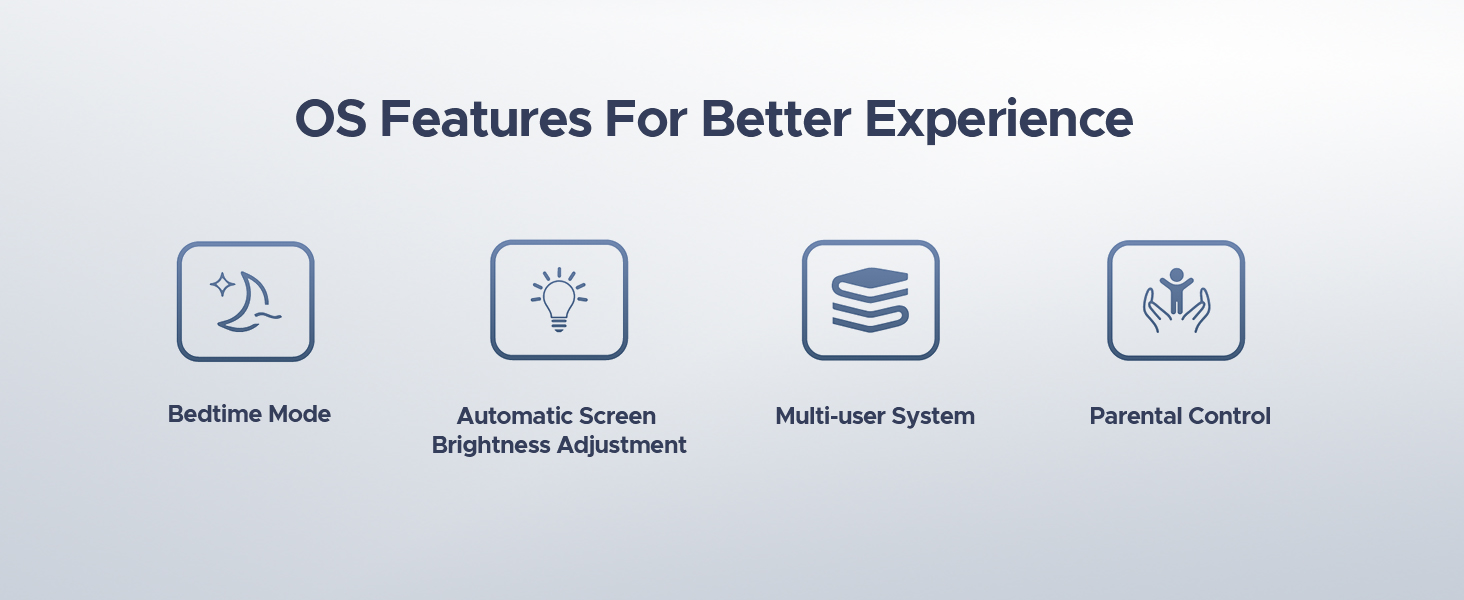
Image 6.9.1: A user unlocking the DOOGEE U11 Tablet using the Face Unlock feature, with a facial recognition overlay.
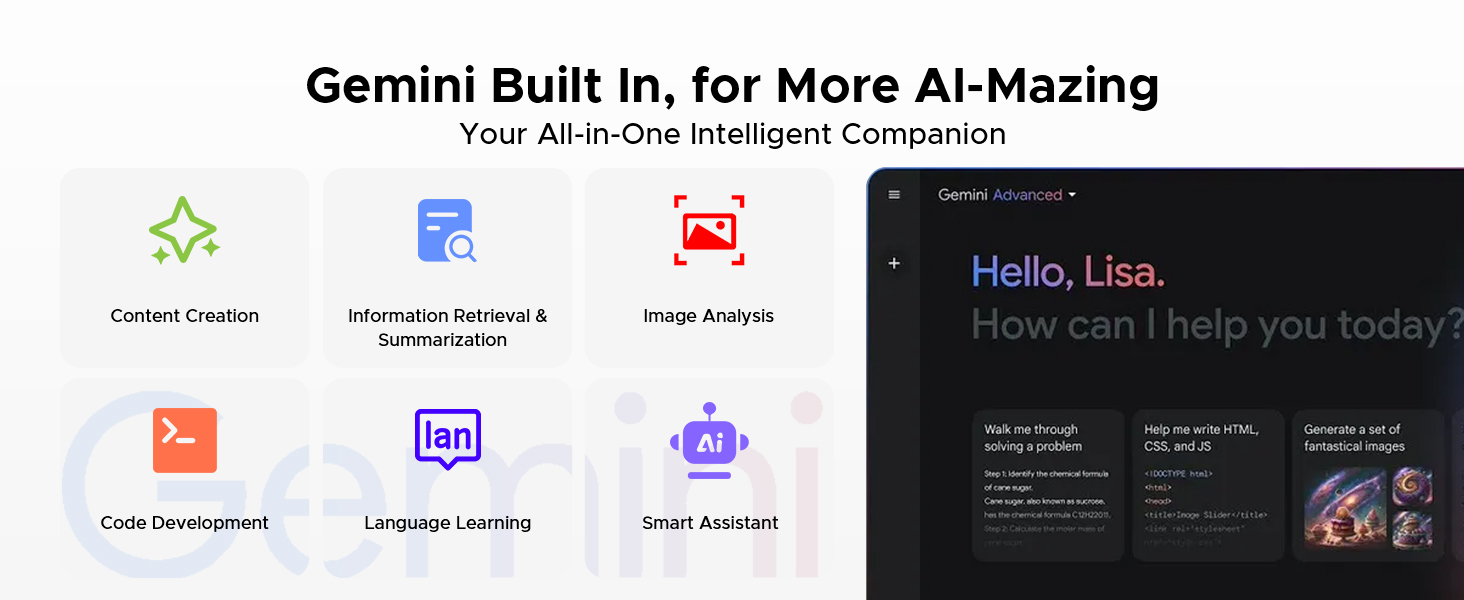
Image 6.9.2: A person listening to music on the DOOGEE U11 Tablet using the FM Radio function with headphones.
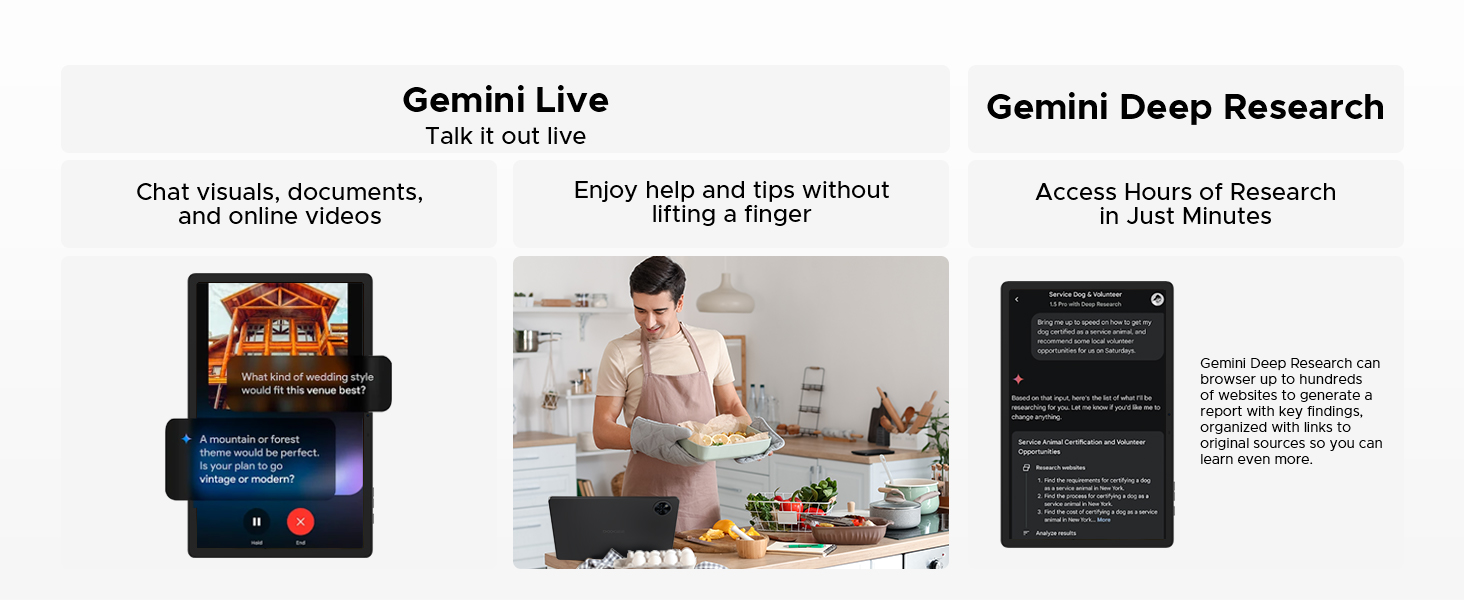
Image 6.9.3: The DOOGEE U11 Tablet displaying a navigation map in a car, illustrating its accurate navigation system.
7. Battery Management
The DOOGEE U11 is equipped with an 8580mAh battery.

Image 7.1: An internal view of the DOOGEE U11 Tablet highlighting the 8580mAh battery, with estimated usage times for standby, video watching, music playing, and web browsing.
To optimize battery life:
- Adjust screen brightness to a comfortable level or enable automatic brightness.
- Close unused applications running in the background.
- Turn off Wi-Fi or Bluetooth when not in use.
- Enable battery saver mode when the battery is low.
7.1 Reverse Charging
The DOOGEE U11 supports 5W reverse charging, allowing it to act as a power bank for other devices in emergencies.

Image 7.1.1: The DOOGEE U11 Tablet connected via a cable to a smartphone, demonstrating its reverse charging capability.
8. Storage Management
The tablet comes with 128GB of internal storage and supports expansion up to 2TB via a TF (MicroSD) card.

Image 8.1: The DOOGEE U11 Tablet displaying various app icons, illustrating its 128GB internal storage and 2TB expandable storage capacity.
To manage storage:
- Regularly clear cache data from apps.
- Uninstall unused applications.
- Move large files (photos, videos) to the MicroSD card or cloud storage.
- Access storage settings in the Settings app to view usage and free up space.
9. Maintenance and Care
- Cleaning: Use a soft, lint-free cloth to clean the screen and body. Avoid abrasive cleaners or solvents.
- Software Updates: Keep your tablet's software updated to ensure optimal performance and security. Check for updates in the Settings app.
- Environmental Conditions: Operate the tablet within recommended temperature and humidity ranges.
- Low Blue Light Mode: The U11 features a low blue light eye protection mode to enhance visual comfort during extended use.
Image 9.1: The DOOGEE U11 Tablet displaying a warmer color temperature on the screen, illustrating the Low Blue Light Mode for eye protection.
10. Troubleshooting
If you encounter issues with your DOOGEE U11 Tablet, try the following solutions:
| Problem | Solution |
|---|---|
| Tablet does not turn on | Ensure the battery is charged. Connect to charger for at least 30 minutes. If still unresponsive, perform a force restart by holding the Power button for 10-15 seconds. |
| Screen is unresponsive | Restart the tablet. If the issue persists, ensure the screen is clean and free of debris. |
| Wi-Fi connection issues | Restart your Wi-Fi router and the tablet. Forget the network in Wi-Fi settings and reconnect. Ensure you are within range. |
| Apps crashing or freezing | Clear the app's cache and data in Settings > Apps. If the problem continues, uninstall and reinstall the app. Ensure the tablet's software is up to date. |
| Slow performance | Close unused background apps. Clear storage space. Restart the tablet. |
If these steps do not resolve the issue, please contact customer support.
11. Specifications
The following table outlines the key specifications of the DOOGEE U11 Android 16 Tablet:
| Feature | Detail |
|---|---|
| Model | U11 |
| Operating System | Android 16 |
| Processor | Unisoc T7200 Octa-Core |
| RAM | 16GB (4GB LPDDR4X + 12GB Virtual RAM) |
| Internal Storage | 128GB |
| Expandable Storage | Up to 2TB via TF Card |
| Display Size | 11 Inches |
| Display Resolution | 1280 x 800 pixels |
| Refresh Rate | 90Hz |
| Rear Camera | 13MP |
| Front Camera | 5MP |
| Battery Capacity | 8580mAh |
| Connectivity | 2.4G+5G WIFI, OTG |
| Audio | Dual Speakers, 3.5mm Audio Jack |
| Security | Face ID |
| Dimensions (LxWxH) | 10.1 x 6.67 x 0.31 inches |
| Weight | 14.7 ounces (approx. 416g) |
Note: Specifications are subject to change without prior notice.
12. Warranty and Support
DOOGEE provides comprehensive support for its products.
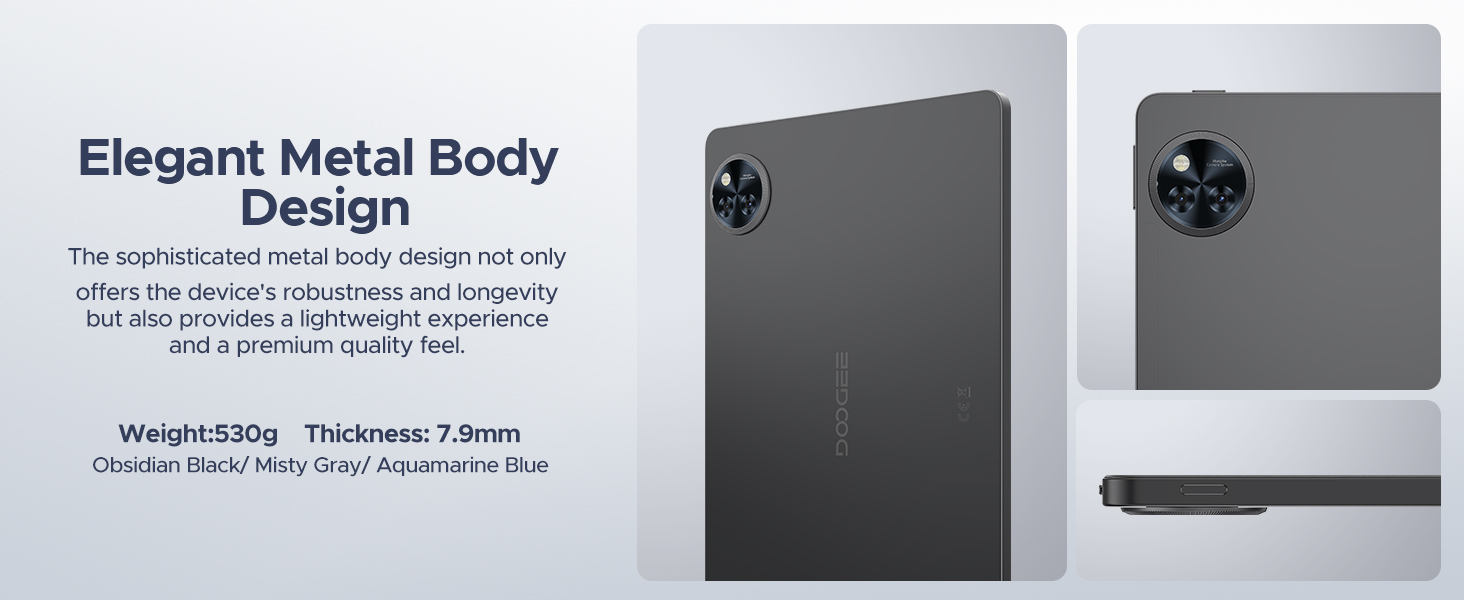
Image 12.1: Icons representing DOOGEE's customer service offerings: 30-Days Money Back Guarantee and Free Return, 2-Years Limited Warranty, and 24/7 One-on-One Online Support.
- 30-Day Money Back Guarantee: If you are not satisfied with your purchase, you may return it within 30 days for a full refund.
- 2-Year Limited Warranty: Your DOOGEE U11 Tablet is covered by a 2-year limited warranty against manufacturing defects. This warranty does not cover damage caused by misuse, accidents, or unauthorized modifications.
- 24/7 Online Support: For technical assistance or warranty claims, please visit the official DOOGEE website or contact their customer service team available 24/7.


