1. Introduction
The Govee Star Projector Lights H6095 is an advanced lighting device designed to create immersive cosmic environments. It features a 7-zone colorful nebula effect, offering extensive customization options for color, brightness, speed, and motion. This projector is compatible with Matter, Alexa, and Google Assistant for convenient smart control. With a large coverage area of up to 540ft², it transforms any room into a dynamic starry sky. Additionally, it includes over 50 scene modes and 18 white noise options to enhance relaxation and sleep.
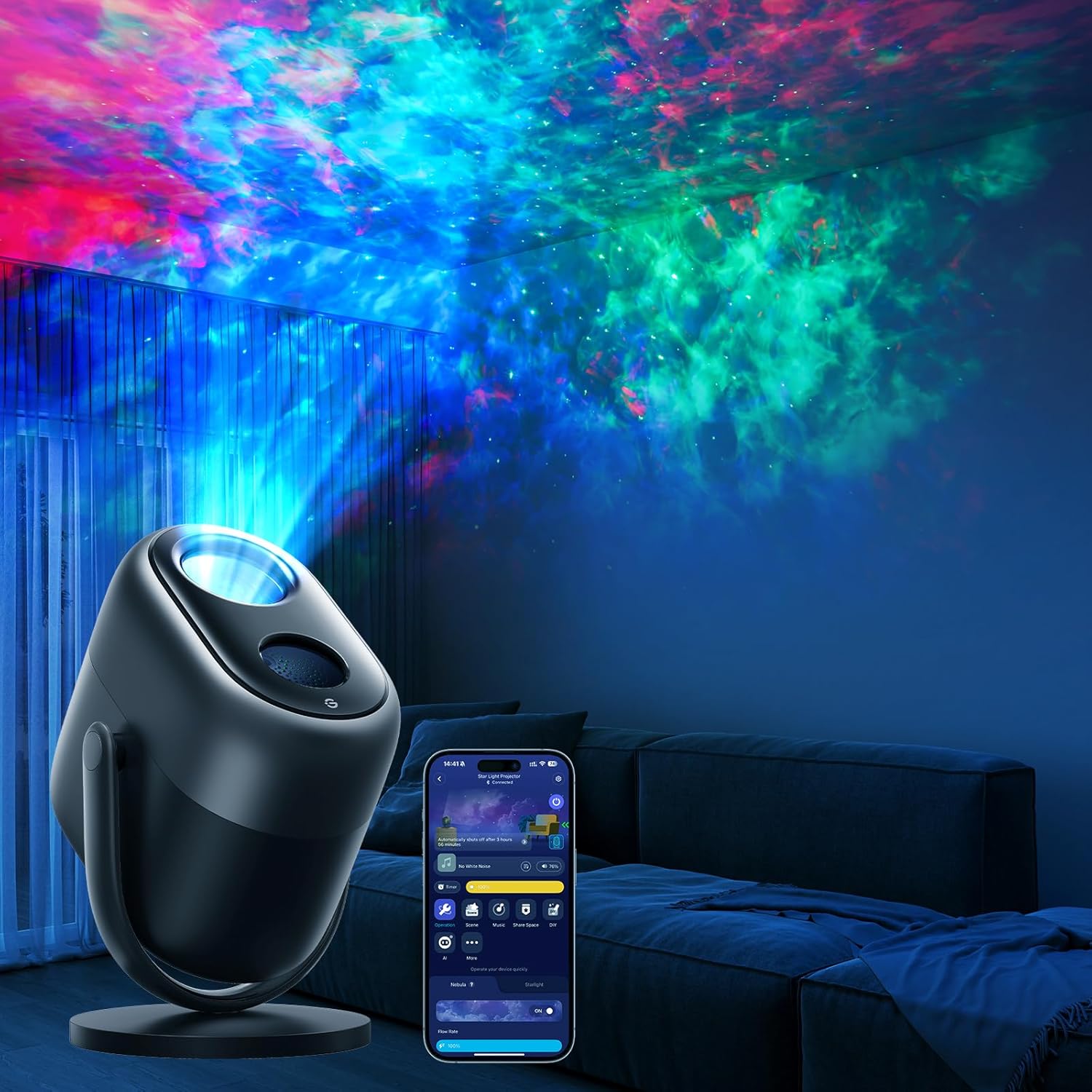
Image 1.1: The Govee Star Projector Lights H6095 in operation, displaying its vibrant nebula and star effects.
2. What's in the Box
Please verify that all components are present upon unpacking:
- Star Light Projector
- Matter Guide
- Power Adapter
- USB Cable
- User Manual (This document)

Image 2.1: All items included in the Govee Star Projector Lights H6095 package.
3. Product Overview
3.1 Key Features
- 7-Zone Stardust with Dynamic Lighting: Customizable star light zones for vivid, layered stardust effects.
- Full DIY Control via Smart Command: Adjust color, brightness, speed, and motion for each zone through the Govee Home app.
- Smart Home Compatibility: Works with Matter, Alexa, and Google Assistant for hands-free voice control.
- Large Coverage Area: Projects up to 540ft² with specialized field of view lenses.
- 50+ Scene Modes: Pre-set lighting scenes for various moods and occasions.
- 18 Soothing White Noise Options: Integrated soundscapes for relaxation and sleep assistance.
- Sleep Timer: Automated shut-off and dimming features for uninterrupted rest.
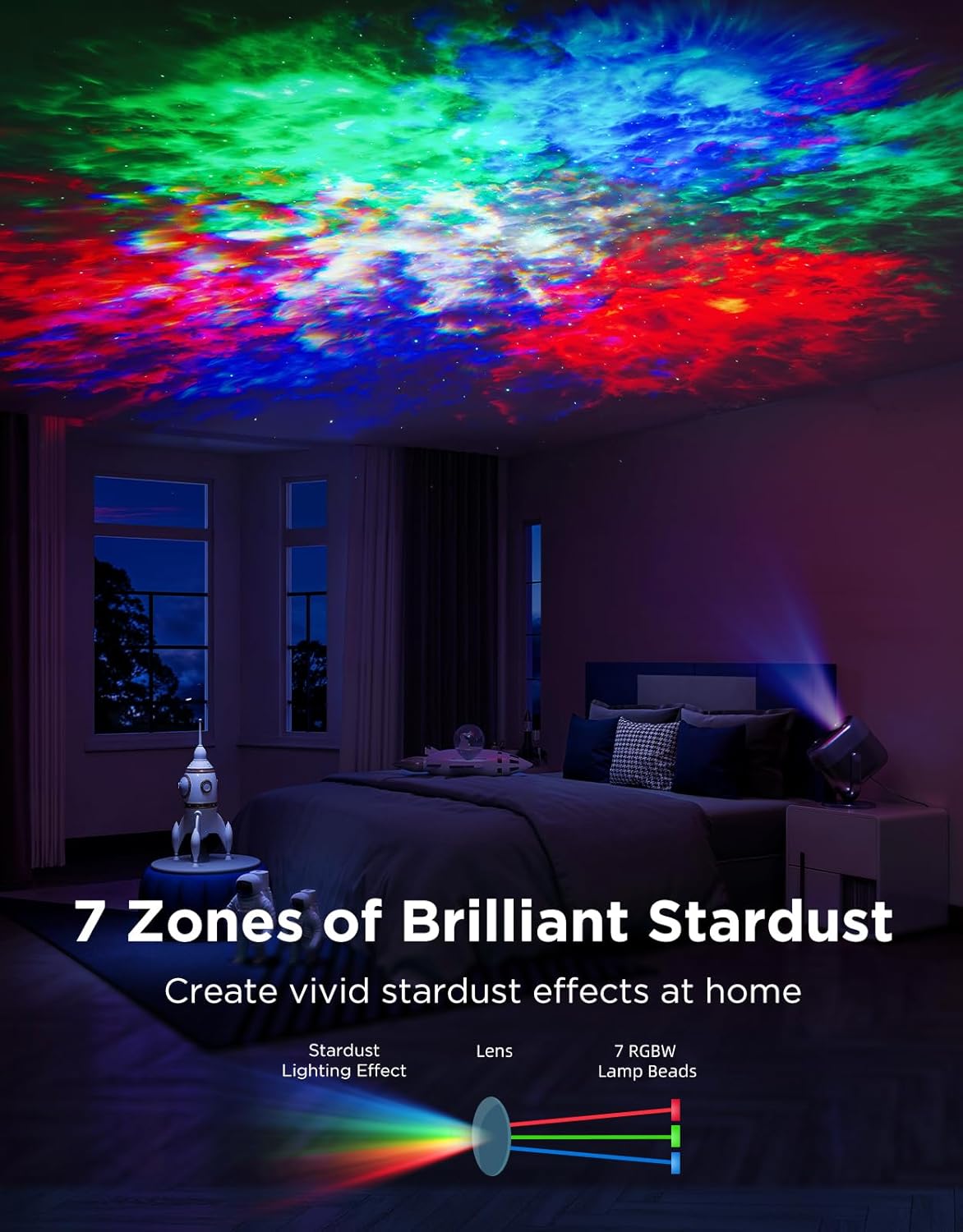
Image 3.1: Visual representation of the 7-zone stardust projection mechanism.

Image 3.2: The projector's extensive coverage area demonstrated in a room setting.
4. Setup
4.1 Power Connection
- Connect the USB cable to the projector's power input port.
- Plug the USB cable into the provided power adapter.
- Insert the power adapter into a standard electrical outlet (AC 120V).
- The projector will power on automatically.
4.2 Govee Home App Installation
- Download the Govee Home app from the App Store (iOS devices) or Google Play (Android devices).
- Register or log in to your Govee account.
4.3 Device Pairing
- Open the Govee Home app and tap the '+' icon in the top right corner.
- Search for 'H6095' or select the Star Projector from the device list.
- Follow the on-screen instructions to complete the pairing process. Ensure your phone's Bluetooth and Wi-Fi are enabled.
4.4 Smart Home Integration (Matter, Alexa, Google Assistant)
Refer to the included Matter Guide for detailed instructions on integrating your projector with Matter-compatible smart home systems. For Alexa and Google Assistant, follow the pairing instructions within the Govee Home app or your respective smart home assistant app.
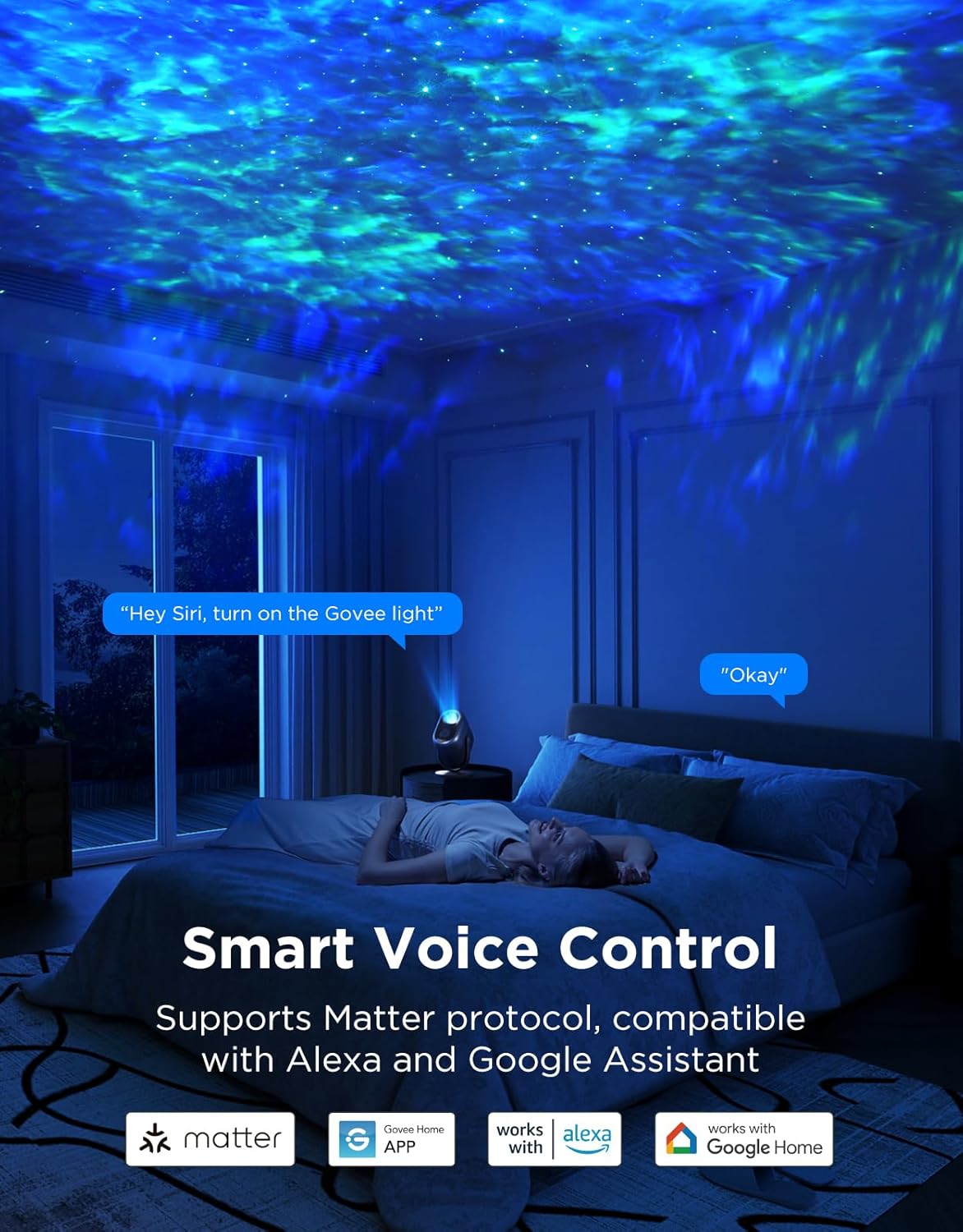
Image 4.1: The Govee Star Projector Lights H6095 supports smart voice control.
5. Operating Instructions
5.1 Physical Controls
The projector features physical buttons for basic control:
- Power Button: Press to turn the projector on or off.
- Mode Button: Cycle through pre-set lighting modes.
- Brightness Buttons: Adjust the overall brightness of the projection.
- Volume Buttons: Control the volume of white noise or connected audio.
5.2 Govee Home App Control
The Govee Home app provides comprehensive control over the projector's features:
- Color Customization: Select from a wide spectrum of colors for the nebula effect.
- Brightness Adjustment: Fine-tune the intensity of both stars and nebula.
- Motion and Speed: Adjust the movement and speed of the nebula and star patterns.
- DIY Mode: Create and save your own unique lighting effects for each of the 7 zones.
- Scene Modes: Access over 50 pre-programmed scenes for various atmospheres.
- White Noise: Choose from 18 different white noise options to aid relaxation or sleep.
- Sleep Timer: Set a timer for the projector to automatically dim and turn off.

Image 5.1: The Govee Home app interface for DIY color customization.

Image 5.2: Examples of the 50+ scene modes available.

Image 5.3: The projector offers 18 white noise options for sleep assistance.
6. Maintenance
6.1 Cleaning
- Ensure the projector is unplugged before cleaning.
- Use a soft, dry cloth to wipe the exterior of the device.
- For the lens, use a lens cleaning cloth to gently remove dust or smudges. Avoid abrasive materials or harsh chemicals.
6.2 Storage
- Store the projector in a cool, dry place away from direct sunlight and extreme temperatures.
- Keep it away from moisture and corrosive substances.
7. Troubleshooting
| Problem | Possible Cause | Solution |
|---|---|---|
| Projector does not power on. | No power supply or faulty connection. | Ensure the power adapter is securely plugged into both the projector and a working electrical outlet. Try a different outlet. |
| Cannot connect to Govee Home app. | Bluetooth/Wi-Fi off, incorrect pairing steps, or device too far. | Ensure Bluetooth and Wi-Fi are enabled on your phone. Place the projector closer to your phone. Restart the app and try pairing again. |
| Projection is dim or unclear. | High ambient light, dirty lens, or brightness setting too low. | Operate in a darker environment. Clean the projector lens. Increase brightness via the app or physical buttons. |
| Voice control not working. | Incorrect smart home integration or poor network connection. | Verify the projector is correctly linked to Alexa/Google Assistant via the Govee Home app. Ensure a stable Wi-Fi connection. |
8. Specifications
| Attribute | Detail |
|---|---|
| Model Number | H6095 |
| Brand | Govee |
| Color | Black |
| Material | Acrylonitrile Butadiene Styrene (ABS) |
| Light Source Type | LED |
| Power Source | Corded Electric |
| Voltage | 120 Volts (AC) |
| Wattage | 10 watts |
| Product Dimensions | 6.18"L x 5.51"W x 8.93"H |
| Item Weight | 3.83 pounds |
| UPC | 810172721203 |
9. Safety Information
- Do not look directly into the projector's light source for extended periods, as it may cause eye strain.
- Keep the device away from water, moisture, and flammable materials.
- Do not attempt to disassemble or modify the projector. This will void the warranty and may cause damage or injury.
- Use only the provided power adapter and USB cable.
- Ensure proper ventilation around the projector to prevent overheating.
- This device is not a toy. Keep out of reach of children.
10. Warranty and Support
Govee products come with a limited warranty. For specific warranty details, registration, and technical support, please visit the official Govee website or contact Govee customer service. You can typically find contact information and support resources at www.govee.com.


