
1. Introduction
The Revopoint Range 2 3D Scanner is an advanced handheld device designed for creating accurate 3D models of large objects. It features high precision, a built-in RGB color camera, and supports various operating systems including Windows, Android, iOS, and macOS. This manual provides essential information for setting up, operating, maintaining, and troubleshooting your Range 2 3D Scanner to ensure optimal performance and longevity.
2. What's in the Box
Upon unboxing your Revopoint Range 2 3D Scanner, please verify that all components are present:
- Revopoint Range 2 3D Scanner Unit
3. Product Overview
The Revopoint Range 2 is engineered for enhanced performance and expanded scanning capabilities. It offers a reliable single-frame precision of up to 0.1 mm, aided by IMU stabilization and smart algorithms for smoother frame stitching and reduced errors from unsteady hands. The device is capable of swiftly scanning large objects such as automobiles, machinery, furniture, and people, with a 60% bigger single capture area of 860 x 1380 mm at 1300 mm and a scanning distance ranging from 400 mm to 1300 mm.
It features an upgraded RGB camera and a new Flash LED lighting system for impressive color capture, ensuring evenly lit objects for balanced color reproduction in your 3D models. High-speed scanning at up to 16 frames per second (fps) allows for rapid capture of large objects, enabling full body and face scans in under 90 seconds. The Range 2 utilizes eye-safe class 1 infrared light.

Figure 3.1: Revopoint Range 2 3D Scanner
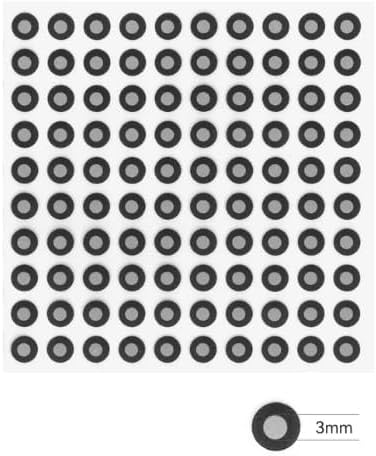
Figure 3.2: Revopoint Range 2 3D Scanner, illustrating its compact design.
4. Setup
To begin using your Revopoint Range 2 3D Scanner, follow these setup instructions:
- Software Installation: Download and install the RevoScan software on your preferred device. The software is compatible with Windows, Android, iOS, and macOS operating systems. Visit the official Revopoint website for the latest version.
- Connectivity Options:
- Wireless Connection (Wi-Fi 6): For increased maneuverability when scanning large objects, connect your Range 2 to your smartphone via fast Wi-Fi 6. This allows for mobile scanning without being tethered to a computer.
- Wired Connection (USB Type-C): For a larger screen scanning experience, connect the Range 2 to a laptop or PC using the provided USB Type-C cable. Ensure the cable is securely connected to both the scanner and your device.
- Power On: Once connected, power on the Revopoint Range 2 scanner. Refer to the device's indicator lights for status.
5. Operating Instructions
Operating the Revopoint Range 2 involves preparing your object, initiating the scan, and processing the data. The scanner is optimized for large objects and offers impressive color capture.
- Object Preparation:
- Ensure the object to be scanned is in a well-lit environment.
- For featureless objects (e.g., spheres, plain boxes) or objects with shiny/reflective surfaces, it is recommended to apply target stickers. These stickers provide distinct dimensional points for the scanner to create an accurate grid and mesh.
- Minimize background clutter around the object to prevent interference with the scan.
- Initiating a Scan:
- Open the RevoScan software on your connected device.
- Select the appropriate scanning mode based on your object size and desired detail.
- Position the scanner at the recommended distance (400 mm to 1300 mm) from the object.
- Begin the scan, moving the scanner smoothly around the object to capture all surfaces. Maintain a steady hand to utilize the IMU stabilization effectively.
- Scanning Techniques:
- Large Objects: Utilize the expanded scanning area to efficiently capture automobiles, large machinery, or furniture.
- Body and Face Scans: The high-speed scanning capability allows for full body and face scans in under 90 seconds. Ensure the subject remains still during the process.
- Color Capture: The upgraded RGB camera and Flash LED system ensure vibrant and accurate color reproduction. Ensure even lighting on the object for best results.
- Data Processing:
- After scanning, the RevoScan software will process the captured data.
- The software can output 3D models in various formats, including STL, PLY, and OBJ, suitable for 3D printing or further modeling.
6. Maintenance
Proper maintenance ensures the longevity and optimal performance of your Revopoint Range 2 3D Scanner.
- Cleaning: Regularly clean the scanner's lenses and exterior with a soft, lint-free cloth. Avoid using abrasive materials or harsh chemicals that could damage the surfaces.
- Storage: Store the scanner in its protective carrying case when not in use. Keep it in a cool, dry place away from direct sunlight, extreme temperatures, and high humidity.
- Software Updates: Periodically check for and install software updates for RevoScan. Updates often include performance improvements, bug fixes, and new features.
7. Troubleshooting
This section addresses common issues you might encounter with your Revopoint Range 2 3D Scanner.
- Poor Scan Quality/Tracking Issues:
- Ensure adequate lighting in the scanning environment.
- Verify that the scanner is held steadily and moved smoothly.
- For featureless or reflective objects, apply target stickers to provide sufficient reference points for the scanner.
- Check for any obstructions in the scanner's field of view.
- Connectivity Problems:
- For Wi-Fi connection, ensure your smartphone's Wi-Fi is enabled and connected to the scanner's network.
- For USB-C connection, ensure the cable is fully inserted into both the scanner and your device. Try a different USB port or cable if issues persist.
- Restart both the scanner and your connected device.
- Software Not Recognizing Scanner:
- Ensure the RevoScan software is the latest version.
- Check device drivers for your operating system.
- Temporarily disable any firewall or antivirus software that might be blocking the connection.
8. Specifications
| Feature | Specification |
|---|---|
| Model Number | RANGE2 STANDARD-3 |
| Precision | Up to 0.1 mm |
| Single Capture Area | 860 x 1380 mm at 1300 mm |
| Scanning Distance | 400 mm to 1300 mm |
| Scanning Speed | Up to 16 fps |
| Connectivity | Wi-Fi 6, USB Type-C |
| Color Camera | Built-in RGB Camera with Flash LED |
| Light Source | Class 1 Infrared Light (Eye-safe) |
| Supported OS | Windows, Android, iOS, macOS |
| Item Weight | 6.7 ounces |
| Package Dimensions | 8.74 x 4.65 x 1.85 inches |
9. Warranty and Support
Revopoint products are manufactured to high-quality standards. For specific warranty details, please refer to the warranty card included with your product or visit the official Revopoint website. Keep your proof of purchase for warranty claims.
For technical support, troubleshooting assistance, or service inquiries, please contact Revopoint customer support through their official website or the contact information provided in your product packaging. When contacting support, please have your model number and a detailed description of the issue ready.


