
1. Introduction
Thank you for purchasing the LYNCAST N300 Mini Smart Projector. This manual provides essential information for setting up, operating, and maintaining your projector. Please read it thoroughly before use to ensure optimal performance and safety.
The LYNCAST N300 is a portable smart projector featuring Android 13, 1080P native resolution with 4K support, automatic keystone correction, WiFi 6, and Bluetooth 5.4 connectivity. Its 180° rotatable design offers flexible projection angles for various environments.
2. Safety Information
- Do not look directly into the projector lens when the lamp is on.
- Ensure proper ventilation around the projector to prevent overheating.
- Use only the provided power adapter.
- Keep the projector away from water or other liquids.
- Avoid placing the projector on unstable surfaces.
- Do not attempt to disassemble or repair the projector yourself. Contact qualified service personnel.
- Keep out of reach of children.
3. Package Contents
Verify that all items are present in your package:
- LYNCAST N300 Mini Smart Projector
- Power Adapter
- HDMI Cable
- Remote Control
- User Manual (this document)
4. Product Overview
4.1 Projector Components
Familiarize yourself with the main components and interfaces of your LYNCAST N300 projector.
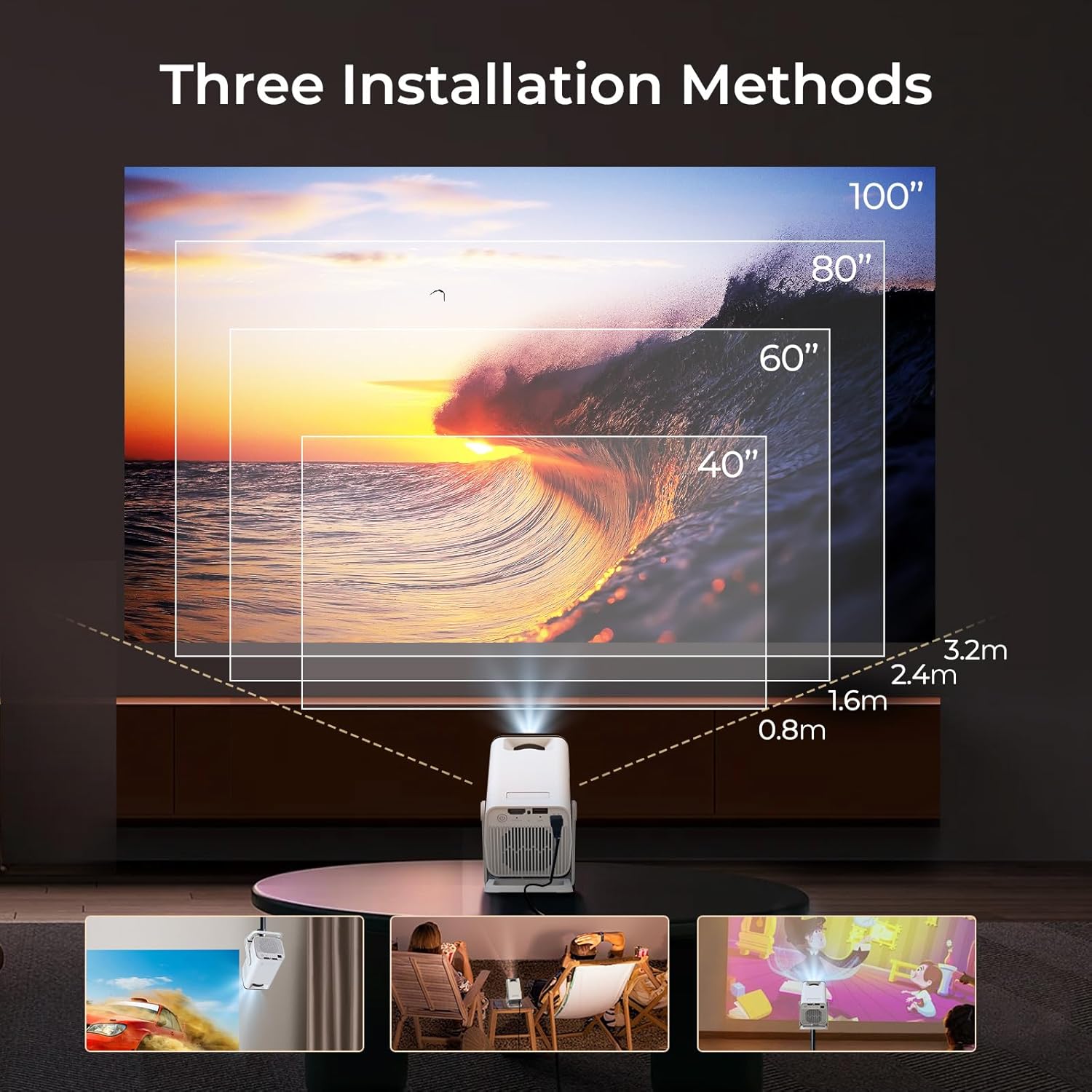
Image 4.1: Rear view of the LYNCAST N300 projector showing HDMI and USB ports.
- Lens: Projects the image onto the screen.
- Focus Wheel: Manual adjustment for image sharpness.
- Power Button: Turns the projector on/off.
- HDMI Port: Connects to external devices like TV sticks, laptops, gaming consoles (PS5), and TV boxes.
- USB Port: Connects to USB storage devices or charges compatible devices.
- Power Input: Connects the power adapter.
- Speaker: Integrated audio output.
- Adjustable Stand: Allows for 180° rotation and flexible projection angles.
5. Setup
5.1 Power Connection
- Connect the power adapter to the projector's power input port.
- Plug the power adapter into a wall outlet.
- Press the power button on the projector or remote control to turn it on.
5.2 Placement and Angle Adjustment
The LYNCAST N300 features a 180° rotatable design, allowing for versatile placement options.

Image 5.1: The projector's adjustable stand allows for various projection angles, including ceiling projection.
- Place the projector on a stable surface.
- Adjust the projector's angle using its integrated stand to project onto a wall, ceiling, or screen. The stand supports up to 180° rotation.
5.3 Focus Adjustment
To achieve a clear image, manually adjust the focus.

Image 5.2: Location of the manual focus wheel on the projector.
- Turn on the projector and display an image.
- Rotate the focus wheel located on the side of the projector until the image appears sharp and clear.
5.4 Automatic Keystone Correction
The LYNCAST N300 features automatic keystone correction to adjust distorted images caused by angled projection. This feature automatically squares the image.
- The projector will automatically detect and correct vertical keystone distortion.
- If further adjustments are needed, refer to the on-screen display (OSD) settings for manual keystone correction options.
6. Operating Instructions
6.1 Connecting External Devices via HDMI
Connect devices such as TV sticks, laptops, gaming consoles, or TV boxes using an HDMI cable.
- Connect one end of the HDMI cable to the HDMI port on the projector.
- Connect the other end to the HDMI output of your external device.
- Select the HDMI input source from the projector's menu.
6.2 USB Connectivity
The USB port allows you to play media files directly from a USB storage device.
- Insert your USB storage device into the USB port on the projector.
- Navigate to the media player application on the projector's home screen to browse and play files.
6.3 Wireless Connectivity (WiFi 6 & Bluetooth 5.4)
The projector supports WiFi 6 for faster and more stable internet connection and Bluetooth 5.4 for audio devices.
6.3.1 Connecting to WiFi
- Go to the projector's Settings menu.
- Select "Network & Internet" or "WiFi".
- Choose your desired WiFi network and enter the password if prompted.
6.3.2 Connecting Bluetooth Devices
- Go to the projector's Settings menu.
- Select "Connected Devices" or "Bluetooth".
- Turn on Bluetooth and search for available devices.
- Select your Bluetooth speaker or headphones to pair.
6.4 Screen Mirroring (Phone Link)
Mirror your iOS or Android device screen to the projector.

Image 6.1: Screen mirroring from a smartphone to the projector.
6.4.1 For iOS Devices (AirPlay)
- Ensure both your iOS device and the projector are connected to the same WiFi network.
- On your iOS device, open Control Center and tap "Screen Mirroring".
- Select the projector from the list of available devices.
6.4.2 For Android Devices (Miracast/Google Cast)
- Ensure both your Android device and the projector are connected to the same WiFi network.
- On your Android device, go to Settings and look for "Cast", "Screen Mirroring", or "Wireless Display". The exact name may vary by device.
- Select the projector from the list of available devices.
6.5 Using Android 13 Smart Features
The LYNCAST N300 runs on Android 13, providing access to a wide range of applications.

Image 6.2: Android 13 interface showing pre-installed applications.
- Pre-installed Apps: Access popular streaming services like Netflix, YouTube, Prime Video, and Disney+ directly from the home screen.
- App Store: Download and install additional applications from the integrated app store.
- Navigation: Use the remote control to navigate the Android interface.
7. Maintenance
7.1 Cleaning the Lens
- Use a soft, lint-free cloth specifically designed for optical lenses.
- Gently wipe the lens to remove dust or smudges. Do not use abrasive cleaners or excessive force.
7.2 Cleaning the Projector Body
- Wipe the exterior of the projector with a soft, dry cloth.
- Do not use liquid cleaners or solvents.
7.3 Storage
- When not in use for extended periods, store the projector in a cool, dry place, away from direct sunlight and extreme temperatures.
- Consider using the original packaging or a protective case to prevent dust accumulation and damage.
8. Troubleshooting
| Problem | Possible Cause | Solution |
|---|---|---|
| No power | Power cable not connected; Power outlet faulty | Ensure power cable is securely connected; Try a different power outlet. |
| No image | Incorrect input source; Loose HDMI cable; Device not powered on | Select correct input source; Check HDMI cable connection; Ensure connected device is powered on. |
| Image blurry | Focus not adjusted; Projector too far/close | Adjust the manual focus wheel; Reposition the projector for optimal distance. |
| No sound | Volume too low; Muted; Incorrect audio output selected; Bluetooth device not connected | Increase volume; Unmute; Check audio settings; Reconnect Bluetooth device. |
| Remote control not working | Dead batteries; Obstruction between remote and projector | Replace batteries; Ensure clear line of sight to the projector's IR receiver. |
| WiFi connection issues | Incorrect password; Out of range; Router issues | Verify WiFi password; Move projector closer to router; Restart router. |
9. Specifications
| Feature | Detail |
|---|---|
| Brand | LYNCAST |
| Model Name | Netflix VisualCube N300 (X1AA) |
| Operating System | Android 13 |
| Display Technology | LED, Laser |
| Native Resolution | 1920 x 1080 (1080P) |
| Maximum Resolution Support | 3840 Pixels (4K) |
| Contrast Ratio | 1000:1 |
| Connectivity Technology | Bluetooth 5.4, WiFi 6 |
| Hardware Interface | HDMI, USB |
| Special Features | Automatic Obstacle Avoidance (Auto Keystone), 180° Rotation |
| Compatible Devices | Speaker, Game Console, Laptop, Smartphone, Tablet, TV Stick |
| Product Dimensions | 10 x 10 x 17 cm |
| Product Weight | 770 g |
| Mounting Type | Table Mount |
10. Warranty and Support
For warranty information and technical support, please refer to the warranty card included in your package or visit the official LYNCAST website. Keep your purchase receipt as proof of purchase.
LYNCAST Official Website: LYNCAST Brand Store on Amazon
11. Product Video Demonstration
Watch this video for a visual overview of the LYNCAST N300 Mini Smart Projector's features and usage.
Video 11.1: LYNCAST N300 Projector overview, demonstrating features like Netflix compatibility, portable design, 270° rotation, manual focus, and phone link (screen mirroring).