1. Introduction
This manual provides essential information for setting up, operating, maintaining, and troubleshooting your Skytech Gaming Viper Desktop PC. Please read this manual thoroughly before using your new computer to ensure optimal performance and longevity.
The Skytech Gaming Viper Desktop PC is a high-performance system designed for gaming and demanding applications, featuring an AMD Ryzen 7 7700 processor and AMD Radeon RX 9070 XT graphics.
2. Package Contents
Verify that all items are present in the package:
- Skytech Gaming Viper Desktop PC (ST-VIPER-1704-GR-AL)
- Power Cord
- Gaming Keyboard
- Gaming Mouse
- Quick Start Guide
3. Setup Guide
3.1 Unpacking and Placement
- Carefully remove the PC from its packaging. Retain all packaging materials for future transport or warranty claims.
- Place the PC on a stable, flat surface with adequate ventilation. Ensure there is sufficient space around the chassis for airflow. Avoid placing it near heat sources or in direct sunlight.
- Remove any protective films or internal packaging materials from the PC.
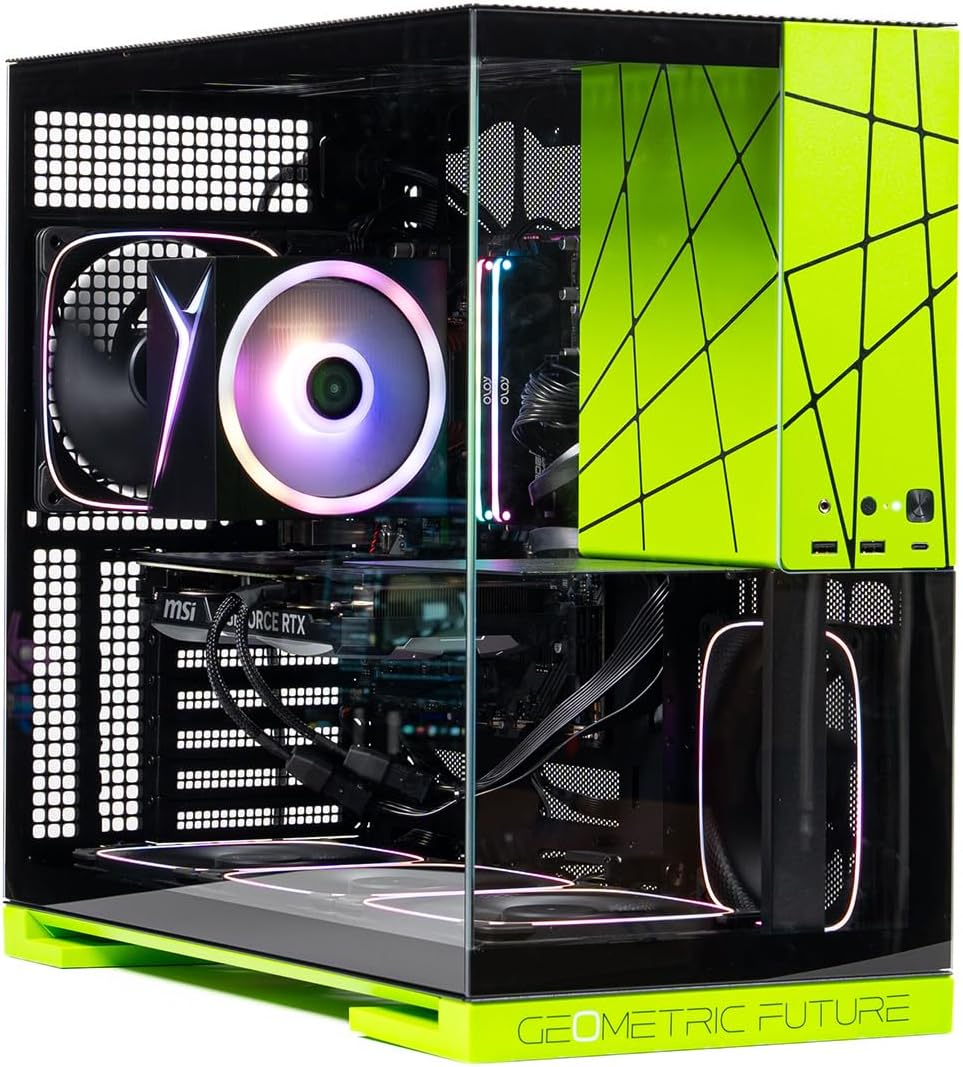
Image: Front-left view of the Skytech Gaming Viper Desktop PC, showcasing the tempered glass side panel and internal components with RGB lighting.
3.2 Connecting Peripherals
Follow these steps to connect your monitor, keyboard, mouse, and other devices:
- Monitor Connection: Connect your monitor to the graphics card's display outputs (HDMI or DisplayPort) located at the rear of the PC. Ensure the cable is securely fastened.
- Keyboard and Mouse: Connect the included gaming keyboard and mouse to the available USB ports on the rear or front of the PC.
- Power Connection: Connect the power cord to the power supply unit (PSU) at the rear of the PC, then plug the other end into a grounded electrical outlet.
- Network Connection (Optional): For wired internet, connect an Ethernet cable from your router/modem to the LAN port on the PC. For wireless, the PC supports 802.11AC Wi-Fi.

Image: Rear view of the Skytech Gaming Viper Desktop PC, showing various I/O ports including USB, HDMI, and DisplayPort connections.
4. Operating Instructions
4.1 First Boot
- After connecting all peripherals, press the power button located on the PC chassis.
- The system will boot into Windows 11 Home. Follow the on-screen instructions to complete the initial setup, including language, region, and user account creation.
- Ensure all drivers are up to date. Windows Update will typically handle this, but you may visit the Skytech Gaming website for the latest graphics card and chipset drivers if needed.
4.2 System Shutdown and Restart
- Shutdown: Click the Start button, then Power, and select "Shut down."
- Restart: Click the Start button, then Power, and select "Restart."
- Sleep: Click the Start button, then Power, and select "Sleep."
5. Maintenance
Regular maintenance helps ensure the longevity and optimal performance of your PC.
- Dust Removal: Periodically clean dust from the internal components and fan vents using compressed air. Ensure the PC is powered off and unplugged before cleaning.
- Software Updates: Keep your operating system, drivers, and applications updated to the latest versions for security and performance improvements.
- Cable Management: Ensure internal and external cables are neatly organized to promote better airflow and prevent accidental disconnections.
- Environmental Conditions: Operate the PC in a cool, dry environment. Avoid extreme temperatures and humidity.

Image: Close-up internal view of the Skytech Gaming Viper Desktop PC, highlighting the CPU cooler with RGB lighting and DDR5 RAM modules.
6. Troubleshooting
This section addresses common issues you might encounter.
| Problem | Possible Cause | Solution |
|---|---|---|
| PC does not power on. | Power cable loose, PSU switch off, faulty power outlet. | Check power cable connections. Ensure PSU switch is ON. Test power outlet with another device. |
| No display on monitor. | Monitor cable loose, monitor off, incorrect input selected, graphics card issue. | Ensure monitor is powered on and connected to the graphics card. Select correct input on monitor. Restart PC. |
| System is slow or freezes. | Too many applications open, insufficient RAM, overheating, malware. | Close unnecessary programs. Check task manager for resource usage. Ensure proper ventilation. Run antivirus scan. |
| No internet connection. | Ethernet cable disconnected, Wi-Fi disabled, router issue, driver issue. | Check cable connections. Ensure Wi-Fi is enabled. Restart router/modem. Update network drivers. |
7. Specifications
| Component | Detail |
|---|---|
| Processor | AMD Ryzen 7 7700 3.8 GHz (5.3GHz Turbo) CPU |
| Memory (RAM) | 16GB DDR5 RAM 6000 MHz with Heat Spreader |
| Graphics Card | AMD Radeon RX 9070 XT 16GB GDDR6 |
| Storage | 1TB NVMe M.2 SSD |
| Operating System | Microsoft Windows 11 Home 64-bit |
| Case | Skytech Viper Case with Dual Tempered Glass & Display Platform, Black/Green Edition |
| Power Supply Unit (PSU) | 850W Gold PSU |
| Wireless Connectivity | 802.11AC Wi-Fi |
| Cooling | High-Performance Air Cooler, ARGB Fans |
| Dimensions (LxWxH) | 18.9 x 9.5 x 17.3 inches |
| Weight | 30 pounds |
8. Warranty and Support
Skytech Gaming provides comprehensive support for your PC.
- Warranty: 1 Year Warranty on Parts and Labor.
- Technical Support: Free Lifetime Technical Support.
- Contact Information:
- Phone: (888) 370-8882 (Mon-Fri: 9am-5pm California Time)
- Email: support@skytechgaming.com
- Returns/Replacements: 30-day return/replacement policy.

Image: A Skytech Gaming customer support representative wearing a headset, indicating available technical assistance.