
1. Introduction
Thank you for purchasing the Dinosoo Wireless Controller. This controller is designed to enhance your gaming experience across multiple platforms, including Xbox One, Xbox Series X, Xbox Series S, Xbox One S, Xbox One X, Android, iOS, and Windows 11/10/8/7. Please read this manual carefully to ensure proper setup and optimal performance.
2. Setup
2.1 Initial PC Upgrade (Mandatory for Xbox Connection)
Important: The controller requires an upgrade using a Windows PC before it can connect to an Xbox console. Failure to perform this upgrade may result in the controller being blocked from connecting to Xbox.
- Open the following URL in your web browser on a Windows PC: we.tl/t-QpFRxal2Mc to download the upgrade program.
- Follow the on-screen instructions to complete the upgrade. The process typically takes 2-3 minutes.
- After the upgrade, first connect the controller to your Xbox console using a USB cable. Once connected via cable, you can then connect wirelessly.
Video: Controller Upgrade Guide
This video demonstrates the essential PC upgrade process for the Dinosoo Wireless Controller, which is required before wireless connection to an Xbox console. It shows how to download and run the upgrade program, and connect the controller to a PC.
2.2 Battery Installation
The controller requires two AA batteries (not included). Open the battery compartment on the back of the controller and insert the batteries, ensuring correct polarity. Close the compartment securely.
2.3 Wired Connection
To connect the controller via a wired connection, simply plug the provided USB cable into the controller's port and the other end into your gaming device (Xbox console or PC).
2.4 Wireless Connection
The Dinosoo Wireless Controller supports Bluetooth/WIFI connectivity with a wireless range of over 30 feet.
- For Xbox One, Xbox Series X|S:
a. Turn on your Xbox console.
b. Press the console's pairing key.
c. Press and hold the controller's HOME button for 1 second.
d. Press and hold the pairing button on the controller for 1 second. The HOME indicator on the controller will remain solid, indicating successful pairing. - For PC/iOS/Android:
a. Turn on Bluetooth on your PC, iOS, or Android device (iOS system must be version 13.0 or above).
b. Search for "Xbox Wireless Controller" in the Bluetooth settings and select it to pair.

Image: Multi-Platform Connectivity
This image illustrates the Dinosoo Wireless Controller's compatibility with Xbox One, Xbox Series S/X, Xbox One S/X, and PC/Windows/iOS/Android. It also provides a visual guide for wireless pairing with both Xbox consoles and other devices, highlighting the 32ft effective wireless distance.
3. Operating Instructions
3.1 Controller Features
- Hall Effect Joysticks: Provides high sensitivity and precision, reducing button delay and preventing joystick drift.
- Dual Vibration Motors: Embedded in the side grips and triggers for enhanced immersion and realistic feedback during gameplay.
- Six-Axis Gyroscope: Offers precise motion control for compatible games.
- 3.5mm Headphone Jack: Allows direct connection of headphones for audio.
- Non-Slip Grip: Designed for comfortable and secure handling during extended gaming sessions.

Image: Precision Controls
This image showcases the controller's 3D gaming joysticks, emphasizing zero delay and 360-degree response for fast and accurate gameplay. It also highlights the responsive and accurate Hall Effect Linear Triggers with vibration function for an immersive experience.
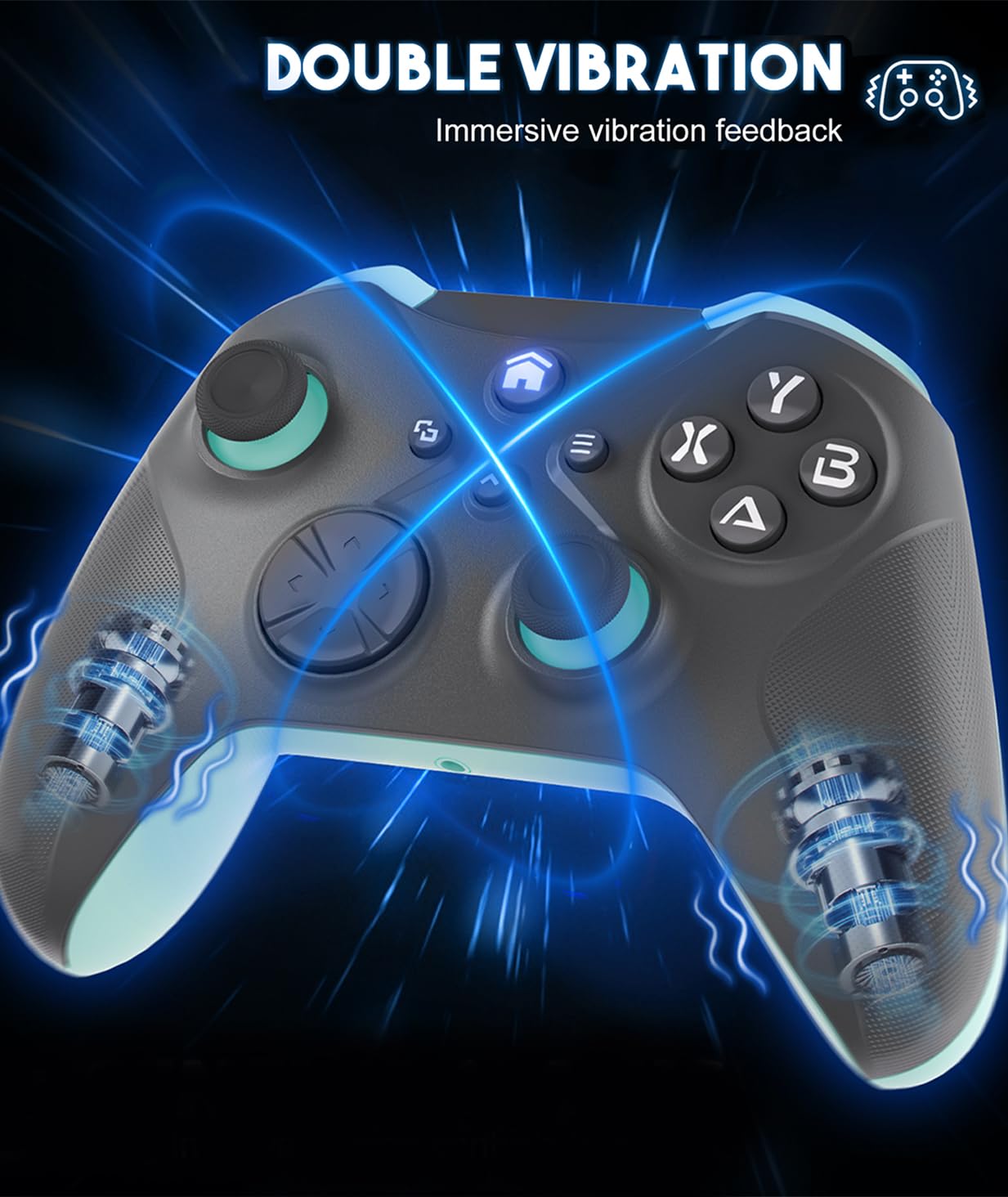
Image: Dual Vibration Feedback
This image visually represents the dual vibration feature of the Dinosoo Wireless Controller, indicating immersive vibration feedback for a more engaging gaming experience.
3.2 TURBO Function
The "TURBO" button allows for continuous transmission of button presses, enabling different combos for an enhanced gaming experience. To activate, hold the T key and then press any function key. The controller will then have a continuous transmission function for that key.
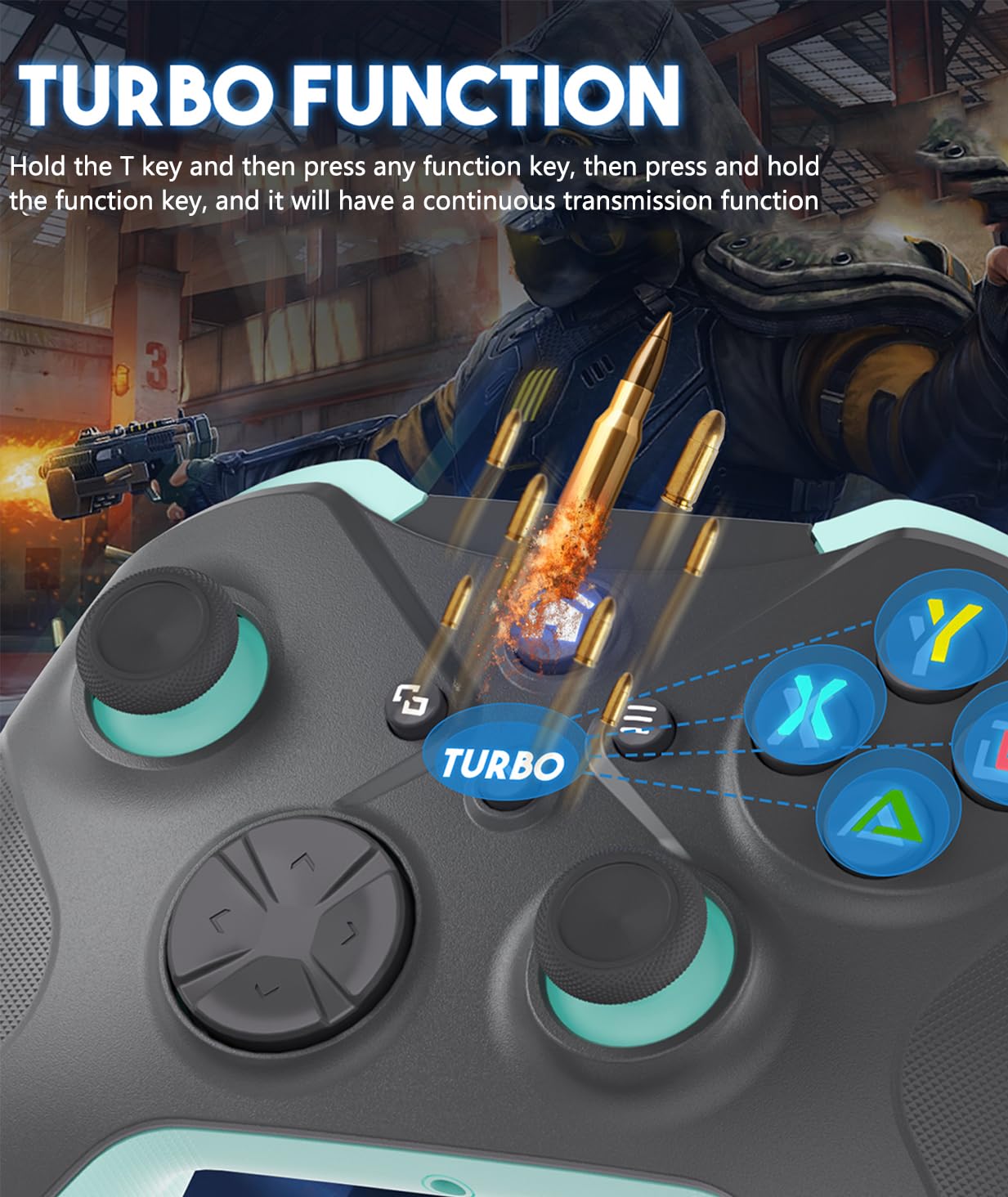
Image: TURBO Function
This image demonstrates the TURBO function, showing how to activate continuous transmission for specific buttons to execute rapid actions in games.
3.3 Programmable Buttons (Macro)
The PL/PR mappable advanced game buttons allow you to quickly program up to 16 combined function keys. This feature helps customize your gameplay and gain an advantage. To clear mapping settings, press "Set" for 3 seconds, then press "PL/PR".

Image: Programmable Button Design
This image highlights the programmable button design, showing the PL/PR keys and how they can be used to set 1-16 combined function keys for customized gaming.
4. Maintenance
- Keep the controller clean by wiping it with a dry, soft cloth.
- Avoid exposing the controller to extreme temperatures, humidity, or direct sunlight.
- Do not disassemble the controller, as this may void the warranty.
- Remove batteries if the controller will not be used for an extended period to prevent leakage.
5. Troubleshooting
5.1 Connection Issues
- Controller not connecting to Xbox: Ensure you have performed the mandatory PC upgrade as described in Section 2.1. After the upgrade, connect the controller via cable to the Xbox first, then attempt wireless pairing.
- Wireless connection unstable: Ensure the controller is within the 30-foot wireless range of your device. Check for any interference from other wireless devices.
- Bluetooth pairing failure: Verify that Bluetooth is enabled on your device and that the device's operating system meets the minimum requirements (e.g., iOS 13.0+).
5.2 Performance Issues
- Button delay or joystick drift: The controller features high-sensitivity joysticks designed to prevent these issues. If encountered, try resetting the controller or re-pairing it with your device.
- Vibration not working: Check game settings to ensure vibration feedback is enabled.
If you encounter persistent issues, please contact Dinosoo customer support for assistance.
6. Specifications
- Model Number: Xbox
- ASIN: B0FGND812F
- Manufacturer: Dinosoo
- Connectivity: Bluetooth/WIFI/Wired
- Wireless Range: Over 30 feet
- Compatibility: Xbox One, Xbox Series X, Xbox Series S, Xbox One S, Xbox One X, Android, iOS (13.0+), Windows 11/10/8/7
- Power Source: 2 x AA Batteries (not included)
- Features: Hall Effect Joysticks, Dual Vibration, Six-Axis Gyroscope, TURBO Function, Programmable Buttons, 3.5mm Headphone Jack, Non-Slip Grip
- Package Dimensions: 7.01 x 6.61 x 5 inches
- Item Weight: 1.39 pounds
- Date First Available: July 4, 2025
7. Warranty and Support
For warranty information and customer support, please refer to the documentation included with your product or contact the seller directly. Keep your proof of purchase for any warranty claims.