
1. Introduction
The LYNCAST VisualCube 300 is a compact and versatile mini projector designed for various entertainment and presentation needs. Featuring Android 11 OS, WiFi 6, Bluetooth 5.4, and automatic keystone correction, it offers a user-friendly experience with support for 1080P and 4K video playback. This manual provides essential information for setting up, operating, and maintaining your projector.
2. Package Contents
Please verify that all items are present in the package:
- LYNCAST VisualCube 300 Mini Projector
- Remote Control
- Power Adapter
- HDMI Cable
- Cleaning Kit
- User Manual (this document)

Figure 2.1: Included accessories with the VisualCube 300 projector.
3. Product Overview
3.1 Projector Components
Familiarize yourself with the main components and interfaces of your VisualCube 300 projector.

Figure 3.1: Overview of projector interfaces and compatible devices.
- Lens: Projects the image onto the screen or surface.
- Focus Ring: Manual adjustment for image clarity.
- HDMI Port: Connects to devices like laptops, gaming consoles, TV sticks.
- USB Port: Connects to USB drives or other compatible USB devices.
- Power Input: Connects to the power adapter.
- Speaker: Integrated audio output.
- Adjustable Stand: Allows for 270° rotation for flexible projection angles.
4. Setup
4.1 Initial Placement
- Place the projector on a stable, flat surface.
- Ensure the projection path is clear of obstructions.
- The projector supports a 0.8:1 ultra-short throw ratio, allowing a 100-inch projection from approximately 1.7 meters away.

Figure 4.1: Projection distances for various screen sizes.
4.2 Power Connection
- Connect the power adapter to the projector's power input port.
- Plug the power adapter into a wall outlet.
- The projector will power on or enter standby mode.
4.3 Network Connection (Wi-Fi)
- Navigate to the 'Settings' menu on the projector's home screen.
- Select 'Network & Internet'.
- Turn on Wi-Fi and select your desired network from the list.
- Enter the password if prompted and connect. The projector supports dual-band Wi-Fi 6 (2.4G and 5G).
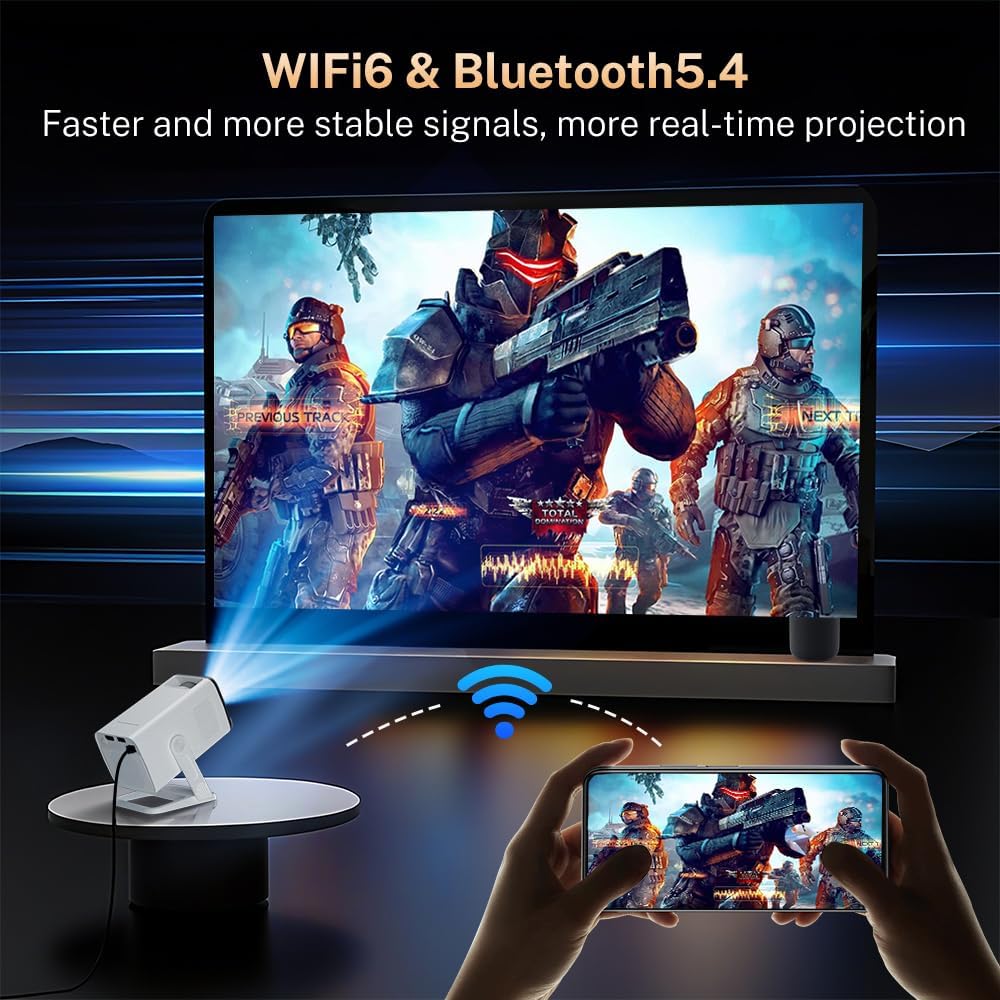
Figure 4.2: Wireless connectivity via WiFi 6 and Bluetooth 5.4.
5. Operating Instructions
5.1 Android 11 OS and Applications
The VisualCube 300 runs on Android 11 OS, providing access to a variety of streaming applications directly from the projector. You can access pre-installed apps or download new ones from the integrated App Store.

Figure 5.1: Android 11 OS interface with streaming applications.
5.2 Image Adjustment
The projector features automatic vertical keystone correction and manual focus for optimal image quality.
- Auto Keystone Correction: The projector automatically adjusts vertical image distortion (up to ±30°) to ensure a rectangular picture. This occurs automatically upon startup or movement.
- Manual Focus: If the image appears blurry, rotate the focus ring on the projector lens until the image becomes clear.

Figure 5.2: Auto keystone correction and manual focus adjustment.
5.3 Multi-Angle Projection
The projector's design allows for 270° rotation, enabling projection onto various surfaces such as walls, ceilings, or floors.
- Gently adjust the projector's body on its stand to achieve the desired projection angle.
- The auto keystone correction will help maintain a rectangular image.

Figure 5.3: 270° rotatable projection for flexible viewing.
5.4 Bluetooth Connectivity
Connect external Bluetooth speakers or headphones for enhanced audio.
- Enable Bluetooth on your external audio device and set it to pairing mode.
- On the projector, navigate to 'Settings' > 'Connected Devices' > 'Pair new device'.
- Select your device from the list to connect. The projector features Bluetooth 5.4.
5.5 Connecting External Devices (HDMI/USB)
The projector is compatible with various devices via HDMI and USB ports.
- HDMI: Connect your laptop, gaming console (e.g., PS5), TV stick, or other HDMI-enabled devices using the provided HDMI cable. Select the HDMI input source from the projector's menu.
- USB: Insert a USB flash drive to play media files directly. Select the USB input source or use the File Manager app.
- iOS/Android Devices: For screen mirroring from iOS/Android devices, an HDMI adapter (not included) is required to connect your phone to the projector via the HDMI port.
6. Maintenance
Proper maintenance ensures the longevity and performance of your projector.
- Lens Cleaning: Use the provided cleaning cloth and kit to gently wipe the projector lens. Avoid using abrasive materials or harsh chemicals.
- Dust Removal: Regularly clean the projector's vents to prevent dust buildup, which can affect cooling and performance. Use a soft brush or compressed air.
- Storage: When not in use, store the projector in a cool, dry place away from direct sunlight and extreme temperatures.
- Power Off: Always power off the projector correctly before unplugging it to prevent potential damage.
7. Troubleshooting
If you encounter issues with your LYNCAST VisualCube 300 projector, refer to the following common solutions:
- No Power: Ensure the power adapter is securely connected to both the projector and a working power outlet.
- No Image: Check the input source selection. If using HDMI, ensure the cable is properly connected and the correct HDMI input is selected.
- Blurry Image: Adjust the manual focus ring on the lens. Ensure the projector is placed at an appropriate distance from the projection surface.
- Distorted Image: The projector features auto vertical keystone correction. If the image is still distorted, try repositioning the projector or manually adjusting keystone settings if available in the menu.
- No Sound: Check the volume settings on the projector and any connected external audio devices. Ensure Bluetooth devices are properly paired. If using HDMI, verify the audio output settings on the connected source device.
- Wi-Fi Connection Issues: Ensure your Wi-Fi network is active and you have entered the correct password. Try restarting the projector and your router.
- Remote Control Not Working: Check the batteries in the remote control. Ensure there are no obstructions between the remote and the projector's IR receiver.
8. Specifications
| Feature | Specification |
|---|---|
| Brand | LYNCAST |
| Model Name | VisualCube 300 |
| Model Number | X1AQ |
| Display Technology | LCD |
| Image Brightness | 2000 lm |
| Image Contrast Ratio | 10000:1 |
| Aspect Ratio | 16:9, 4:3 |
| Native Display Resolution | 1280 x 720 (720P) |
| Supported Resolution | Up to 3840 x 2160 (4K) |
| Noise Level | 30 Decibels |
| Wattage | 43 watts |
| Power Source Type | AC |
| Refresh Rate | 60 Hz |
| Connectivity Technology | Bluetooth 5.4, HDMI, USB, Wi-Fi 6 (2.4G/5G) |
| Form Factor | Portable |
| Mounting Type | Tabletop, Wall, Tripod, Ceiling Mount |
| Product Dimensions | 11 x 8 x 13 cm |
| Product Weight | 356 g |
| Operating System | Android 11 |
| Special Features | Auto Keystone, Short Throw, Built-In Speakers, 270° Rotation |

Figure 8.1: Compact size and dimensions of the VisualCube 300 projector.
9. Warranty and Support
Your LYNCAST VisualCube 300 Mini Projector comes with a 1-year warranty from the date of purchase. Additionally, a full refund is available within 30 days for any quality-related issues. For technical support, warranty claims, or further assistance, please contact LYNCAST customer service through the official channels provided at the time of purchase.


