
1. Introduction
Thank you for choosing the BIGASUO BGP23 Portable Projector. This device integrates an Android 9.0 operating system, offering a versatile entertainment and presentation solution. It supports HD resolution (1280x720P) and features multiple connectivity options including HDMI, USB, VGA, and AV. This manual provides essential information for setting up, operating, maintaining, and troubleshooting your projector to ensure optimal performance.
2. Safety Information
- Power Supply: Use only the specified power adapter. Ensure the voltage matches your local power supply (220 Volts).
- Ventilation: Do not block the ventilation openings. Ensure adequate space around the projector for proper airflow to prevent overheating.
- Placement: Place the projector on a stable, level surface. Avoid placing it in direct sunlight, near heat sources, or in environments with high humidity or dust.
- Eye Protection: Do not look directly into the projector lens when the lamp is on, as the bright light can cause eye damage.
- Cleaning: Disconnect the power before cleaning. Use a soft, dry cloth for the exterior and a lens cleaning kit for the lens.
- Disassembly: Do not attempt to disassemble or repair the projector yourself. Refer all servicing to qualified personnel.
3. Package Contents
Verify that all items are present in your package:
- BIGASUO BGP23 Projector
- Remote Controller
- Power Adapter
- HDMI Cable
- AV Cable
- User Manual
- Tripod (may vary by package)
4. Product Overview
Familiarize yourself with the projector's components and interfaces.
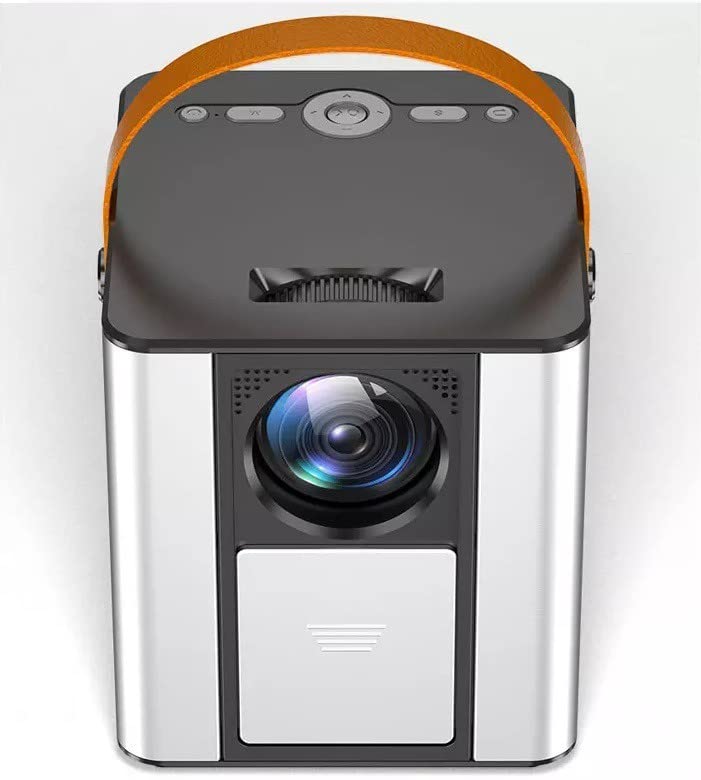
Figure 4.1: Front view of the BIGASUO BGP23 Portable Projector with its lens and carrying handle.
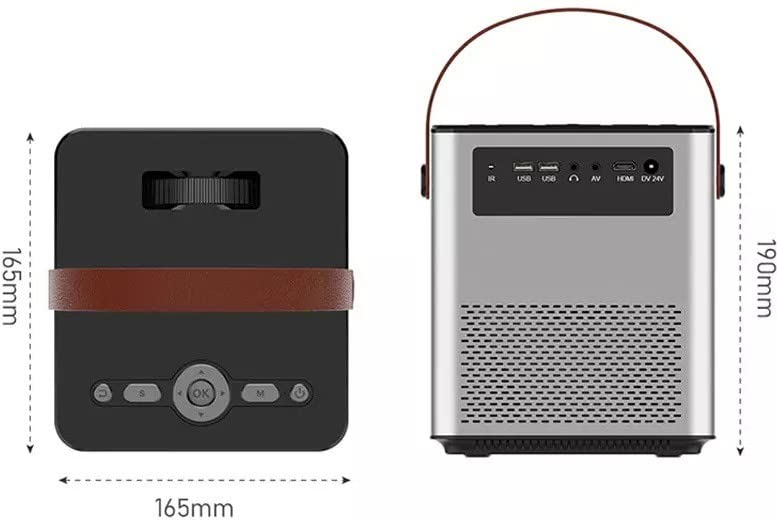
Figure 4.2: Dimensions of the BIGASUO BGP23 Projector and a view of its rear panel, showing various input/output ports.
4.1. Interfaces and Controls
- Lens: Projects the image onto the screen.
- Focus Ring: Adjusts image clarity.
- Keystone Correction Knob: Corrects trapezoidal image distortion.
- IR Receiver: For remote control signals.
- USB Ports: For connecting USB storage devices (e.g., flash drives) for media playback.
- HDMI Port: For connecting external devices like laptops, gaming consoles, or media players.
- VGA Port: For connecting older computers or devices.
- AV Port: For connecting legacy audio/video devices.
- Audio Out (3.5mm): For connecting external speakers or headphones.
- Power Input: Connects to the power adapter.
- Control Panel: On-device buttons for basic navigation and settings.
5. Setup
5.1. Initial Placement
- Place the projector on a stable surface or mount it securely.
- Position the projector at an appropriate distance from the projection surface (wall or screen) to achieve the desired image size.
5.2. Power Connection
- Connect the power adapter to the projector's power input port.
- Plug the power adapter into a suitable electrical outlet.
- Press the power button on the projector or remote control to turn on the device.
5.3. Image Adjustment
- Focus: Rotate the focus ring on the projector lens until the projected image appears sharp and clear.
- Keystone Correction: If the image appears trapezoidal (wider at the top or bottom), adjust the keystone correction knob until the image is rectangular.
6. Operating Instructions
6.1. Remote Control
The included remote control allows for convenient operation of the projector. Ensure AAA batteries are installed (not included).
6.2. Android Operating System
The projector runs on Android 9.0, providing access to various applications and features.
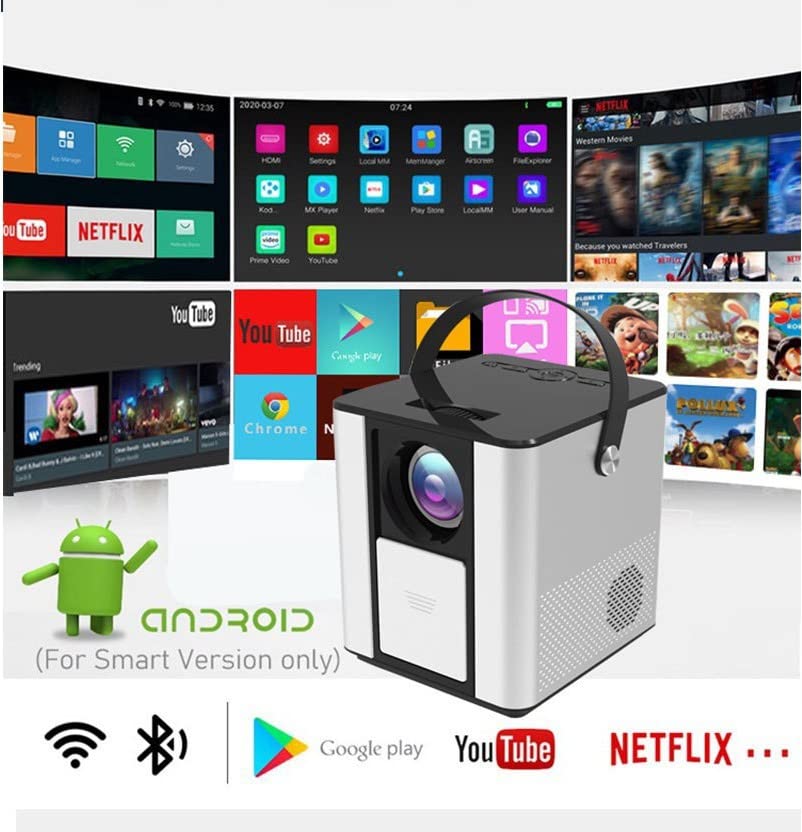
Figure 6.1: The Android interface of the BIGASUO BGP23 Projector, showing various pre-installed application icons.
- Navigation: Use the arrow keys on the remote to navigate through the Android interface. The 'OK' button selects items.
- Home Screen: Access pre-installed apps like YouTube, Netflix, and the Google Play Store.
- Settings: Access system settings for Wi-Fi, Bluetooth, display, sound, and more.
- App Installation: Download and install additional applications from the Google Play Store.
6.3. System Updates
To ensure compatibility and optimal performance, regularly check for and install system updates. Navigate to the system settings to find the update option. If you encounter software incompatibility issues, updating the system is recommended.
7. Connectivity
7.1. HDMI Connection
Connect external devices such as laptops, Blu-ray players, or gaming consoles using an HDMI cable. Select the HDMI input source from the projector's input menu.
7.2. USB Media Playback
Insert a USB flash drive into one of the USB ports. The projector's file manager will typically detect the drive, allowing you to browse and play supported media files (videos, photos, music).
7.3. Wireless Projection (Screen Mirroring)
The projector supports wireless screen mirroring from compatible smartphones and tablets. Refer to the projector's on-screen instructions for specific steps to connect your device via Wi-Fi.
7.4. Bluetooth Audio
Connect external Bluetooth speakers or headphones to the projector for enhanced audio. Navigate to the Bluetooth settings in the Android OS, enable Bluetooth, and pair with your desired audio device.
8. Maintenance
- Lens Cleaning: Use a professional lens cleaning cloth and solution to gently clean the projector lens. Avoid touching the lens with bare hands.
- Exterior Cleaning: Wipe the projector's exterior with a soft, dry cloth. Do not use abrasive cleaners or solvents.
- Ventilation Maintenance: Periodically check and clean the ventilation grilles to prevent dust buildup, which can impede airflow and cause overheating.
- Storage: When not in use for extended periods, store the projector in a cool, dry, dust-free environment, preferably in its original packaging or a protective case.
9. Troubleshooting
If you encounter issues with your projector, refer to the following common problems and solutions:
| Problem | Possible Solution |
|---|---|
| No Power | Ensure the power adapter is securely connected to both the projector and a working power outlet. Check the power button. |
| No Image / No Signal | Verify the input source is correctly selected (e.g., HDMI 1, USB). Check cable connections (HDMI, VGA, AV) for looseness or damage. Try a different cable or device. |
| Blurry Image | Adjust the focus ring on the lens. Ensure the projection distance is within the recommended range. Clean the lens if it is dirty. |
| Trapezoidal Image | Adjust the keystone correction knob until the image is rectangular. Ensure the projector is placed perpendicular to the screen. |
| Remote Control Unresponsive | Check and replace the batteries in the remote control. Ensure there are no obstructions between the remote and the projector's IR receiver. |
| Applications Not Working / Software Issues | Check for and install any available system updates. Clear the cache of the problematic application. If the issue persists, consider a factory reset (backup data first) or contact customer support. |
| No Audio | Check the volume settings on both the projector and the connected source device. If using external speakers, ensure they are properly connected and powered on. Verify Bluetooth pairing if using wireless audio. |
10. Specifications
The following are the technical specifications for the BIGASUO BGP23 Projector:
- Brand: BIGASUO
- Model: BGP23
- Operating System: Android 9.0
- Display Type: LCD
- Native Resolution: 1280 x 720 Pixels
- Supported Resolution: 1920 Pixels (Full HD)
- Aspect Ratio: 16:9
- Connectivity Technology: Bluetooth, HDMI, USB, VGA, AV
- Bluetooth Version: 5.0
- Voltage: 220 Volts
- Wattage: 50 Watts
- Refresh Rate: 60 Hz
- Product Dimensions: 10 x 25 x 10 cm
- Item Weight: 2.5 kg
- Form Factor: Portable
- Mounting Type: Tabletop Mount
11. Warranty and Support
For warranty information and technical support, please refer to the warranty card included with your product or visit the official BIGASUO support website. Contact information for Bigasuo Support Team is typically provided with the product documentation.
